> ## Documentation Index
> Fetch the complete documentation index at: https://help.kibu.com/llms.txt
> Use this file to discover all available pages before exploring further.
# Creating Live Classes
> Administrators can create and schedule their own live classes for members in addition to Kibu's daily programming.
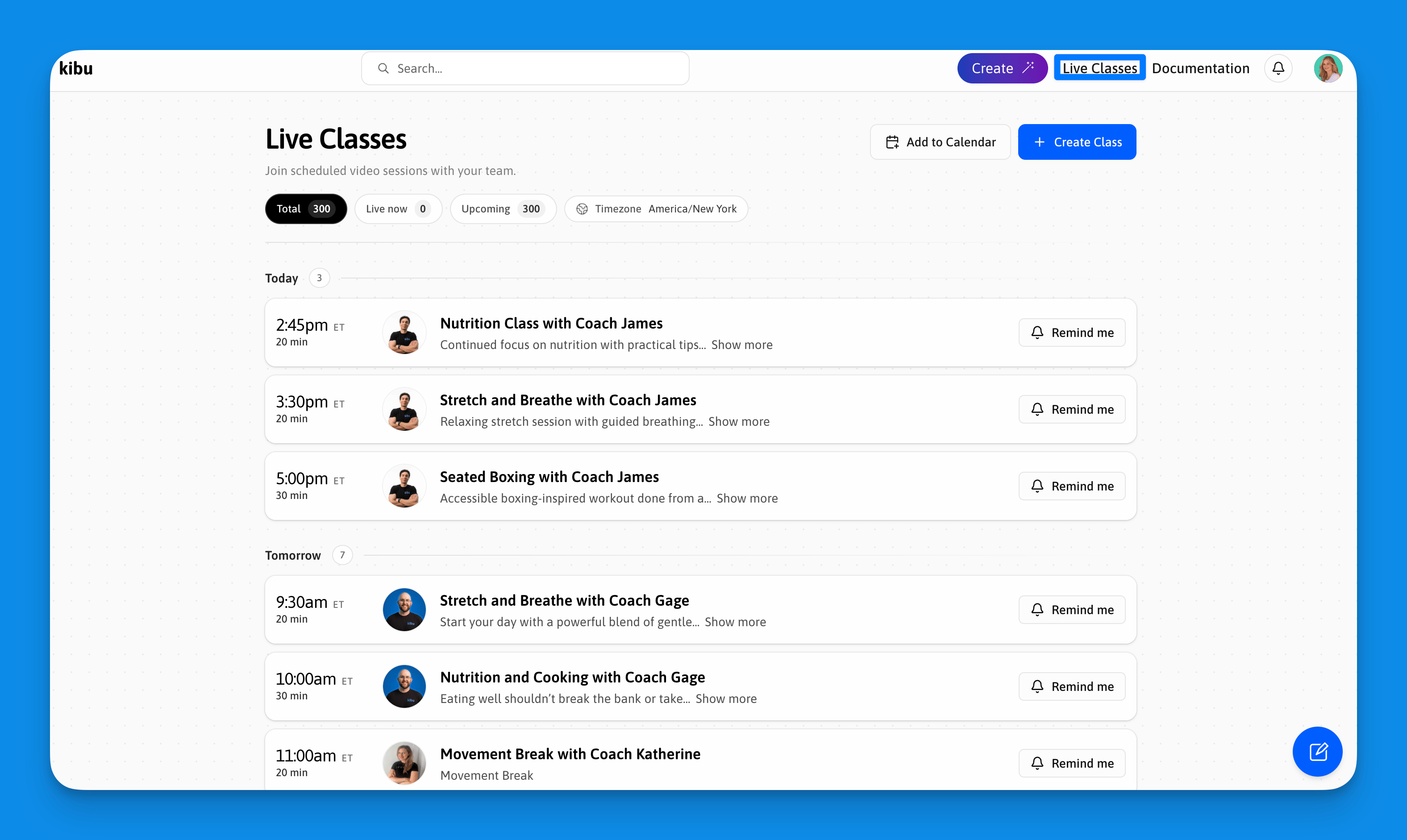 Organizations can host their own live classes directly inside Kibu, alongside the daily sessions run by Kibu coaches. This is useful for staff-led activities, organization-specific programming, or recurring group sessions on your own timetable.
Creating live classes requires administrator access. Staff members can view and join classes but cannot create them.
## Creating a class
Navigate to **Live Classes** from the top navigation bar.
The button is in the top right of the Live Classes page.
This appears on the class card that members and staff see. Keep it clear and descriptive, for example, "Morning Movement" or "Tuesday Social Skills Group."
The first \~50 characters appear on the class card. Longer descriptions are tucked behind a "Show more" toggle. Use this to tell participants what to expect or what to bring.
Choose the date, time, and timezone. Enter the duration in minutes. Classes default to 60 minutes, adjust to match your session length.
Choose whether the class repeats. Recurring classes are created automatically on the chosen schedule without needing to be re-entered each time.
Choose the staff member who will lead the class. Their name and photo will appear on the class card.
The class is added to your Live Classes schedule immediately and is visible to all members and staff in your organization.
## What the class card shows
Once created, your class appears in the Live Classes schedule alongside Kibu's programming. Each card displays:
* Class title and description
* Instructor name and photo
* Scheduled time and timezone
* Duration
* Status - upcoming, live now, or ended
Members and staff can set a **Remind me** notification so they don't miss it.
## Managing your classes
Open the class from the Live Classes schedule and select the edit option. You can update the title, description, start time, duration, repeat cadence, and instructor.
Open the class and select the delete or cancel option. For recurring classes, you can choose to delete just the one occurrence or all future instances in the series.
Past classes remain visible in the schedule with an "ended" status. Use the calendar view to navigate to previous dates.
## Tips for running great sessions
* **Test your setup before going live.** Join the class a few minutes early to check audio, video, and screen sharing.
* **Use recurring classes for regular programming.** Setting a repeat cadence means your weekly groups show up automatically, no need to recreate them each week.
* **Keep descriptions short and specific.** The first 50 characters are what most people read before joining.
* **Share the schedule.** Members and staff can add the Kibu Live Classes calendar to Google Calendar or Outlook. See [Live Classes](/content/live-classes) for instructions.
Kibu's own daily programming runs alongside your organization's classes. Members see both in the same schedule view, so your sessions benefit from the same join experience as Kibu's built-in programming.
Organizations can host their own live classes directly inside Kibu, alongside the daily sessions run by Kibu coaches. This is useful for staff-led activities, organization-specific programming, or recurring group sessions on your own timetable.
Creating live classes requires administrator access. Staff members can view and join classes but cannot create them.
## Creating a class
Navigate to **Live Classes** from the top navigation bar.
The button is in the top right of the Live Classes page.
This appears on the class card that members and staff see. Keep it clear and descriptive, for example, "Morning Movement" or "Tuesday Social Skills Group."
The first \~50 characters appear on the class card. Longer descriptions are tucked behind a "Show more" toggle. Use this to tell participants what to expect or what to bring.
Choose the date, time, and timezone. Enter the duration in minutes. Classes default to 60 minutes, adjust to match your session length.
Choose whether the class repeats. Recurring classes are created automatically on the chosen schedule without needing to be re-entered each time.
Choose the staff member who will lead the class. Their name and photo will appear on the class card.
The class is added to your Live Classes schedule immediately and is visible to all members and staff in your organization.
## What the class card shows
Once created, your class appears in the Live Classes schedule alongside Kibu's programming. Each card displays:
* Class title and description
* Instructor name and photo
* Scheduled time and timezone
* Duration
* Status - upcoming, live now, or ended
Members and staff can set a **Remind me** notification so they don't miss it.
## Managing your classes
Open the class from the Live Classes schedule and select the edit option. You can update the title, description, start time, duration, repeat cadence, and instructor.
Open the class and select the delete or cancel option. For recurring classes, you can choose to delete just the one occurrence or all future instances in the series.
Past classes remain visible in the schedule with an "ended" status. Use the calendar view to navigate to previous dates.
## Tips for running great sessions
* **Test your setup before going live.** Join the class a few minutes early to check audio, video, and screen sharing.
* **Use recurring classes for regular programming.** Setting a repeat cadence means your weekly groups show up automatically, no need to recreate them each week.
* **Keep descriptions short and specific.** The first 50 characters are what most people read before joining.
* **Share the schedule.** Members and staff can add the Kibu Live Classes calendar to Google Calendar or Outlook. See [Live Classes](/content/live-classes) for instructions.
Kibu's own daily programming runs alongside your organization's classes. Members see both in the same schedule view, so your sessions benefit from the same join experience as Kibu's built-in programming.