> ## Documentation Index
> Fetch the complete documentation index at: https://help.kibu.com/llms.txt
> Use this file to discover all available pages before exploring further.

# Content Usage

> Track engagement, participation, and goal completion. Export for billing, compliance, and program decisions.

## Content analytics

A dedicated dashboard shows how members engage with Kibu's classes and activities. Navigate to Documentation → Content Usage.
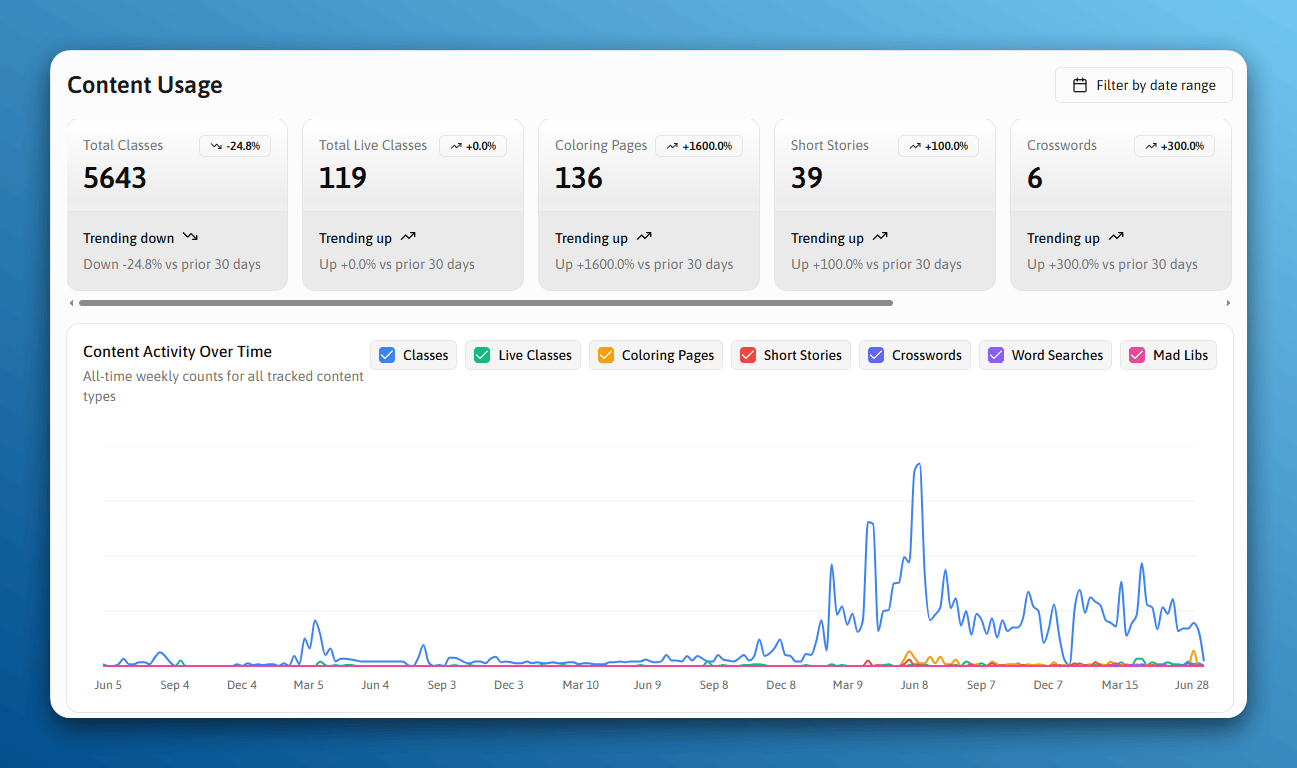
<Frame caption="The Content Usage dashboard showing total content counts and content activity over time.">
  <img src="https://mintcdn.com/kibu/_G0v92reaQwLDhOW/images/content-usage-dashboard.png?fit=max&auto=format&n=_G0v92reaQwLDhOW&q=85&s=99c2816c76ea37528ff0a454163facbc" alt="The Content Usage dashboard with summary stat cards and a Content Activity Over Time line chart" width="1297" height="768" data-path="images/content-usage-dashboard.png" />
</Frame>

## Key metrics

<Columns cols={2}>
  <Card title="Live stream attendance" icon="radio" />

  <Card title="On-demand class completion rates" icon="circle-play" />

  <Card title="Goal achievement rates" icon="trophy" />

  <Card title="Activity engagement trends over time" icon="arrow-trend-up" />
</Columns>

## Exporting a usage report

<Steps>
  <Step title="Navigate to the Usage Report table" />

  <Step title="Select your date range and apply relevant filters" />

  <Step title="Click Download">
    The report downloads as an Excel (.xlsx) file.
  </Step>
</Steps>
