> ## Documentation Index
> Fetch the complete documentation index at: https://help.kibu.com/llms.txt
> Use this file to discover all available pages before exploring further.
# Clara Narratives - AI Assistant
> Let us introduce you to Clara Narratives, your AI Assistant helping streamline compliance.
 ## What is Clara?
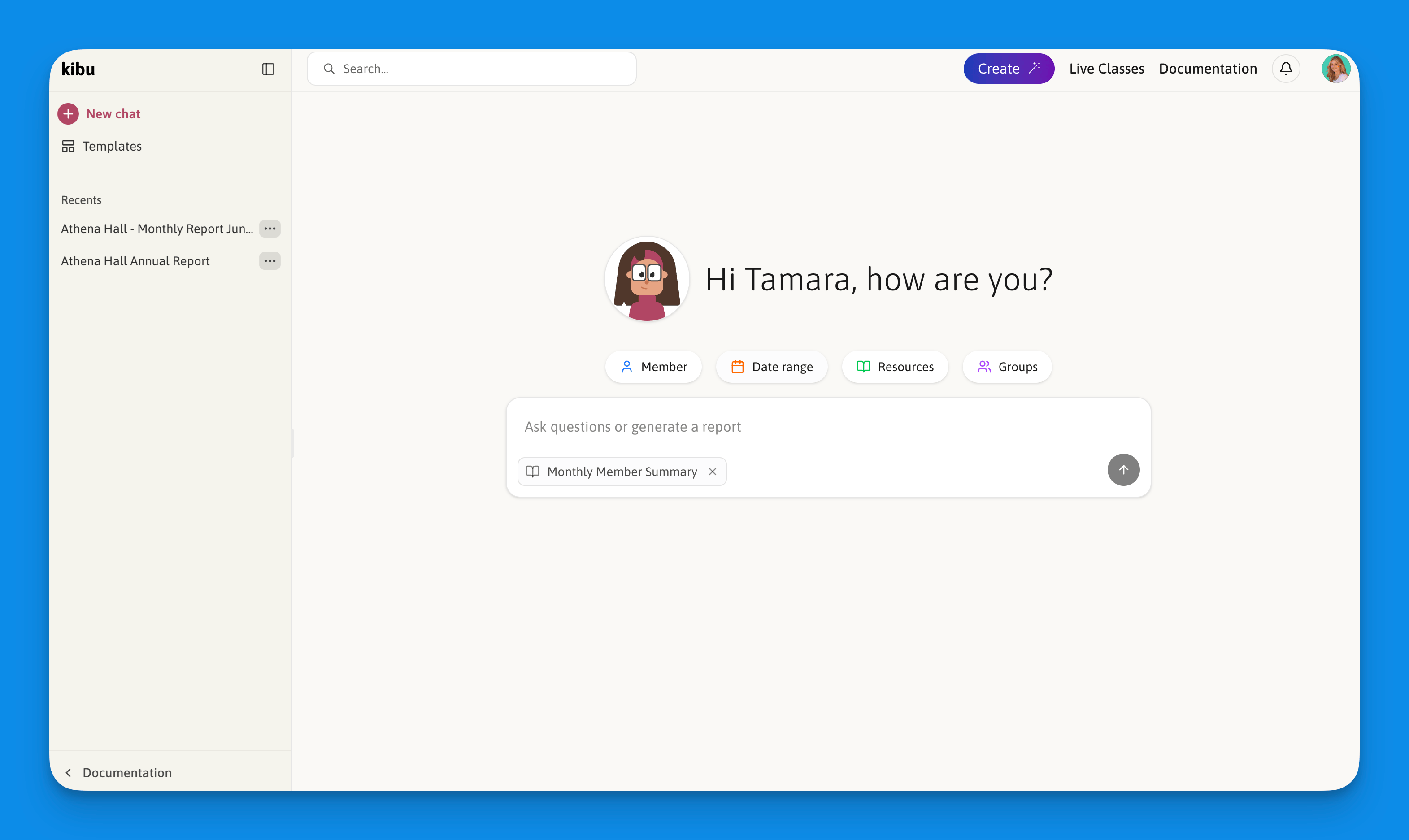
Clara is Kibu's AI assistant that helps you generate reports and analyze member data. You can find Clara in the bottom-left of the sidebar in the Documentation section.
By analyzing your organization's data, Clara can:
* Create comprehensive written summaries and reports for any member
* Generate graphs to visualize trends over time
* Calculate numbers and totals from member data
* Dramatically reduce the time you spend on reporting from days to minutes
Clara can access a broad range of member data including service records, life plan goal data, member profile, medical data, forms, and quick forms. All selectable for your own custom reporting.
***
## How to use Clara Narratives
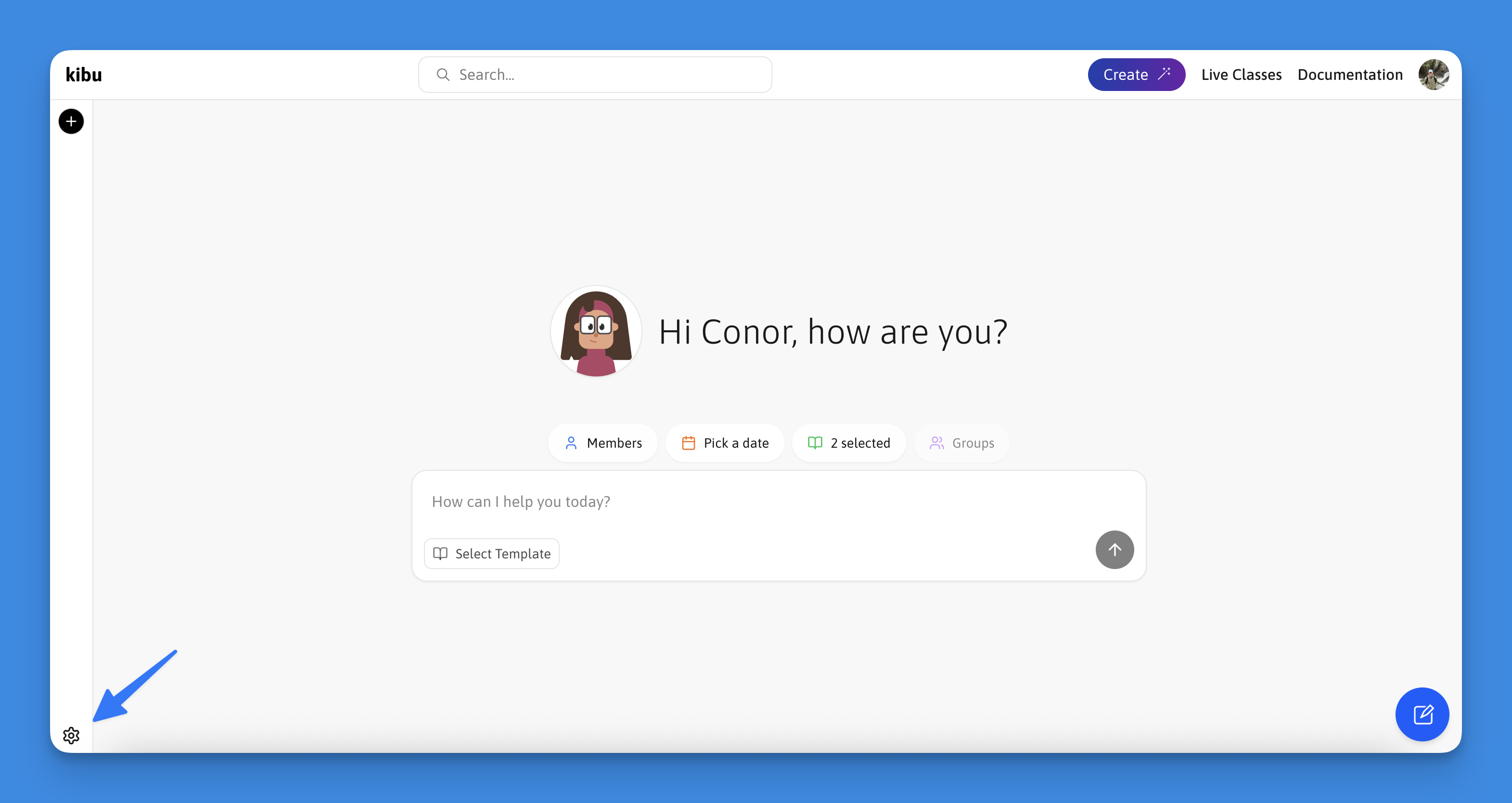
Choose what data Clara should analyze:
* **Member:** Select the specific member you need a report for
* **Time Range:** Specify the period for data analysis
* **Resources:** Pick your data sources:
* Service Records
* Life Plan Tasks
* Or both
* **Groups:** Choose which groups' data to include
* **Template:** Select your preferred report template from the available options
We provide several pre-built templates to choose from for common reporting needs:
* Daily Life and Engagement Report
* Goal Progress Snapshot
* Monthly Member Summary
Because compliance does not mean the same thing for every organization, Clara allows you to:
## What is Clara?
Clara is Kibu's AI assistant that helps you generate reports and analyze member data. You can find Clara in the bottom-left of the sidebar in the Documentation section.
By analyzing your organization's data, Clara can:
* Create comprehensive written summaries and reports for any member
* Generate graphs to visualize trends over time
* Calculate numbers and totals from member data
* Dramatically reduce the time you spend on reporting from days to minutes
Clara can access a broad range of member data including service records, life plan goal data, member profile, medical data, forms, and quick forms. All selectable for your own custom reporting.
***
## How to use Clara Narratives
Choose what data Clara should analyze:
* **Member:** Select the specific member you need a report for
* **Time Range:** Specify the period for data analysis
* **Resources:** Pick your data sources:
* Service Records
* Life Plan Tasks
* Or both
* **Groups:** Choose which groups' data to include
* **Template:** Select your preferred report template from the available options
We provide several pre-built templates to choose from for common reporting needs:
* Daily Life and Engagement Report
* Goal Progress Snapshot
* Monthly Member Summary
Because compliance does not mean the same thing for every organization, Clara allows you to:
 * Create new templates from scratch
* Specify custom formatting requirements
* Define specific data points to highlight
* Save templates for future use
If you would like to create a custom template, follow the instructions in the [How to Create a Custom Template](#how-to-create-a-custom-template) section below.
Once you click "Let's Chat" you will be able to chat with Clara and summarize your data:
* Create new templates from scratch
* Specify custom formatting requirements
* Define specific data points to highlight
* Save templates for future use
If you would like to create a custom template, follow the instructions in the [How to Create a Custom Template](#how-to-create-a-custom-template) section below.
Once you click "Let's Chat" you will be able to chat with Clara and summarize your data:
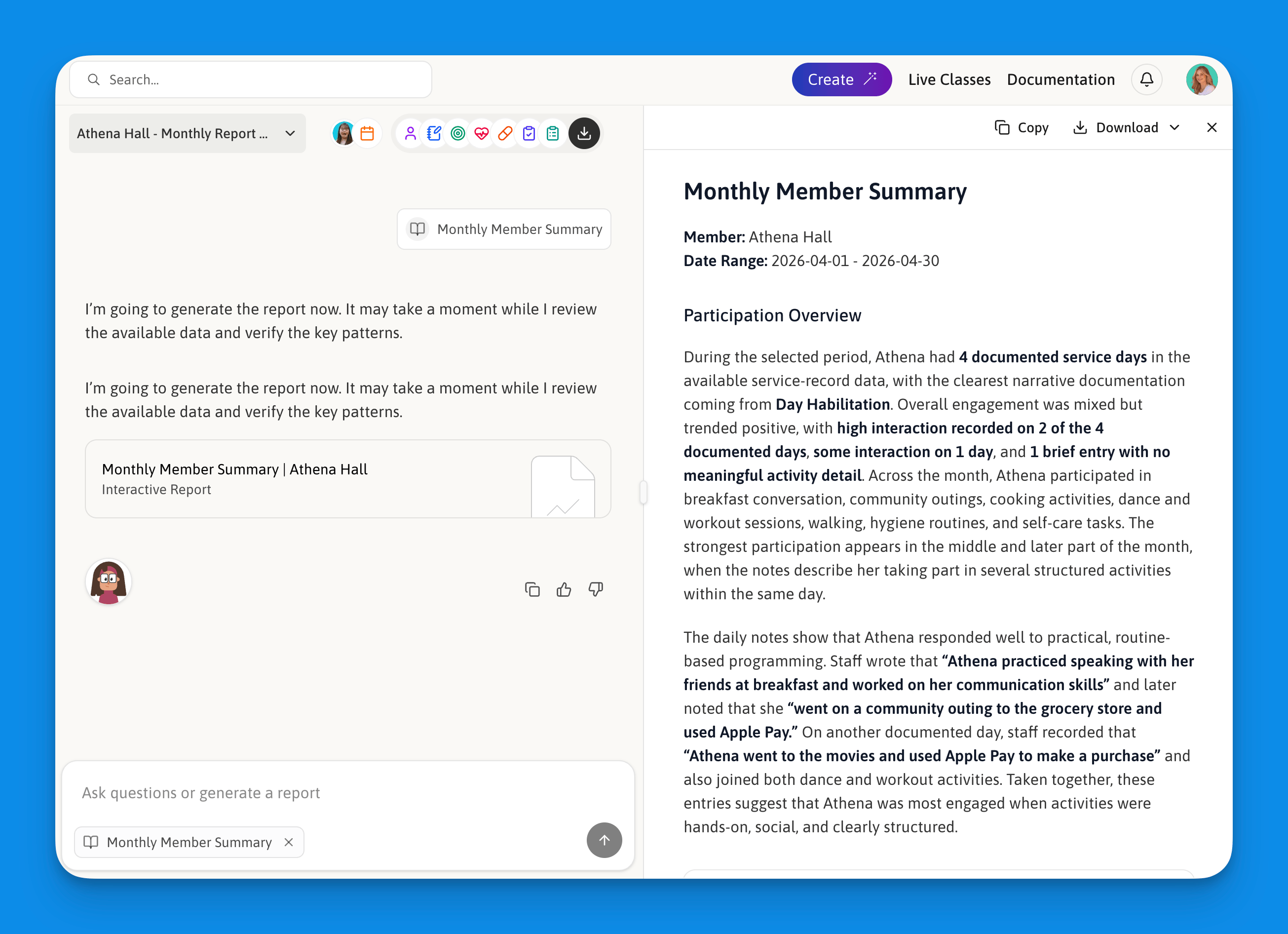
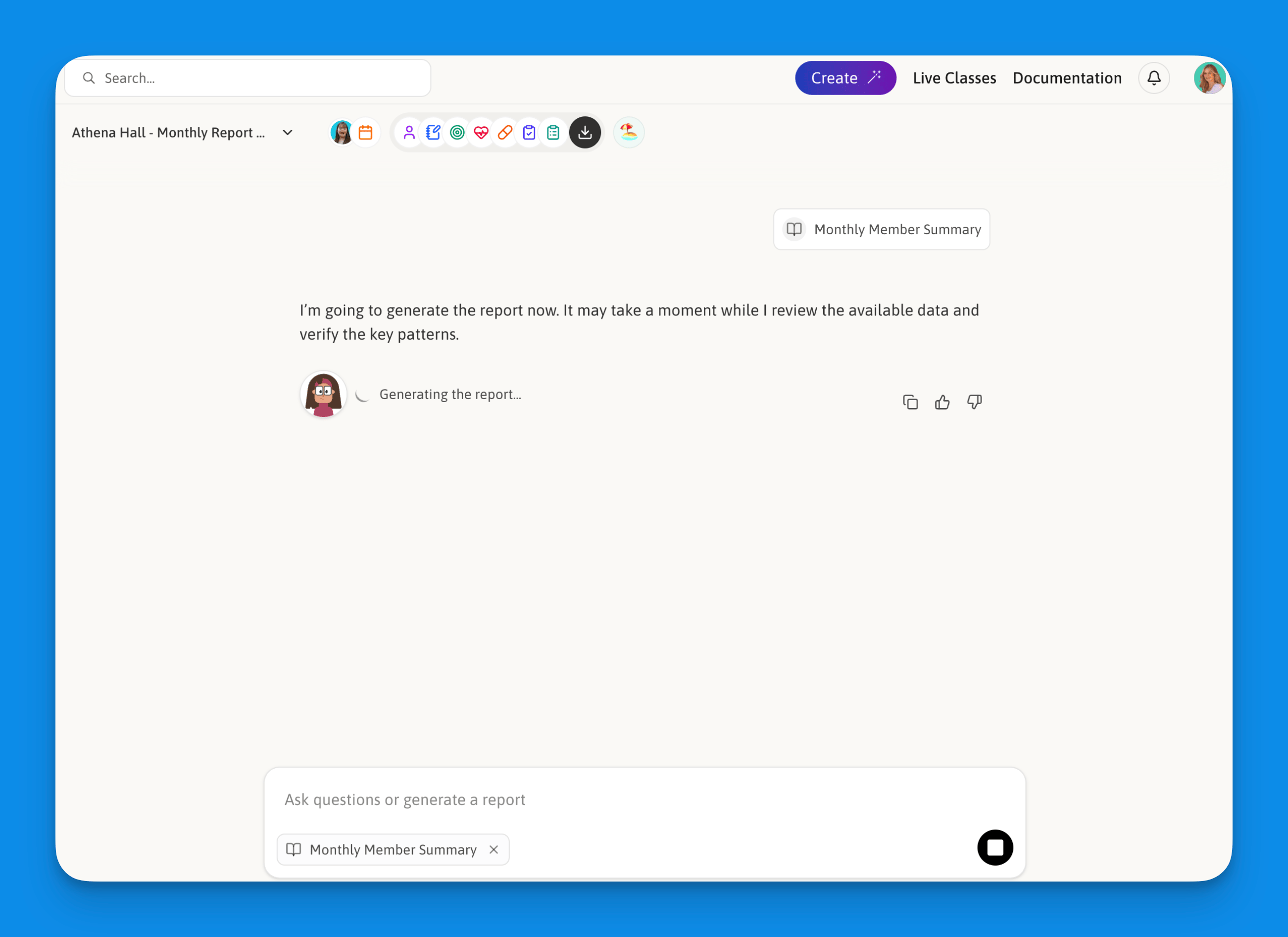 Clara will analyze all data based on your selected template, counting reviewed service records and life plan tasks in the selected date range.
***
## Generating Reports
Clara will analyze all data based on your selected template, counting reviewed service records and life plan tasks in the selected date range.
***
## Generating Reports
 ### Step-by-Step Process
* Number of records analyzed
* Types of data included
* Date range covered
It's That Easy!
***
## How to Create a Custom Template
* Report structure
* Section organization
* Data emphasis points
* Summary format
When creating custom templates, consider your organization's specific compliance requirements and reporting standards to ensure generated reports meet all necessary criteria. If you need help you can always email [support@kibuhq.com](mailto:support@kibuhq.com)
***
## Managing Report Templates
To view, create, or edit your organization's report templates, open Clara and navigate to the template management section. From here you can:
* Create a new template from scratch
* Edit an existing template
* Delete templates you no longer need
When creating a template, define the report structure, the sections you want included, and any specific data points or formatting requirements. Save the template and it will be available to all staff in your organization whenever they use Clara.
***
## Report Features
Detailed summaries of all selected data.
Reports adapt to your chosen template.
Structured to meet documentation requirements.
Copy directly into your records or monthly reports.
***
## Benefits
* Reduce monthly reporting time from days to under an hour
* Eliminate manual data compilation
* Instant access to organized information
* Consistent reporting format
* Comprehensive data analysis
* Reduced human error
* Custom templates for specific needs
* Multiple data source integration
* Adjustable time ranges
***
## Best Practices
* **Template Management:** Review and update templates if compliance changes for your organization
* **Data Verification:** Always review generated reports for accuracy
While Clara significantly streamlines report generation, it's important to review all AI-generated content for accuracy and completeness before using it in official documentation.
***
## Downloading Reports
Once Clara has generated a report, you can download it as a PDF or Word document to share, file, or include in your records. Click the download button after a report has been generated and choose your preferred format.
### Step-by-Step Process
* Number of records analyzed
* Types of data included
* Date range covered
It's That Easy!
***
## How to Create a Custom Template
* Report structure
* Section organization
* Data emphasis points
* Summary format
When creating custom templates, consider your organization's specific compliance requirements and reporting standards to ensure generated reports meet all necessary criteria. If you need help you can always email [support@kibuhq.com](mailto:support@kibuhq.com)
***
## Managing Report Templates
To view, create, or edit your organization's report templates, open Clara and navigate to the template management section. From here you can:
* Create a new template from scratch
* Edit an existing template
* Delete templates you no longer need
When creating a template, define the report structure, the sections you want included, and any specific data points or formatting requirements. Save the template and it will be available to all staff in your organization whenever they use Clara.
***
## Report Features
Detailed summaries of all selected data.
Reports adapt to your chosen template.
Structured to meet documentation requirements.
Copy directly into your records or monthly reports.
***
## Benefits
* Reduce monthly reporting time from days to under an hour
* Eliminate manual data compilation
* Instant access to organized information
* Consistent reporting format
* Comprehensive data analysis
* Reduced human error
* Custom templates for specific needs
* Multiple data source integration
* Adjustable time ranges
***
## Best Practices
* **Template Management:** Review and update templates if compliance changes for your organization
* **Data Verification:** Always review generated reports for accuracy
While Clara significantly streamlines report generation, it's important to review all AI-generated content for accuracy and completeness before using it in official documentation.
***
## Downloading Reports
Once Clara has generated a report, you can download it as a PDF or Word document to share, file, or include in your records. Click the download button after a report has been generated and choose your preferred format.