> ## Documentation Index
> Fetch the complete documentation index at: https://help.kibu.com/llms.txt
> Use this file to discover all available pages before exploring further.
# Creating Life Plan Goals
> This guide will walk you through the process of creating effective Life Plan Goals in Kibu.
Life Plan Goals in Kibu are member-specific, unique to each individual, unlike daily notes, which are shared across the group.
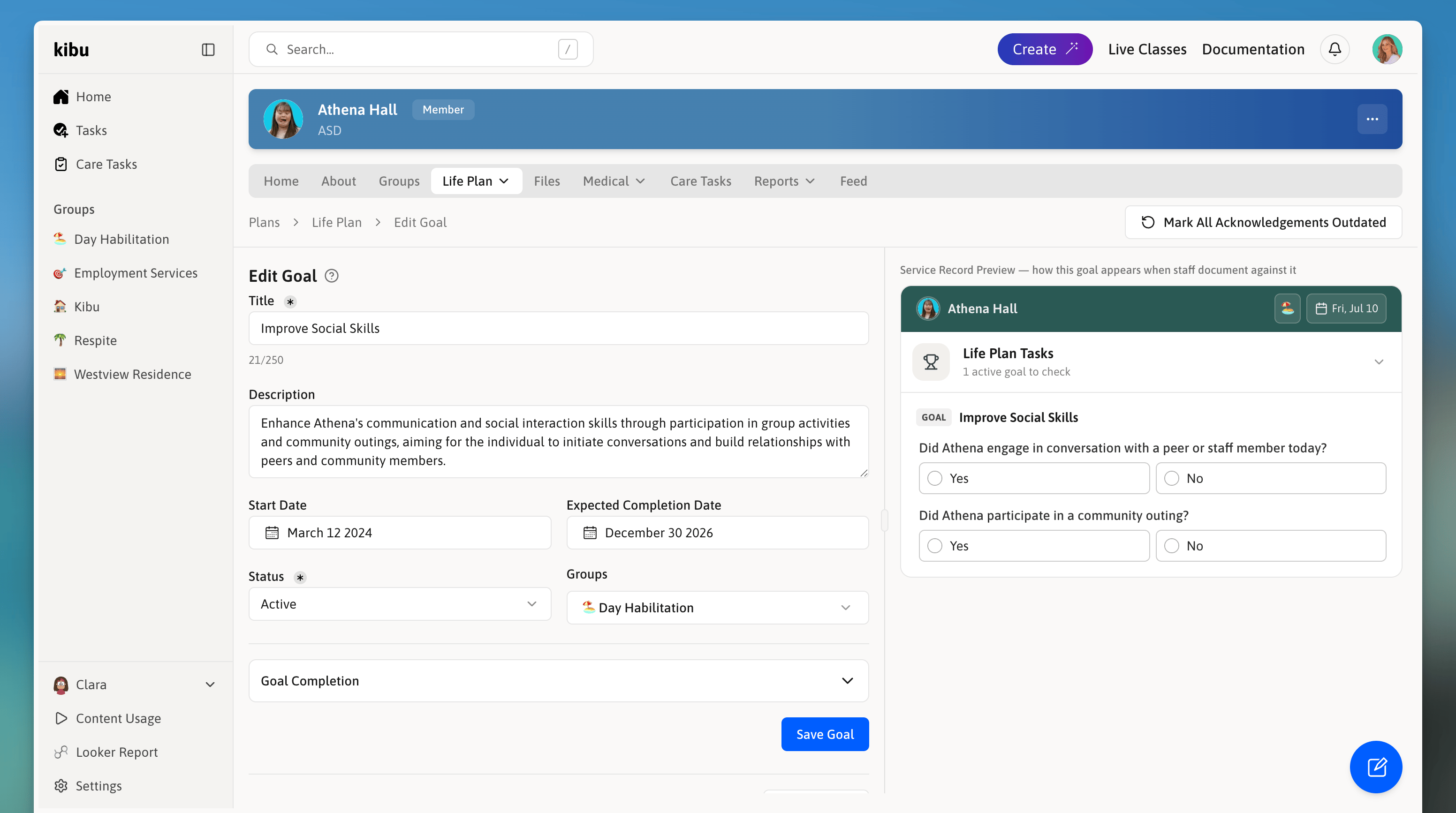 ## Before You Begin
Ensure you have:
* Your groups correctly created
* Member(s) added to their correct group assignments
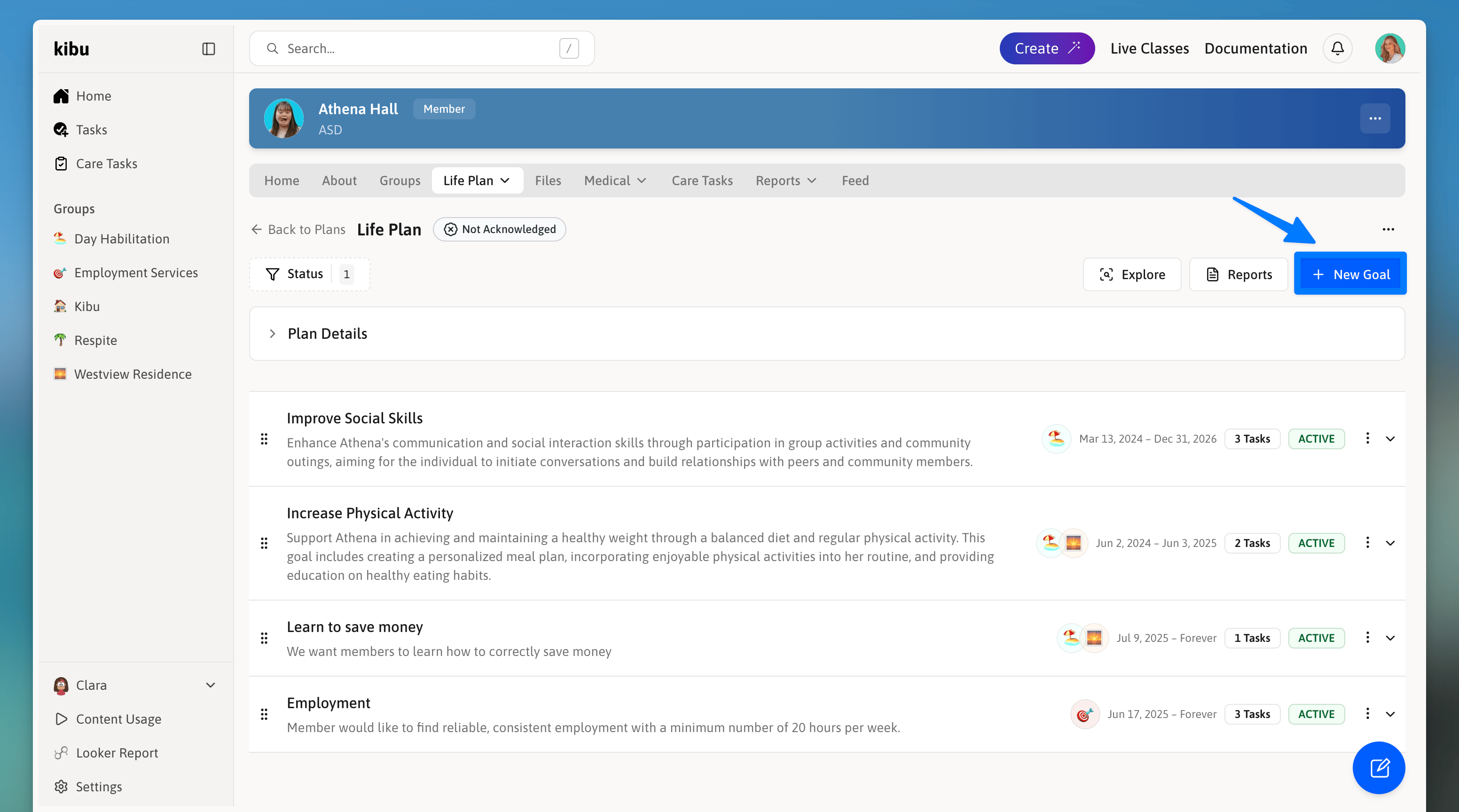
You can save time by copying existing goals from other members. After clicking the "+ New Goal" button, select "Copy From Member" to search and select a previously created goal. The selected goal and tasks will be copied and can be customized for the current member, eliminating the need to create similar goals from scratch.
## Step-by-Step Creation Process
## Before You Begin
Ensure you have:
* Your groups correctly created
* Member(s) added to their correct group assignments
You can save time by copying existing goals from other members. After clicking the "+ New Goal" button, select "Copy From Member" to search and select a previously created goal. The selected goal and tasks will be copied and can be customized for the current member, eliminating the need to create similar goals from scratch.
## Step-by-Step Creation Process
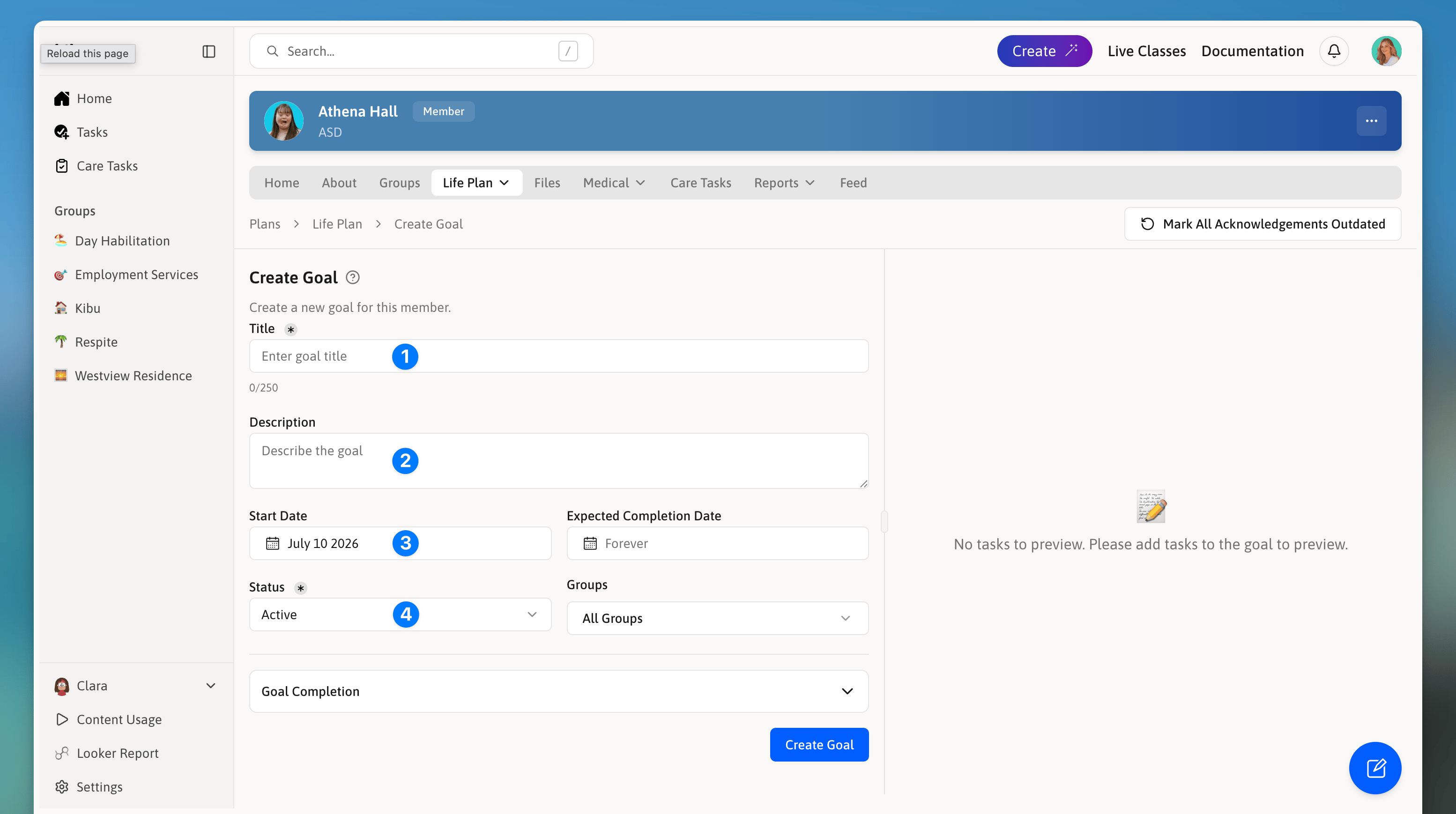 * **Goal Title:** Enter a clear, descriptive name.
* **Goal Description:** Provide context about the goal.
* **Target Date:** Set the completion timeframe if this is a goal with a deadline.
* **Group Assignment:** Select which group(s) will track this goal for the specific member.
* **Select Create:** Once you are satisfied with your goal details press the **Create** button.
Now to configure the questions that allow you to track goal progress, choose the most appropriate format for your goal tracking. We know this can be an intimidating process so we have outlined how best to use each option below:
Tips for writing initial questions:
* Keep questions simple and direct
* Focus on one specific behavior or task per question
* Use consistent terminology across goals
* Consider how the data will be used for progress tracking
* **Goal Title:** Enter a clear, descriptive name.
* **Goal Description:** Provide context about the goal.
* **Target Date:** Set the completion timeframe if this is a goal with a deadline.
* **Group Assignment:** Select which group(s) will track this goal for the specific member.
* **Select Create:** Once you are satisfied with your goal details press the **Create** button.
Now to configure the questions that allow you to track goal progress, choose the most appropriate format for your goal tracking. We know this can be an intimidating process so we have outlined how best to use each option below:
Tips for writing initial questions:
* Keep questions simple and direct
* Focus on one specific behavior or task per question
* Use consistent terminology across goals
* Consider how the data will be used for progress tracking
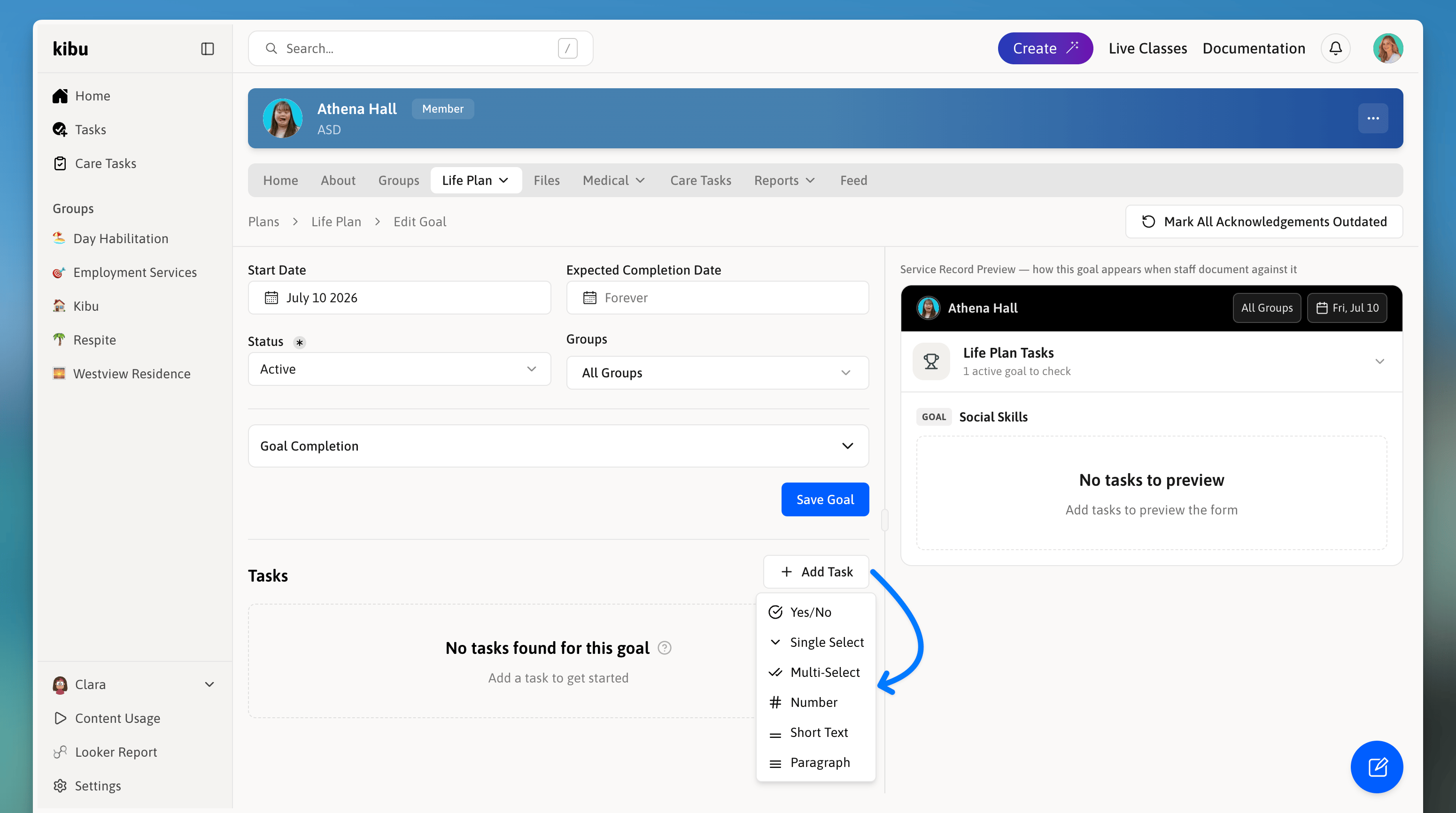 * **Yes/No Questions** — Best for: Clear, binary outcomes. Example: "Did \[Member] participate in the activity today?"
* **Single Select** — Best for: Choosing one option from multiple choices. Example: "What level of support was needed today?" — Independent, Minimal Support, Full Support.
* **Multi Select** — Best for: Selecting multiple applicable options. Example: "Which activities did \[Member] engage in today?" — Art, Music, Movement, Social Interaction.
* **Numeric Entry** — Best for: Quantifiable goals. Example: "How many minutes did \[Member] engage in the activity today?"
* **Short Text** — Best for: Brief responses or quick notes. Example: "What was \[Member]'s initial reaction?"
* **Long Text** — Best for: Detailed observations and comprehensive notes. Example: "Describe \[Member]'s interaction during the activity and any notable behaviors observed."
Create your initial goal questions by selecting **Add Task** and choosing from the task types explained above. These are the first questions a DSP will see when filling out a members service record for the day.
* **Yes/No Questions** — Best for: Clear, binary outcomes. Example: "Did \[Member] participate in the activity today?"
* **Single Select** — Best for: Choosing one option from multiple choices. Example: "What level of support was needed today?" — Independent, Minimal Support, Full Support.
* **Multi Select** — Best for: Selecting multiple applicable options. Example: "Which activities did \[Member] engage in today?" — Art, Music, Movement, Social Interaction.
* **Numeric Entry** — Best for: Quantifiable goals. Example: "How many minutes did \[Member] engage in the activity today?"
* **Short Text** — Best for: Brief responses or quick notes. Example: "What was \[Member]'s initial reaction?"
* **Long Text** — Best for: Detailed observations and comprehensive notes. Example: "Describe \[Member]'s interaction during the activity and any notable behaviors observed."
Create your initial goal questions by selecting **Add Task** and choosing from the task types explained above. These are the first questions a DSP will see when filling out a members service record for the day.
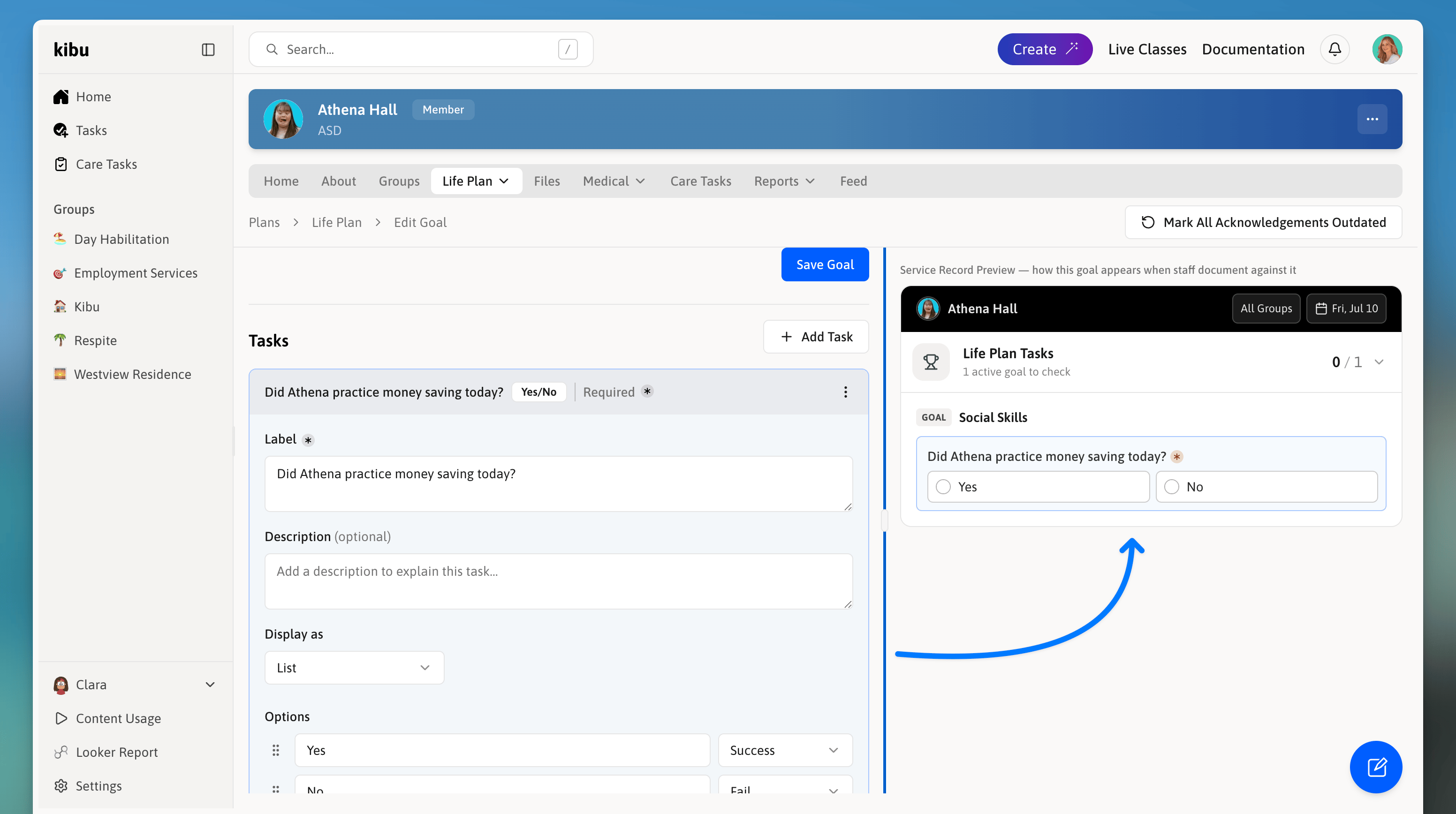 The right side of the life plan goal builder offers a preview of what your staff will see and allows you to test goals before saving them.
Once you have decided the initial questions it is time to create followup questions/fields each DSP will complete based on the initial response:
The right side of the life plan goal builder offers a preview of what your staff will see and allows you to test goals before saving them.
Once you have decided the initial questions it is time to create followup questions/fields each DSP will complete based on the initial response:
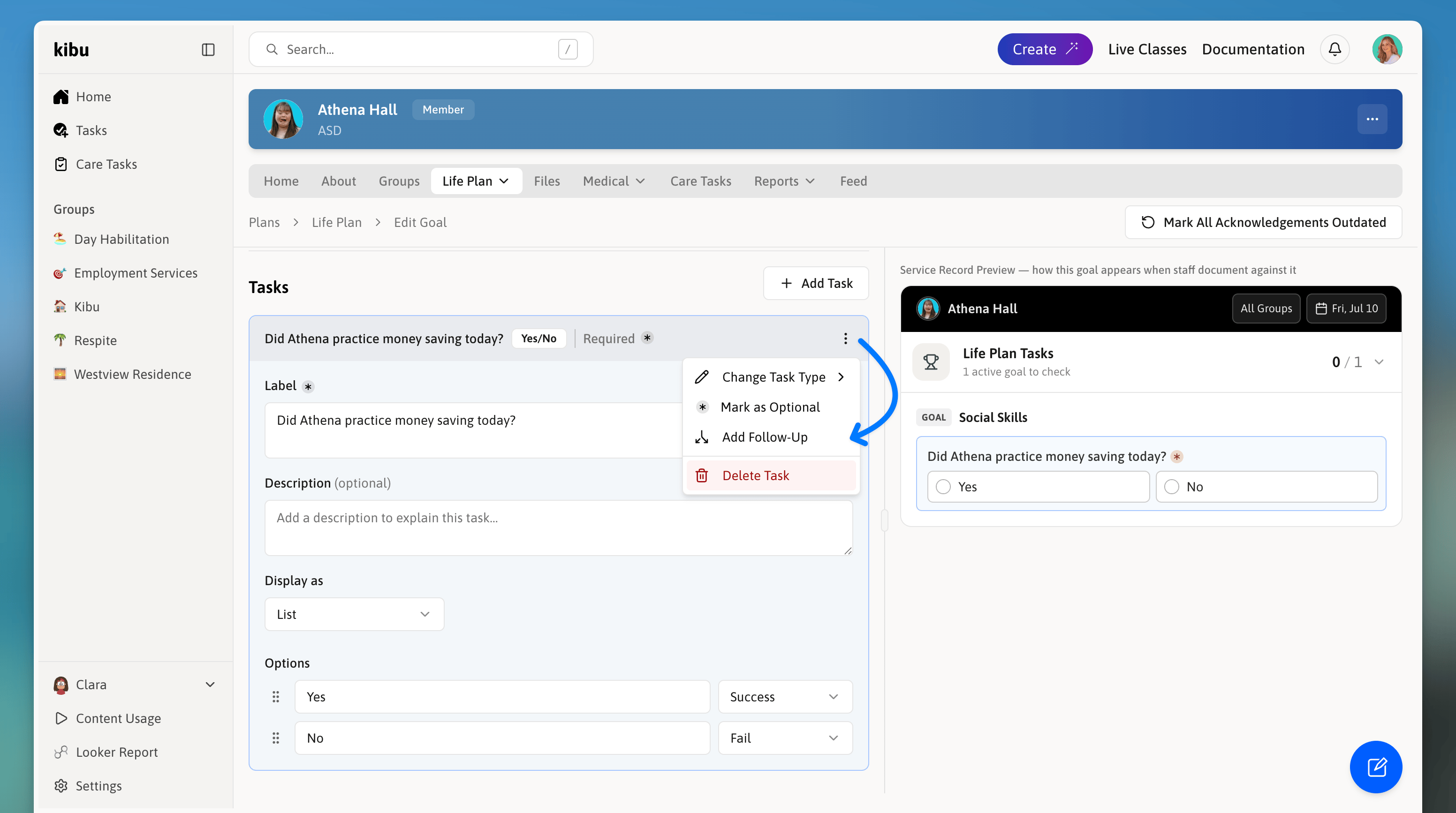 **Example "Was goal practiced":**
Skip follow-up since goal was not practiced.
Display a follow up text area asking how the task went.
Before finishing your goal:
## Multiple Life Plans Per Member
**Example "Was goal practiced":**
Skip follow-up since goal was not practiced.
Display a follow up text area asking how the task went.
Before finishing your goal:
## Multiple Life Plans Per Member
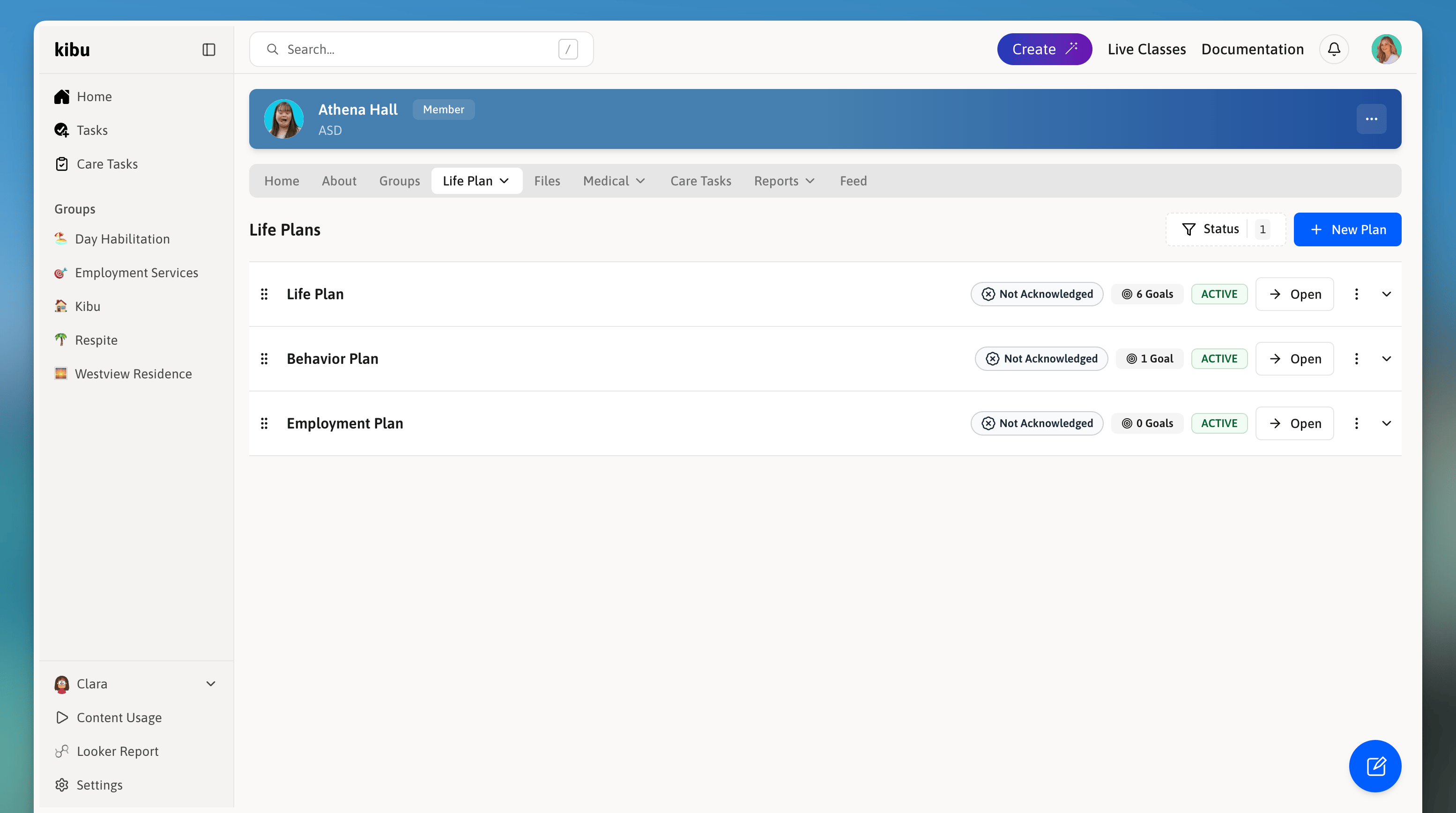 Members can have more than one named life plan. This allows you to organize goals into separate plans, for example, one plan for daily living skills and another for employment goals.
Each plan:
Has its own name set by the administrator.
Contains its own set of goals.
Tracks acknowledgements separately.
In service records, goals are organized and labeled by which plan they belong to, making it easy for staff to navigate to the relevant section.
### To create a new plan for a member
## Deleting Goals
When a goal is made inactive or marked as complete, its tasks continue to appear correctly on any past service records created while the goal was active. Your historical records are never affected by changes to a goal's current status.
If you delete a goal entirely, the data will not show up in reporting or be accessible.
## Exporting Life Plan Goal Data
Members can have more than one named life plan. This allows you to organize goals into separate plans, for example, one plan for daily living skills and another for employment goals.
Each plan:
Has its own name set by the administrator.
Contains its own set of goals.
Tracks acknowledgements separately.
In service records, goals are organized and labeled by which plan they belong to, making it easy for staff to navigate to the relevant section.
### To create a new plan for a member
## Deleting Goals
When a goal is made inactive or marked as complete, its tasks continue to appear correctly on any past service records created while the goal was active. Your historical records are never affected by changes to a goal's current status.
If you delete a goal entirely, the data will not show up in reporting or be accessible.
## Exporting Life Plan Goal Data
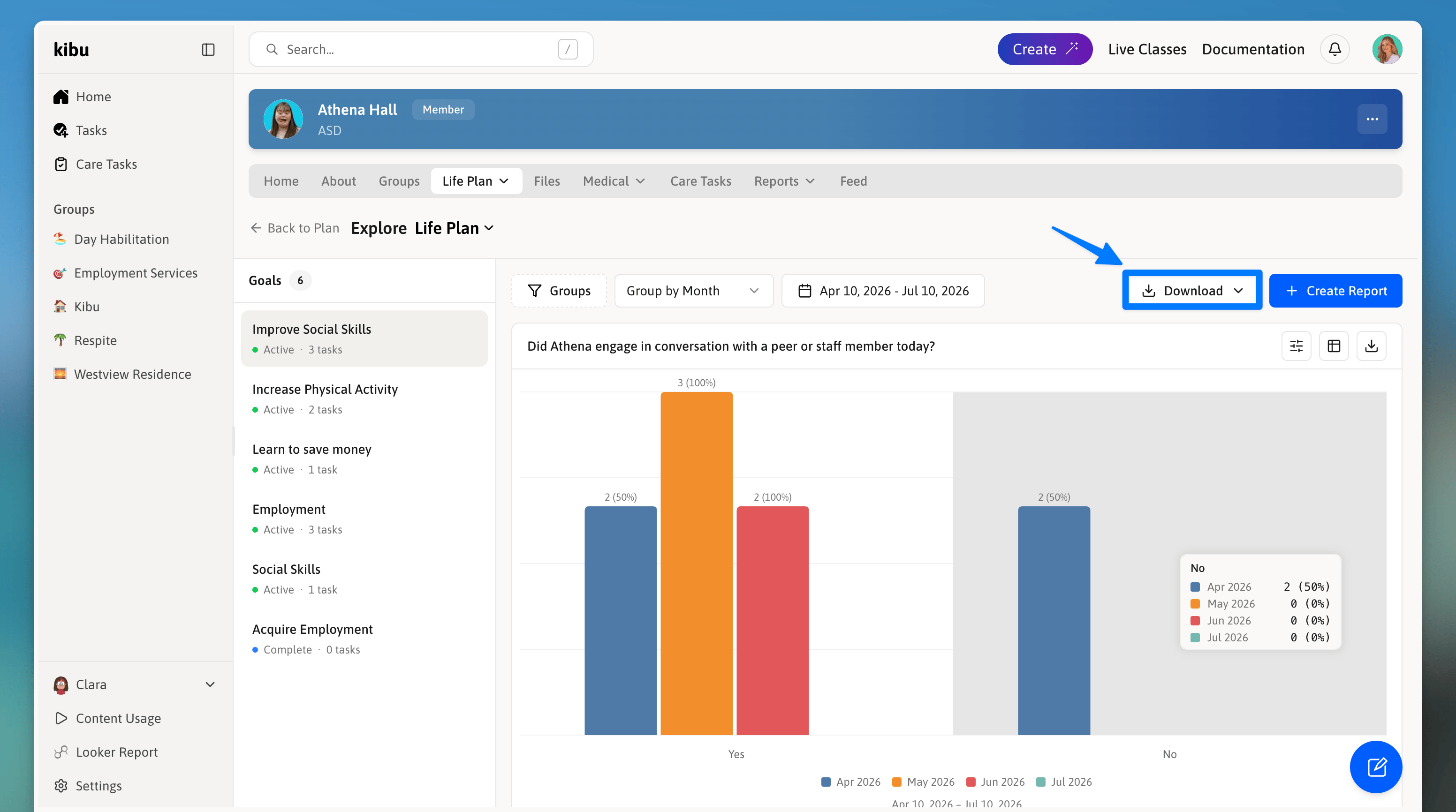 Life plan goal data can be exported for reporting, compliance, or sharing with support coordinators.
You can export:
Data for a single goal.
Data for all goals at once.
Graphs showing progress over time (for one goal or all goals).
### To export
## Best Practices
* Be specific and measurable
* Use clear, simple language
* Focus on observable behaviors
* Include success criteria
* Set realistic timeframes
* Use consistent terminology
* Include relevant context
* Document both successes and challenges
* Note any modifications needed
* Review progress regularly
* Adjust goals as needed
* Document any goal modifications
Regularly review and adjust goals based on member progress and changing needs, as the most effective goals evolve with the member's development. Ensure all goals are confirmed with the authorizing party to maintain proper documentation.
**Note for admins:** Life Plan Acknowledgements under Settings require staff to review and acknowledge a member's life plan before signing service records. When enabled by an admin, staff must review the member's goals and teaching methods, and click acknowledge to confirm. Admins can configure whether this blocks service record signing entirely or simply reminds staff, and can set it to expire after a certain period of time or whenever the life plan is updated.
Life plan goal data can be exported for reporting, compliance, or sharing with support coordinators.
You can export:
Data for a single goal.
Data for all goals at once.
Graphs showing progress over time (for one goal or all goals).
### To export
## Best Practices
* Be specific and measurable
* Use clear, simple language
* Focus on observable behaviors
* Include success criteria
* Set realistic timeframes
* Use consistent terminology
* Include relevant context
* Document both successes and challenges
* Note any modifications needed
* Review progress regularly
* Adjust goals as needed
* Document any goal modifications
Regularly review and adjust goals based on member progress and changing needs, as the most effective goals evolve with the member's development. Ensure all goals are confirmed with the authorizing party to maintain proper documentation.
**Note for admins:** Life Plan Acknowledgements under Settings require staff to review and acknowledge a member's life plan before signing service records. When enabled by an admin, staff must review the member's goals and teaching methods, and click acknowledge to confirm. Admins can configure whether this blocks service record signing entirely or simply reminds staff, and can set it to expire after a certain period of time or whenever the life plan is updated.