> ## Documentation Index
> Fetch the complete documentation index at: https://help.kibu.com/llms.txt
> Use this file to discover all available pages before exploring further.
# Creating and Attaching Rhythms
> Build a rhythm template, choose how the record is captured, set the schedule, and attach it to your members and groups.

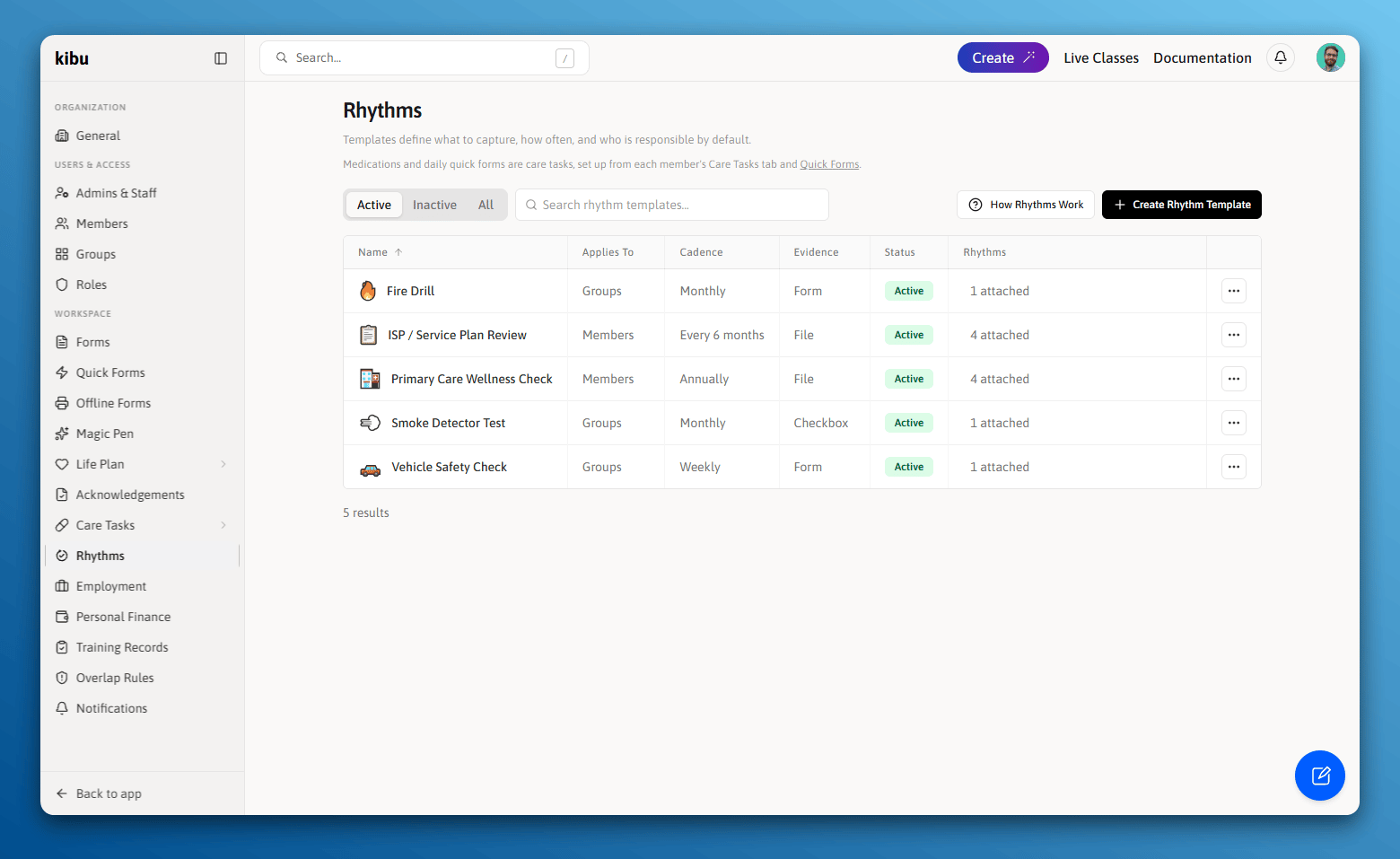 A template defines what to capture and how often. You build it once, then attach it to every member or group it applies to.
Templates live in **Settings > Rhythms**. Creating and editing them is an administrator job.
## Build a Template
Select **Create Rhythm Template**. The builder has four sections, and a live preview beside it shows the rhythm exactly as staff will see it.
A template defines what to capture and how often. You build it once, then attach it to every member or group it applies to.
Templates live in **Settings > Rhythms**. Creating and editing them is an administrator job.
## Build a Template
Select **Create Rhythm Template**. The builder has four sections, and a live preview beside it shows the rhythm exactly as staff will see it.

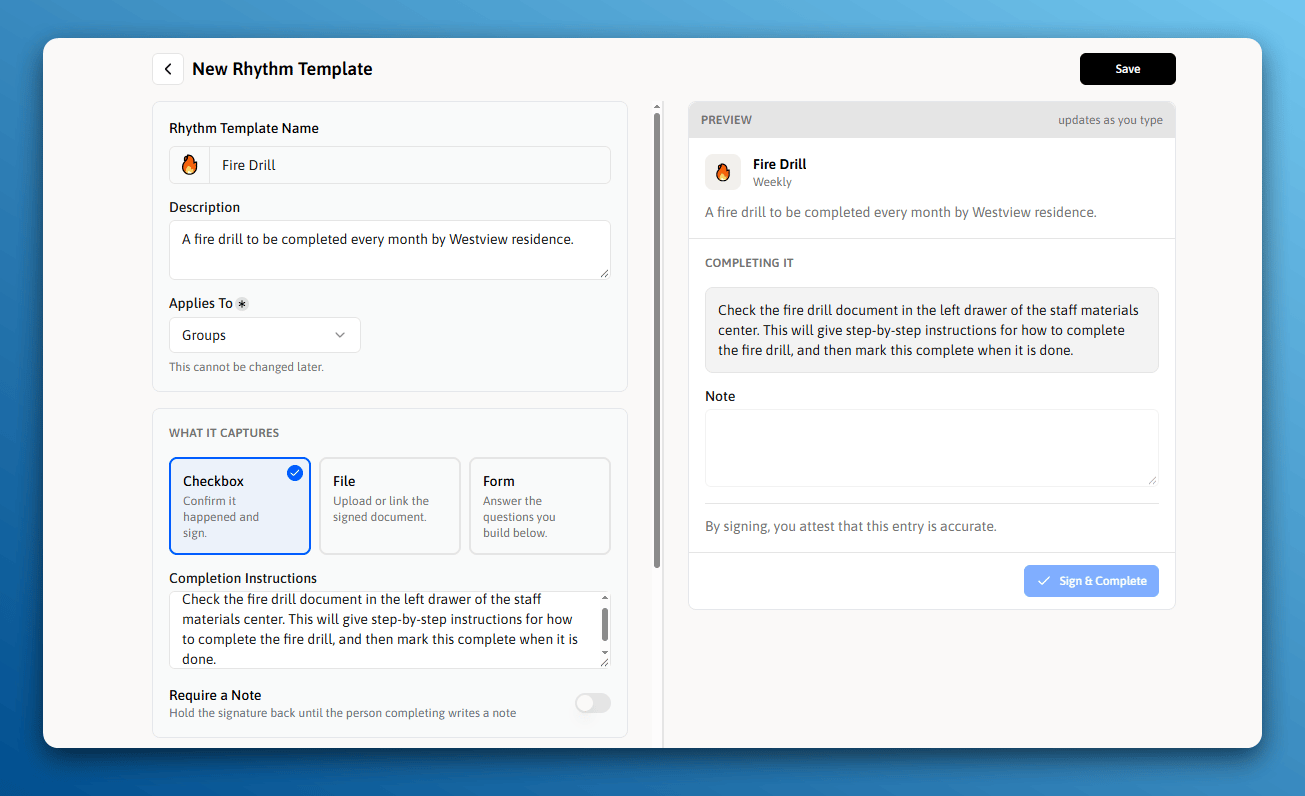 Give the template a name, an icon, and a short description. Then choose **Members** or **Groups**.
Use **Groups** for anything that belongs to a house, a vehicle, or a program. Use **Members** for anything that belongs to one person.
Under **What it captures**, pick one of the three evidence types below.
**Completion Instructions** appear at the moment staff complete the item. Use them for "check the fluid levels before signing" or "upload the signed copy from the practice."
**Require a Note** holds the signature back until the person completing writes one.
Under **When it comes due**, pick a **Cadence**, then answer "When is the first one due?" The next three real dates appear underneath, so you can confirm the pattern before saving.
Set the **Completion Window** and **Reminders** here too. Both are covered below.
**Default assigned** is who owns the item. **Default subscribers** are notified when it is completed or missed.
Both are starting points that whoever attaches the template can change.
You cannot switch a template between Members and Groups after it is created. Build a second template instead.
## How the Record Is Captured
Confirm it happened and sign. Best for a smoke detector test or a weekly temperature check.
Upload or link the signed document. Best for an ISP review or a visit summary.
Answer the questions you build below. Best for a fire drill or a vehicle inspection.
In **Form** mode, a question editor appears under the evidence tiles. It is the same builder used by Quick Forms, so the question types will be familiar.
## Cadence
| Cadence | Can use it for |
| - | - |
| Daily | A vehicle walk-around or a daily house check |
| Certain days of the week | Weekday-only checks |
| Weekly | Water or fridge temperatures |
| Monthly | Fire drills, smoke detector tests |
| Quarterly | Quarterly nursing reviews |
| Every 6 months | Service plan reviews |
| Annually | Wellness visits, annual inspections |
| Custom interval | Anything on its own rhythm, such as every 18 months |
| Set each due date by hand | Items with no fixed cycle, where someone sets the next date each time |
**Daily** and **Certain days of the week** are available on group templates only. Daily documentation for one person belongs in Care Tasks.
### The completion window
The completion window is how many days before the due date staff can sign the item off. A 60 day window on an annual review means it opens two months early.
The window never closes. A late item stays completable, because a missed fire drill still has to be recorded once it happens.
Items that come due more often than once a week always open on the due date itself, whatever window you set. A daily check signed a day early is not evidence of anything.
### Reminders
Reminders go to the people assigned to an item, counted back from its due date. An annual review might remind at 90, 60, and 30 days out. If a rhythm has nobody assigned, its reminders go to the subscribers instead.
## Attach the Template
A template does nothing until you attach it. Kibu offers to do this as soon as you save a new one, and you can attach at any time afterwards.
Go to their **Rhythms** tab and select **Add Rhythm**. **Add Rhythm** on the main Rhythms page works too.
Only templates built for that type appear. A member will not be offered a group template.
Kibu proposes the next date that fits the template's schedule. Change it if this member or group is on a different cycle. Everything after it counts from this date.
The template's defaults are filled in, and you can change them here. Leaving the list empty is allowed, and the item then reads **Anyone may complete it**.
Attaching one template to many members or groups at once is quicker. Use bulk attach from **Settings > Rhythms** when an annual review applies to everybody, and set each date in the table it gives you.
## Editing a Template Later
Editing a template updates every rhythm attached to it, and Kibu tells you what the change will do before you save. Records already signed keep the questions they were answered against, so history never changes retroactively.
Pausing a template stops new items from being created. Anything already open stays open and stays completable.
## Next Steps
Complete items on web and mobile, review history, and export your record.
What Rhythms are, and when to use one instead of a Care Task.
This documentation is built and hosted on [Mintlify](https://mintlify.com), a developer documentation platform.
Give the template a name, an icon, and a short description. Then choose **Members** or **Groups**.
Use **Groups** for anything that belongs to a house, a vehicle, or a program. Use **Members** for anything that belongs to one person.
Under **What it captures**, pick one of the three evidence types below.
**Completion Instructions** appear at the moment staff complete the item. Use them for "check the fluid levels before signing" or "upload the signed copy from the practice."
**Require a Note** holds the signature back until the person completing writes one.
Under **When it comes due**, pick a **Cadence**, then answer "When is the first one due?" The next three real dates appear underneath, so you can confirm the pattern before saving.
Set the **Completion Window** and **Reminders** here too. Both are covered below.
**Default assigned** is who owns the item. **Default subscribers** are notified when it is completed or missed.
Both are starting points that whoever attaches the template can change.
You cannot switch a template between Members and Groups after it is created. Build a second template instead.
## How the Record Is Captured
Confirm it happened and sign. Best for a smoke detector test or a weekly temperature check.
Upload or link the signed document. Best for an ISP review or a visit summary.
Answer the questions you build below. Best for a fire drill or a vehicle inspection.
In **Form** mode, a question editor appears under the evidence tiles. It is the same builder used by Quick Forms, so the question types will be familiar.
## Cadence
| Cadence | Can use it for |
| - | - |
| Daily | A vehicle walk-around or a daily house check |
| Certain days of the week | Weekday-only checks |
| Weekly | Water or fridge temperatures |
| Monthly | Fire drills, smoke detector tests |
| Quarterly | Quarterly nursing reviews |
| Every 6 months | Service plan reviews |
| Annually | Wellness visits, annual inspections |
| Custom interval | Anything on its own rhythm, such as every 18 months |
| Set each due date by hand | Items with no fixed cycle, where someone sets the next date each time |
**Daily** and **Certain days of the week** are available on group templates only. Daily documentation for one person belongs in Care Tasks.
### The completion window
The completion window is how many days before the due date staff can sign the item off. A 60 day window on an annual review means it opens two months early.
The window never closes. A late item stays completable, because a missed fire drill still has to be recorded once it happens.
Items that come due more often than once a week always open on the due date itself, whatever window you set. A daily check signed a day early is not evidence of anything.
### Reminders
Reminders go to the people assigned to an item, counted back from its due date. An annual review might remind at 90, 60, and 30 days out. If a rhythm has nobody assigned, its reminders go to the subscribers instead.
## Attach the Template
A template does nothing until you attach it. Kibu offers to do this as soon as you save a new one, and you can attach at any time afterwards.
Go to their **Rhythms** tab and select **Add Rhythm**. **Add Rhythm** on the main Rhythms page works too.
Only templates built for that type appear. A member will not be offered a group template.
Kibu proposes the next date that fits the template's schedule. Change it if this member or group is on a different cycle. Everything after it counts from this date.
The template's defaults are filled in, and you can change them here. Leaving the list empty is allowed, and the item then reads **Anyone may complete it**.
Attaching one template to many members or groups at once is quicker. Use bulk attach from **Settings > Rhythms** when an annual review applies to everybody, and set each date in the table it gives you.
## Editing a Template Later
Editing a template updates every rhythm attached to it, and Kibu tells you what the change will do before you save. Records already signed keep the questions they were answered against, so history never changes retroactively.
Pausing a template stops new items from being created. Anything already open stays open and stays completable.
## Next Steps
Complete items on web and mobile, review history, and export your record.
What Rhythms are, and when to use one instead of a Care Task.
This documentation is built and hosted on [Mintlify](https://mintlify.com), a developer documentation platform.