> ## Documentation Index
> Fetch the complete documentation index at: https://help.kibu.com/llms.txt
> Use this file to discover all available pages before exploring further.
# Groups Overview
> Groups are the foundation of organizational management in Kibu, allowing you to structure your services, manage access, and maintain compliance across different programs.
 ## What are Groups?
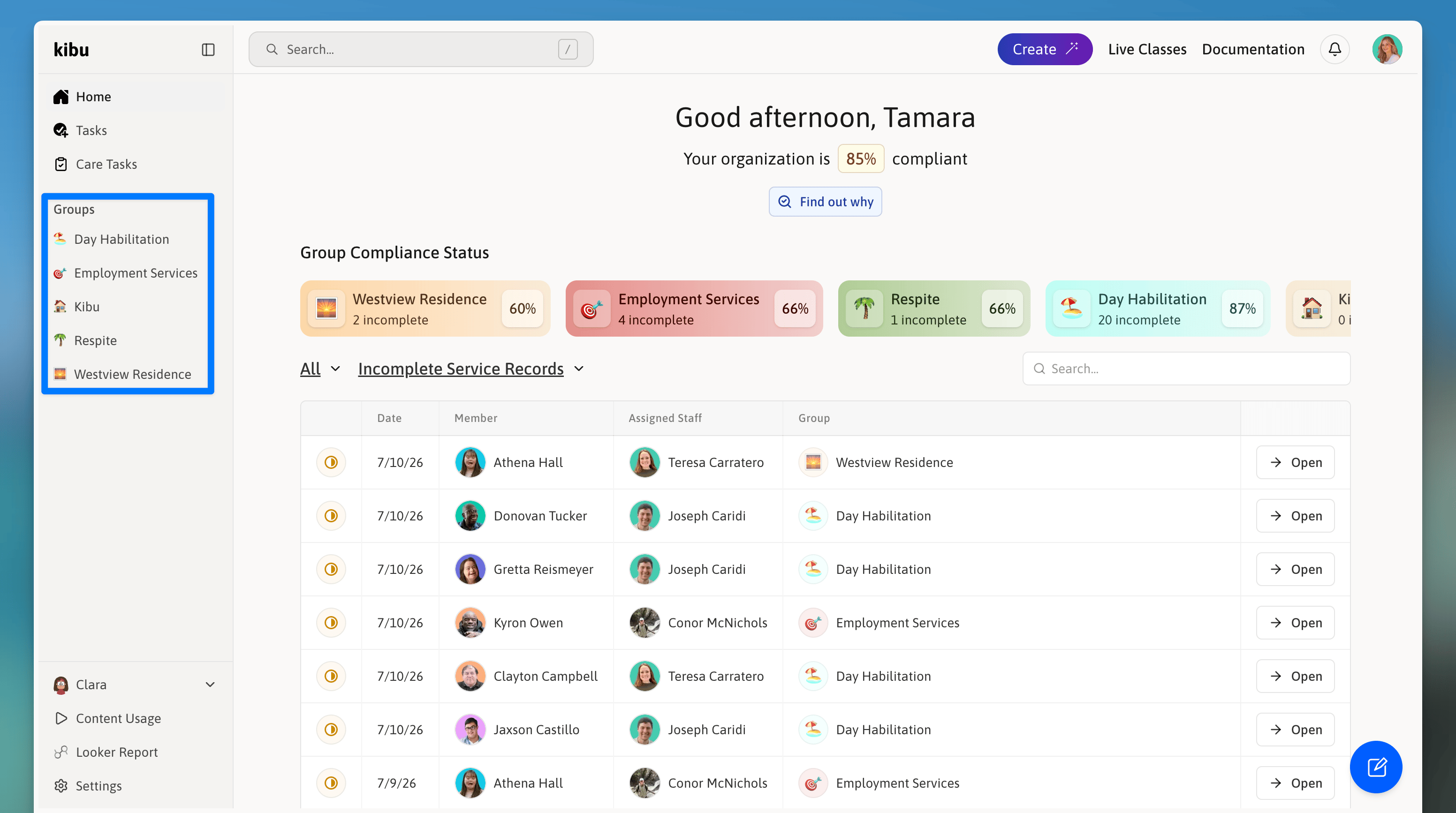
Groups in Kibu represent your organization's different locations or services, appearing in the left sidebar of the documentation page. They are essential for organizing:
* Service locations
* Program types
* Staff assignments
* Member placements
* Documentation requirements
***
## Common Group Types
Organizations typically create groups for services such as:
* Day Habilitation
* Employment Services
* Respite Care
* Residential Programs
* Community Integration
* Vocational Training
Make each group's emoji unique for easy visual identification and organization! 🏠 🏢 🎓 🏥
***
## Access Control
Staff can only access groups they're assigned to. Access is controlled by administrators. Staff cannot view or edit records outside their groups. Multiple group assignments are possible for staff working across services.
Members can belong to multiple groups. Reflects participation in different services. Enables comprehensive service tracking. Maintains privacy across programs.
Admins have full visibility across all groups. Can manage group settings and configurations. Control staff assignments and access. Oversee all documentation and records.
***
## Group Management
## What are Groups?
Groups in Kibu represent your organization's different locations or services, appearing in the left sidebar of the documentation page. They are essential for organizing:
* Service locations
* Program types
* Staff assignments
* Member placements
* Documentation requirements
***
## Common Group Types
Organizations typically create groups for services such as:
* Day Habilitation
* Employment Services
* Respite Care
* Residential Programs
* Community Integration
* Vocational Training
Make each group's emoji unique for easy visual identification and organization! 🏠 🏢 🎓 🏥
***
## Access Control
Staff can only access groups they're assigned to. Access is controlled by administrators. Staff cannot view or edit records outside their groups. Multiple group assignments are possible for staff working across services.
Members can belong to multiple groups. Reflects participation in different services. Enables comprehensive service tracking. Maintains privacy across programs.
Admins have full visibility across all groups. Can manage group settings and configurations. Control staff assignments and access. Oversee all documentation and records.
***
## Group Management
 ### Creating Groups
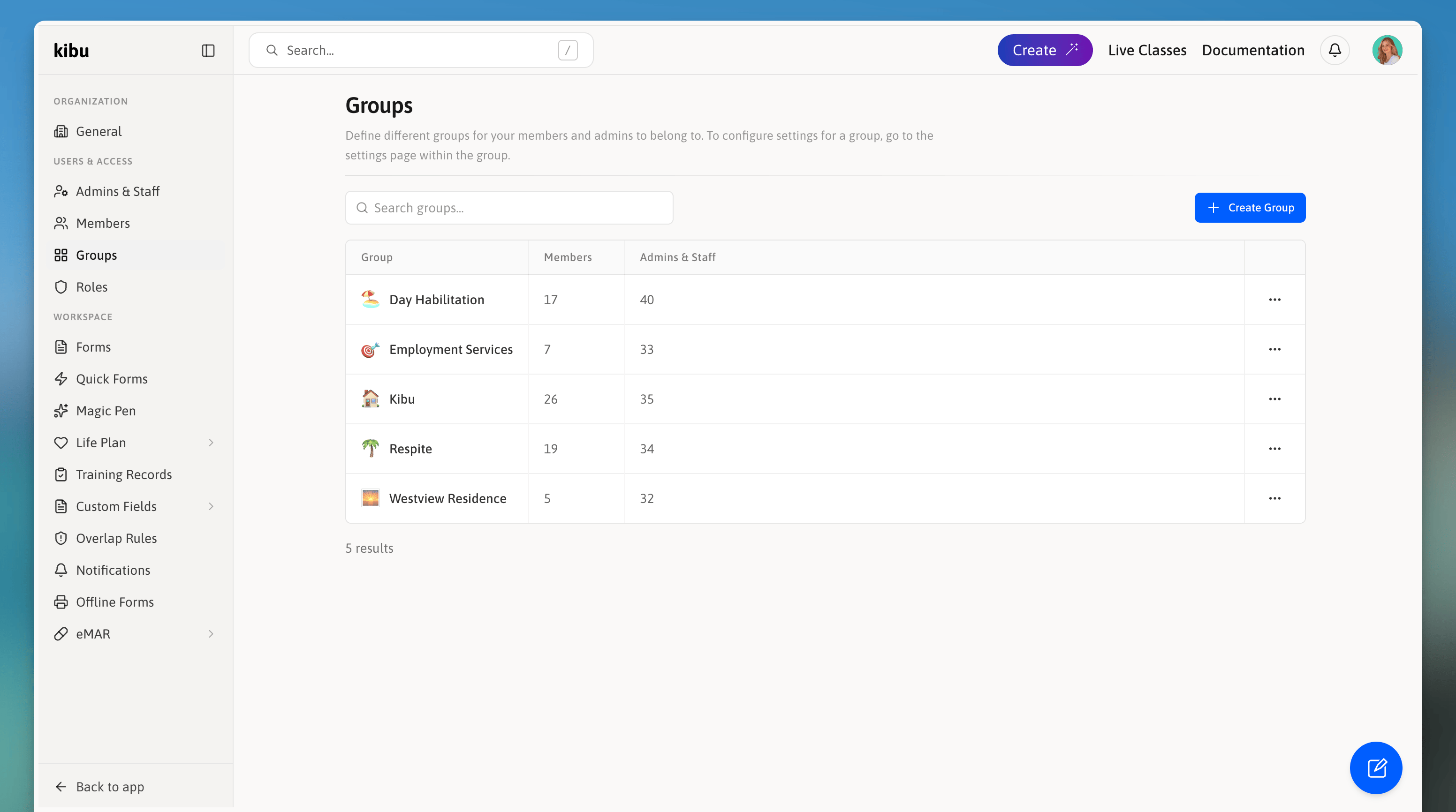
You will automatically be taken to the settings page for the newly created group, you can learn how to best configure your groups settings here: [Group Settings](/documentation/group-settings).
### Group Configuration
### Creating Groups
You will automatically be taken to the settings page for the newly created group, you can learn how to best configure your groups settings here: [Group Settings](/documentation/group-settings).
### Group Configuration
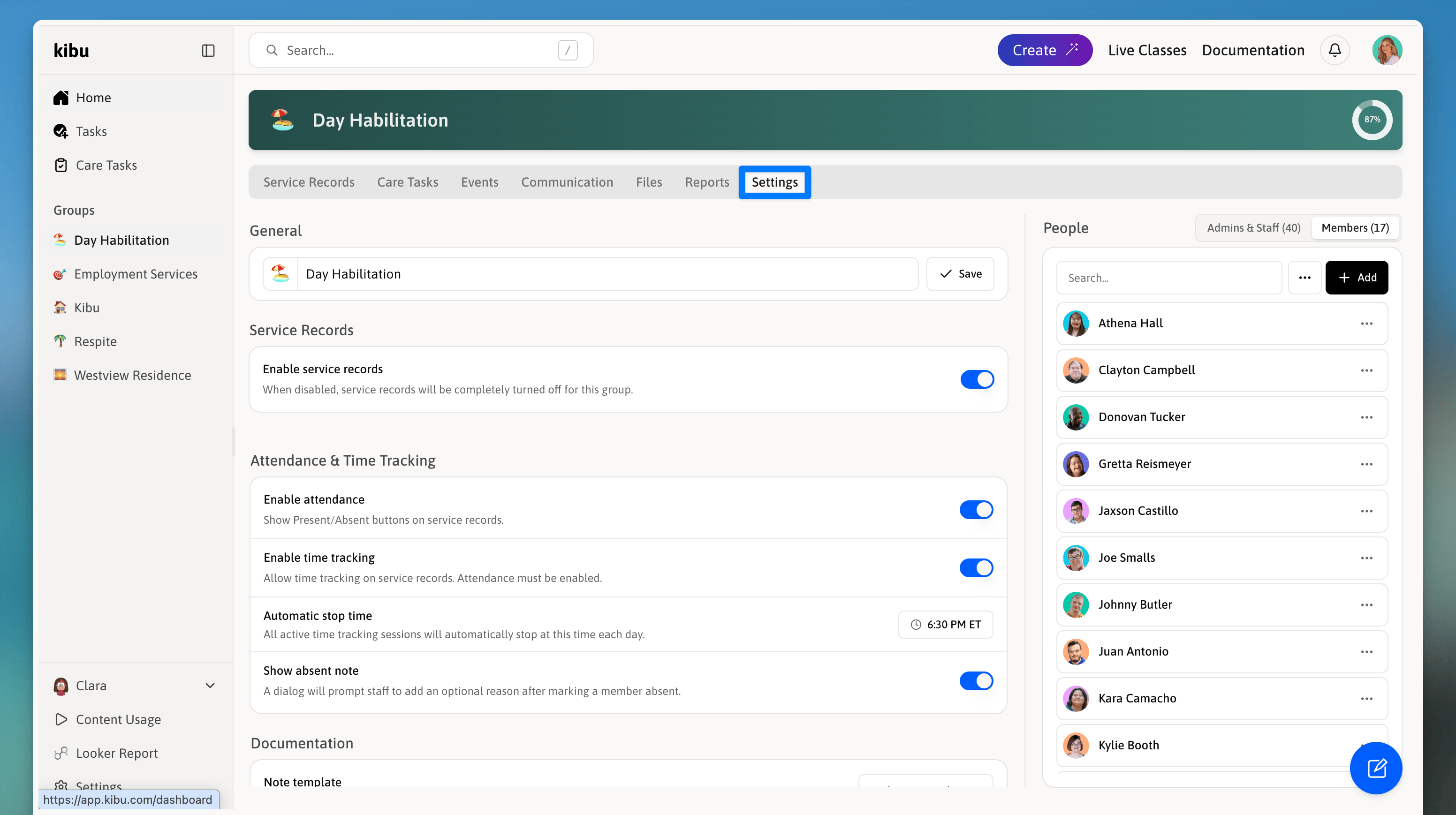 Each group can be configured with unique settings based on service requirements. See our detailed [Group Settings](/documentation/group-settings) guide for:
* Service record requirements
* Attendance & time tracking options
* Note templates
* Staffing options
* Notifications
* Danger Zone (Importing settings from other group, deleting the group)
Different services often have different compliance requirements. Customize each group's settings to match specific program needs.
***
## Best Practices
* Use clear, consistent naming conventions
* Assign unique emojis for visual distinction
* Structure groups by service type
* Align settings with program requirements
* Standardize similar service types
* Review settings periodically
* Update as compliance needs change
***
Each group can be configured with unique settings based on service requirements. See our detailed [Group Settings](/documentation/group-settings) guide for:
* Service record requirements
* Attendance & time tracking options
* Note templates
* Staffing options
* Notifications
* Danger Zone (Importing settings from other group, deleting the group)
Different services often have different compliance requirements. Customize each group's settings to match specific program needs.
***
## Best Practices
* Use clear, consistent naming conventions
* Assign unique emojis for visual distinction
* Structure groups by service type
* Align settings with program requirements
* Standardize similar service types
* Review settings periodically
* Update as compliance needs change
***