> ## Documentation Index
> Fetch the complete documentation index at: https://help.kibu.com/llms.txt
> Use this file to discover all available pages before exploring further.
# Health Tracking Overview
> A comprehensive overview of Kibu's health tracking features including medical observations, medication management, eMAR, and Quick Forms.
## Key Features
Manage each member's medication list, including prescriptions, dosage, schedules, routes, and controlled substance status.
Digital medication administration records with daily tracking, status recording, incident reporting, and monthly report generation.
Fast, structured forms for capturing ad-hoc or event-based health information the moment it happens, outside of service records or end-of-day notes.
Track vital signs, health events, and nutrition for each member. Includes heart rate, blood pressure, weight, seizures, blood sugar, and food and fluid intake.
***
## Medications
The Medications section lives under the **Medical tab** of each member's profile. This is where you manage everything about a member's medications, what they take, how they take it, and any supporting details staff need at the point of administration.
### Adding a Medication (Supervisors)
* Name (required)
* RX Number
* Prescribing Doctor
* Dosage
* Medication Type (Prescription, Over the Counter, or Supplement)
* Status (Active, Declined, or Inactive) (required)
* Route
* Controlled or Uncontrolled Substance
* Tracking schedule
* Purpose
* Side Effects
* Instructions
* Comments
* Medication Image
***
## Electronic Medication Administration Record (eMAR)
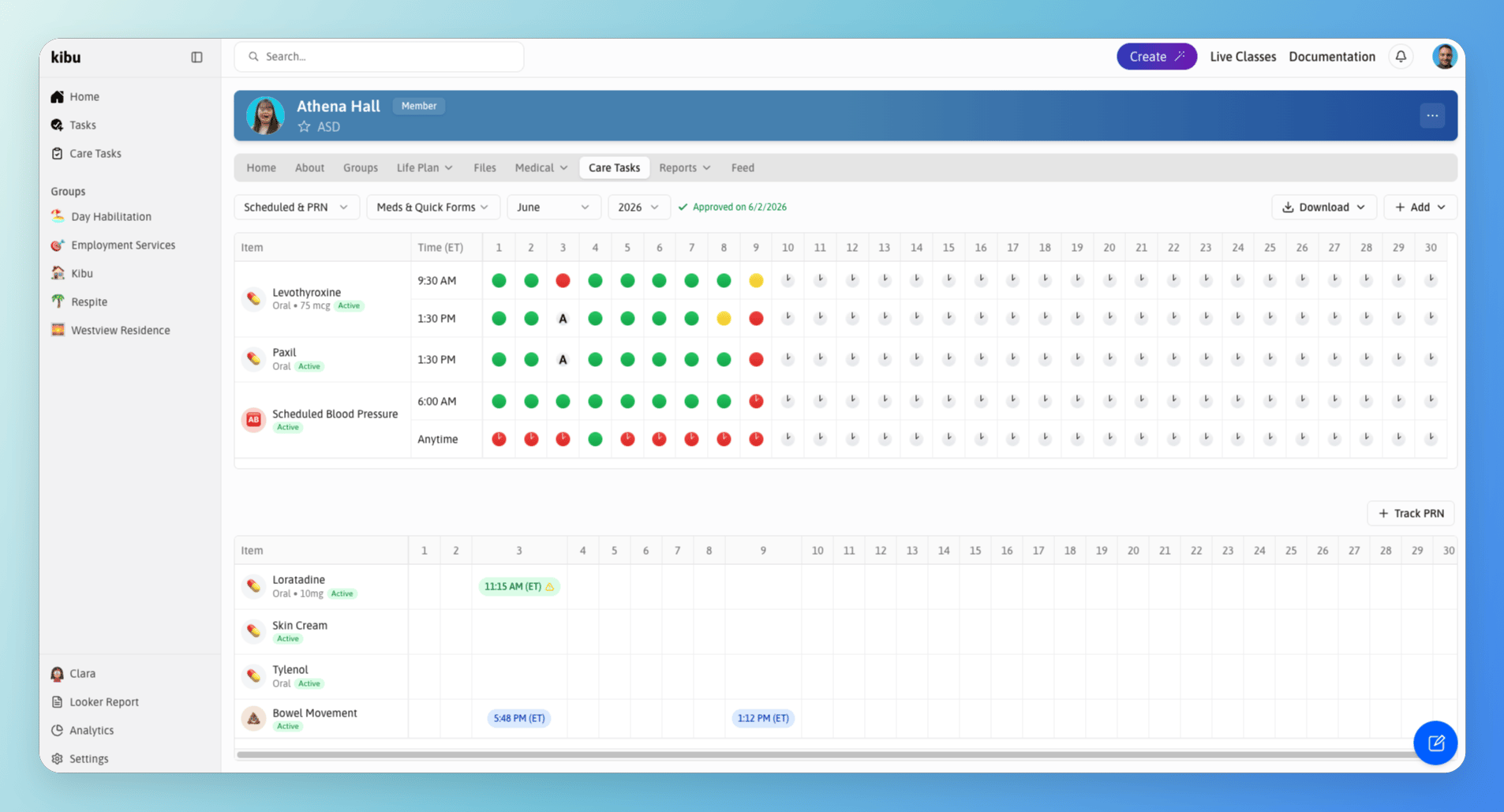 The eMAR system provides digital medication tracking capabilities:
* Daily medication administration recording
* Status tracking (administered correctly, incorrectly, or not administered)
* Incident reporting for medication errors
* Notifications to staff members
* Monthly report generation
### Scheduled and PRN Medications
Medications are organized into two types, both trackable directly from a member's **Care Tasks** tab. You do not need to navigate to the Medications section to log either. On a group page, the Care Tasks tab also shows upcoming scheduled medications across the group, so staff can see what is due before it comes up. Upcoming and missed medications appear together in the same view when you open the eMAR.
Medications given on a regular, time-based schedule. These appear in the top section of the Care Tasks page in a calendar grid view, with a dot representing each scheduled dose per day.
Medications given as needed. These appear in the lower section of the Care Tasks page. A dedicated PRN table also appears on each member's eMAR page so you can always see which PRN medications have been administered.
### Recording a Medication Administration
Missed and upcoming medications appear together in a single view.
For PRN medications, you can administer multiple at once.
* A photo of the medication for visual confirmation (if one has been added)
* Side effects to monitor
* Administration instructions
For PRN medications, a follow-up notes field is available for documenting what triggered the need for the medication, how the member responded, or any observations to share with your team.
Always verify you have the right medication and the right member before confirming.
### Administration Statuses
Medication was given as prescribed.
Medication was given but with some deviation. Document the reason and add detailed notes or a medication incident report if required.
Medication was not given. Document the reason and add detailed notes or a medication incident report if required.
### Medication Error Reports
If your organization has a Medication Error Report form set up, you can log an error directly from the eMAR. If you don't have one yet, contact [support@kibu.com](mailto:support@kibu.com) and the Kibu team will help you get it added.
Once your form is in place, there are two ways to file a report:
Click on any dose that was administered incorrectly and select **Create Medication Error Form**. This will take you directly to the report.
Navigate to the member's profile, open the **Care Tasks** tab, click **+ Add**, select your Medication Error Report form, choose the date, and fill out the form.
### Recording a Missed Medication
If a medication was not documented on the correct day and needs to be added after the fact:
Administrators can update MAR records for medications that have since been marked as inactive, for example, to correct a record from before a medication was discontinued. Contact your administrator if you need help with a past record.
If a medication administration was logged by mistake, it can be deleted. Only administrators can delete eMAR entries. To request a correction, contact your organization's administrator.
***
## Care Tasks & Quick Forms
Quick Forms provide a lightweight, customizable, and structured way to capture ad-hoc or event-based health information the moment it happens, without needing to tie it to a service record or end-of-day note. They are ideal for health events that may or may not occur each day, such as:
* Seizure episodes
* Blood pressure readings
* Bowel movements
* Menses tracking
* Meal and fluid intake entries
Quick Forms are designed to be completed quickly by staff on the spot, ensuring important health details are never missed or documented after the fact.
Supervisors can add Quick Forms through the overall Settings on the left side. From here, they can build and manage custom form templates tailored to the specific data your organization needs to track.
Staff can enter the information of the Quick Forms under Care Tasks. Once submitted, the information will be displayed in the member's profile under Care Tasks.
### Viewing Care Tasks under Reports
Reports can be found under the member's Reports tab, then Quick Forms. From here you can:
* Select a specific Quick Form/Care Task to view all submitted entries, including the date, time, and the staff member who submitted it
* View submitted data visualized as charts and configure the data inputs you want to visualize
* Create a new Quick Form entry directly from this view using + Create
* Download the submitted data as a table
## Medical Observations
The eMAR system provides digital medication tracking capabilities:
* Daily medication administration recording
* Status tracking (administered correctly, incorrectly, or not administered)
* Incident reporting for medication errors
* Notifications to staff members
* Monthly report generation
### Scheduled and PRN Medications
Medications are organized into two types, both trackable directly from a member's **Care Tasks** tab. You do not need to navigate to the Medications section to log either. On a group page, the Care Tasks tab also shows upcoming scheduled medications across the group, so staff can see what is due before it comes up. Upcoming and missed medications appear together in the same view when you open the eMAR.
Medications given on a regular, time-based schedule. These appear in the top section of the Care Tasks page in a calendar grid view, with a dot representing each scheduled dose per day.
Medications given as needed. These appear in the lower section of the Care Tasks page. A dedicated PRN table also appears on each member's eMAR page so you can always see which PRN medications have been administered.
### Recording a Medication Administration
Missed and upcoming medications appear together in a single view.
For PRN medications, you can administer multiple at once.
* A photo of the medication for visual confirmation (if one has been added)
* Side effects to monitor
* Administration instructions
For PRN medications, a follow-up notes field is available for documenting what triggered the need for the medication, how the member responded, or any observations to share with your team.
Always verify you have the right medication and the right member before confirming.
### Administration Statuses
Medication was given as prescribed.
Medication was given but with some deviation. Document the reason and add detailed notes or a medication incident report if required.
Medication was not given. Document the reason and add detailed notes or a medication incident report if required.
### Medication Error Reports
If your organization has a Medication Error Report form set up, you can log an error directly from the eMAR. If you don't have one yet, contact [support@kibu.com](mailto:support@kibu.com) and the Kibu team will help you get it added.
Once your form is in place, there are two ways to file a report:
Click on any dose that was administered incorrectly and select **Create Medication Error Form**. This will take you directly to the report.
Navigate to the member's profile, open the **Care Tasks** tab, click **+ Add**, select your Medication Error Report form, choose the date, and fill out the form.
### Recording a Missed Medication
If a medication was not documented on the correct day and needs to be added after the fact:
Administrators can update MAR records for medications that have since been marked as inactive, for example, to correct a record from before a medication was discontinued. Contact your administrator if you need help with a past record.
If a medication administration was logged by mistake, it can be deleted. Only administrators can delete eMAR entries. To request a correction, contact your organization's administrator.
***
## Care Tasks & Quick Forms
Quick Forms provide a lightweight, customizable, and structured way to capture ad-hoc or event-based health information the moment it happens, without needing to tie it to a service record or end-of-day note. They are ideal for health events that may or may not occur each day, such as:
* Seizure episodes
* Blood pressure readings
* Bowel movements
* Menses tracking
* Meal and fluid intake entries
Quick Forms are designed to be completed quickly by staff on the spot, ensuring important health details are never missed or documented after the fact.
Supervisors can add Quick Forms through the overall Settings on the left side. From here, they can build and manage custom form templates tailored to the specific data your organization needs to track.
Staff can enter the information of the Quick Forms under Care Tasks. Once submitted, the information will be displayed in the member's profile under Care Tasks.
### Viewing Care Tasks under Reports
Reports can be found under the member's Reports tab, then Quick Forms. From here you can:
* Select a specific Quick Form/Care Task to view all submitted entries, including the date, time, and the staff member who submitted it
* View submitted data visualized as charts and configure the data inputs you want to visualize
* Create a new Quick Form entry directly from this view using + Create
* Download the submitted data as a table
## Medical Observations
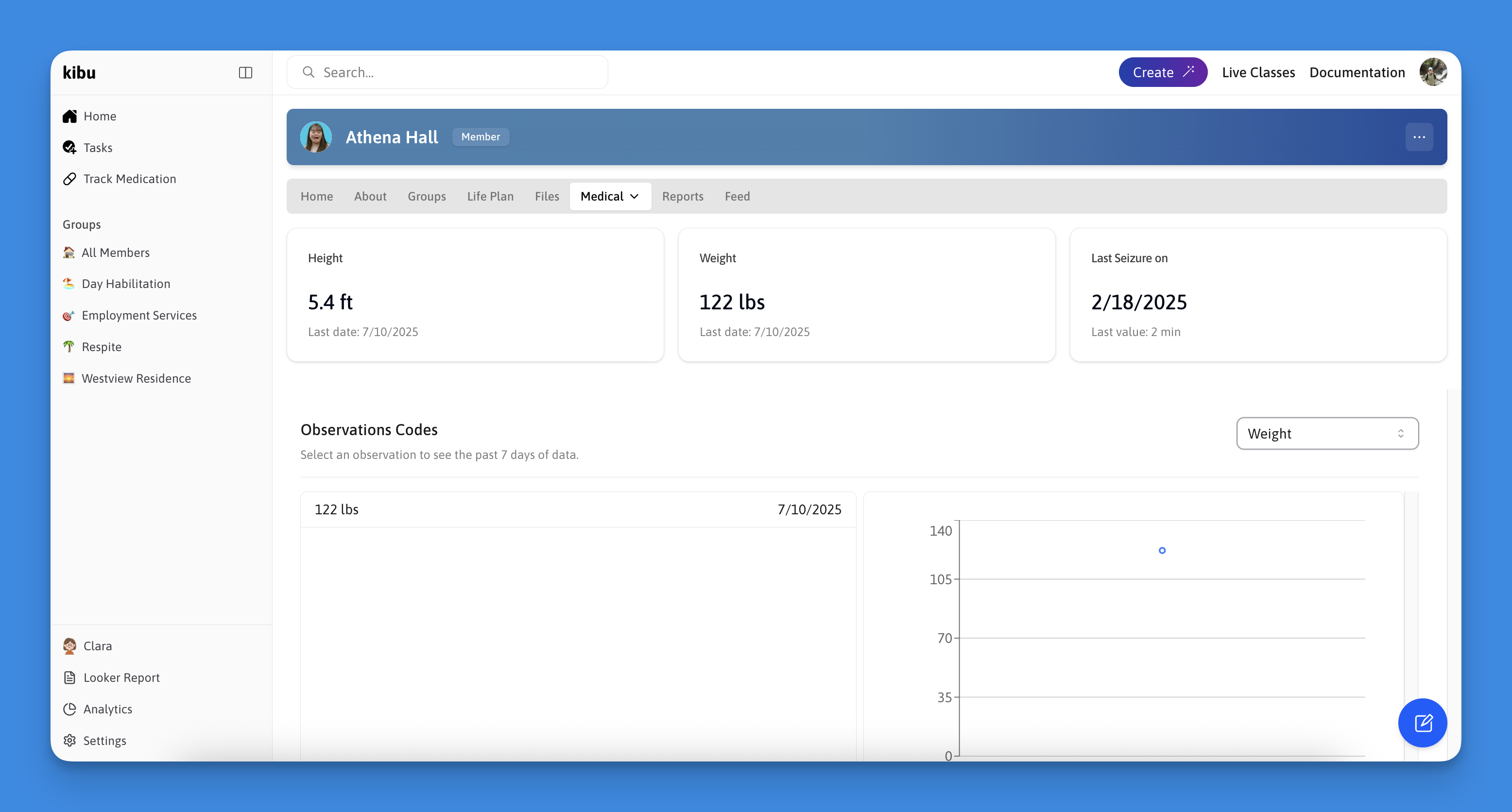 The medical observations feature allows you to track various health metrics for your members, including:
* Vital signs (heart rate, blood pressure, weight, height)
* Health events (seizures, blood sugar, bowel movements)
* Nutrition tracking (food and fluid intake)
***
***
## Best Practices
Establish consistent schedules for recording medical observations and medication administration.
Include relevant notes and context when recording health events or medication incidents.
When a health event occurs outside of a scheduled observation or service record, use Quick Forms to capture it immediately so nothing is lost.
Regularly review and export health tracking reports for record-keeping and analysis.
Ensure all caregivers are trained on using the health tracking features and understand the documentation requirements.
The medical observations feature allows you to track various health metrics for your members, including:
* Vital signs (heart rate, blood pressure, weight, height)
* Health events (seizures, blood sugar, bowel movements)
* Nutrition tracking (food and fluid intake)
***
***
## Best Practices
Establish consistent schedules for recording medical observations and medication administration.
Include relevant notes and context when recording health events or medication incidents.
When a health event occurs outside of a scheduled observation or service record, use Quick Forms to capture it immediately so nothing is lost.
Regularly review and export health tracking reports for record-keeping and analysis.
Ensure all caregivers are trained on using the health tracking features and understand the documentation requirements.