> ## Documentation Index
> Fetch the complete documentation index at: https://help.kibu.com/llms.txt
> Use this file to discover all available pages before exploring further.
# Life Plan Goals
> Kibu's Life Plan Goals system revolutionizes how organizations manage, track, and analyze individual service plans. Whether you call them Life Plans, PCPs, or ISPs, our platform provides a streamlined experience for both administrators and direct support professionals.
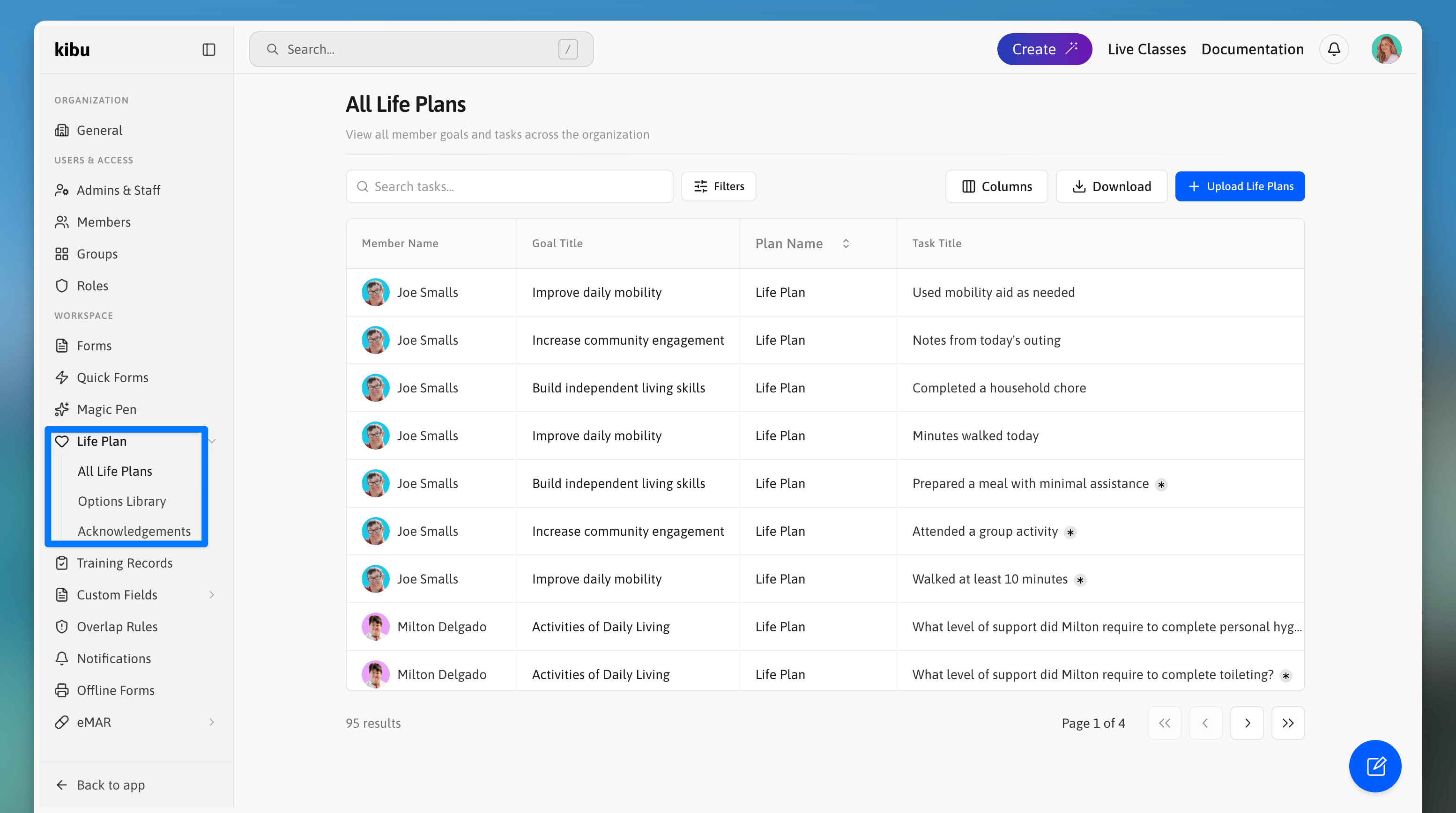 The image above shows the Global Life Plan Goals view, accessible from your organization's settings. This centralized dashboard displays all created goals across the organization, along with their member and group assignments, enabling efficient goal management and oversight.
## Key Features
### Form Builder & Question Design
Create clean and concise life plans with ease using our drag-and-drop form builder. As you build daily tasks, you'll see exactly what your staff will see.
The image above shows the Global Life Plan Goals view, accessible from your organization's settings. This centralized dashboard displays all created goals across the organization, along with their member and group assignments, enabling efficient goal management and oversight.
## Key Features
### Form Builder & Question Design
Create clean and concise life plans with ease using our drag-and-drop form builder. As you build daily tasks, you'll see exactly what your staff will see.
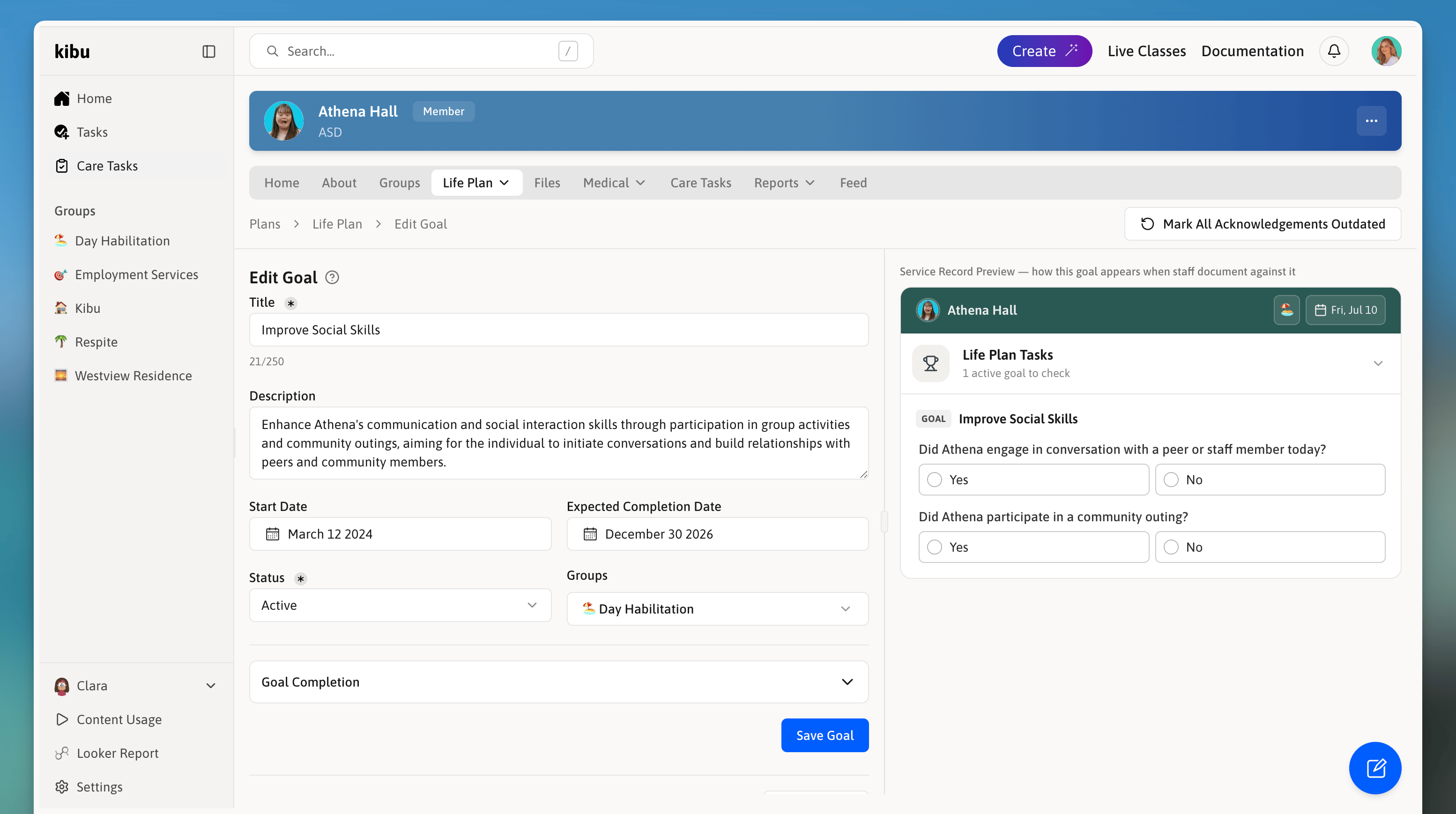 Watch your form take shape as you build it.
Easily arrange and organize questions.
Configure follow-up questions based on responses. For example, when a DSP selects "Yes", automatically show a text box for details. Create dynamic flows for easier staff navigation.
Multiple choice, text, checkboxes, customizable dropdown menus, conditional field display, and smart form organization tools.
### Efficient Goal Management
Save time and reduce redundancy with powerful goal management tools.
Replicate similar goals in just a few clicks.
Select multiple groups for a goal to be assigned to.
Create reusable templates for common goals.
### Progress Tracking & Analytics
Monitor and measure progress with comprehensive tracking tools.
Assign success values to responses.
View all goals and tasks in one place.
Clear visual indicators of goal completion.
Track success rates and patterns.
## Advanced Features
### Goal Configuration & Management
Customize and standardize your goal tracking with powerful management tools:
Create preset response sets for consistency. Manage dropdown menus and checkbox lists centrally. Share standardized options across your organization.
Assign goals to multiple groups simultaneously. Configure individual and organization-wide assignments. Customize access and tracking per group.
Configure point-based progress tracking and track progress accurately while accounting for exceptions.
**Success tracking values:**
Goal met (e.g., "Yes").
Goal not met (e.g., "No").
Situations where tracking doesn't apply.
## Getting Started
Ready to create your first Life Plan Goal? Follow these initial steps:
See the [detailed creation guide](/documentation/creating-lpg) for full instructions.
Watch your form take shape as you build it.
Easily arrange and organize questions.
Configure follow-up questions based on responses. For example, when a DSP selects "Yes", automatically show a text box for details. Create dynamic flows for easier staff navigation.
Multiple choice, text, checkboxes, customizable dropdown menus, conditional field display, and smart form organization tools.
### Efficient Goal Management
Save time and reduce redundancy with powerful goal management tools.
Replicate similar goals in just a few clicks.
Select multiple groups for a goal to be assigned to.
Create reusable templates for common goals.
### Progress Tracking & Analytics
Monitor and measure progress with comprehensive tracking tools.
Assign success values to responses.
View all goals and tasks in one place.
Clear visual indicators of goal completion.
Track success rates and patterns.
## Advanced Features
### Goal Configuration & Management
Customize and standardize your goal tracking with powerful management tools:
Create preset response sets for consistency. Manage dropdown menus and checkbox lists centrally. Share standardized options across your organization.
Assign goals to multiple groups simultaneously. Configure individual and organization-wide assignments. Customize access and tracking per group.
Configure point-based progress tracking and track progress accurately while accounting for exceptions.
**Success tracking values:**
Goal met (e.g., "Yes").
Goal not met (e.g., "No").
Situations where tracking doesn't apply.
## Getting Started
Ready to create your first Life Plan Goal? Follow these initial steps:
See the [detailed creation guide](/documentation/creating-lpg) for full instructions.