> ## Documentation Index
> Fetch the complete documentation index at: https://help.kibu.com/llms.txt
> Use this file to discover all available pages before exploring further.
# Medical Observations
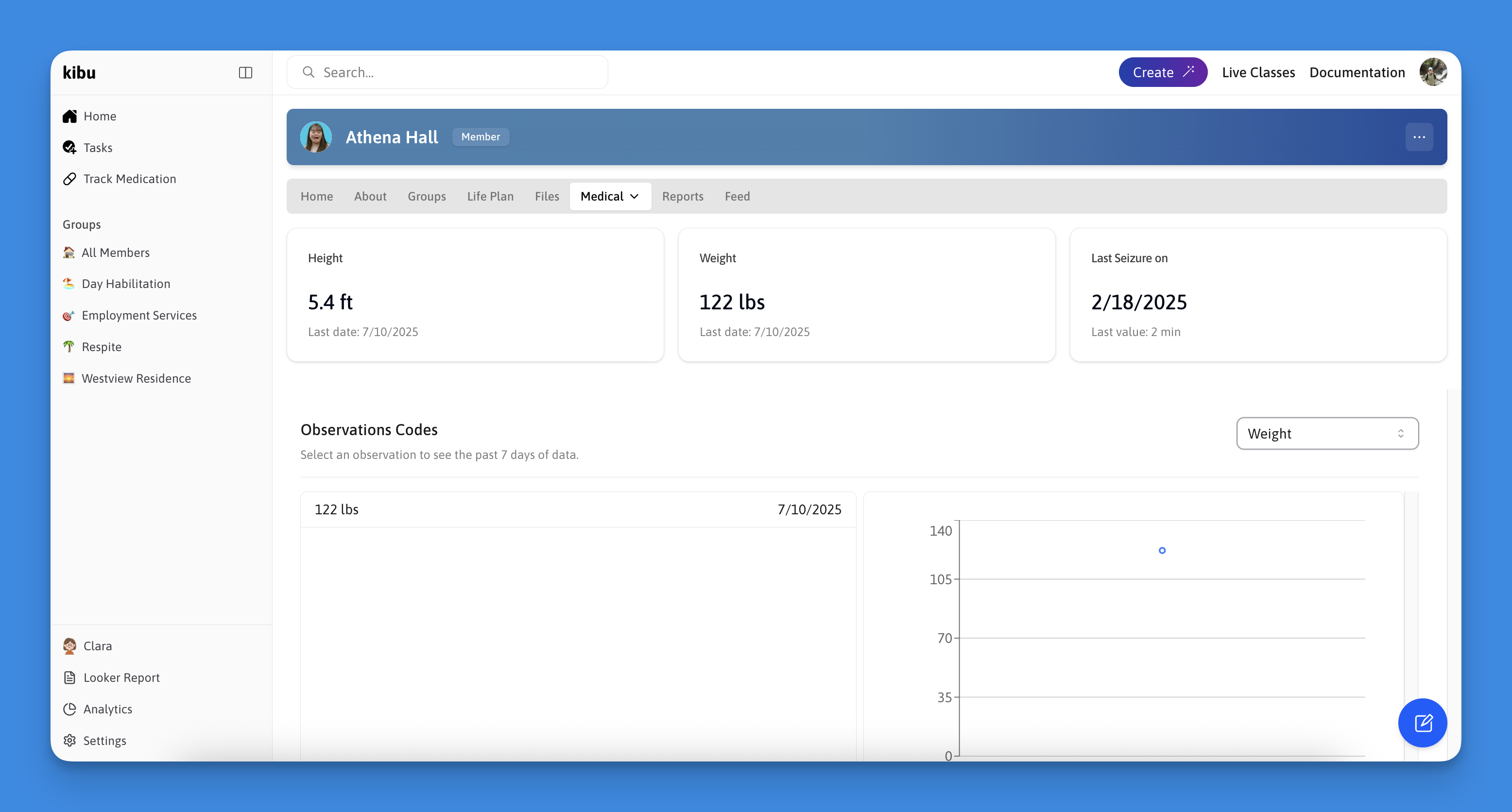
> The medical observations feature allows you to track various health metrics for your members. These observations are accessible under the medical tab of each member's profile, providing a comprehensive view of their health status over time.
Medical Observations will be moved to a new location in the future and improved. All existing data will be preserved. In the meantime, we recommend using [**Quick Forms**](https://help.kibu.com/documentation/quick-forms) to track health metrics.
 ## Overview
Medical observations allow you to track important health metrics for your members over time providing a comprehensive view of their health status and history.
## Recording Medical Observations
## Overview
Medical observations allow you to track important health metrics for your members over time providing a comprehensive view of their health status and history.
## Recording Medical Observations
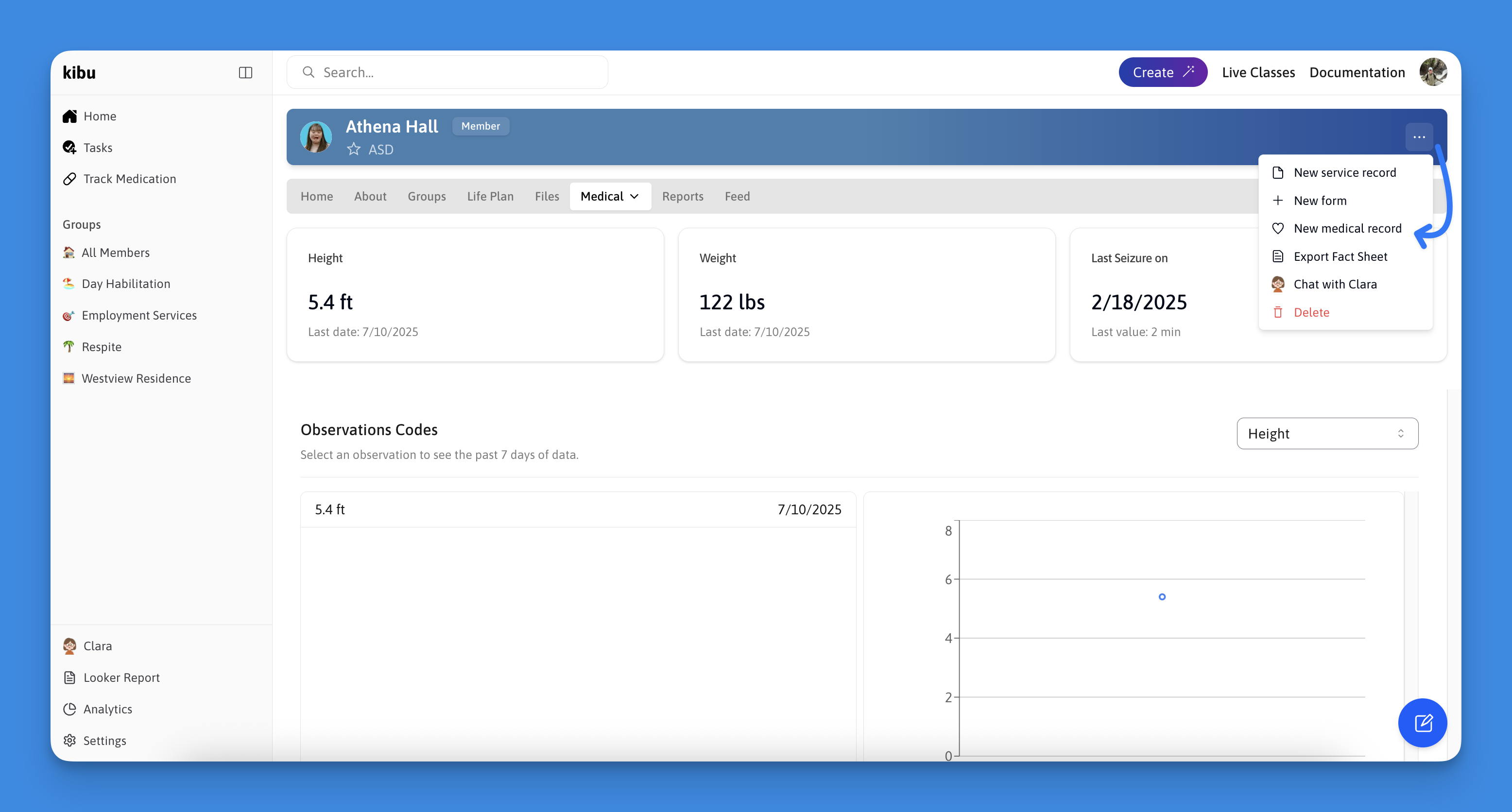 When you need to record a new medical observation:
## Viewing Observation History
To review past medical observations:
## Types of Medical Observations
We support comprehensive tracking of vital health metrics including:
* Height
* Weight
* Temperature
* Heart Rate (Post Exercise)
* Heart Rate (Resting)
* Systolic Blood Pressure
* Diastolic Blood Pressure
* Seizure dates
* Blood sugar/glucose levels
* Bowel movements
* Urinary elimination
* Food intake
* Fluid intake
## Capturing Event-Based Observations with Quick Forms
For health events tracking events that are scheduled, or happen in the moment, like a seizure, a blood pressure reading, or a bowel movement, Quick Forms offer a fast, lightweight alternative. Quick Forms are fully customizable, allowing organizations to build templates tailored to the specific data they need to track.
Quick Forms are not tied to a service record or end-of-day note, making them ideal for staff to log important health details as they occur. Common health-related Quick Forms include:
* Seizure episodes
* Blood pressure checks
* Bowel movements
* Menses tracking
* Meal and fluid intake entries
When you need to record a new medical observation:
## Viewing Observation History
To review past medical observations:
## Types of Medical Observations
We support comprehensive tracking of vital health metrics including:
* Height
* Weight
* Temperature
* Heart Rate (Post Exercise)
* Heart Rate (Resting)
* Systolic Blood Pressure
* Diastolic Blood Pressure
* Seizure dates
* Blood sugar/glucose levels
* Bowel movements
* Urinary elimination
* Food intake
* Fluid intake
## Capturing Event-Based Observations with Quick Forms
For health events tracking events that are scheduled, or happen in the moment, like a seizure, a blood pressure reading, or a bowel movement, Quick Forms offer a fast, lightweight alternative. Quick Forms are fully customizable, allowing organizations to build templates tailored to the specific data they need to track.
Quick Forms are not tied to a service record or end-of-day note, making them ideal for staff to log important health details as they occur. Common health-related Quick Forms include:
* Seizure episodes
* Blood pressure checks
* Bowel movements
* Menses tracking
* Meal and fluid intake entries