> ## Documentation Index
> Fetch the complete documentation index at: https://help.kibu.com/llms.txt
> Use this file to discover all available pages before exploring further.
# Medication Tracking (eMAR)
> Track member medication intake digitally through our electronic medication administration record (eMAR) system.
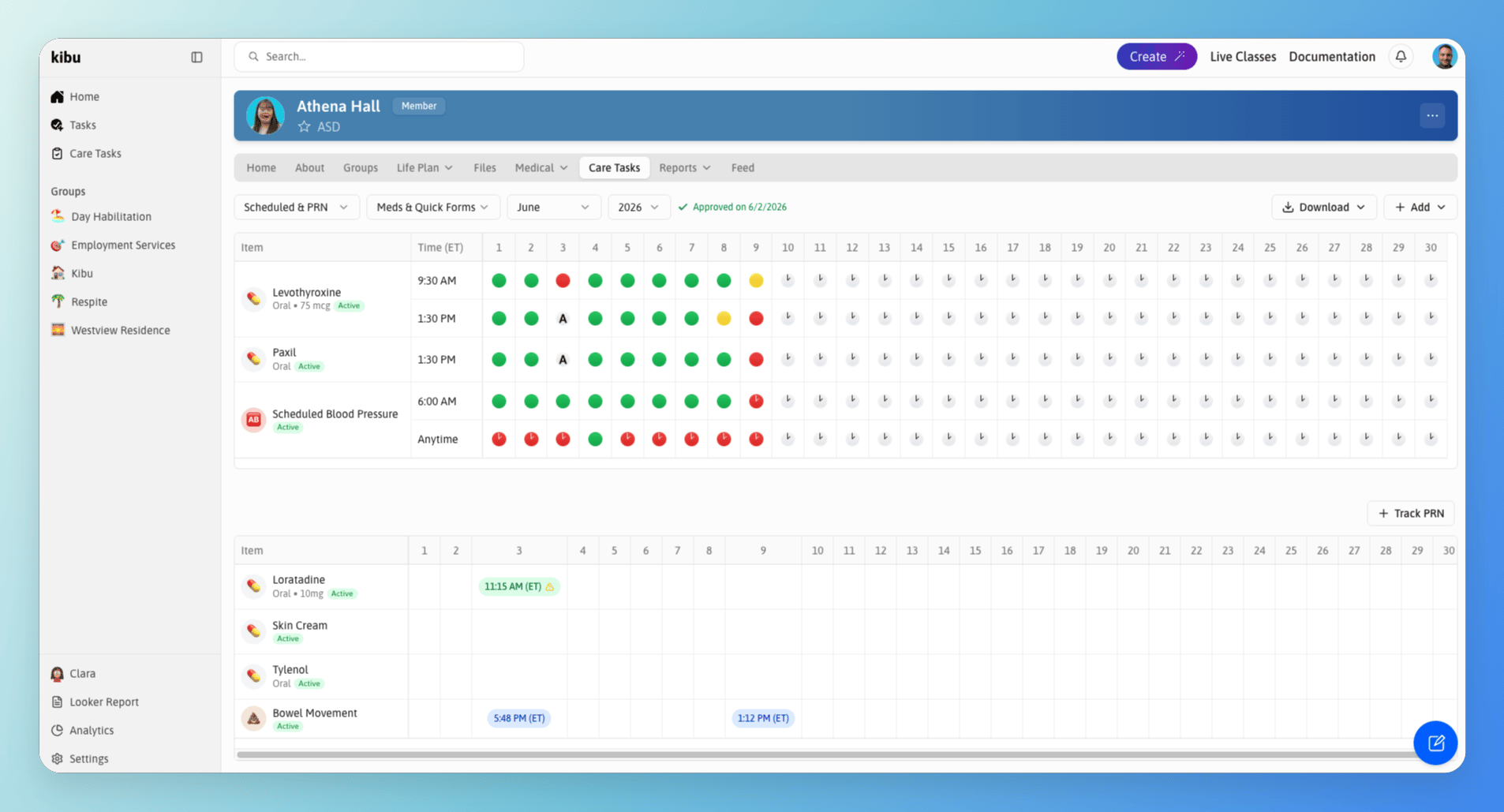 The electronic Medication Administration Record (eMAR) system provides a comprehensive digital solution for tracking medication intake. This intuitive interface allows caregivers to maintain detailed records of medication administration for each member.
## Recording a Medication Administration
The electronic Medication Administration Record (eMAR) system provides a comprehensive digital solution for tracking medication intake. This intuitive interface allows caregivers to maintain detailed records of medication administration for each member.
## Recording a Medication Administration
 To record that a medication has been given:
For PRN medications, you can administer multiple at once.
* A photo of the medication for visual confirmation (if one has been added)
* Side effects to monitor
* Administration instructions
Always verify you have the right medication and the right member before confirming.
All medication information including images, side effects, and instructions can be added or edited in the pharmacy section of each member's profile. Learn more about managing medications in the [Pharmacy Page](/documentation/pharmacy).
The medication administration record will be automatically added to the member's eMAR and available for immediate viewing.
On the eMAR page, you can:
* View a calendar-style interface showing medication records for each day of the month
* Track multiple medications per member with specific administration times
* Record the status of each medication administration
* Send notifications to staff members
## Administration Statuses
For each medication administration, you can mark one of the following statuses:
Medication was given as prescribed.
Medication was given but with some deviation.
Medication was not given.
When marking a medication as "Administered Incorrectly" or "Not Administered", you can:
* Document the reason for the deviation
* Add detailed notes about the situation
* Complete a medication incident report if required
If a medication administration was logged by mistake, it can be deleted. Only administrators can delete eMAR entries. To request a correction, contact your organization's administrator.
## Scheduled and PRN Medications
Medications are organized into two separate tabs:
Medications given on a regular, time-based schedule.
Medications given as needed.
Switch between the tabs in the "Care Tasks" tab to view and record each type. A dedicated PRN table also appears on each member's eMAR page, so you can always see which PRN medications have been administered.
## Recording a Missed Medication
If a medication was not documented on the correct day and needs to be added after the fact:
Administrators can also update MAR records for medications that have since been marked as inactive, for example, to correct a record from before a medication was discontinued. Contact your administrator if you need help with a past record.
## Tracking Medications from Care Tasks
Scheduled medications and PRN medications can both be tracked directly from a member's **Care Tasks** page, you do not need to navigate to the Medications section to log either.
To get there, open the member's profile and select the **Care Tasks** tab.
## Medication Error Reports
If your organization has a Medication Error Report form set up, you can log an error directly from the MAR. If you don't have one yet, contact [support@kibu.com](mailto:support@kibu.com) and the Kibu team will help you get it added.
Once your form is in place, there are two ways to file a report:
Click on any dose that was administered incorrectly and select **Create Medication Error Form**. This will take you directly to the report.
## Monthly Reports
The eMAR system makes it easy to generate and download monthly medication tracking reports:
* Export comprehensive monthly records for each member
* Include all administration statuses and notes
* Generate reports in an excel sheet format for record-keeping
* Share reports with healthcare providers or administrators as needed
This digital tracking system ensures accurate medication administration records while simplifying the documentation process for caregivers.
## Viewing Upcoming Medications
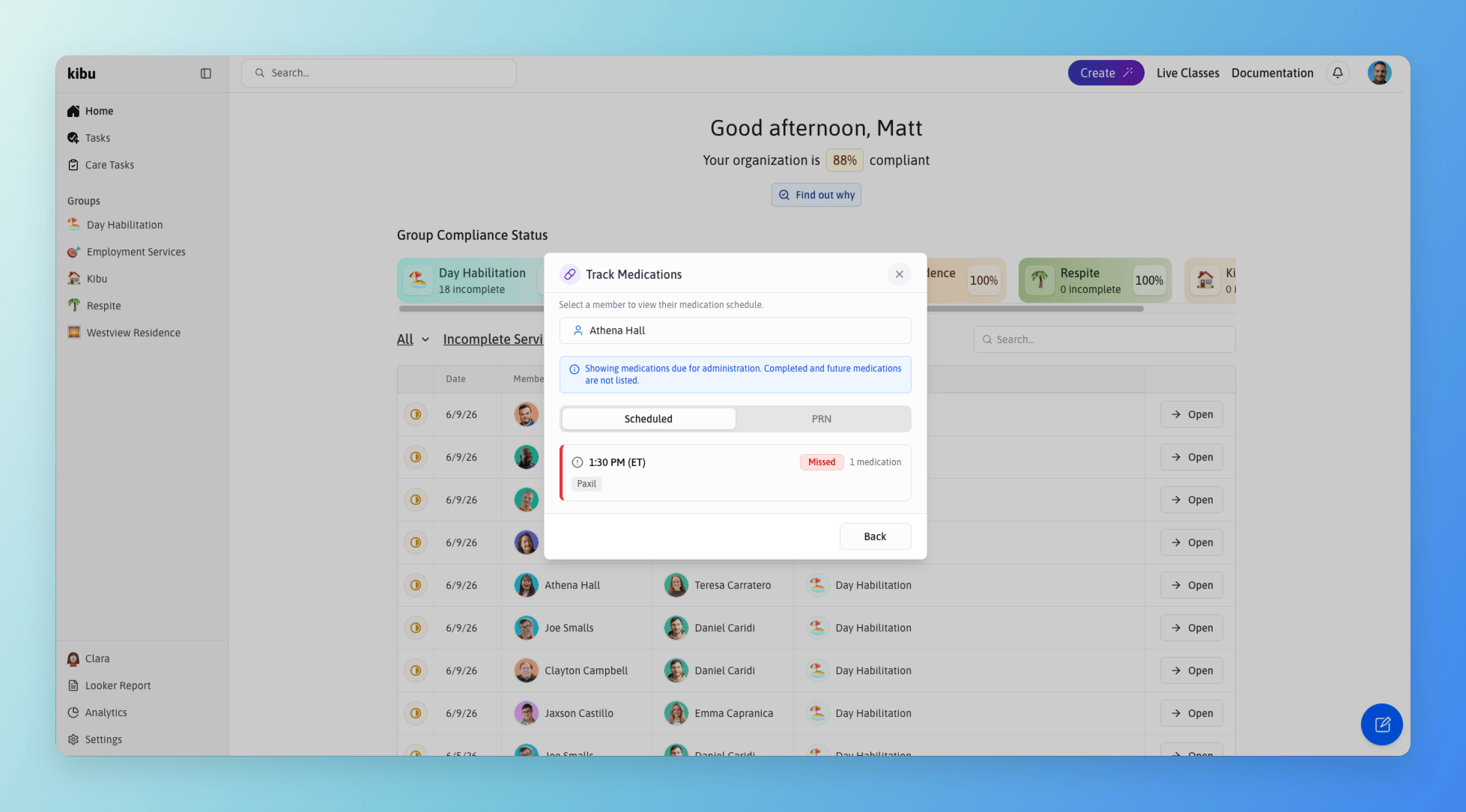
On a group page, under the care tasks tab, the medication tracking view shows upcoming scheduled medications for each group, so staff can see what is due before it comes up. Upcoming and missed medications appear together in the same view when you open the MAR.
This helps you plan ahead and make sure nothing is missed during a busy shift.
To record that a medication has been given:
For PRN medications, you can administer multiple at once.
* A photo of the medication for visual confirmation (if one has been added)
* Side effects to monitor
* Administration instructions
Always verify you have the right medication and the right member before confirming.
All medication information including images, side effects, and instructions can be added or edited in the pharmacy section of each member's profile. Learn more about managing medications in the [Pharmacy Page](/documentation/pharmacy).
The medication administration record will be automatically added to the member's eMAR and available for immediate viewing.
On the eMAR page, you can:
* View a calendar-style interface showing medication records for each day of the month
* Track multiple medications per member with specific administration times
* Record the status of each medication administration
* Send notifications to staff members
## Administration Statuses
For each medication administration, you can mark one of the following statuses:
Medication was given as prescribed.
Medication was given but with some deviation.
Medication was not given.
When marking a medication as "Administered Incorrectly" or "Not Administered", you can:
* Document the reason for the deviation
* Add detailed notes about the situation
* Complete a medication incident report if required
If a medication administration was logged by mistake, it can be deleted. Only administrators can delete eMAR entries. To request a correction, contact your organization's administrator.
## Scheduled and PRN Medications
Medications are organized into two separate tabs:
Medications given on a regular, time-based schedule.
Medications given as needed.
Switch between the tabs in the "Care Tasks" tab to view and record each type. A dedicated PRN table also appears on each member's eMAR page, so you can always see which PRN medications have been administered.
## Recording a Missed Medication
If a medication was not documented on the correct day and needs to be added after the fact:
Administrators can also update MAR records for medications that have since been marked as inactive, for example, to correct a record from before a medication was discontinued. Contact your administrator if you need help with a past record.
## Tracking Medications from Care Tasks
Scheduled medications and PRN medications can both be tracked directly from a member's **Care Tasks** page, you do not need to navigate to the Medications section to log either.
To get there, open the member's profile and select the **Care Tasks** tab.
## Medication Error Reports
If your organization has a Medication Error Report form set up, you can log an error directly from the MAR. If you don't have one yet, contact [support@kibu.com](mailto:support@kibu.com) and the Kibu team will help you get it added.
Once your form is in place, there are two ways to file a report:
Click on any dose that was administered incorrectly and select **Create Medication Error Form**. This will take you directly to the report.
## Monthly Reports
The eMAR system makes it easy to generate and download monthly medication tracking reports:
* Export comprehensive monthly records for each member
* Include all administration statuses and notes
* Generate reports in an excel sheet format for record-keeping
* Share reports with healthcare providers or administrators as needed
This digital tracking system ensures accurate medication administration records while simplifying the documentation process for caregivers.
## Viewing Upcoming Medications
On a group page, under the care tasks tab, the medication tracking view shows upcoming scheduled medications for each group, so staff can see what is due before it comes up. Upcoming and missed medications appear together in the same view when you open the MAR.
This helps you plan ahead and make sure nothing is missed during a busy shift.