> ## Documentation Index
> Fetch the complete documentation index at: https://help.kibu.com/llms.txt
> Use this file to discover all available pages before exploring further.
# Note Templates
Kibu allows your organization to create custom documentation forms that staff complete as part of daily service records. These forms let you capture exactly the information your organization needs for compliance and care planning.
Note templates are managed by Kibu's support team on your behalf. You cannot edit them directly in the app, but this page will help you understand what's possible so you can come prepared when requesting changes.
To request a new template or make changes to an existing one, email [support@kibu.com](mailto:support@kibu.com).
## Where to Find Note Templates
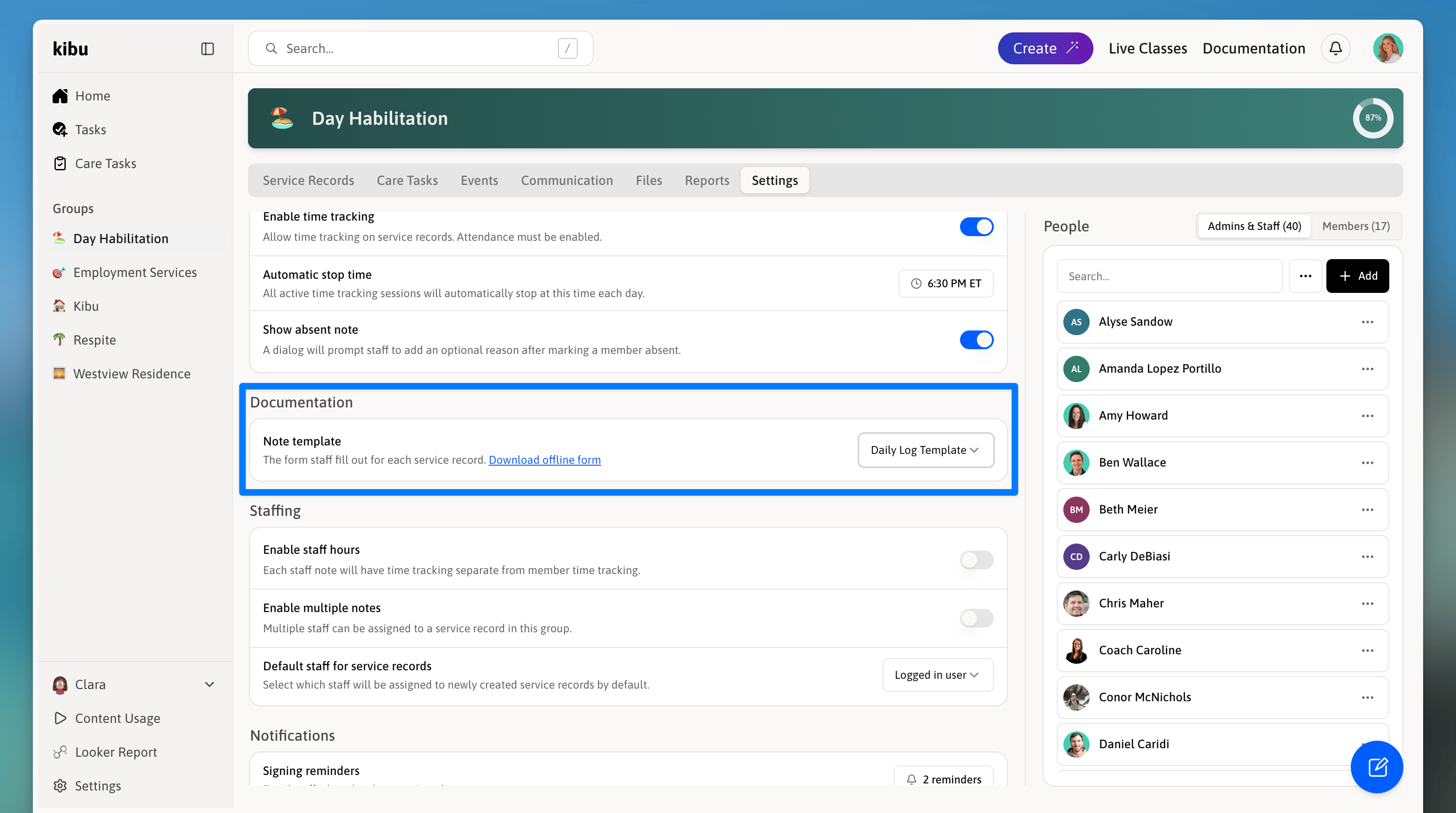
Go to **Settings** and select the **Note Template** section to view your organization's current templates. From here you can review what's in place, print blank forms, and see how templates are structured, but edits must be requested through Kibu support.
 ## Planning Your Template
Before reaching out to support, it helps to know what question types are available and how they work. Use the sections below as a reference when deciding what you'd like your template to include.
### Question Types
When building a template, you can choose from these question formats:
A simple binary question (e.g., "Did the member participate?")
Staff choose one answer from a list.
Staff can choose multiple answers.
A brief written response.
A detailed observation.
A numeric entry (e.g., minutes of activity).
A specific date.
A specific time.
Both date and time in one field.
A start time and end time captured together.
A repeating table of entries (see below).
### Conditional Questions
Conditional questions only appear when a staff member selects a specific answer to a previous question. This keeps forms simple, staff only see the questions relevant to what they're documenting.
**Example:** If "Did the member participate?" is answered "No," a follow-up asking for details won't appear. If answered "Yes," a text field asking for more information will automatically show up.
### List Questions and Table View
List-type questions can be entered in a table view, making it easy to add multiple rows of data in an organized format, which is useful for tracking repeated entries like meals or activities throughout the day.
## Template Versioning
When a template is updated, all past service records continue to show the version that was in use when they were originally completed. Your historical records always reflect the documentation requirements that were in place at the time.
## Printing Blank Forms
If your organization needs to document on paper, for example, during a technology outage, you can print a blank version of any form template to fill out by hand. Data can be entered into the system later.
To print a blank form:
## Planning Your Template
Before reaching out to support, it helps to know what question types are available and how they work. Use the sections below as a reference when deciding what you'd like your template to include.
### Question Types
When building a template, you can choose from these question formats:
A simple binary question (e.g., "Did the member participate?")
Staff choose one answer from a list.
Staff can choose multiple answers.
A brief written response.
A detailed observation.
A numeric entry (e.g., minutes of activity).
A specific date.
A specific time.
Both date and time in one field.
A start time and end time captured together.
A repeating table of entries (see below).
### Conditional Questions
Conditional questions only appear when a staff member selects a specific answer to a previous question. This keeps forms simple, staff only see the questions relevant to what they're documenting.
**Example:** If "Did the member participate?" is answered "No," a follow-up asking for details won't appear. If answered "Yes," a text field asking for more information will automatically show up.
### List Questions and Table View
List-type questions can be entered in a table view, making it easy to add multiple rows of data in an organized format, which is useful for tracking repeated entries like meals or activities throughout the day.
## Template Versioning
When a template is updated, all past service records continue to show the version that was in use when they were originally completed. Your historical records always reflect the documentation requirements that were in place at the time.
## Printing Blank Forms
If your organization needs to document on paper, for example, during a technology outage, you can print a blank version of any form template to fill out by hand. Data can be entered into the system later.
To print a blank form: