> ## Documentation Index
> Fetch the complete documentation index at: https://help.kibu.com/llms.txt
> Use this file to discover all available pages before exploring further.
# Notification Center
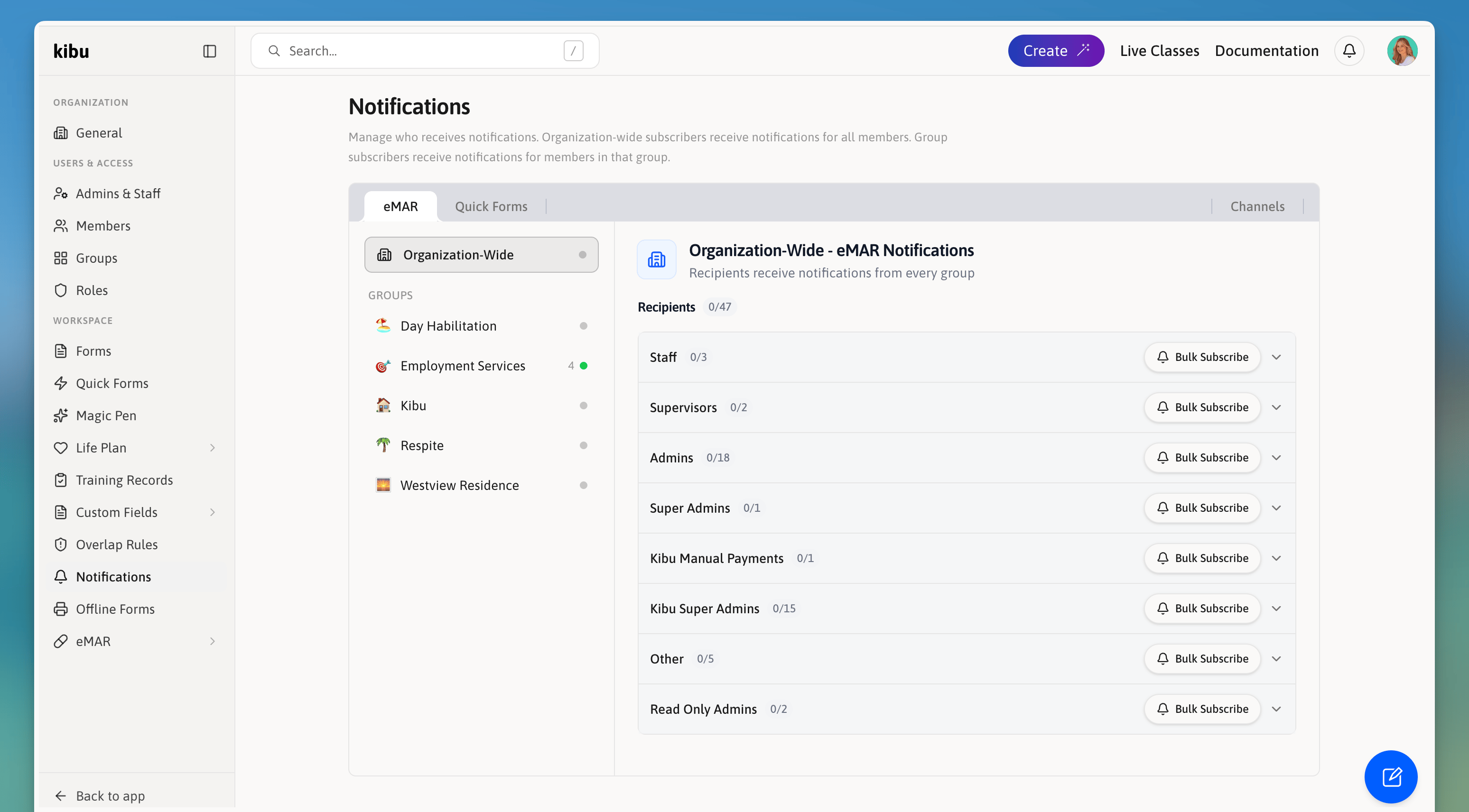 The Notification Center keeps staff and administrators informed about important events without needing to check manually. Notifications appear in the app and can also be sent by email.
## Finding the Notification Center
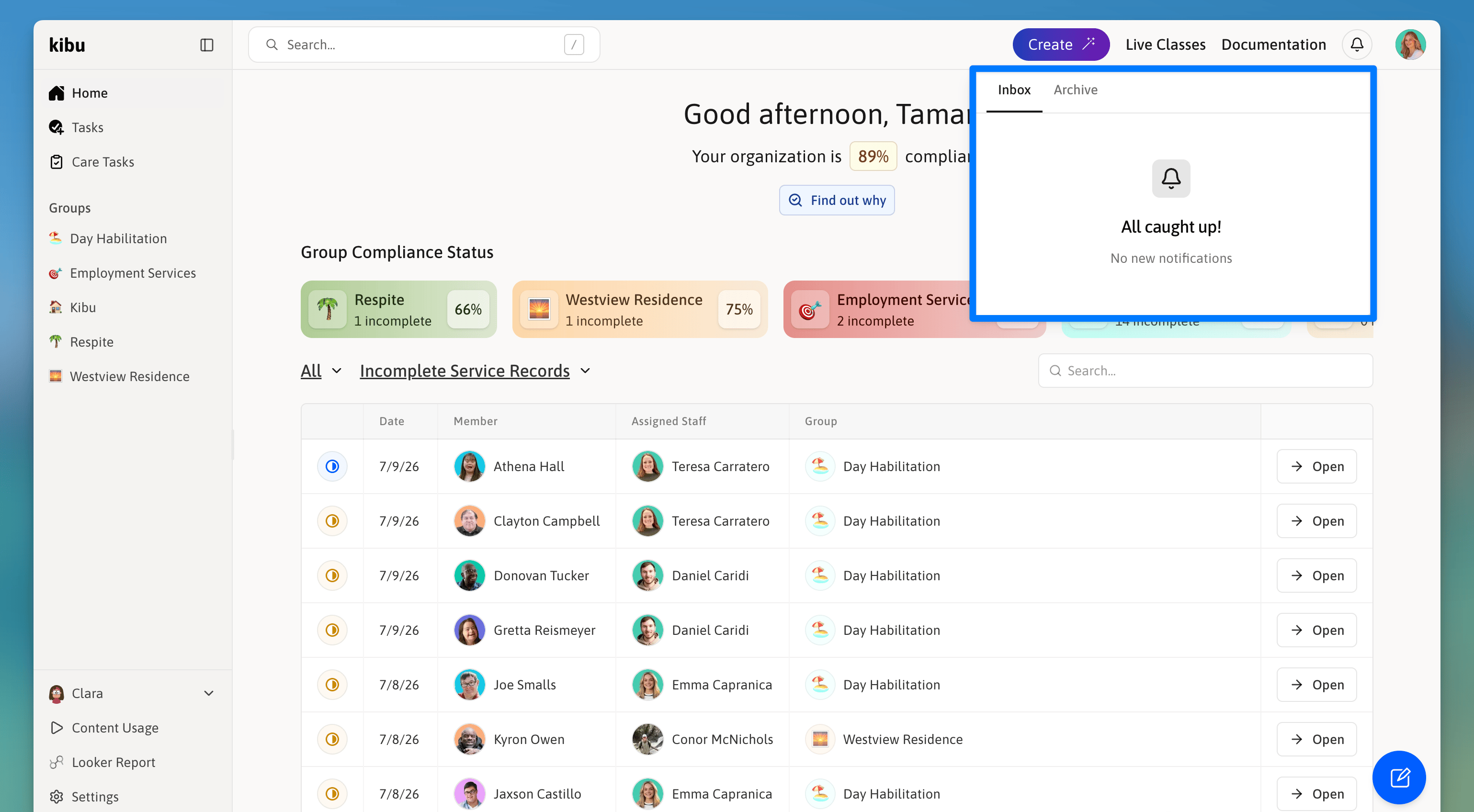
Look for the bell icon in the navigation bar. Click it to open the Notification Center and view your recent notifications.
The Notification Center is available on both the web platform and the Kibu mobile app.
The Notification Center keeps staff and administrators informed about important events without needing to check manually. Notifications appear in the app and can also be sent by email.
## Finding the Notification Center
Look for the bell icon in the navigation bar. Click it to open the Notification Center and view your recent notifications.
The Notification Center is available on both the web platform and the Kibu mobile app.
 ## What Triggers Notifications
Kibu sends notifications for the following events:
A scheduled medication was not recorded as administered.
A medication was logged as given incorrectly.
A notification is sent every time a specific Quick Form is submitted.
A scheduled Quick Form was not completed in time.
## Setting Up Notifications
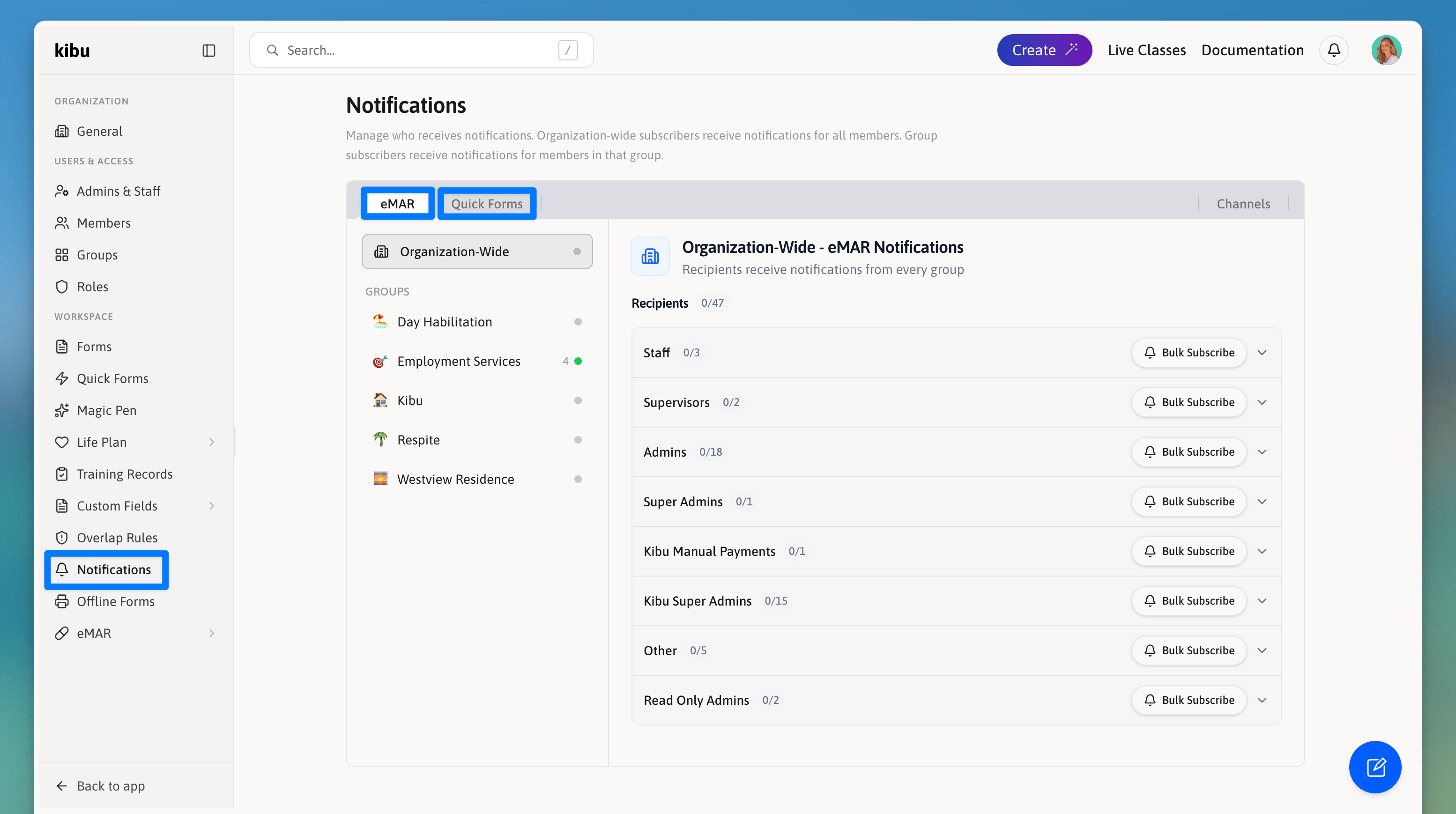
Notifications are managed in **Settings → Notifications**. The page is divided into two tabs: **eMAR** and **Quick Forms**. Each tab controls notifications for that category independently.
On the left side of the page, you will see:
Subscribers here receive notifications for all members across every group.
Select a specific group to configure notifications only for members in that group.
This means you can have different people subscribed at the organization level versus the group level, giving you fine-grained control over who gets notified about what.
## What Triggers Notifications
Kibu sends notifications for the following events:
A scheduled medication was not recorded as administered.
A medication was logged as given incorrectly.
A notification is sent every time a specific Quick Form is submitted.
A scheduled Quick Form was not completed in time.
## Setting Up Notifications
Notifications are managed in **Settings → Notifications**. The page is divided into two tabs: **eMAR** and **Quick Forms**. Each tab controls notifications for that category independently.
On the left side of the page, you will see:
Subscribers here receive notifications for all members across every group.
Select a specific group to configure notifications only for members in that group.
This means you can have different people subscribed at the organization level versus the group level, giving you fine-grained control over who gets notified about what.
 ### Subscribing Someone to Notifications
You can subscribe users one at a time or in bulk.
For Quick Forms, you can select **On Submission** (for specific forms) and/or **Missed** (for scheduled forms that were not completed).
### Quick Form Notification Types
When subscribing someone to Quick Form notifications, you choose from two trigger types:
Notifies the user every time a specific Quick Form is submitted. You can select which forms trigger this.
Notifies the user when a scheduled Quick Form was not completed. You can select which scheduled forms trigger this.
### eMAR Notification Types
When subscribing someone to eMAR notifications, you choose from:
A medication was logged as given incorrectly.
A scheduled medication was not recorded as administered.
## Email and In-App Notifications
Notifications are delivered in two ways:
Appear in the bell icon in the navigation bar.
Sent to the user's registered email address.
### Subscribing Someone to Notifications
You can subscribe users one at a time or in bulk.
For Quick Forms, you can select **On Submission** (for specific forms) and/or **Missed** (for scheduled forms that were not completed).
### Quick Form Notification Types
When subscribing someone to Quick Form notifications, you choose from two trigger types:
Notifies the user every time a specific Quick Form is submitted. You can select which forms trigger this.
Notifies the user when a scheduled Quick Form was not completed. You can select which scheduled forms trigger this.
### eMAR Notification Types
When subscribing someone to eMAR notifications, you choose from:
A medication was logged as given incorrectly.
A scheduled medication was not recorded as administered.
## Email and In-App Notifications
Notifications are delivered in two ways:
Appear in the bell icon in the navigation bar.
Sent to the user's registered email address.