> ## Documentation Index
> Fetch the complete documentation index at: https://help.kibu.com/llms.txt
> Use this file to discover all available pages before exploring further.
# Pharmacy Page
> Manage and track all medications a member takes regularly or may need in specific situations, including dosage details, photos, and administration records.
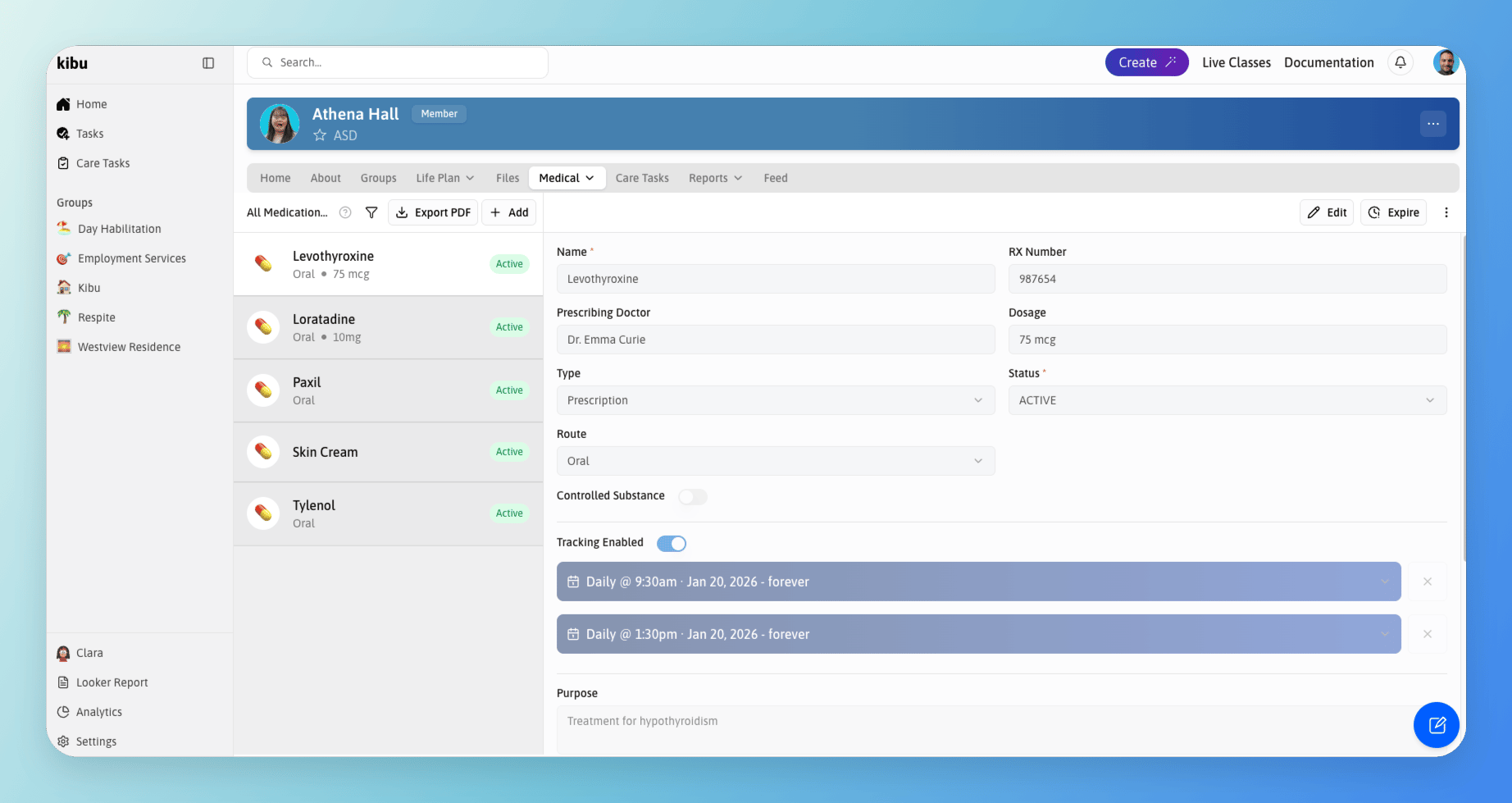 The Pharmacy page, located under the Medical tab of each member's profile, is where you manage and track all medications a member takes regularly or may need in specific situations.
To access it:
## Adding a New Medication
To add a new medication for a member:
### Medication Information
When adding a medication, you can specify the following details:
Name of the prescribed medication.
Prescription identification number.
Name of the doctor who prescribed the medication.
Amount of medication to be administered.
Notes about how the medication should be given, such as whether it should be taken with food, how to prepare a dose, or any special handling requirements.
Choose between:
* Over the counter
* Supplement
Set as either:
* Active
* Inactive
Method of administration (e.g., oral, topical, injection).
Set specific times and frequencies for medication administration.
Document the reason for the medication.
List potential side effects to monitor.
Any other relevant information about the medication.
## Medication Tracking
Once a medication is added:
* It becomes available for tracking for that specific member
* Appears on the member's eMAR (Electronic Medication Administration Record) when an administration is tracked
* Can be monitored and updated as needed
## Managing Multiple Medications
There is no limit to the number of medications you can add for each member. This allows you to:
* Track all necessary medications in one place
* Maintain an accurate record of both regular and as-needed medications
* Ensure proper medication administration and tracking
You can always edit or remove a medication in the pharmacy page if needed.
## Medication Photo
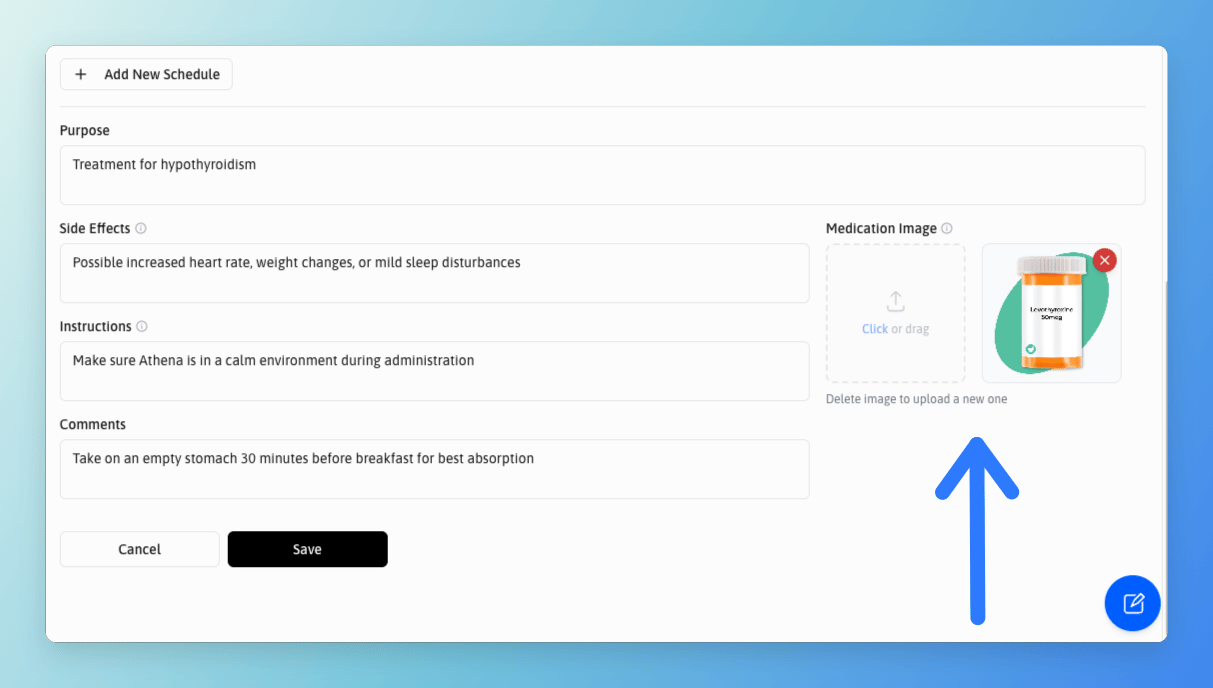
You can upload a photo of the medication bottle or label when adding or editing a medication record. This photo will appear on the administration screen when staff record a dose in the MAR, helping them visually confirm they have the right medication before administering it.
To add a photo:
The Pharmacy page, located under the Medical tab of each member's profile, is where you manage and track all medications a member takes regularly or may need in specific situations.
To access it:
## Adding a New Medication
To add a new medication for a member:
### Medication Information
When adding a medication, you can specify the following details:
Name of the prescribed medication.
Prescription identification number.
Name of the doctor who prescribed the medication.
Amount of medication to be administered.
Notes about how the medication should be given, such as whether it should be taken with food, how to prepare a dose, or any special handling requirements.
Choose between:
* Over the counter
* Supplement
Set as either:
* Active
* Inactive
Method of administration (e.g., oral, topical, injection).
Set specific times and frequencies for medication administration.
Document the reason for the medication.
List potential side effects to monitor.
Any other relevant information about the medication.
## Medication Tracking
Once a medication is added:
* It becomes available for tracking for that specific member
* Appears on the member's eMAR (Electronic Medication Administration Record) when an administration is tracked
* Can be monitored and updated as needed
## Managing Multiple Medications
There is no limit to the number of medications you can add for each member. This allows you to:
* Track all necessary medications in one place
* Maintain an accurate record of both regular and as-needed medications
* Ensure proper medication administration and tracking
You can always edit or remove a medication in the pharmacy page if needed.
## Medication Photo
You can upload a photo of the medication bottle or label when adding or editing a medication record. This photo will appear on the administration screen when staff record a dose in the MAR, helping them visually confirm they have the right medication before administering it.
To add a photo:
 ## Downloading a Medication List
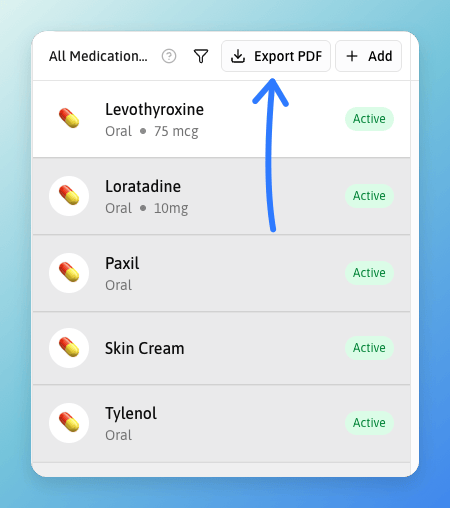
A member's complete medication list can be downloaded as a PDF. This is useful for sharing with healthcare providers, including in care plan documentation, or keeping on file.
To download the medication list:
## Downloading a Medication List
A member's complete medication list can be downloaded as a PDF. This is useful for sharing with healthcare providers, including in care plan documentation, or keeping on file.
To download the medication list:
 ## Removing a Medication
If a member is no longer taking a medication, you can remove it from their active list without permanently deleting the record. Removing a medication hides it from the active view while preserving all historical administration data.
To remove a medication:
If you need to permanently delete a medication record, contact [support@kibu.com](mailto:support@kibu.com).
## PRN Medication Dates
For PRN (as-needed) medications, you can set a start date and an end date to indicate when the medication may be administered. Once the end date has passed, the medication will appear as expired.
Expired PRN schedules remain visible in the interface so you can reference past records. They simply cannot receive new administration entries.
## Removing a Medication
If a member is no longer taking a medication, you can remove it from their active list without permanently deleting the record. Removing a medication hides it from the active view while preserving all historical administration data.
To remove a medication:
If you need to permanently delete a medication record, contact [support@kibu.com](mailto:support@kibu.com).
## PRN Medication Dates
For PRN (as-needed) medications, you can set a start date and an end date to indicate when the medication may be administered. Once the end date has passed, the medication will appear as expired.
Expired PRN schedules remain visible in the interface so you can reference past records. They simply cannot receive new administration entries.