> ## Documentation Index
> Fetch the complete documentation index at: https://help.kibu.com/llms.txt
> Use this file to discover all available pages before exploring further.
# Quick Forms
 Quick Forms are a structured way to collect recurring health and daily living data for your members. Rather than tracking these observations through daily service records, Quick Forms give you a consistent format that is easy to complete and easy to review over time.
***
## Why Use Quick Forms?
Quick Forms are designed for information that doesn't fit neatly into a service record or daily note. They give your organization a consistent, repeatable way to capture health observations, daily living data, and incidents the moment they happen, without relying on staff to remember details later.
Here are some of the reasons organizations use Quick Forms:
Log something the moment it occurs, like a seizure or a blood pressure reading, rather than waiting until end-of-shift notes.
Record as-needed events such as behavioral incidents, health checks, or inventory with a structured format every time.
Some Quick Forms can be completed for multiple members at once, making it efficient for staff working with a group.
Because every entry is timestamped and tied to a member, administrators can review data over time in table or graph format to spot patterns.
Forms can be set to appear automatically on a recurring schedule: daily, weekly, monthly, or custom patterns like every third Tuesday, so routine documentation never gets overlooked.
Each entry is automatically linked to the member and records the date and time it was completed.
***
## Creating a Quick Form
Administrators can build Quick Forms directly in Kibu using the visual form builder. No technical knowledge needed.
To create a Quick Form:
Once created, the form is available to staff for data entry.
***
## Quick Form Settings
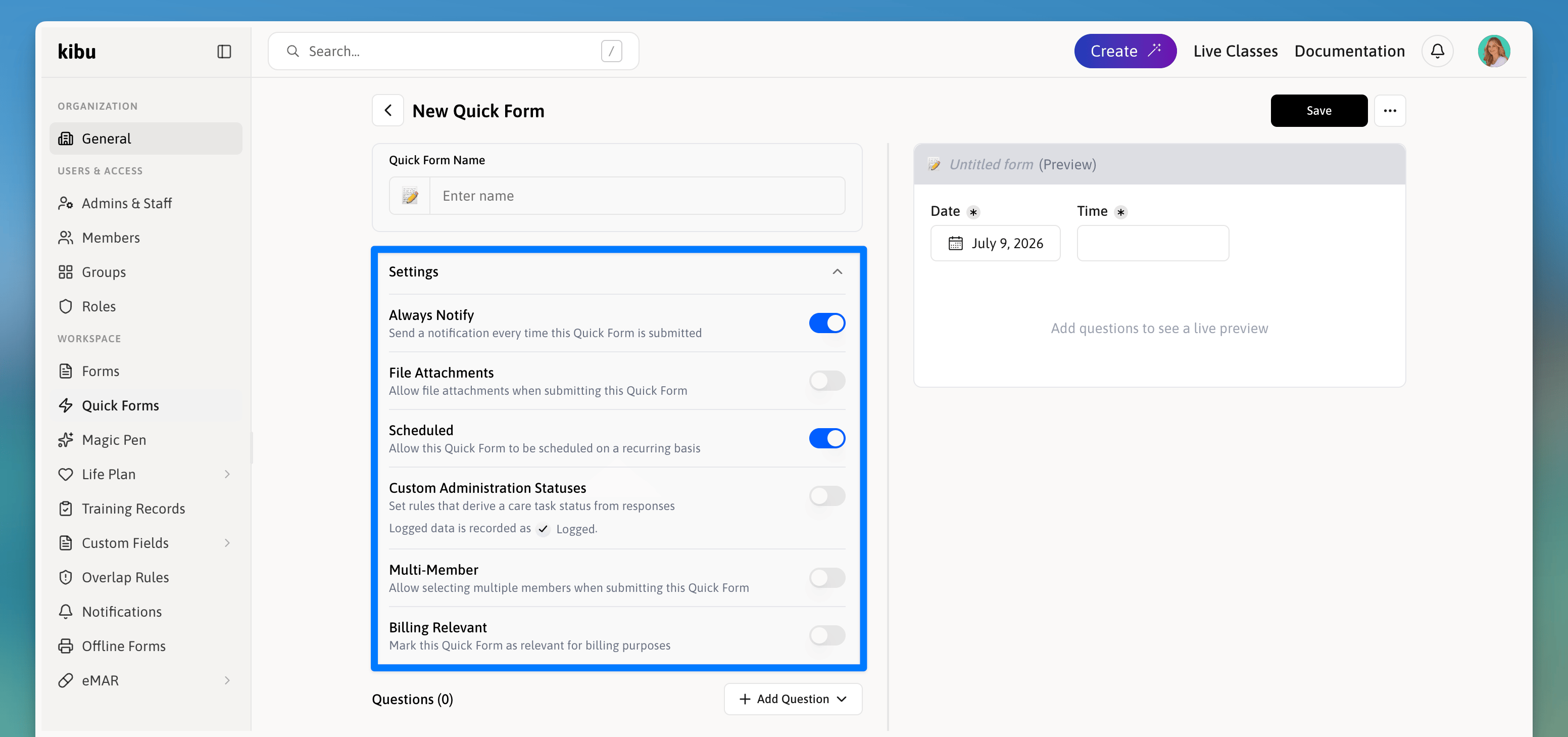
Quick Forms offer a variety of settings to help you customize Care Tasks. While these settings are turned off by default, you can enable them under:
1. **Always Notify** - Send a notification every time this Quick Form is submitted
2. **File Attachments** - Allow file attachments when submitting this Quick Form
3. **Scheduled** - Allow this Quick Form to be scheduled on a recurring basis. Instead of relying on staff to remember when a form is due, the system surfaces it at the right time as a Care Task. Schedules are set per member, so each member can have their own custom recurrence. For example, one member might have a Water Intake check every Wednesday at 9:30 AM while another has it daily.
4. **Multi-Member** - Allow selecting multiple members when submitting this Quick Form
5. **Billing Relevant** - Mark this Quick Form as relevant for billing purposes
Quick Forms are a structured way to collect recurring health and daily living data for your members. Rather than tracking these observations through daily service records, Quick Forms give you a consistent format that is easy to complete and easy to review over time.
***
## Why Use Quick Forms?
Quick Forms are designed for information that doesn't fit neatly into a service record or daily note. They give your organization a consistent, repeatable way to capture health observations, daily living data, and incidents the moment they happen, without relying on staff to remember details later.
Here are some of the reasons organizations use Quick Forms:
Log something the moment it occurs, like a seizure or a blood pressure reading, rather than waiting until end-of-shift notes.
Record as-needed events such as behavioral incidents, health checks, or inventory with a structured format every time.
Some Quick Forms can be completed for multiple members at once, making it efficient for staff working with a group.
Because every entry is timestamped and tied to a member, administrators can review data over time in table or graph format to spot patterns.
Forms can be set to appear automatically on a recurring schedule: daily, weekly, monthly, or custom patterns like every third Tuesday, so routine documentation never gets overlooked.
Each entry is automatically linked to the member and records the date and time it was completed.
***
## Creating a Quick Form
Administrators can build Quick Forms directly in Kibu using the visual form builder. No technical knowledge needed.
To create a Quick Form:
Once created, the form is available to staff for data entry.
***
## Quick Form Settings
Quick Forms offer a variety of settings to help you customize Care Tasks. While these settings are turned off by default, you can enable them under:
1. **Always Notify** - Send a notification every time this Quick Form is submitted
2. **File Attachments** - Allow file attachments when submitting this Quick Form
3. **Scheduled** - Allow this Quick Form to be scheduled on a recurring basis. Instead of relying on staff to remember when a form is due, the system surfaces it at the right time as a Care Task. Schedules are set per member, so each member can have their own custom recurrence. For example, one member might have a Water Intake check every Wednesday at 9:30 AM while another has it daily.
4. **Multi-Member** - Allow selecting multiple members when submitting this Quick Form
5. **Billing Relevant** - Mark this Quick Form as relevant for billing purposes
 ***
## Completing a Quick Form
To complete a Quick Form entry for a member:
Each completed entry is automatically timestamped and linked to the member.
**Never**, **On** a specific date, or **After** a set number of occurrences.
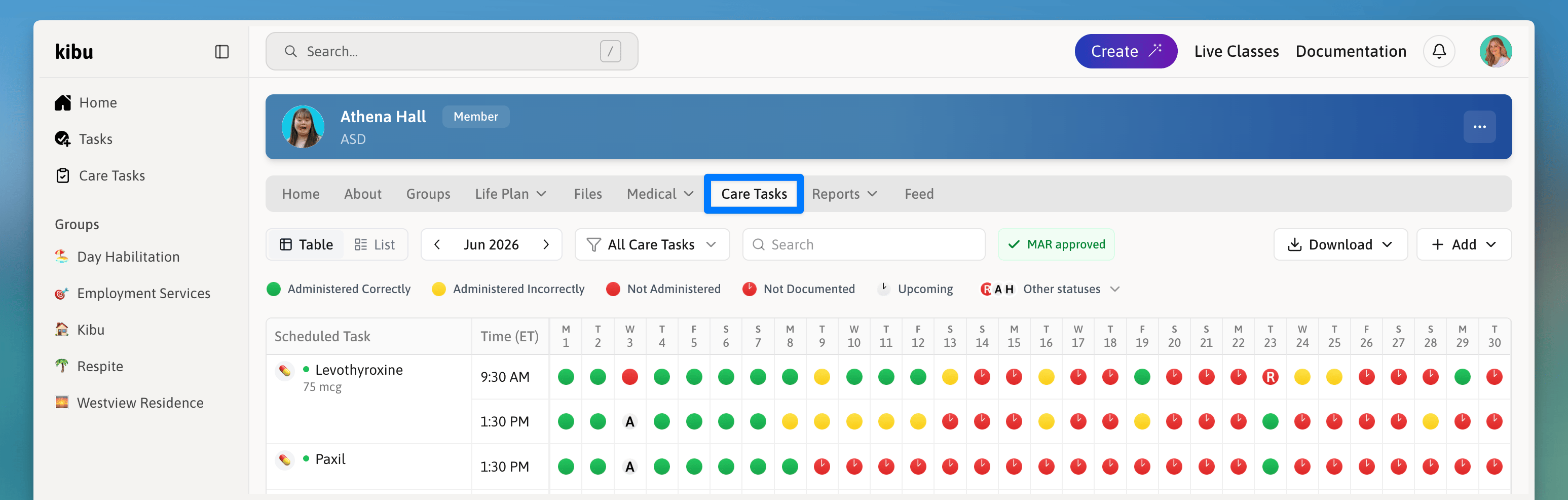
Once scheduled, the form appears in the member's **Care Tasks** tab in a calendar grid view showing each day of the month. Each scheduled occurrence is tracked:
The task was completed correctly.
The task was not recorded and the window has passed.
The task was completed but incorrectly.
This makes it easy for administrators to spot missed documentation at a glance.
Data is displayed in both table and graph formats, making it easy to see how a member's metrics are changing over time.
***
## Notification Alerts
Administrators can set up automatic notification rules for Quick Forms. For example, if a member's blood pressure falls outside a set range, a notification can be sent to alert staff automatically.
Notification rules can be configured at the organization level or for a specific group.
See the [Notification Center article](/documentation/notification-center) for more information.
***
***
## Completing a Quick Form
To complete a Quick Form entry for a member:
Each completed entry is automatically timestamped and linked to the member.
**Never**, **On** a specific date, or **After** a set number of occurrences.
Once scheduled, the form appears in the member's **Care Tasks** tab in a calendar grid view showing each day of the month. Each scheduled occurrence is tracked:
The task was completed correctly.
The task was not recorded and the window has passed.
The task was completed but incorrectly.
This makes it easy for administrators to spot missed documentation at a glance.
Data is displayed in both table and graph formats, making it easy to see how a member's metrics are changing over time.
***
## Notification Alerts
Administrators can set up automatic notification rules for Quick Forms. For example, if a member's blood pressure falls outside a set range, a notification can be sent to alert staff automatically.
Notification rules can be configured at the organization level or for a specific group.
See the [Notification Center article](/documentation/notification-center) for more information.
***