> ## Documentation Index
> Fetch the complete documentation index at: https://help.kibu.com/llms.txt
> Use this file to discover all available pages before exploring further.
# Quick Notes
> Document member activities and behaviors instantly from anywhere in Kibu with our Quick Notes feature - because it takes a village to provide great care.
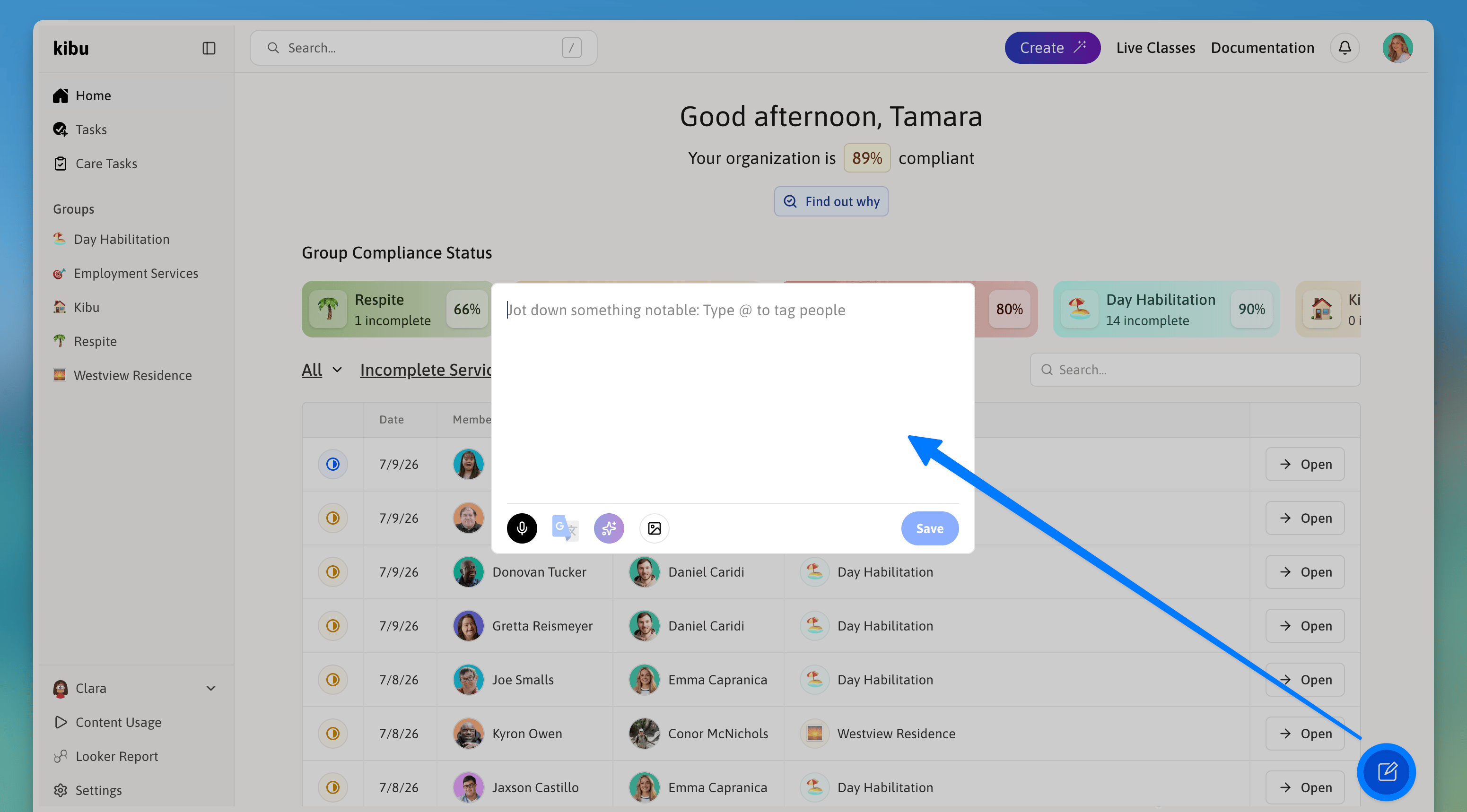 Quick Notes is a powerful collaborative documentation tool that enables any staff member to contribute observations and activities to member service records, regardless of their role or direct assignment. This feature embodies our philosophy that "it takes a village" to provide comprehensive care and documentation.
## Key Features
Available anywhere within Kibu via the blue note button in the bottom-right corner. Always ready for instant documentation and available to all staff members.
Tag members using the @ symbol. Notes automatically appear in tagged members' records with real-time updates to member timelines and seamless integration with service records.
Tag multiple members using the @ symbol. Notes automatically appear in tagged members' records with real-time updates to member timelines and seamless integration with service records.
You can tag multiple members or entire groups in a single Quick Note if they participated in the same activity or event.
## How It Works
### Creating a Quick Note
### Accessibility Features
Quick Notes offers several features to make documentation as effortless as possible:
Available on both mobile and web platforms. Simply tap the microphone icon and speak, perfect for hands-free documentation while actively engaging with members. Automatically transcribes your observations.
Document in your preferred language and Kibu automatically translates to your organization's default language. Supports multiple languages to enable multilingual staff collaboration.
The purple button instantly fixes spelling and grammar. Corrects common typing errors while maintaining the original meaning and context, no need to worry about perfect typing.
Select the image icon to add photos and upload multiple images per note. Perfect for capturing group activities, art projects, special events, achievement moments, and program participation.
Focus on capturing the important details and let our features handle the polish. The goal is to make documentation easier for DSPs, not add complexity.
### Types of Documentation
Quick Notes can be used to document:
* Class participation
* Activity engagement
* Notable incidents
* Behavioral observations
* Group interactions
* Special achievements
* Daily events
## Best Practices
Be clear and concise. Include specific times when relevant and document promptly after observations.
Double-check member names and ensure correct members are tagged.
Remember: Any staff member can contribute valuable observations about any member - Quick Notes makes this easy and accessible.
Make the Quick Notes button your go-to tool for instant documentation - it's always there when you need it!
Quick Notes is a powerful collaborative documentation tool that enables any staff member to contribute observations and activities to member service records, regardless of their role or direct assignment. This feature embodies our philosophy that "it takes a village" to provide comprehensive care and documentation.
## Key Features
Available anywhere within Kibu via the blue note button in the bottom-right corner. Always ready for instant documentation and available to all staff members.
Tag members using the @ symbol. Notes automatically appear in tagged members' records with real-time updates to member timelines and seamless integration with service records.
Tag multiple members using the @ symbol. Notes automatically appear in tagged members' records with real-time updates to member timelines and seamless integration with service records.
You can tag multiple members or entire groups in a single Quick Note if they participated in the same activity or event.
## How It Works
### Creating a Quick Note
### Accessibility Features
Quick Notes offers several features to make documentation as effortless as possible:
Available on both mobile and web platforms. Simply tap the microphone icon and speak, perfect for hands-free documentation while actively engaging with members. Automatically transcribes your observations.
Document in your preferred language and Kibu automatically translates to your organization's default language. Supports multiple languages to enable multilingual staff collaboration.
The purple button instantly fixes spelling and grammar. Corrects common typing errors while maintaining the original meaning and context, no need to worry about perfect typing.
Select the image icon to add photos and upload multiple images per note. Perfect for capturing group activities, art projects, special events, achievement moments, and program participation.
Focus on capturing the important details and let our features handle the polish. The goal is to make documentation easier for DSPs, not add complexity.
### Types of Documentation
Quick Notes can be used to document:
* Class participation
* Activity engagement
* Notable incidents
* Behavioral observations
* Group interactions
* Special achievements
* Daily events
## Best Practices
Be clear and concise. Include specific times when relevant and document promptly after observations.
Double-check member names and ensure correct members are tagged.
Remember: Any staff member can contribute valuable observations about any member - Quick Notes makes this easy and accessible.
Make the Quick Notes button your go-to tool for instant documentation - it's always there when you need it!