> ## Documentation Index
> Fetch the complete documentation index at: https://help.kibu.com/llms.txt
> Use this file to discover all available pages before exploring further.
# Service Records
> Learn how to manage daily member documentation and maintain compliance using Kibu's service records system.
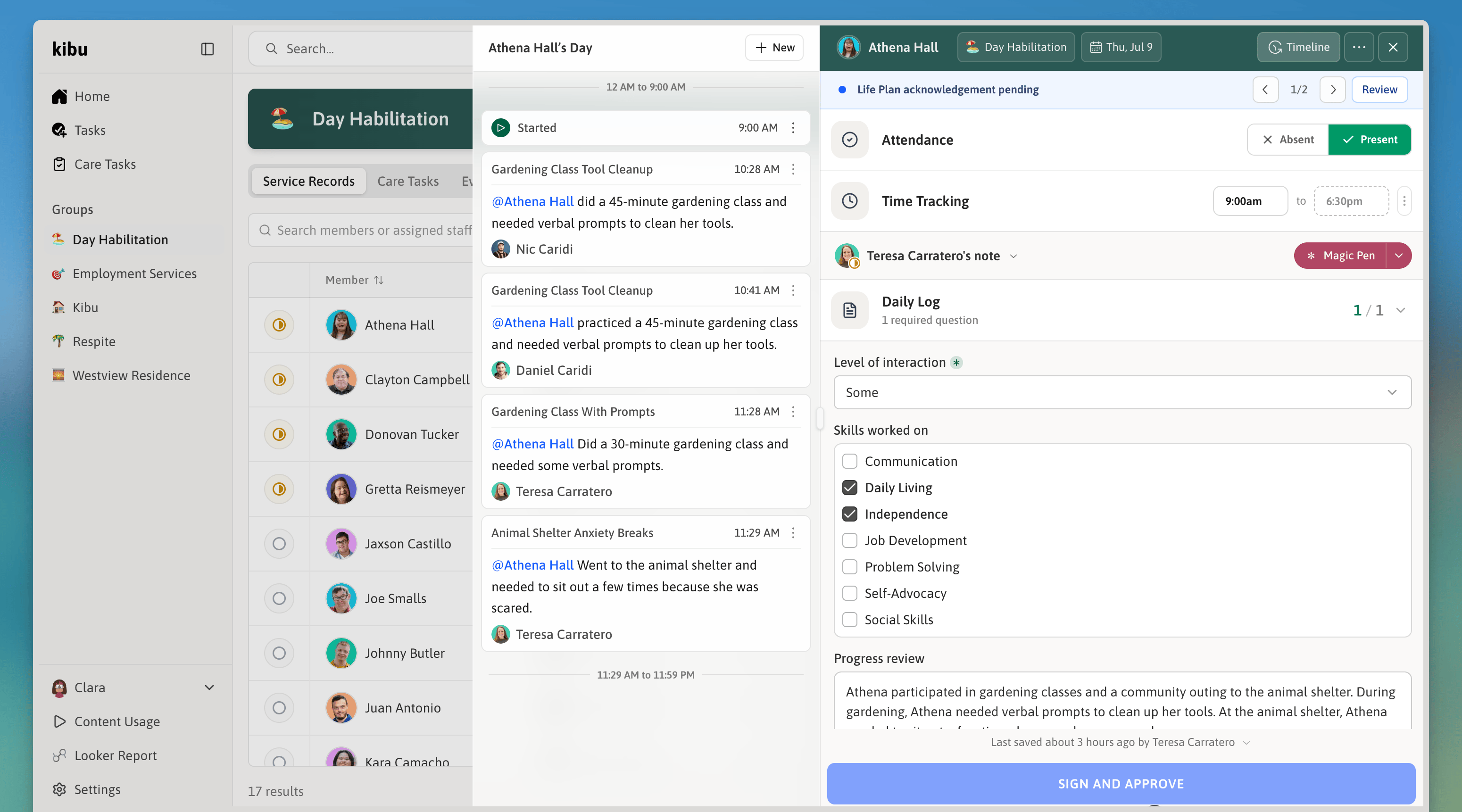 Service records are the foundation of daily documentation in Kibu. Each service record captures that services were provided to a specific member, in a specific group, on a specific day, including time tracking, notes, and life plan goal progress.
## Key Components
Individual member details, group association, assigned staff members, and attendance status (Present/Absent).
When enabled, tracks member arrival time, departure time, and total service duration. Can easily be exported to reports for billing-related needs.
Time tracking can be essential for billing accuracy and compliance requirements. Make sure this feature is enabled if your organization requires it.
### Documentation Fields
Each service record has a dedicated space for:
* Time tracking (if enabled for your group)
* Staff hours (if enabled for your group)
* Required documentation fields (customized by your organization)
* Life plan goal tracking
### Life Plan Goals
* Links directly to member's [Life Plan Goals](/documentation/life-plan-goals)
* DSPs track daily progress on assigned goals during their shift
* Each goal appears with its specific tracking questions and response options
* Goals can be marked as completed, attempted, or not applicable for the day
* Responses contribute to the point-based tracking system for measuring long-term success
Use quick notes to document specific examples of goal progress throughout the day - this helps create a more detailed record of the member's achievements.
## Starting a Service Record
To start a service record, navigate to the group where the member is receiving services. From there, you can create a new service record for that individual at the beginning of each day. If a member is marked as present a record automatically gets created and is free to be edited.
Service records are the foundation of daily documentation in Kibu. Each service record captures that services were provided to a specific member, in a specific group, on a specific day, including time tracking, notes, and life plan goal progress.
## Key Components
Individual member details, group association, assigned staff members, and attendance status (Present/Absent).
When enabled, tracks member arrival time, departure time, and total service duration. Can easily be exported to reports for billing-related needs.
Time tracking can be essential for billing accuracy and compliance requirements. Make sure this feature is enabled if your organization requires it.
### Documentation Fields
Each service record has a dedicated space for:
* Time tracking (if enabled for your group)
* Staff hours (if enabled for your group)
* Required documentation fields (customized by your organization)
* Life plan goal tracking
### Life Plan Goals
* Links directly to member's [Life Plan Goals](/documentation/life-plan-goals)
* DSPs track daily progress on assigned goals during their shift
* Each goal appears with its specific tracking questions and response options
* Goals can be marked as completed, attempted, or not applicable for the day
* Responses contribute to the point-based tracking system for measuring long-term success
Use quick notes to document specific examples of goal progress throughout the day - this helps create a more detailed record of the member's achievements.
## Starting a Service Record
To start a service record, navigate to the group where the member is receiving services. From there, you can create a new service record for that individual at the beginning of each day. If a member is marked as present a record automatically gets created and is free to be edited.
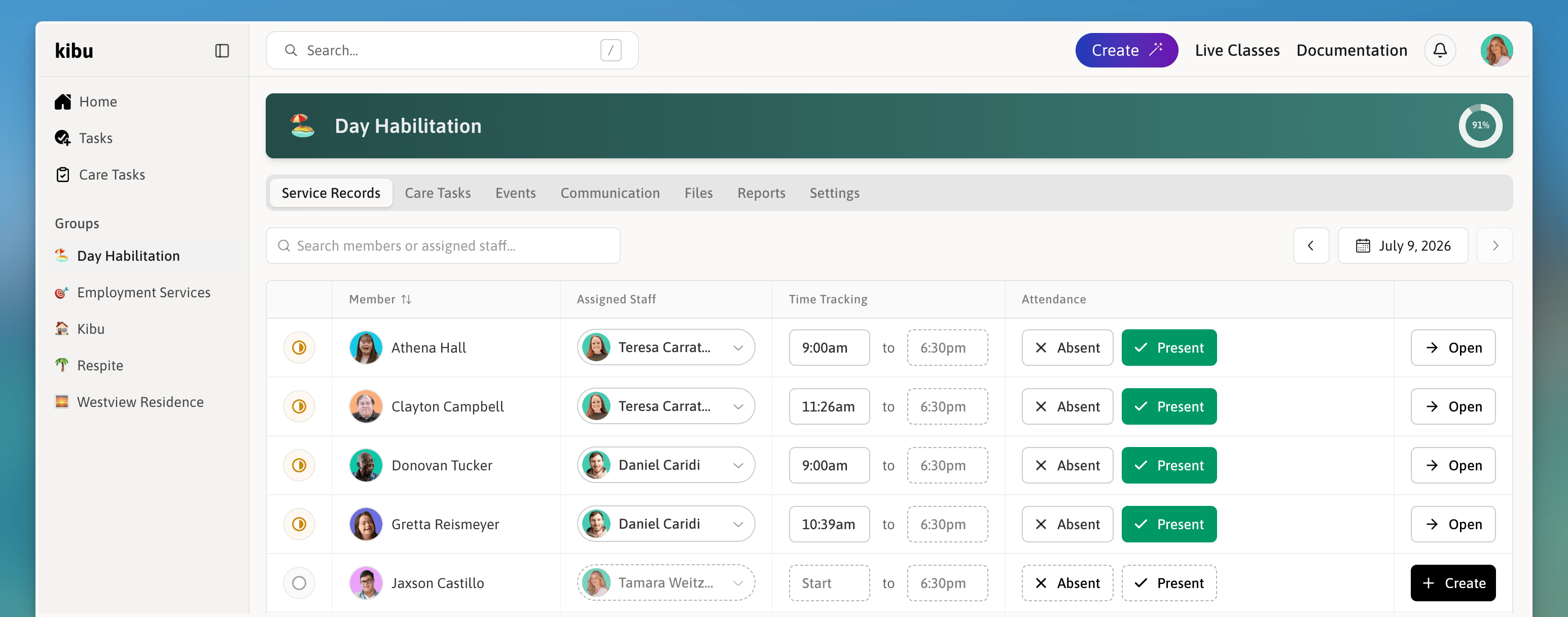 After staff members are assigned to individuals and service records are created, these records appear on each DSP's home page as an incomplete service record. As DSPs complete their daily documentation, the records are removed from view. The ultimate goal is to have all records completed by the end of the day, resulting in a clear home page and 100% compliance.
 ## Timeline Feature
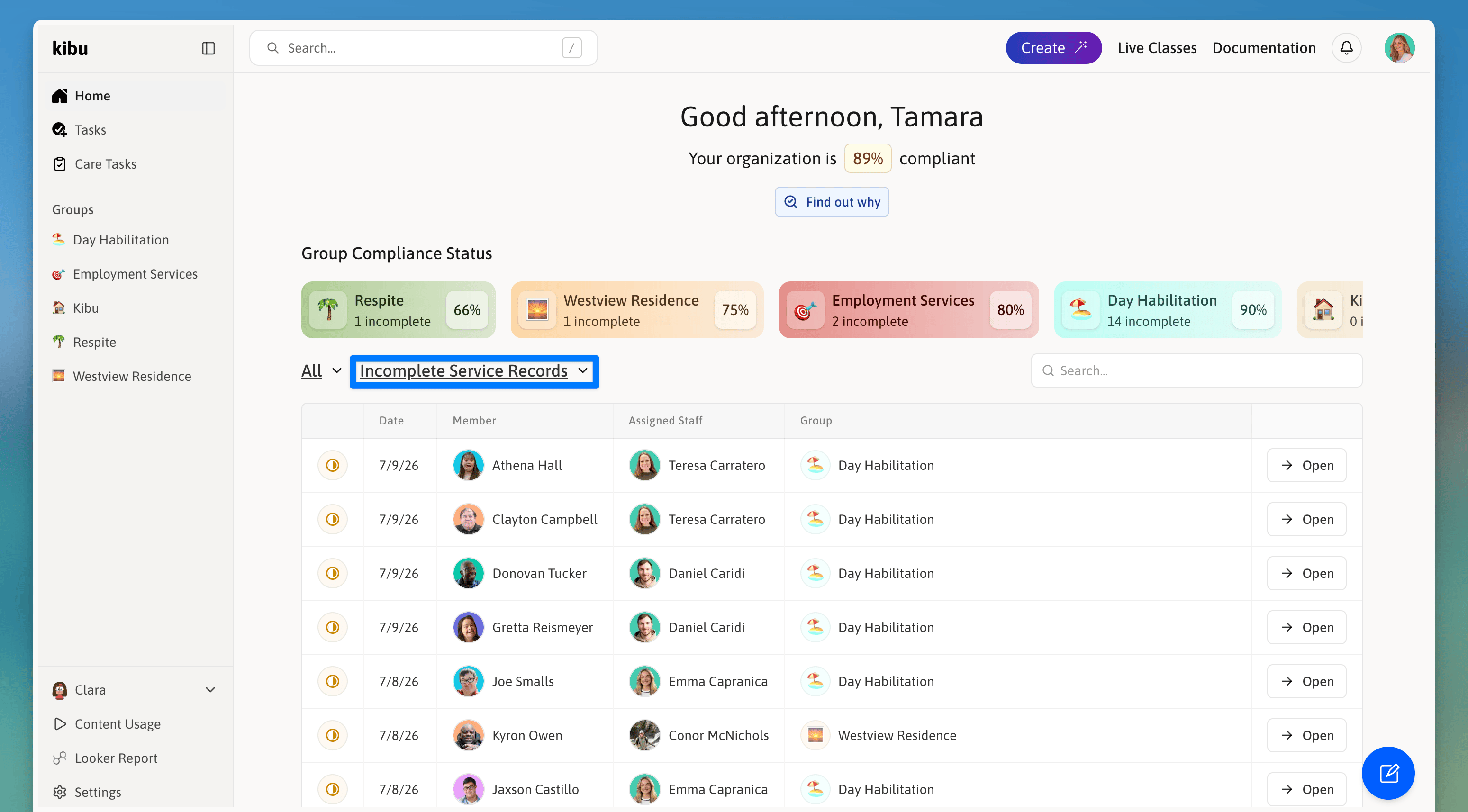
The left-hand timeline provides a structured view of the member's day.
## Timeline Feature
The left-hand timeline provides a structured view of the member's day.
 ## Quick Notes in the Timeline
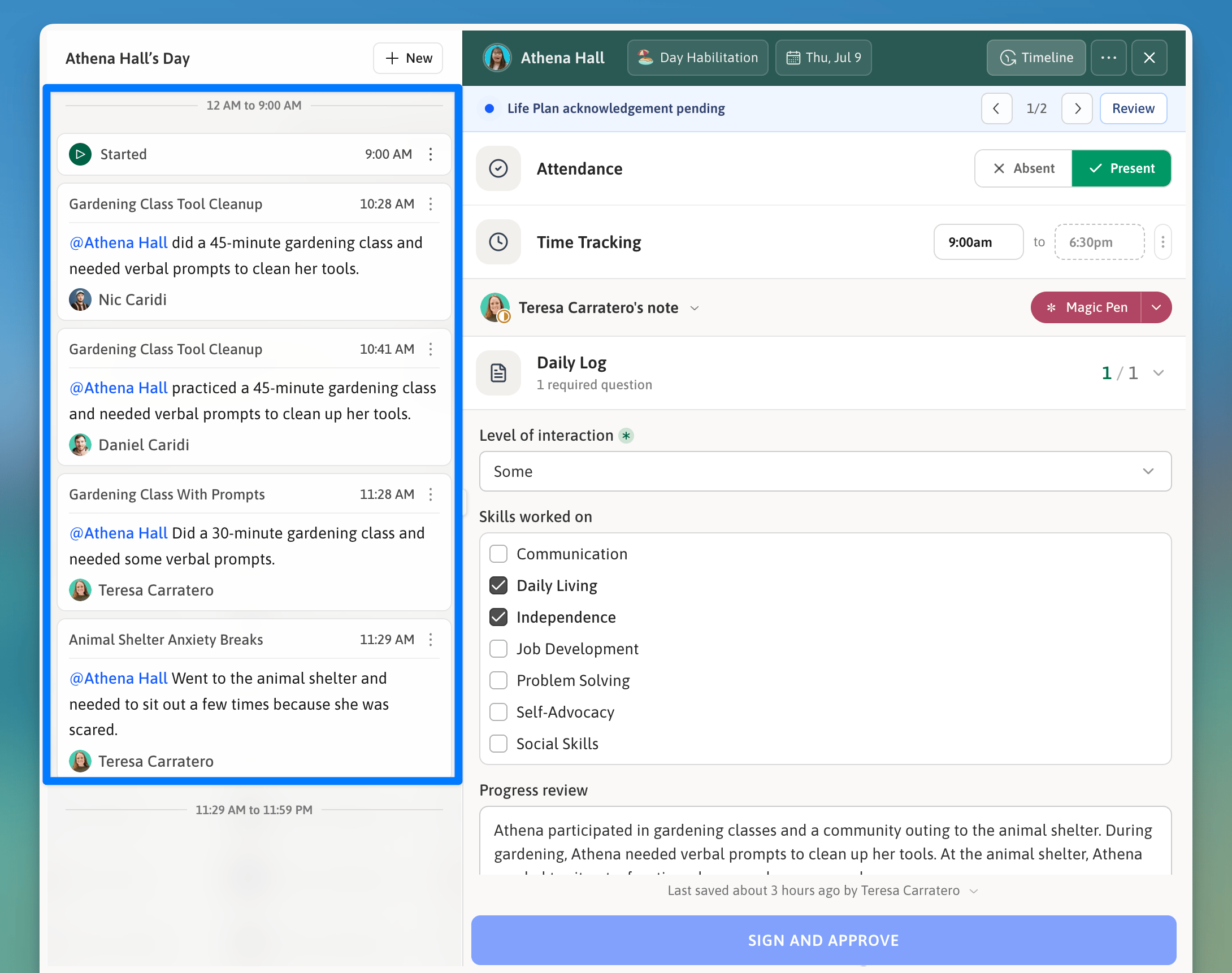
* Quick notes appear in the timeline as staff enter them throughout the day
* Each note is automatically timestamped and displayed chronologically
* Provides real-time documentation of member activities and events
* Creates a natural flow of the day's activities as they happen allowing for easy record completion at the end of the day
Encourage staff to add quick notes throughout their shift to maintain an accurate timeline of activities and events.
## Magic Pen AI Assistant
## Quick Notes in the Timeline
* Quick notes appear in the timeline as staff enter them throughout the day
* Each note is automatically timestamped and displayed chronologically
* Provides real-time documentation of member activities and events
* Creates a natural flow of the day's activities as they happen allowing for easy record completion at the end of the day
Encourage staff to add quick notes throughout their shift to maintain an accurate timeline of activities and events.
## Magic Pen AI Assistant
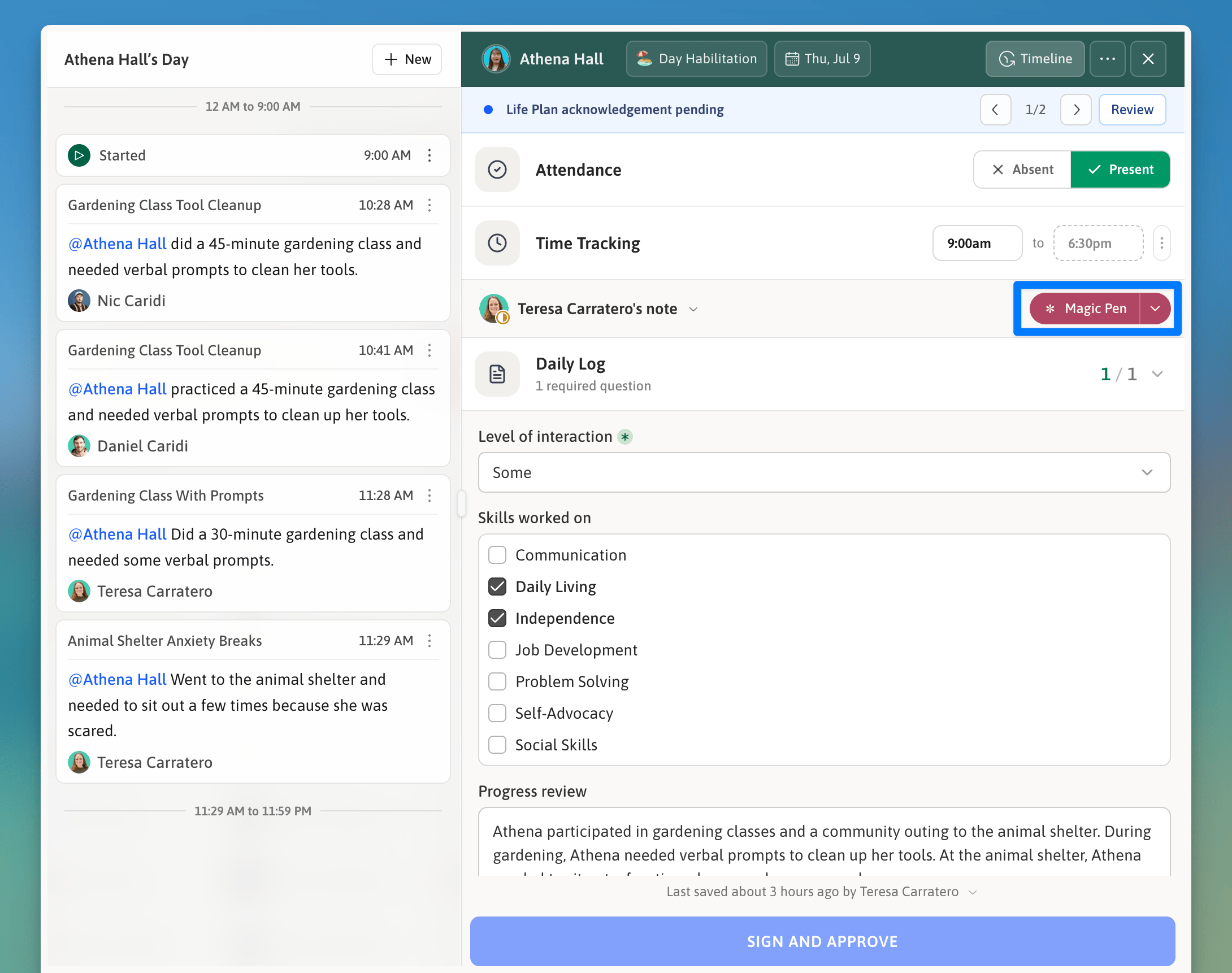 The Magic Pen analyzes your Quick Notes from the current day to automatically suggest content for the documentation fields.
Always review AI-generated content for accuracy before finalizing service records.
## Completing Service Records
The Magic Pen analyzes your Quick Notes from the current day to automatically suggest content for the documentation fields.
Always review AI-generated content for accuracy before finalizing service records.
## Completing Service Records
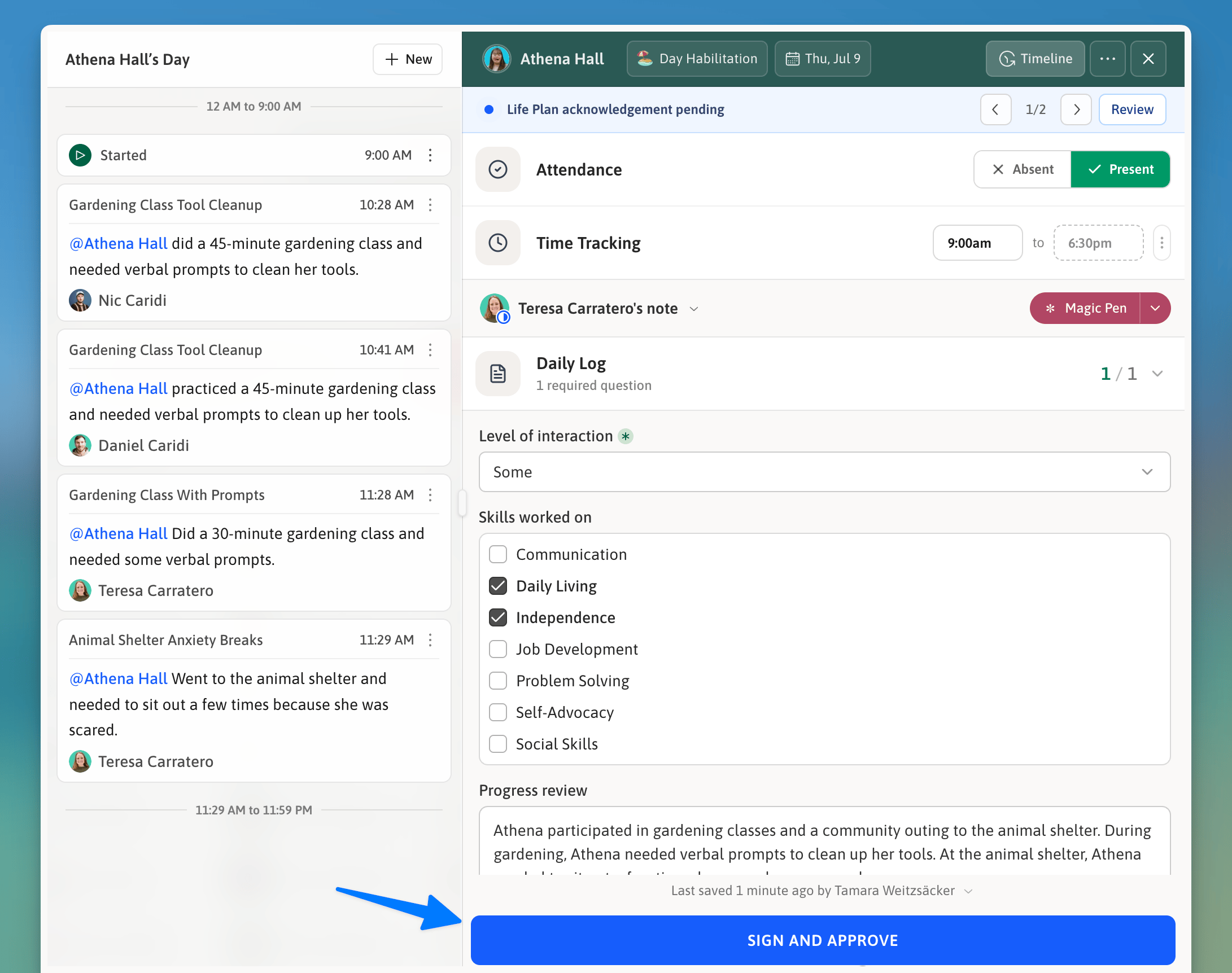 Use Magic Pen for timesaving.
You can save partially completed records and return to them later in the day. The record will remain in your incomplete list until signed.
Service records can be modified even after being signed if needed:
* Access the signed record from the group's documentation history
* Make necessary changes or additions
* Re-sign the record to save modifications
* All changes are tracked in the record's audit history
Ensure all documentation is accurate and complete before signing. While records can be modified later, maintaining accurate documentation at the time of service is a best practice for compliance.
## Multiple Staff Notes
Service records support multiple notes, each written and signed by a different staff member. This makes it easy for teams where more than one person supports a member during the day to each contribute their own documentation.
Each note in a service record:
Is written by a specific staff member.
Is signed individually by that staff member.
Appears alongside notes from other staff on the same record.
When you open a service record that has multiple notes, it will automatically open to your own note rather than another staff member's.
## Recording a Pause
If a service is interrupted during the day, for example, if a member steps out and returns, you can record a pause on the service record. When you pause a record, you will be prompted to enter a reason.
Pause details appear in:
* The service record timeline
* CSV exports of the record
* PDF exports of the record Each pause entry shows when it started, how long it lasted, and the reason given.
## Exporting a Service Record as PDF
Completed service records can be exported as PDF files for your records or compliance documentation.
The PDF includes:
* Member and staff details
* Time tracking information
* Documentation field responses
* Life plan goal entries
* Who signed the record and when
* If the record was paused: the reason for each pause, when it started, and how long it lasted
## Best Practices
* Update records in real-time when possible
* Use quick notes for immediate documentation
* Review Magic Pen suggestions carefully
* Ensure all required fields are completed
* Document goal progress accurately
* Complete all required fields
* Document according to organizational standards
* Maintain consistent documentation practices
* Review records before finalizing
* Use Quick Notes for rapid activity documentation, real-time timeline updates, and simplified entry
* Use Magic Pen to reduce manual data entry, maintain a consistent documentation format, and improve accuracy
## Training Staff
When training staff on service records, make sure to cover:
Regular training and support ensure your team makes the most of Kibu's service record features while maintaining compliance standards.
Use Magic Pen for timesaving.
You can save partially completed records and return to them later in the day. The record will remain in your incomplete list until signed.
Service records can be modified even after being signed if needed:
* Access the signed record from the group's documentation history
* Make necessary changes or additions
* Re-sign the record to save modifications
* All changes are tracked in the record's audit history
Ensure all documentation is accurate and complete before signing. While records can be modified later, maintaining accurate documentation at the time of service is a best practice for compliance.
## Multiple Staff Notes
Service records support multiple notes, each written and signed by a different staff member. This makes it easy for teams where more than one person supports a member during the day to each contribute their own documentation.
Each note in a service record:
Is written by a specific staff member.
Is signed individually by that staff member.
Appears alongside notes from other staff on the same record.
When you open a service record that has multiple notes, it will automatically open to your own note rather than another staff member's.
## Recording a Pause
If a service is interrupted during the day, for example, if a member steps out and returns, you can record a pause on the service record. When you pause a record, you will be prompted to enter a reason.
Pause details appear in:
* The service record timeline
* CSV exports of the record
* PDF exports of the record Each pause entry shows when it started, how long it lasted, and the reason given.
## Exporting a Service Record as PDF
Completed service records can be exported as PDF files for your records or compliance documentation.
The PDF includes:
* Member and staff details
* Time tracking information
* Documentation field responses
* Life plan goal entries
* Who signed the record and when
* If the record was paused: the reason for each pause, when it started, and how long it lasted
## Best Practices
* Update records in real-time when possible
* Use quick notes for immediate documentation
* Review Magic Pen suggestions carefully
* Ensure all required fields are completed
* Document goal progress accurately
* Complete all required fields
* Document according to organizational standards
* Maintain consistent documentation practices
* Review records before finalizing
* Use Quick Notes for rapid activity documentation, real-time timeline updates, and simplified entry
* Use Magic Pen to reduce manual data entry, maintain a consistent documentation format, and improve accuracy
## Training Staff
When training staff on service records, make sure to cover:
Regular training and support ensure your team makes the most of Kibu's service record features while maintaining compliance standards.