> ## Documentation Index
> Fetch the complete documentation index at: https://help.kibu.com/llms.txt
> Use this file to discover all available pages before exploring further.
# Overall Settings Overview
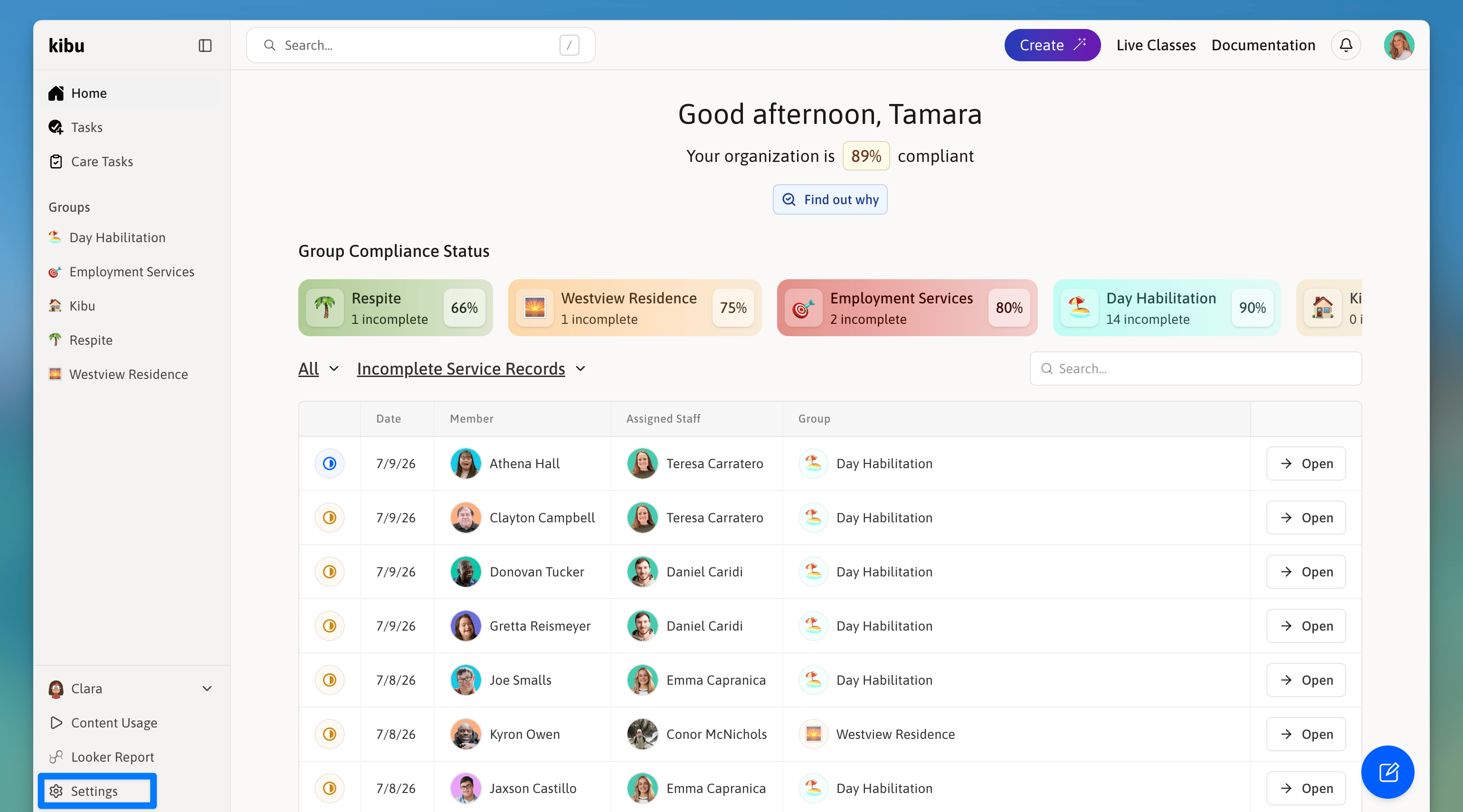
> Kibu's Settings area is where administrators manage everything about how your organization is configured. To access Settings, click Settings in the left navigation of the main app.
## Overview
Kibu's settings are organized into different tabs, each controlling different aspects of your organization's configuration:
 ***
## Users & Access Tab
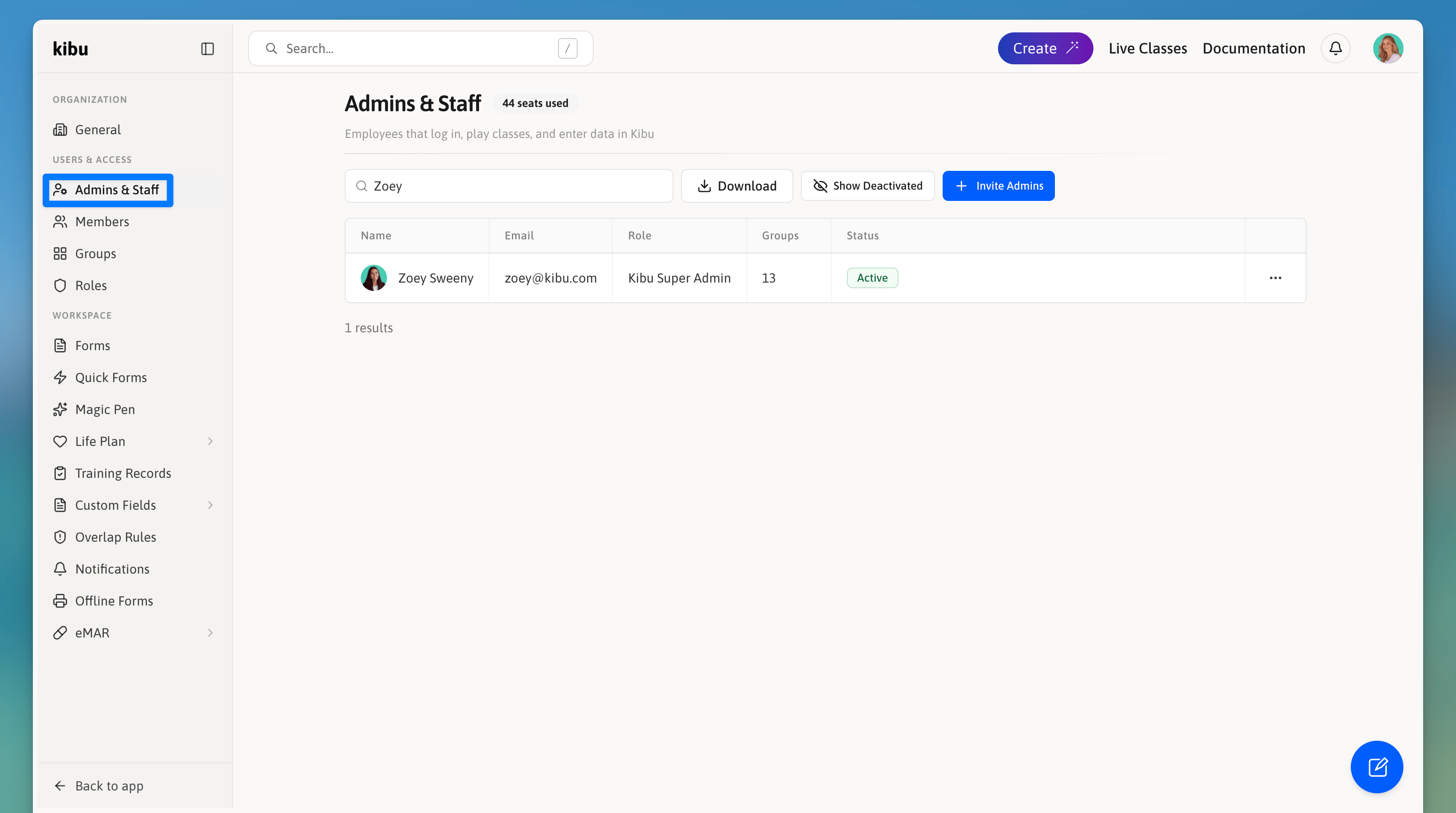
### Admins & Staff
* Add/remove staff members
* Edit role type (staff, admin, super admin, read only admin)
* Review and download staff roster
***
## Users & Access Tab
### Admins & Staff
* Add/remove staff members
* Edit role type (staff, admin, super admin, read only admin)
* Review and download staff roster
 ### Members
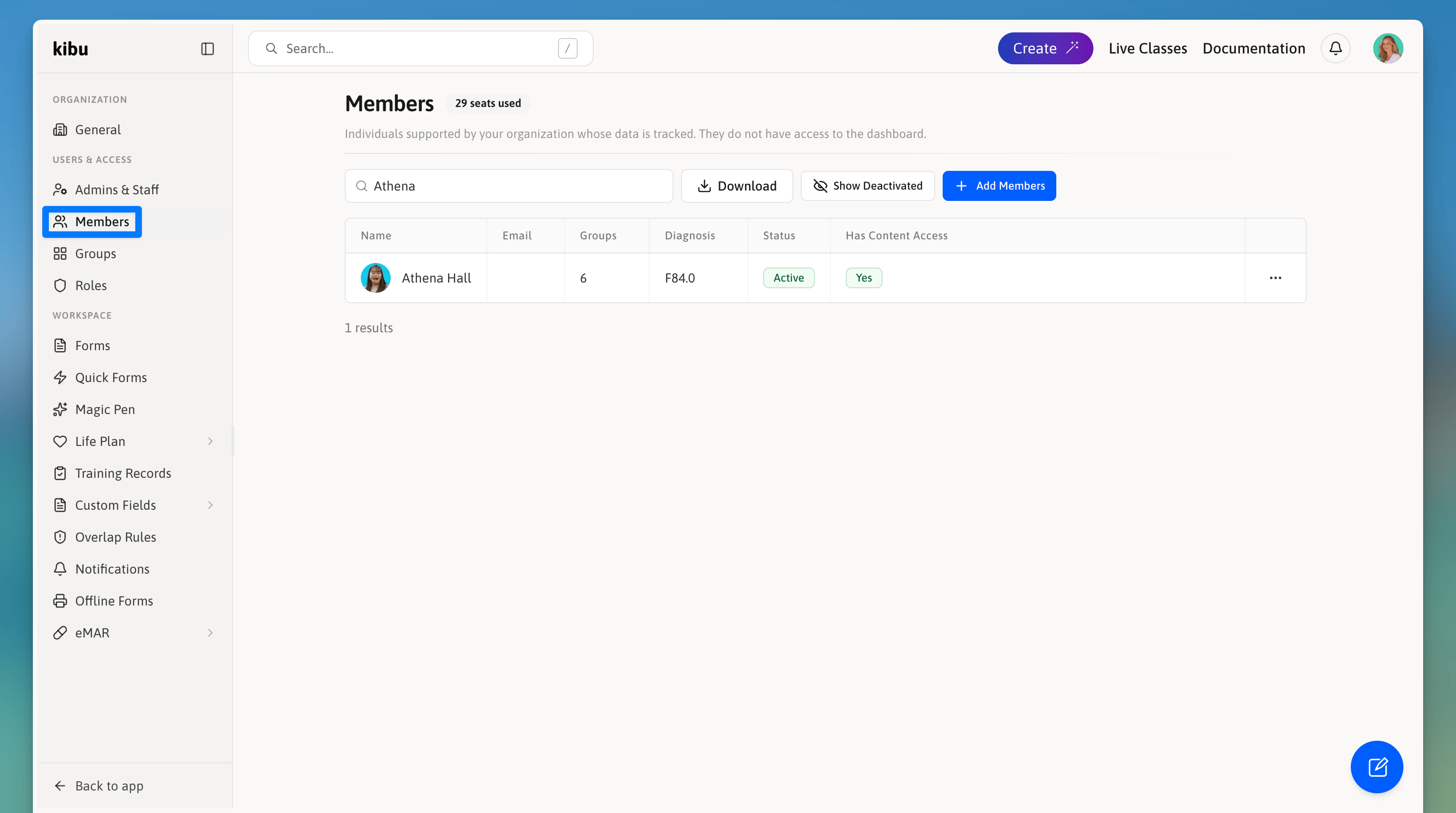
* Add/deactivate members
* Manage the number of member seats
* Review and download active member roster
* Review and reactive deactivated members
Keep your roster up to date to ensure proper access control and documentation accuracy.
### Members
* Add/deactivate members
* Manage the number of member seats
* Review and download active member roster
* Review and reactive deactivated members
Keep your roster up to date to ensure proper access control and documentation accuracy.
 ### Groups Tab
Here, you can define different groups for your members and admins to belong to. To configure settings for a group, go to the settings page within the group.
Central hub for group management. See our detailed guides on [Groups Overview](/documentation/groups-overview) and [Group Settings](/documentation/group-settings) for comprehensive information.
### Groups Tab
Here, you can define different groups for your members and admins to belong to. To configure settings for a group, go to the settings page within the group.
Central hub for group management. See our detailed guides on [Groups Overview](/documentation/groups-overview) and [Group Settings](/documentation/group-settings) for comprehensive information.
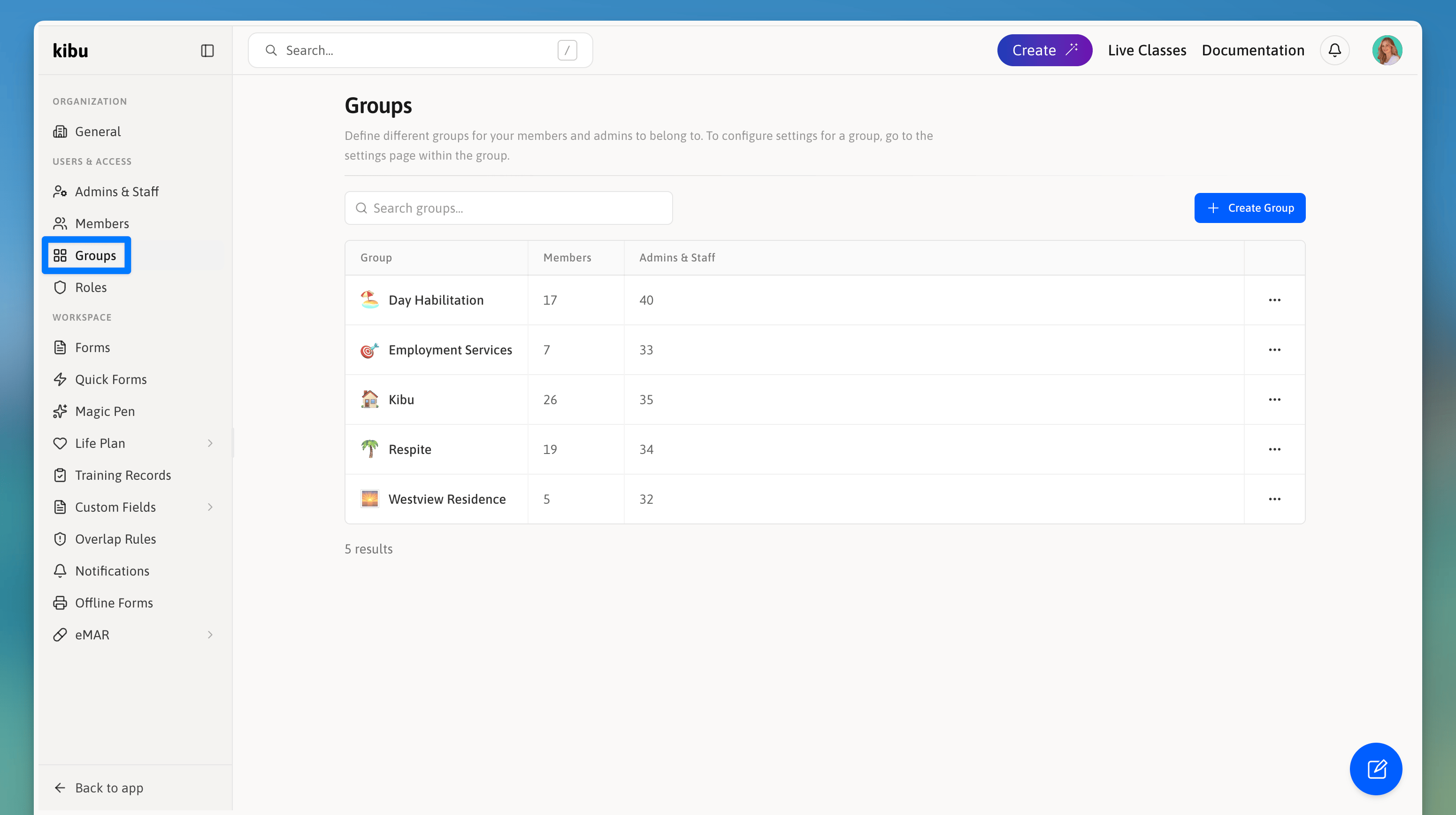 * View all active groups
* Create new groups
* Delete groups
* Edit group names
### Roles Tab
Provides a quick overview of permission levels and capabilities for each role. For detailed information about roles and their specific permissions, see our [Staff Permissions](/documentation/staff-permissions) guide.
* View all active groups
* Create new groups
* Delete groups
* Edit group names
### Roles Tab
Provides a quick overview of permission levels and capabilities for each role. For detailed information about roles and their specific permissions, see our [Staff Permissions](/documentation/staff-permissions) guide.
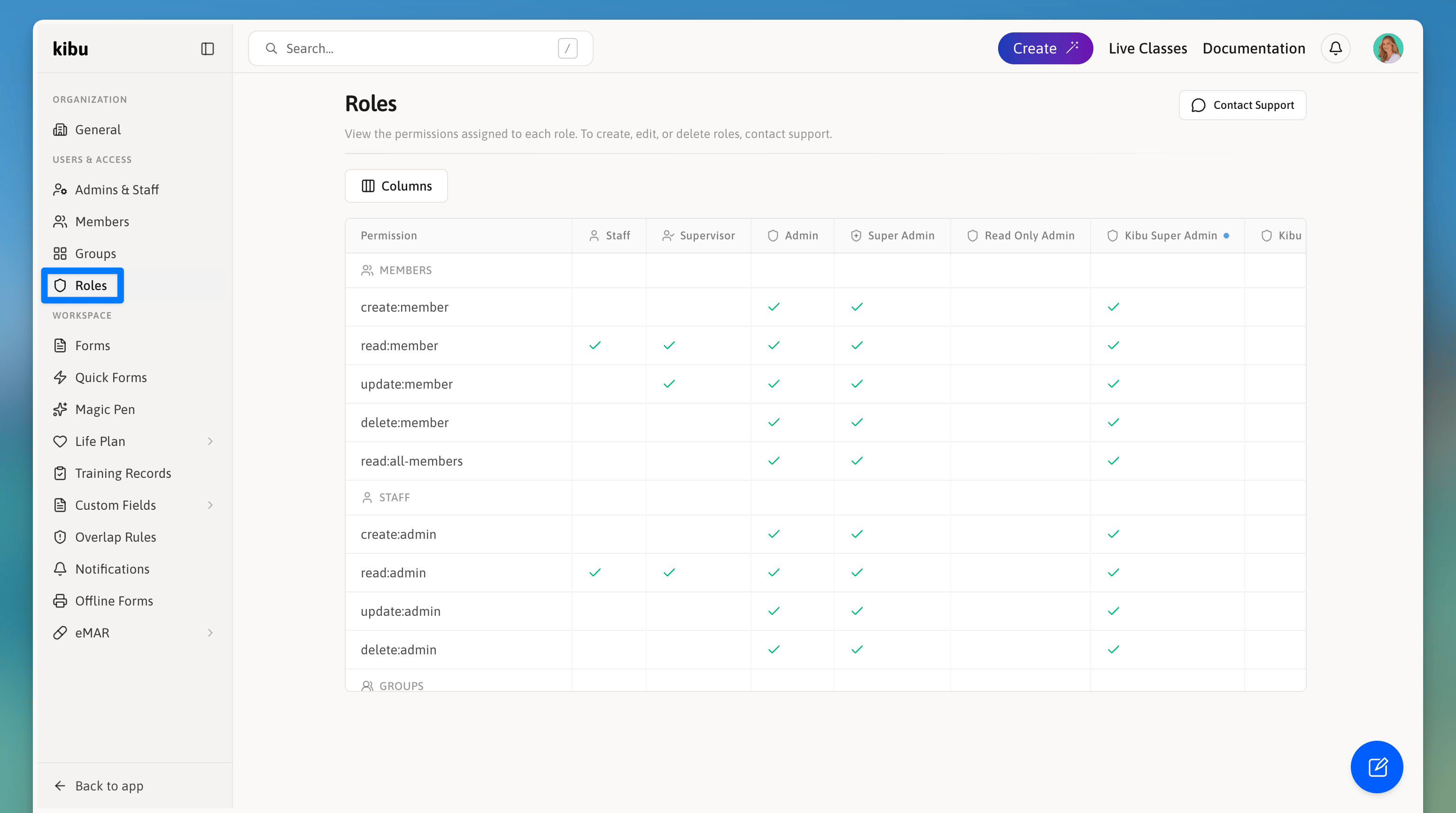 #### Role Types
* Staff
* Supervisor
* Admin
* Super Admin
* Read Only Admin
***
## Workspace
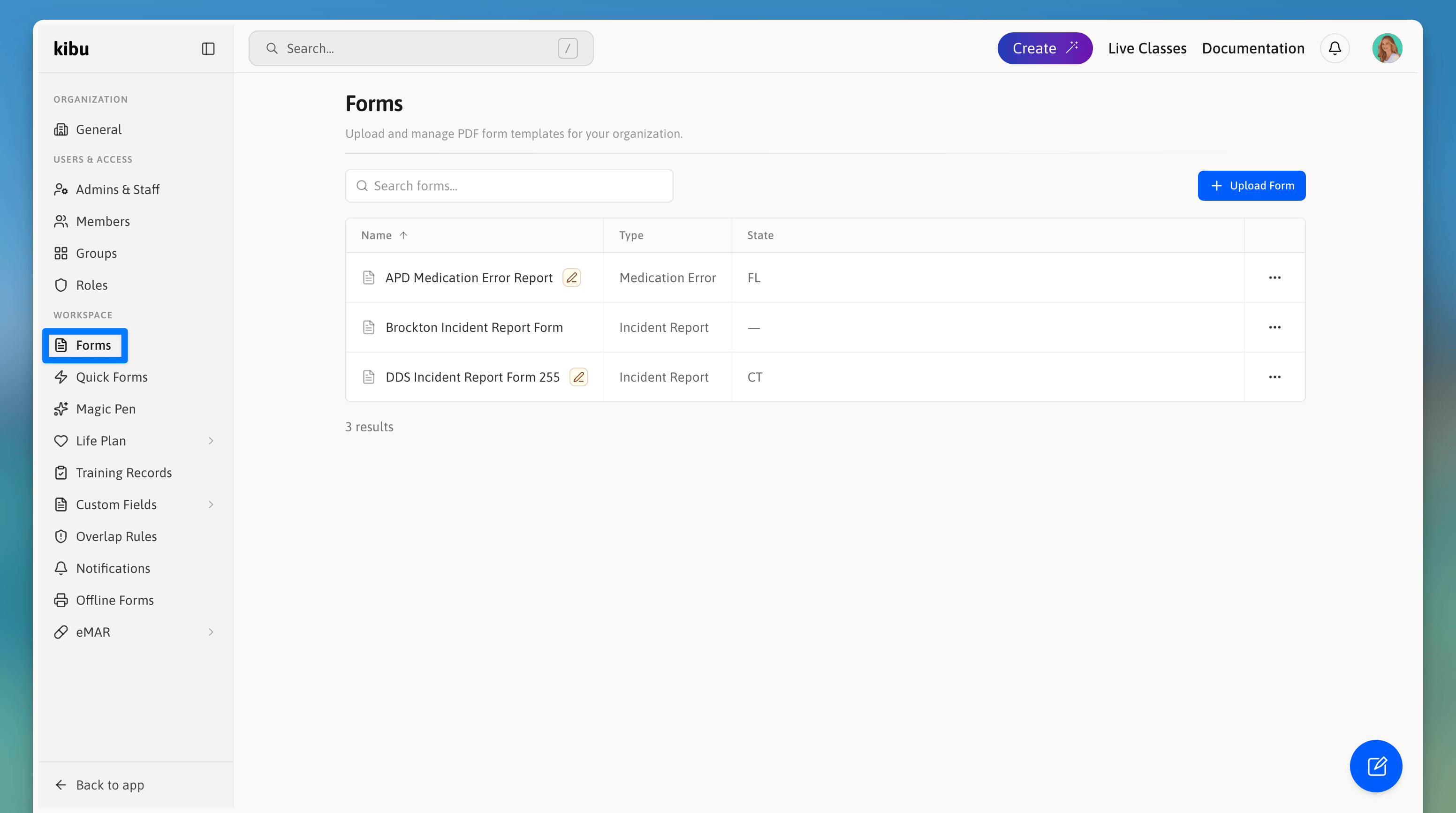
### Forms
Upload and manage PDF form templates for your organization. Once uploaded, form fields are automatically extracted and made available for staff to fill out digitally within Kibu.
* Upload any PDF that has been pre-configured with input fields by the Kibu team
* Form fields are detected and extracted automatically on upload
* Uploaded forms are managed from Settings and can be assigned for use across your organization
* This feature is intended for Kibu-prepared PDFs only — contact support if you need a new form created or configured
#### Role Types
* Staff
* Supervisor
* Admin
* Super Admin
* Read Only Admin
***
## Workspace
### Forms
Upload and manage PDF form templates for your organization. Once uploaded, form fields are automatically extracted and made available for staff to fill out digitally within Kibu.
* Upload any PDF that has been pre-configured with input fields by the Kibu team
* Form fields are detected and extracted automatically on upload
* Uploaded forms are managed from Settings and can be assigned for use across your organization
* This feature is intended for Kibu-prepared PDFs only — contact support if you need a new form created or configured
 #### Filling Out Forms as a DSP
Once forms have been uploaded by an admin, staff can access and complete them directly from a member's profile.
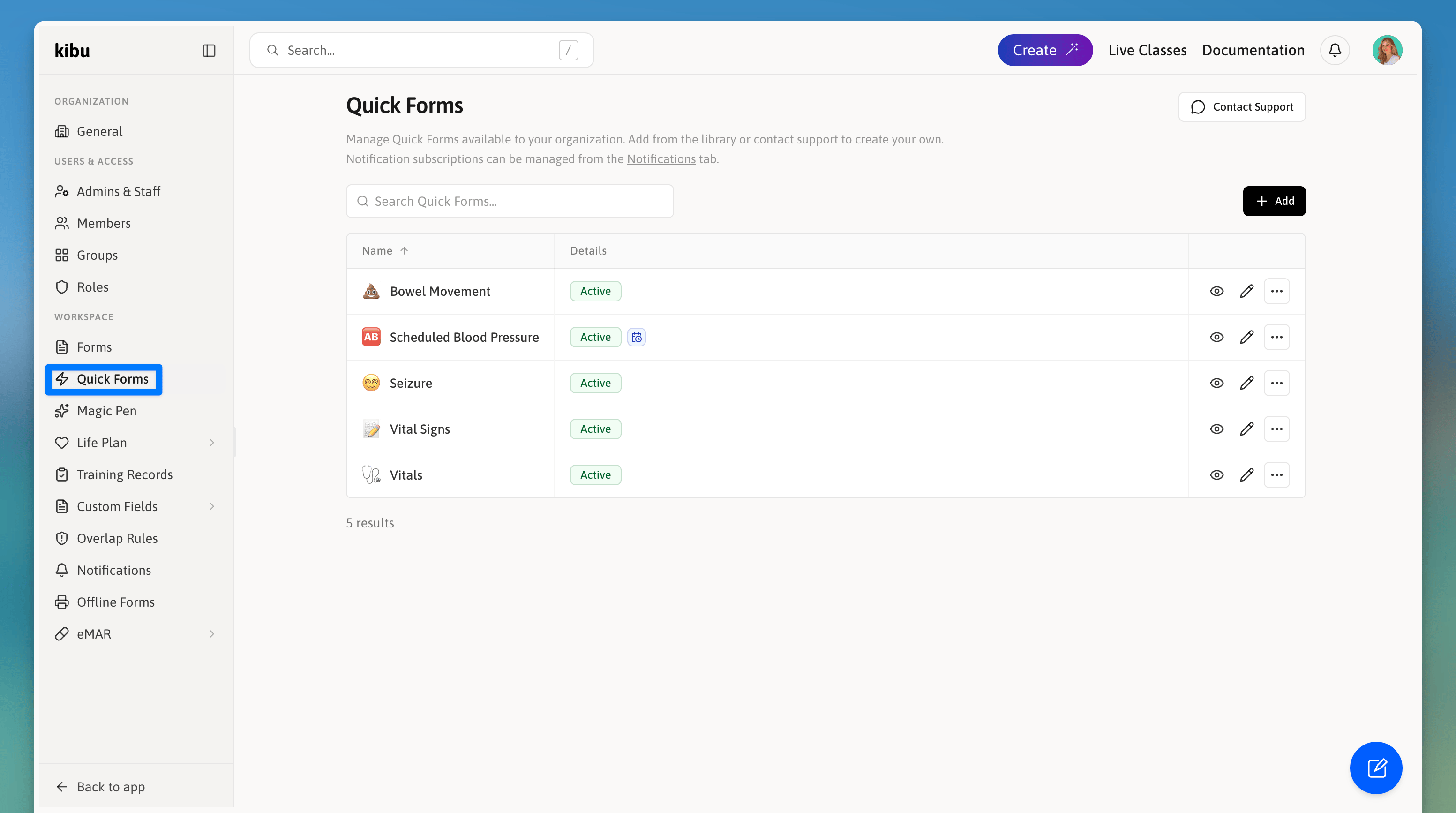
### Quick Forms
Quick Forms provide staff with a structured, lightweight method for capturing ad-hoc or event-based observations that fall outside of daily notes and ISP goals. Whether documenting behaviors, seizures, vital signs, or meal entries, Quick Forms allow staff to record important details in real time, ensuring nothing goes undocumented.
Admins build Quick Form templates in Settings, defining the fields, question types, and logic that staff will see. Once published, forms are available for staff to submit. Each submission is timestamped and stored for review, and admins can configure notifications to alert supervisors when a form is submitted.
#### Filling Out Forms as a DSP
Once forms have been uploaded by an admin, staff can access and complete them directly from a member's profile.
### Quick Forms
Quick Forms provide staff with a structured, lightweight method for capturing ad-hoc or event-based observations that fall outside of daily notes and ISP goals. Whether documenting behaviors, seizures, vital signs, or meal entries, Quick Forms allow staff to record important details in real time, ensuring nothing goes undocumented.
Admins build Quick Form templates in Settings, defining the fields, question types, and logic that staff will see. Once published, forms are available for staff to submit. Each submission is timestamped and stored for review, and admins can configure notifications to alert supervisors when a form is submitted.
 #### Filling Out Quick Forms as a DSP
Submissions are saved automatically with a date and time stamp.
### Magic Pen
Magic Pen is an AI assistant built into service records that helps staff complete documentation faster and more consistently.
* Analyzes Quick Notes entered throughout the shift
* Automatically suggests responses for service record fields based on what was documented
* Works across custom documentation fields and life plan task responses
* Reduces end-of-day documentation burden without replacing staff judgment
### Life Plan
The Life Plans section under Settings contains three components: All Life Plans, Options Library, and Acknowledgements.
#### Filling Out Quick Forms as a DSP
Submissions are saved automatically with a date and time stamp.
### Magic Pen
Magic Pen is an AI assistant built into service records that helps staff complete documentation faster and more consistently.
* Analyzes Quick Notes entered throughout the shift
* Automatically suggests responses for service record fields based on what was documented
* Works across custom documentation fields and life plan task responses
* Reduces end-of-day documentation burden without replacing staff judgment
### Life Plan
The Life Plans section under Settings contains three components: All Life Plans, Options Library, and Acknowledgements.
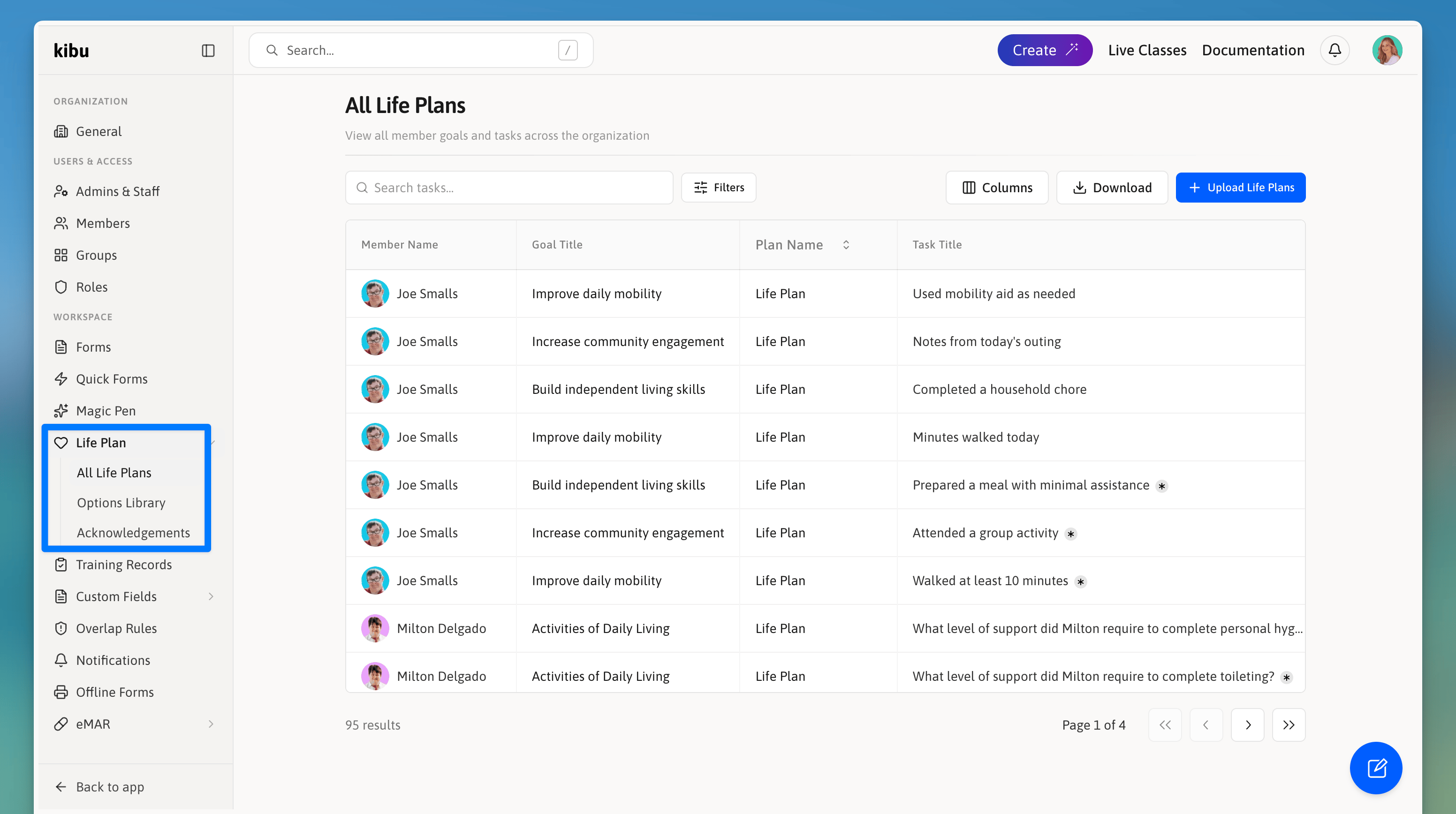 #### All Life Plans
Life Plans provides an org-wide view of all member life plans, giving admins visibility across the organization in one place.
* Comprehensive display of all life plan goals
* Member associations
* Overview of goal details
#### Options Library
Options Library provides a set of predefined answer choices that can be reused across life plan goal tasks, saving time when building out goals that share common response options.
Streamline goal creation with predefined option sets:
* Create reusable option sets
* Manage predefined scores
* Ensure consistent evaluation
* Save time on goal creation
Use the Options Library to maintain consistency in goal evaluation across your organization.
#### Acknowledgements
Acknowledgements is where admins configure how staff are required to review and acknowledge member life plans before signing service records. Admins can set the enforcement behavior (block signing, reminder only, or none), choose whether acknowledgements reset when a life plan is updated, and define an expiration period after which staff must re-acknowledge.
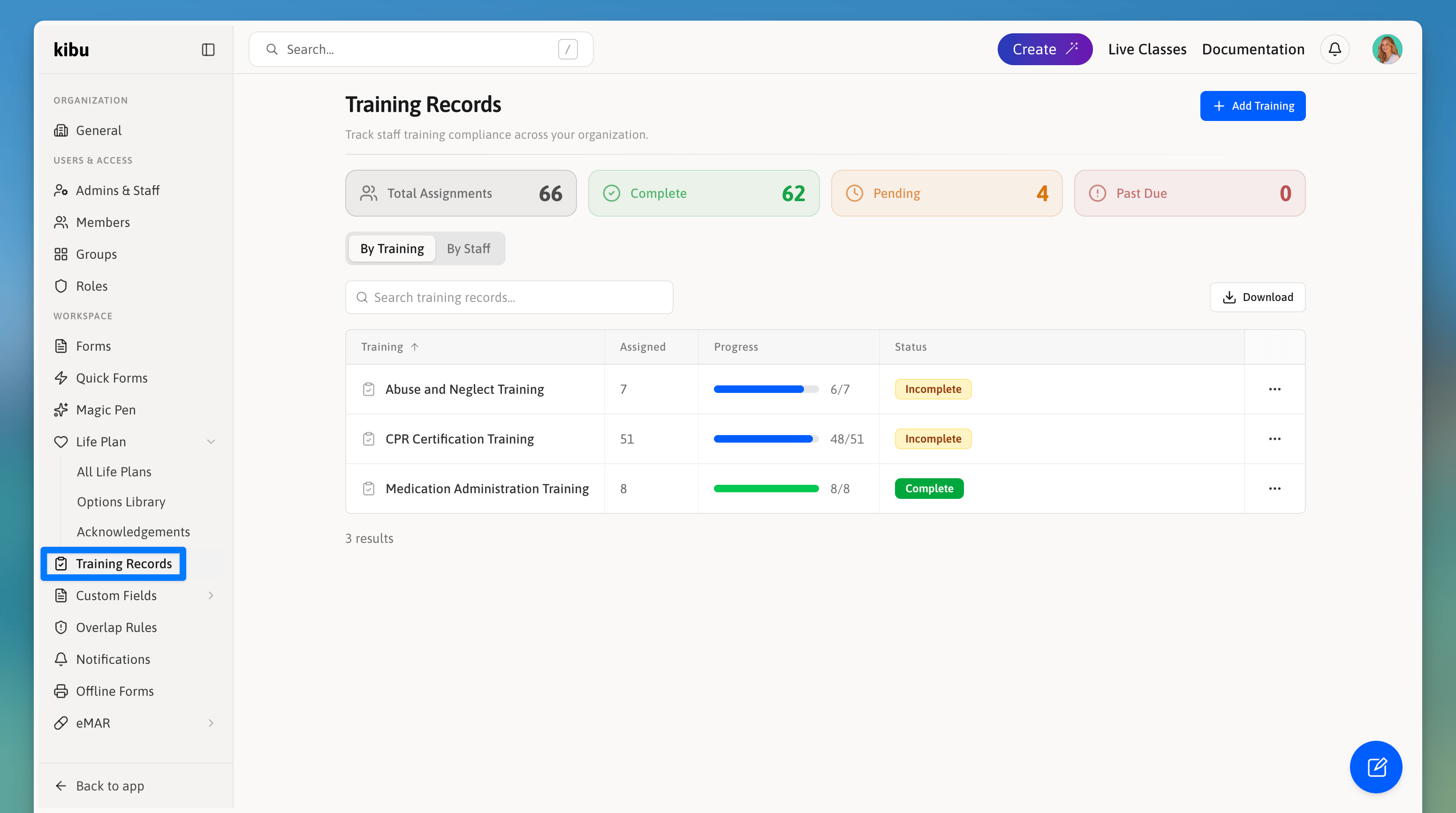
### Training Records
Track staff training compliance across your organization.
* Create, assign, and track staff training requirements.
* Admins can build custom training with titles, descriptions, links, and file attachments, then assign them to individual staff or entire groups.
* Completion can be enforced by blocking service record signing or medication administration until a training is done, and training can be set to expire on a schedule.
#### All Life Plans
Life Plans provides an org-wide view of all member life plans, giving admins visibility across the organization in one place.
* Comprehensive display of all life plan goals
* Member associations
* Overview of goal details
#### Options Library
Options Library provides a set of predefined answer choices that can be reused across life plan goal tasks, saving time when building out goals that share common response options.
Streamline goal creation with predefined option sets:
* Create reusable option sets
* Manage predefined scores
* Ensure consistent evaluation
* Save time on goal creation
Use the Options Library to maintain consistency in goal evaluation across your organization.
#### Acknowledgements
Acknowledgements is where admins configure how staff are required to review and acknowledge member life plans before signing service records. Admins can set the enforcement behavior (block signing, reminder only, or none), choose whether acknowledgements reset when a life plan is updated, and define an expiration period after which staff must re-acknowledge.
### Training Records
Track staff training compliance across your organization.
* Create, assign, and track staff training requirements.
* Admins can build custom training with titles, descriptions, links, and file attachments, then assign them to individual staff or entire groups.
* Completion can be enforced by blocking service record signing or medication administration until a training is done, and training can be set to expire on a schedule.
 ### Custom Fields
Add organization-specific identifying information for members, groups, and admins.
### Custom Fields
Add organization-specific identifying information for members, groups, and admins.
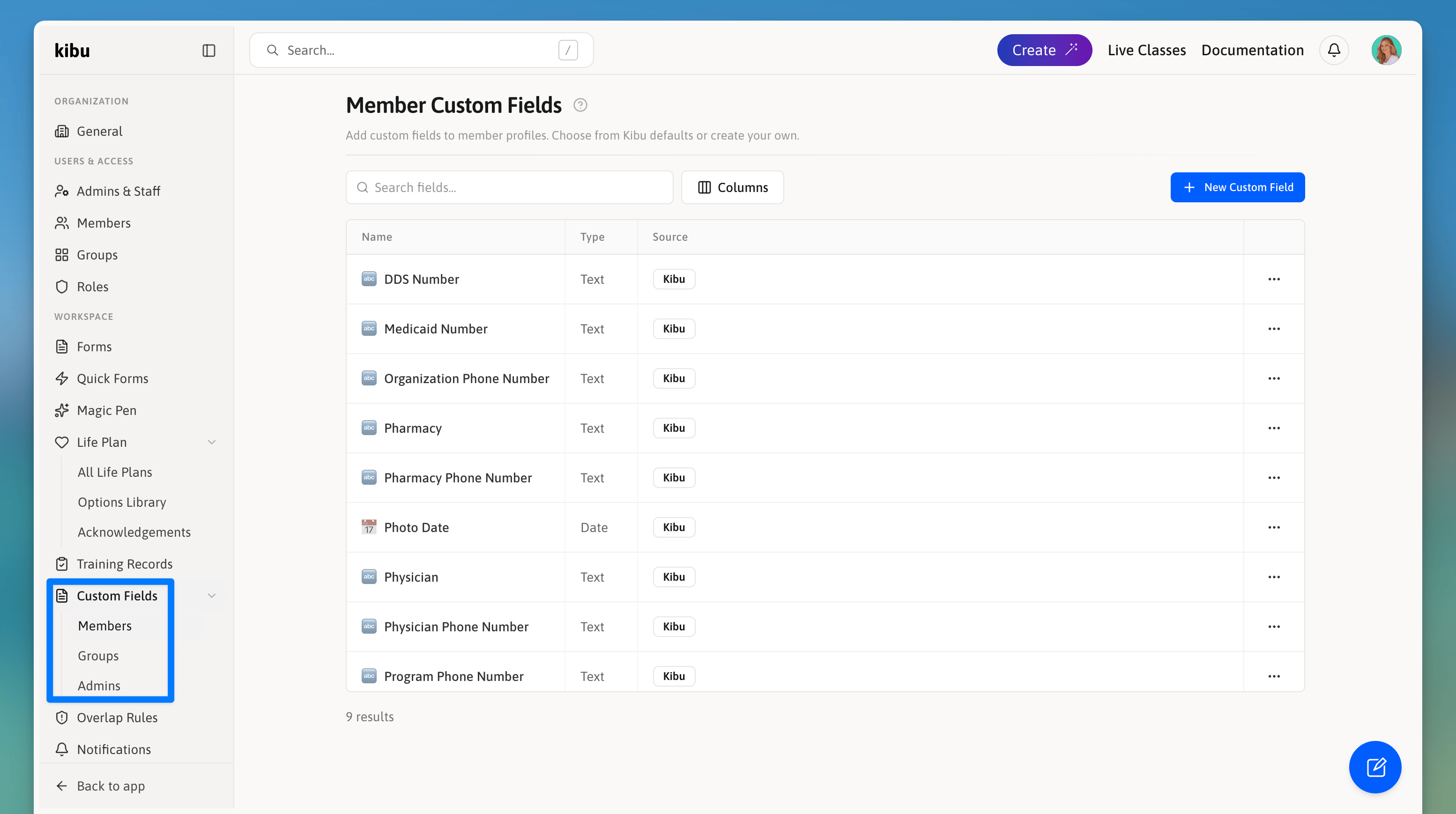 * Review all custom fields
* Create/edit/remove custom fields
#### Common Use Cases
* Medicaid numbers
* Physician contact information
* Insurance details
* Program-specific identifiers
Member Custom fields appear in the about section of member profiles and can be filled out individually for each member.
### Overlap Rules
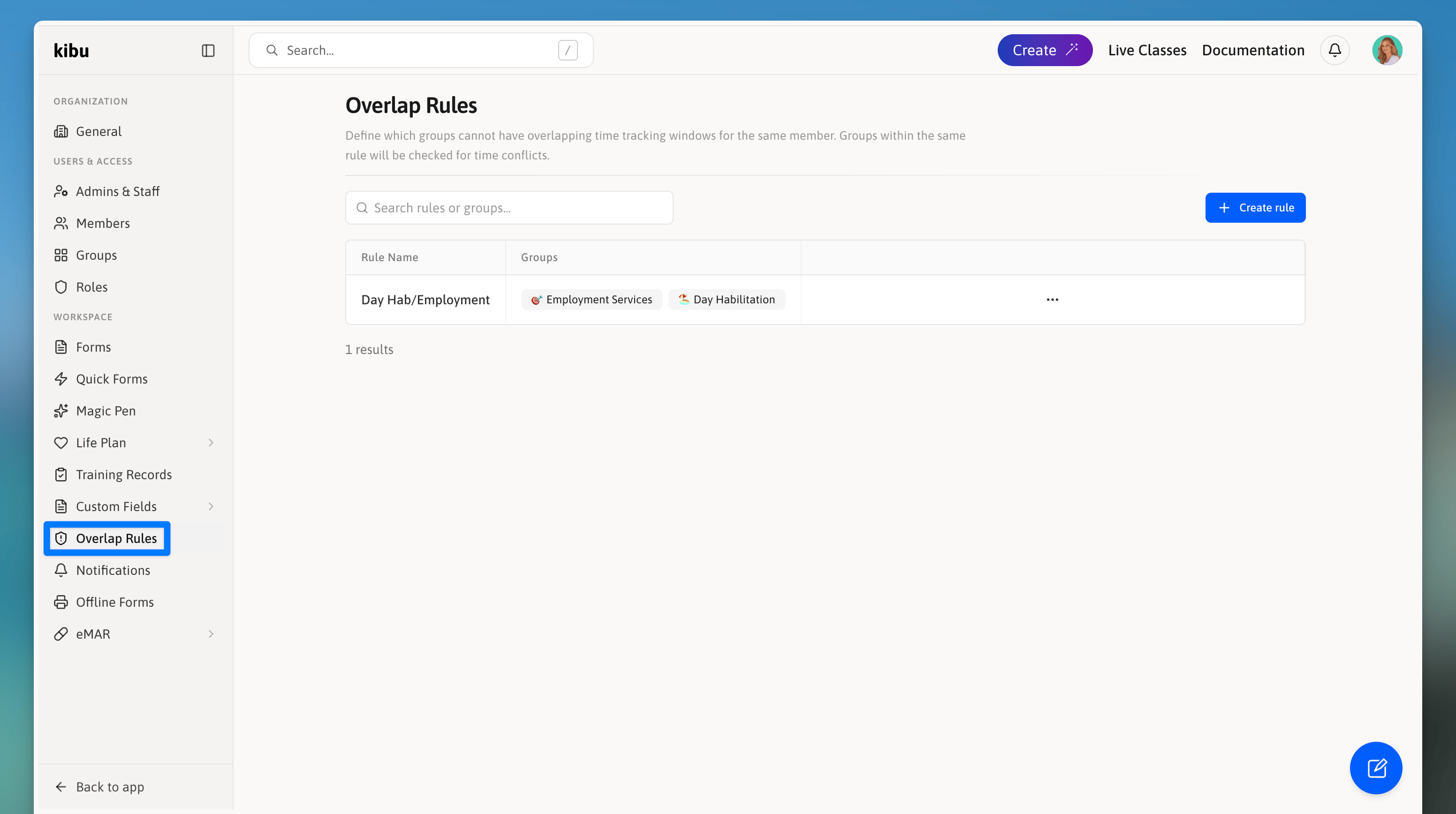
Overlap Rules control how the system handles time tracking conflicts when a member is documented across multiple groups at the same time. When billing is enabled and a group has an overlap rule assigned, the system detects conflicting time windows and either blocks the overlap or prompts staff to transfer time from one service record to another.
* Review all custom fields
* Create/edit/remove custom fields
#### Common Use Cases
* Medicaid numbers
* Physician contact information
* Insurance details
* Program-specific identifiers
Member Custom fields appear in the about section of member profiles and can be filled out individually for each member.
### Overlap Rules
Overlap Rules control how the system handles time tracking conflicts when a member is documented across multiple groups at the same time. When billing is enabled and a group has an overlap rule assigned, the system detects conflicting time windows and either blocks the overlap or prompts staff to transfer time from one service record to another.
 ### Notifications
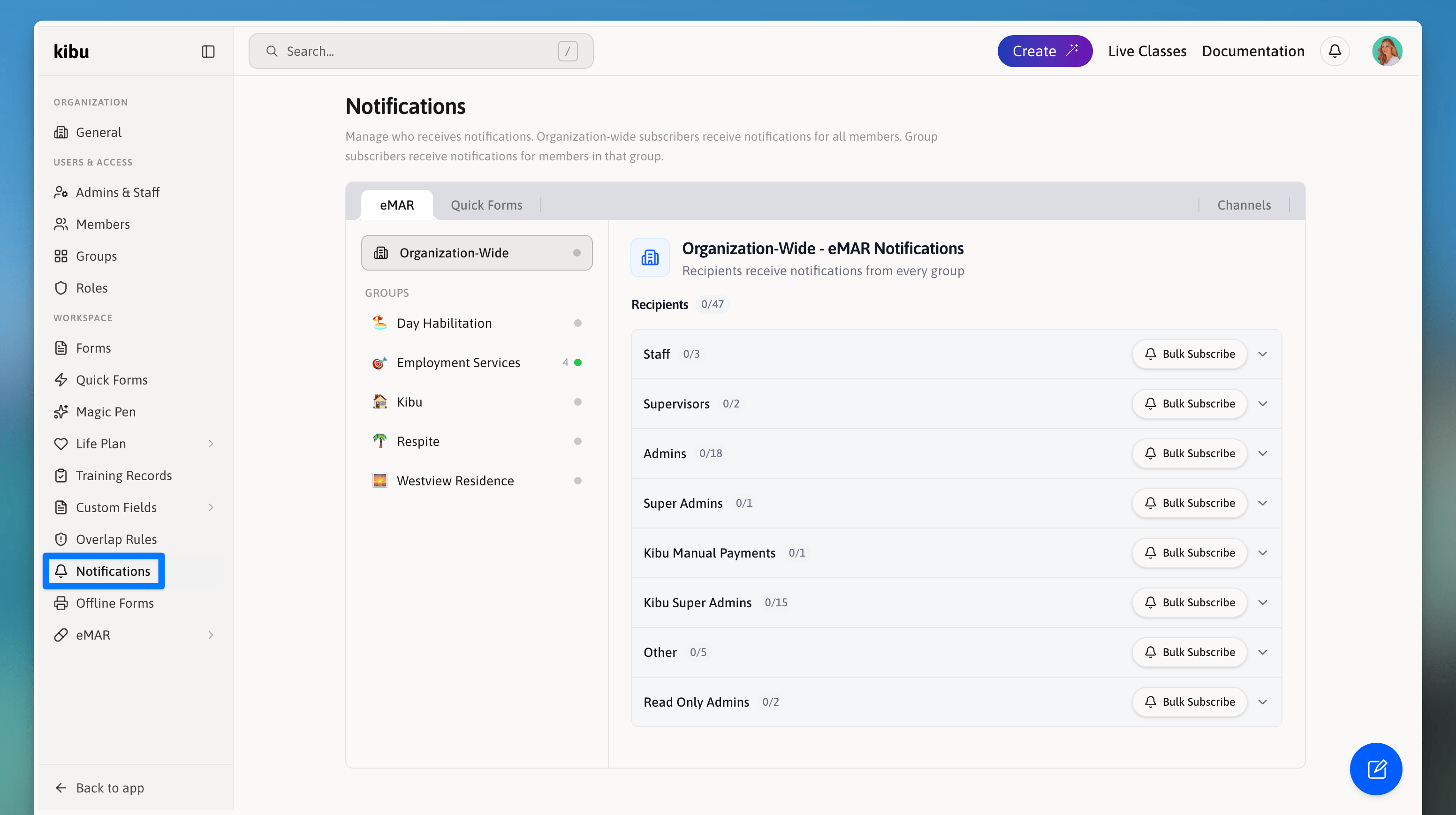
Notifications is where admins configure org-level notification preferences, determining which events trigger alerts and who receives them.
### Notifications
Notifications is where admins configure org-level notification preferences, determining which events trigger alerts and who receives them.
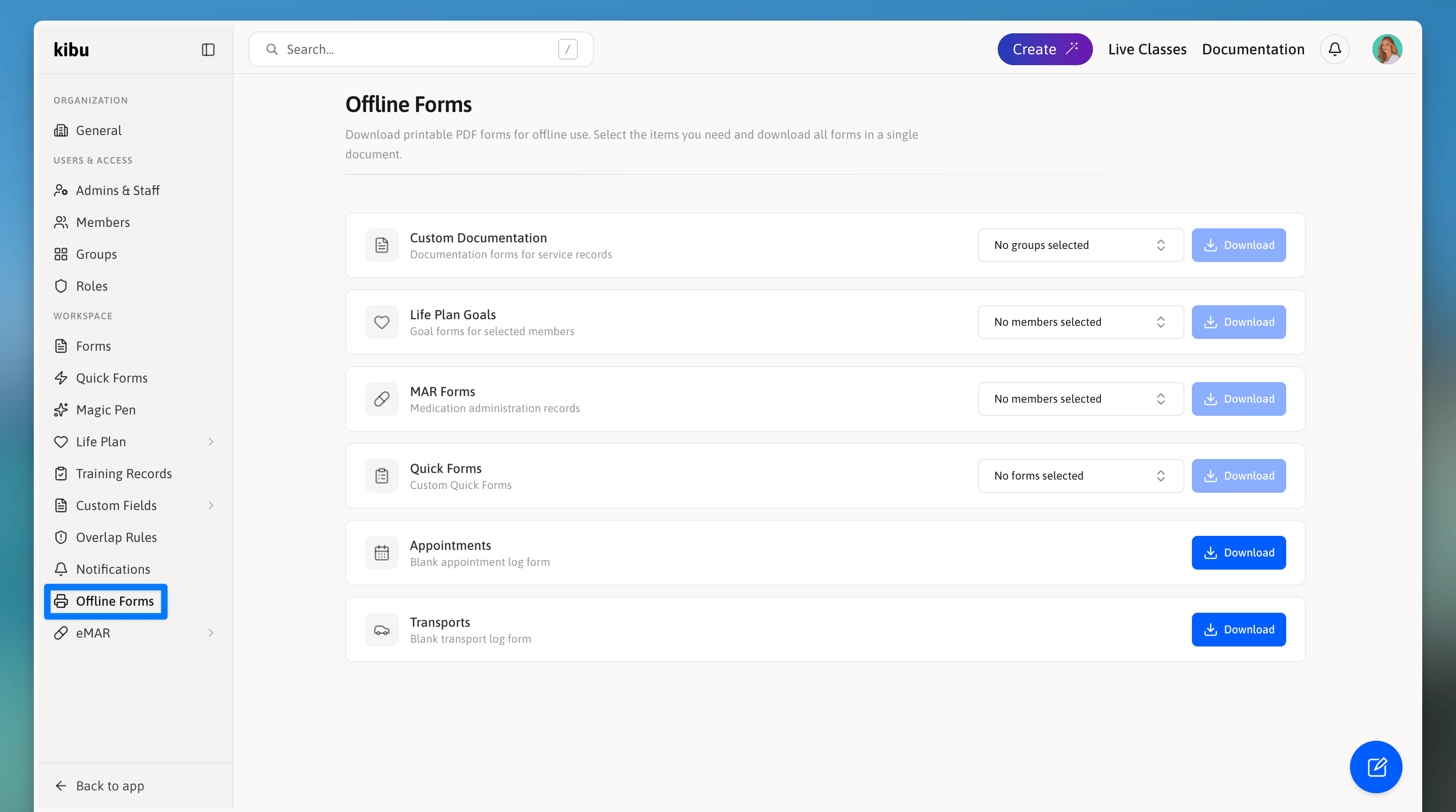
 ### Offline Forms
Offline Forms allow organizations to configure forms that can be used when staff do not have an internet connection, ensuring documentation can still be captured in the field and synced later. They are printable PDF forms for offline use.
### Offline Forms
Offline Forms allow organizations to configure forms that can be used when staff do not have an internet connection, ensuring documentation can still be captured in the field and synced later. They are printable PDF forms for offline use.
 ## eMAR
eMar (Electronic Medication Administration Record) in Kibu is the module for tracking medication administration for members. It allows staff to log whether medications were given correctly, incorrectly, or not administered at all, along with reasons and notes. Please refer to the eMAR article for further information.
***
Settings changes can impact your entire organization. Always review changes carefully and ensure proper communication with staff.
* Upload any PDF that has been pre-configured with input fields by the Kibu team
* Form fields are detected and extracted automatically on upload
* Uploaded forms are managed from Settings and can be assigned for use across your organization
* This feature is intended for Kibu-prepared PDFs only, contact support if you need a new form created or configured
## eMAR
eMar (Electronic Medication Administration Record) in Kibu is the module for tracking medication administration for members. It allows staff to log whether medications were given correctly, incorrectly, or not administered at all, along with reasons and notes. Please refer to the eMAR article for further information.
***
Settings changes can impact your entire organization. Always review changes carefully and ensure proper communication with staff.
* Upload any PDF that has been pre-configured with input fields by the Kibu team
* Form fields are detected and extracted automatically on upload
* Uploaded forms are managed from Settings and can be assigned for use across your organization
* This feature is intended for Kibu-prepared PDFs only, contact support if you need a new form created or configured