> ## Documentation Index
> Fetch the complete documentation index at: https://help.kibu.com/llms.txt
> Use this file to discover all available pages before exploring further.
# Training Records
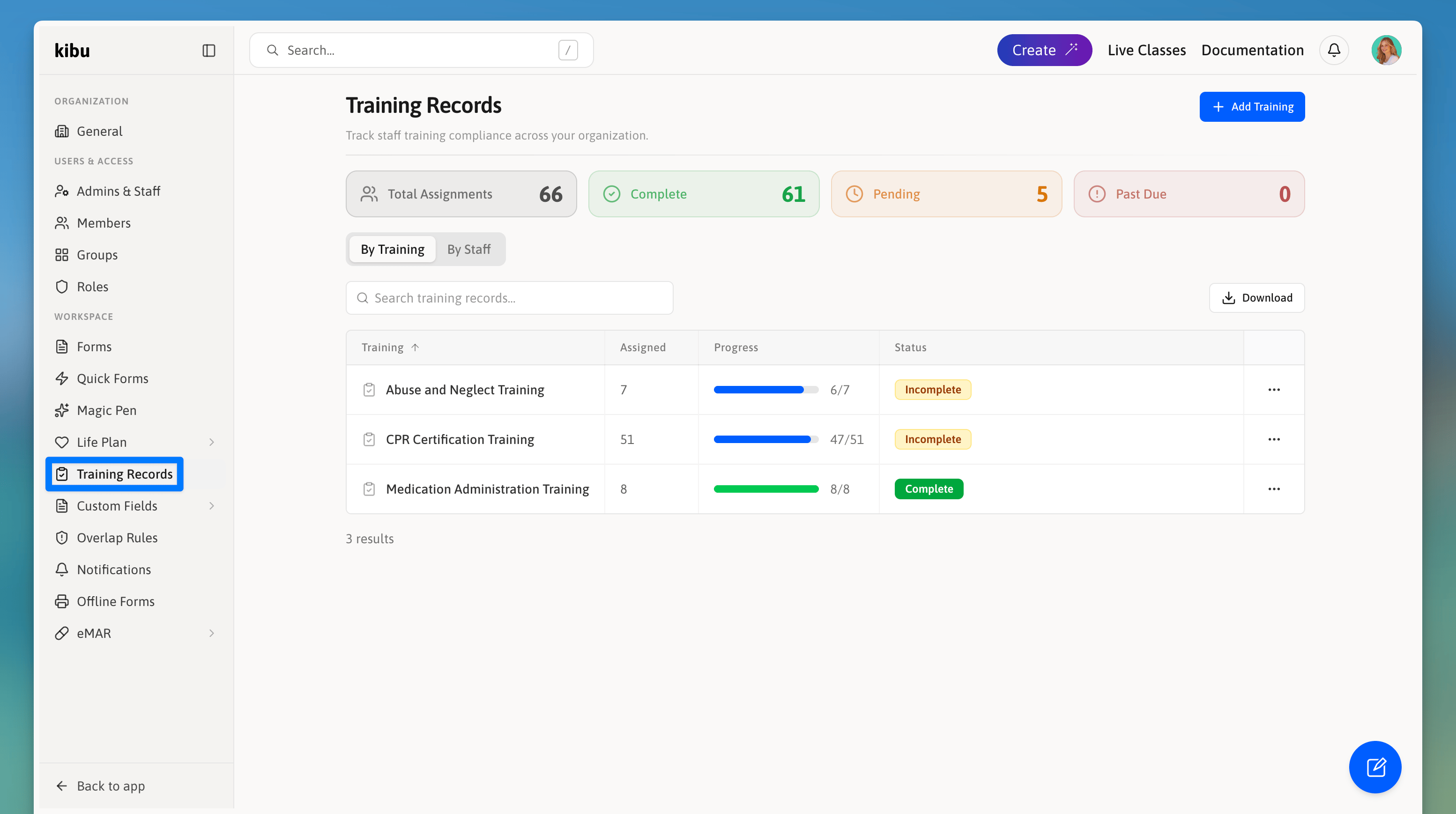 Staff Training Records allow your organization to define and track required trainings for compliance. Administrators set up the trainings staff need to complete, and the system tracks who has completed each one.
## Creating a Training Record
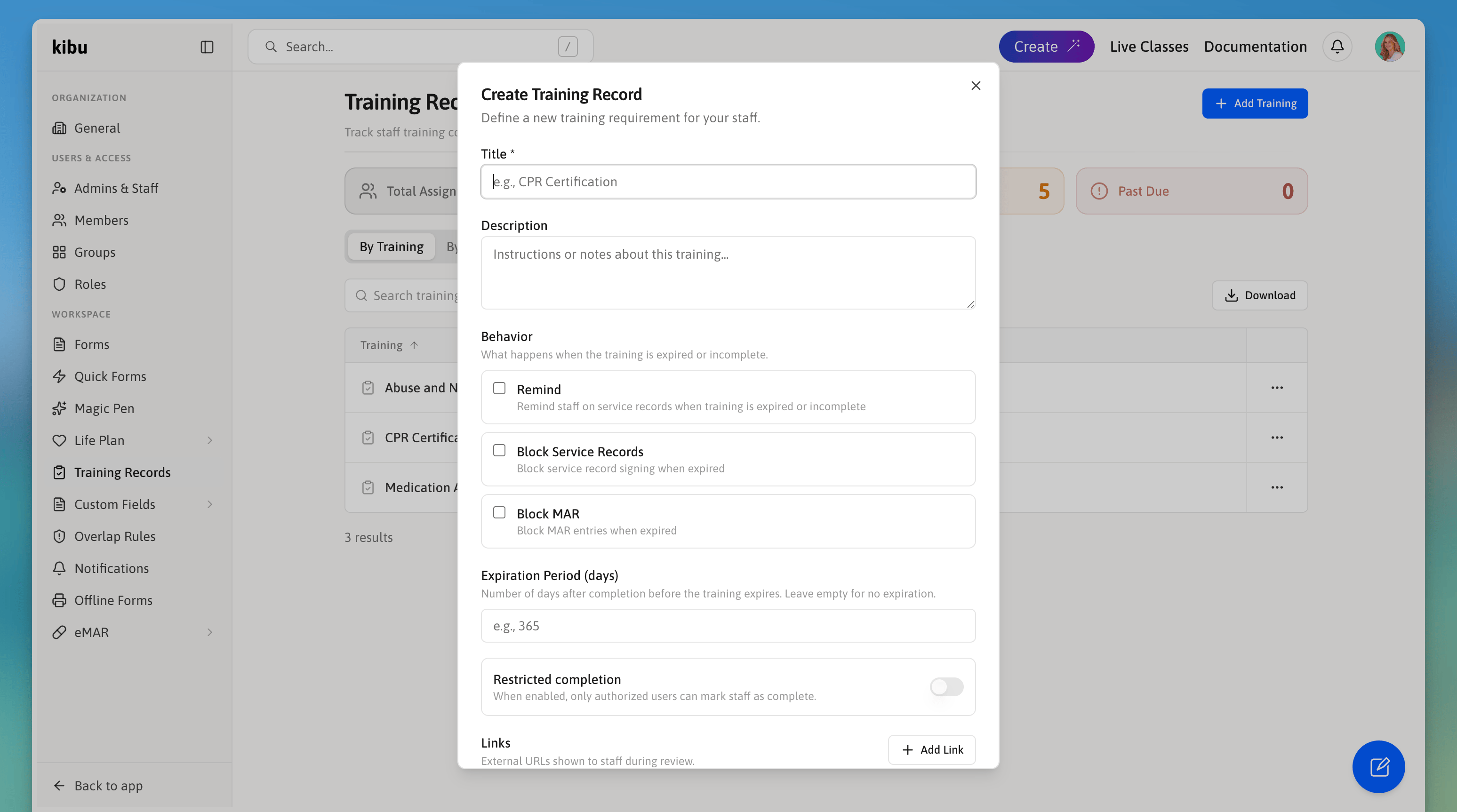
To create a new training requirement:
Reminds staff on service records when the training is expired or incomplete.
Prevents staff from signing service records when expired.
Prevents staff from making MAR entries when expired.
The number of days after completion before the training expires. Leave blank if the training does not expire.
When on, only authorized users can mark staff as complete.
Staff Training Records allow your organization to define and track required trainings for compliance. Administrators set up the trainings staff need to complete, and the system tracks who has completed each one.
## Creating a Training Record
To create a new training requirement:
Reminds staff on service records when the training is expired or incomplete.
Prevents staff from signing service records when expired.
Prevents staff from making MAR entries when expired.
The number of days after completion before the training expires. Leave blank if the training does not expire.
When on, only authorized users can mark staff as complete.
 ## Assigning Staff to a Training
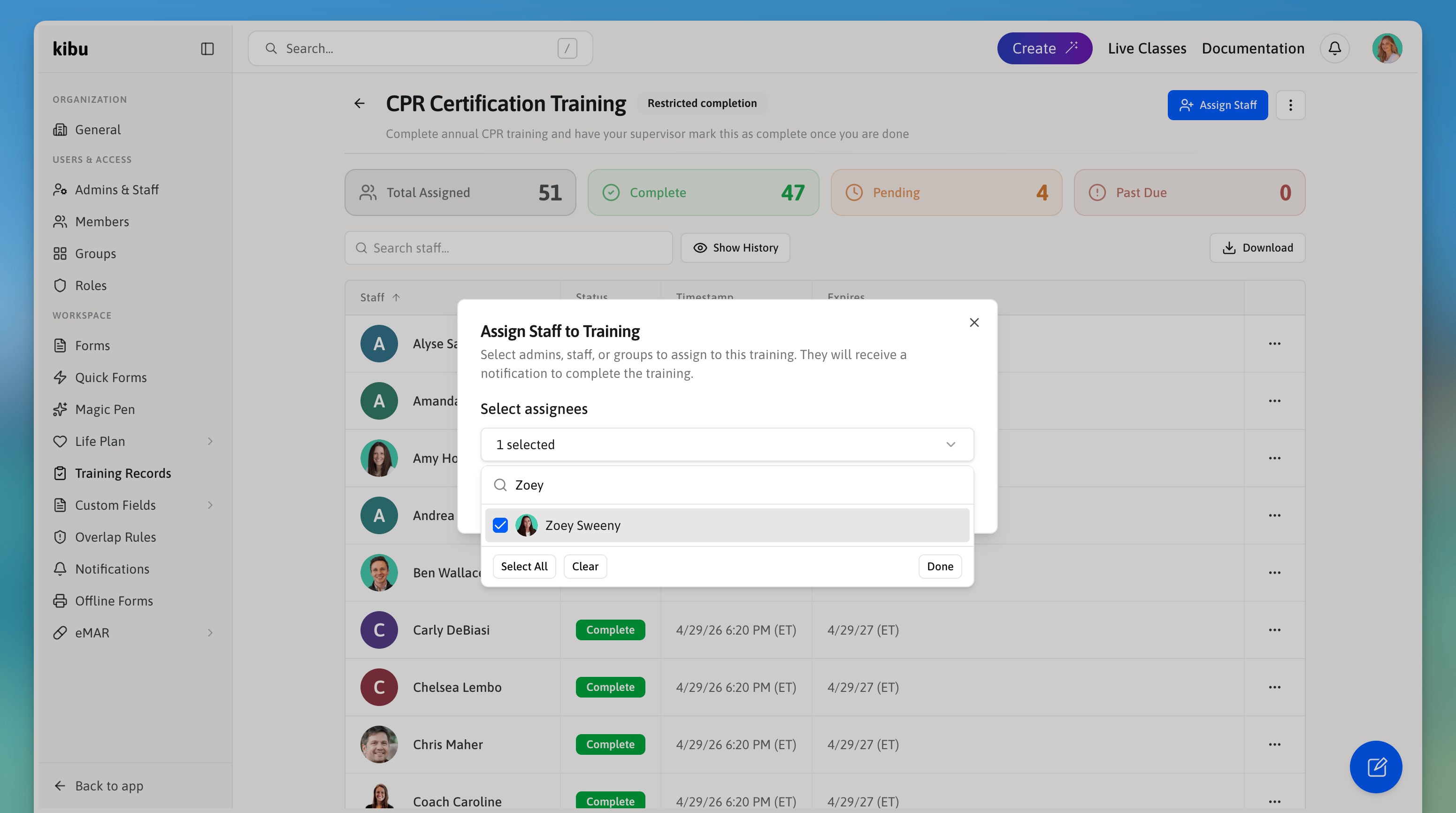
Once a training is created, you need to assign it to the staff members who are required to complete it.
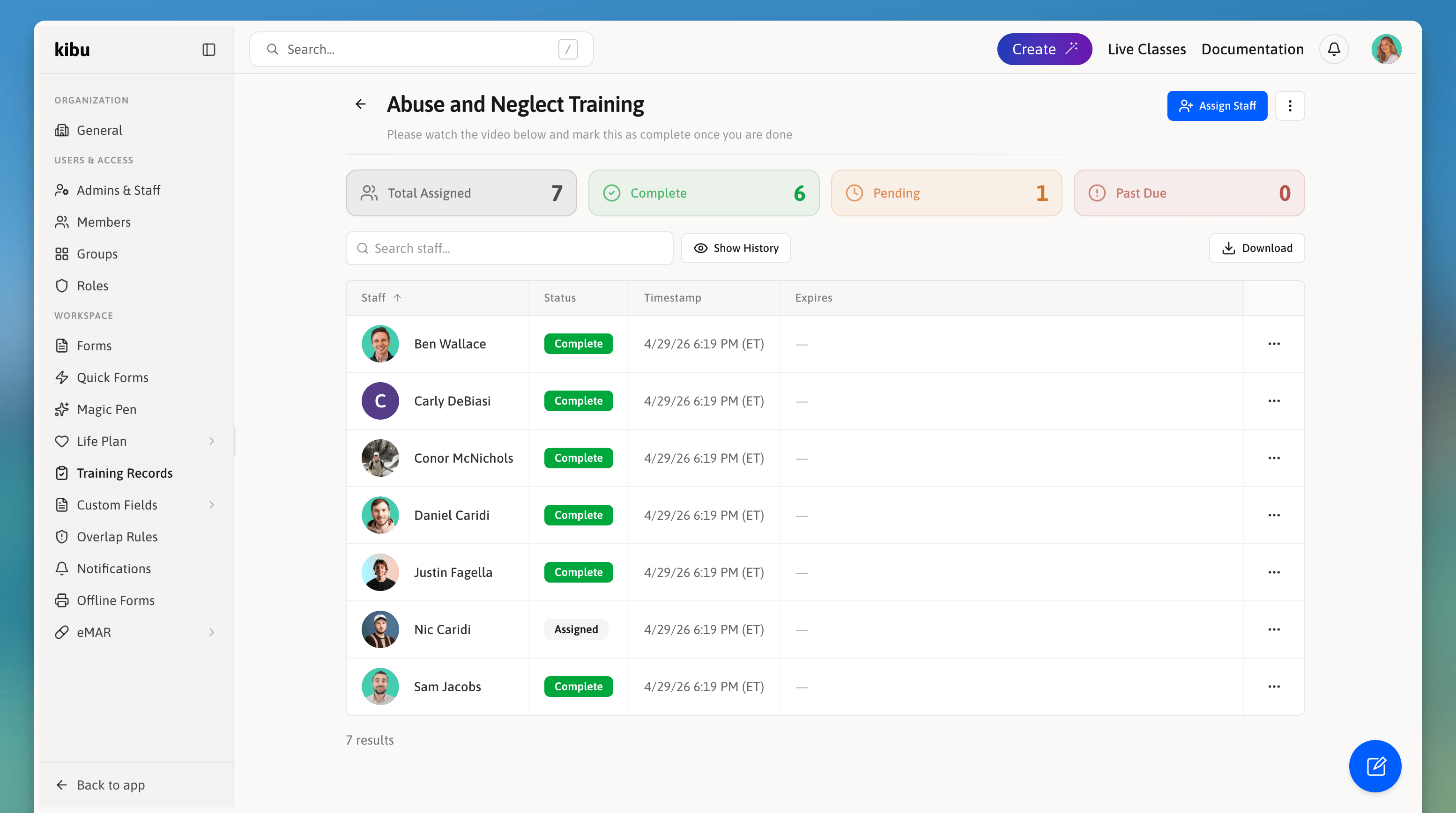
Assigned staff will receive a notification to complete the training. Once assigned, each person appears in the training record with a status of **Assigned**, along with the timestamp of when they were assigned and their expiration date once completed.
## Assigning Staff to a Training
Once a training is created, you need to assign it to the staff members who are required to complete it.
Assigned staff will receive a notification to complete the training. Once assigned, each person appears in the training record with a status of **Assigned**, along with the timestamp of when they were assigned and their expiration date once completed.
 ## Tracking Completion
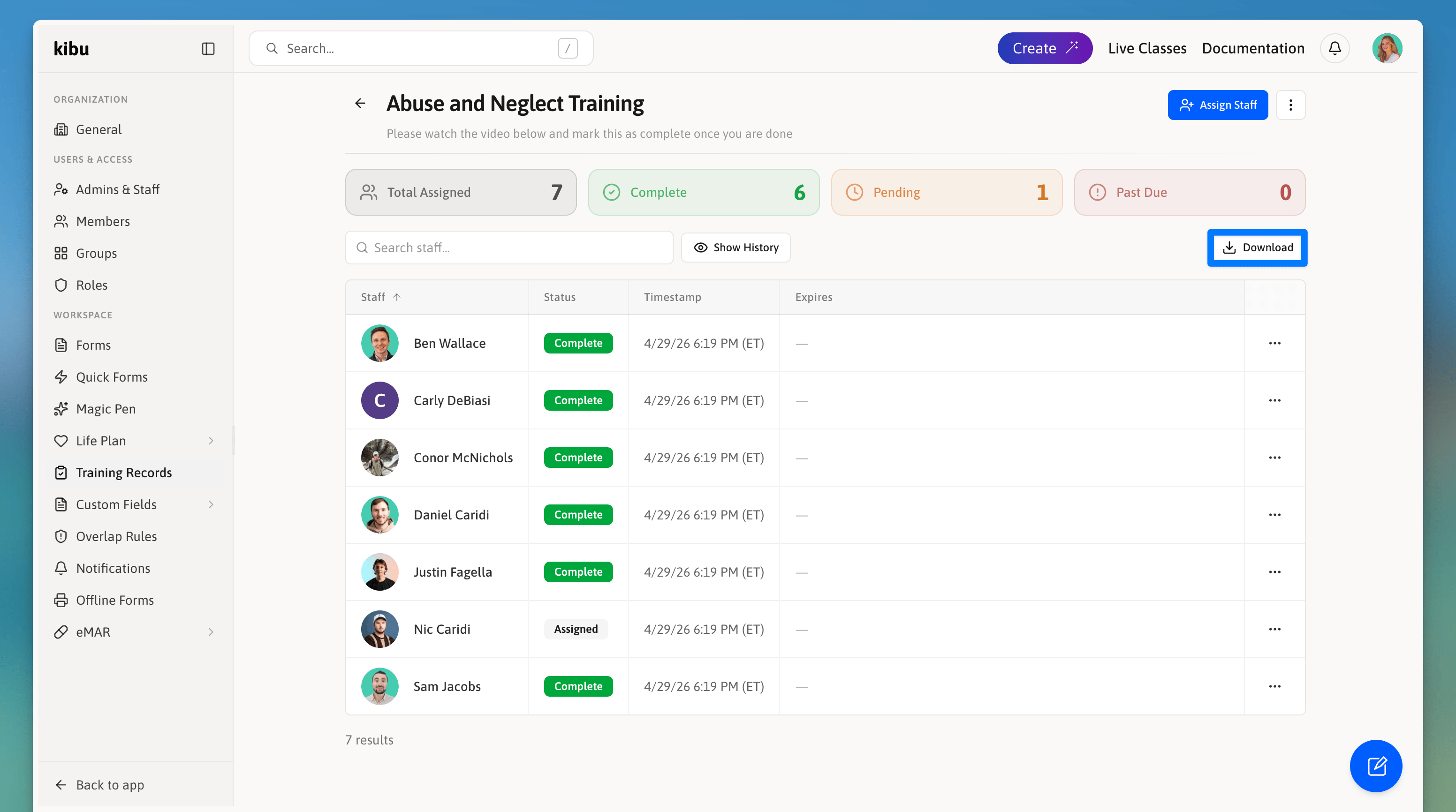
Each training record shows a summary at the top:
Total number of staff assigned to this training.
Staff who have finished.
Staff who have been assigned but not yet completed.
Staff whose training has expired.
You can search by staff name and use **Show History** to view past completions.
## Tracking Completion
Each training record shows a summary at the top:
Total number of staff assigned to this training.
Staff who have finished.
Staff who have been assigned but not yet completed.
Staff whose training has expired.
You can search by staff name and use **Show History** to view past completions.
 ## Marking a Training as Complete
To mark a training as complete for a staff member, open the training record, find the staff member in the list, and use the actions menu (**...**) to mark them complete.
If **Restricted Completion** is enabled on the training, only authorized users can do this.
## Downloading Training Records
Training completion data can be exported as an Excel spreadsheet. Click the **Download** button from within any training record to export the data for that specific training, including staff names, statuses, timestamps, and expiration dates.
## Marking a Training as Complete
To mark a training as complete for a staff member, open the training record, find the staff member in the list, and use the actions menu (**...**) to mark them complete.
If **Restricted Completion** is enabled on the training, only authorized users can do this.
## Downloading Training Records
Training completion data can be exported as an Excel spreadsheet. Click the **Download** button from within any training record to export the data for that specific training, including staff names, statuses, timestamps, and expiration dates.