> ## Documentation Index
> Fetch the complete documentation index at: https://help.kibu.com/llms.txt
> Use this file to discover all available pages before exploring further.
# Upload Life Plan Goals
> Uploading Life Plan Goals through templates is an efficient way to create and organize goals in bulk for your organization. This guide will walk you through the entire process from template download to goal upload.
 Uploading Life Plan Goals through templates is an efficient way to create and organize goals in bulk for your organization. This guide will walk you through the entire process from template download to goal upload.
## Getting Started
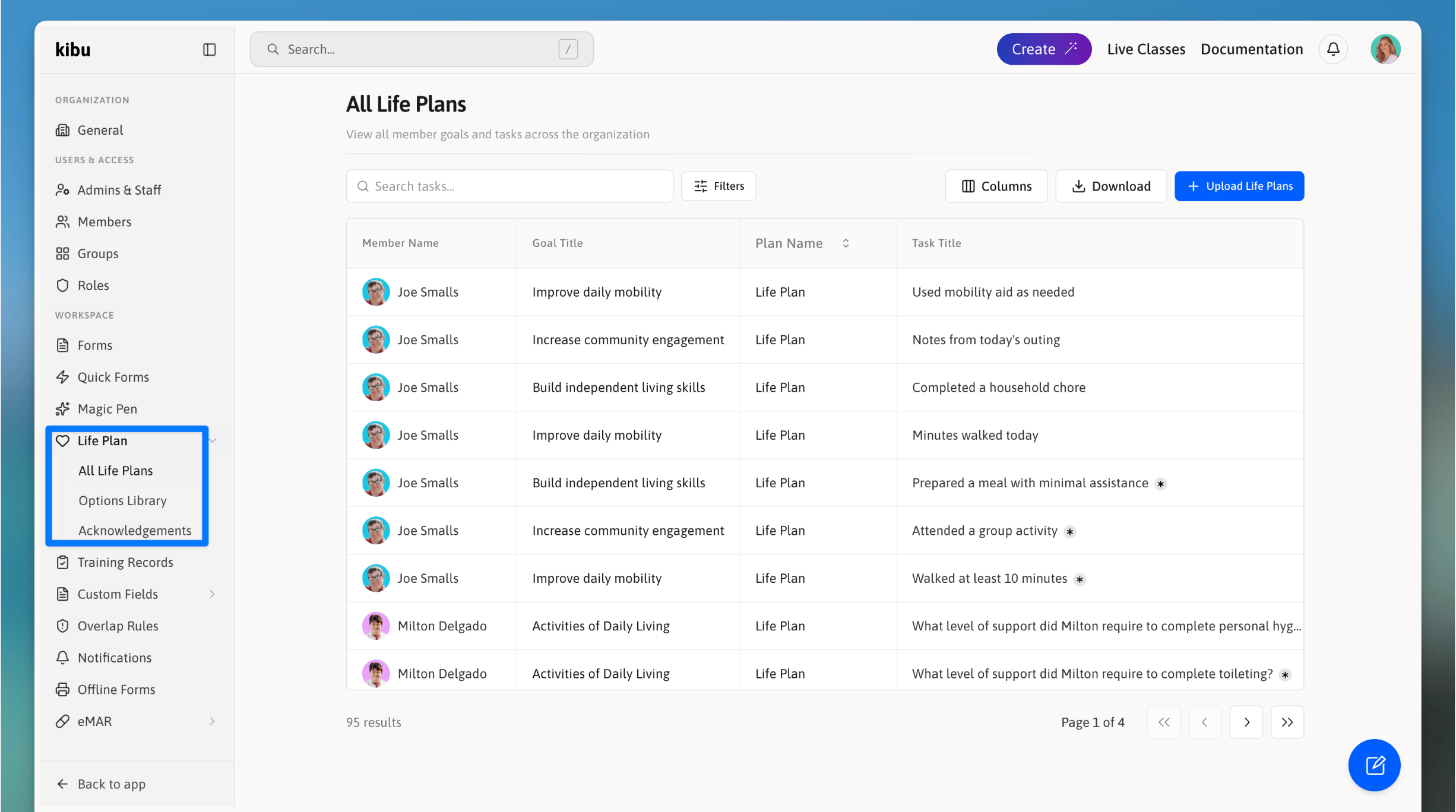
To access the upload tool:
## Step 1: Download the Template
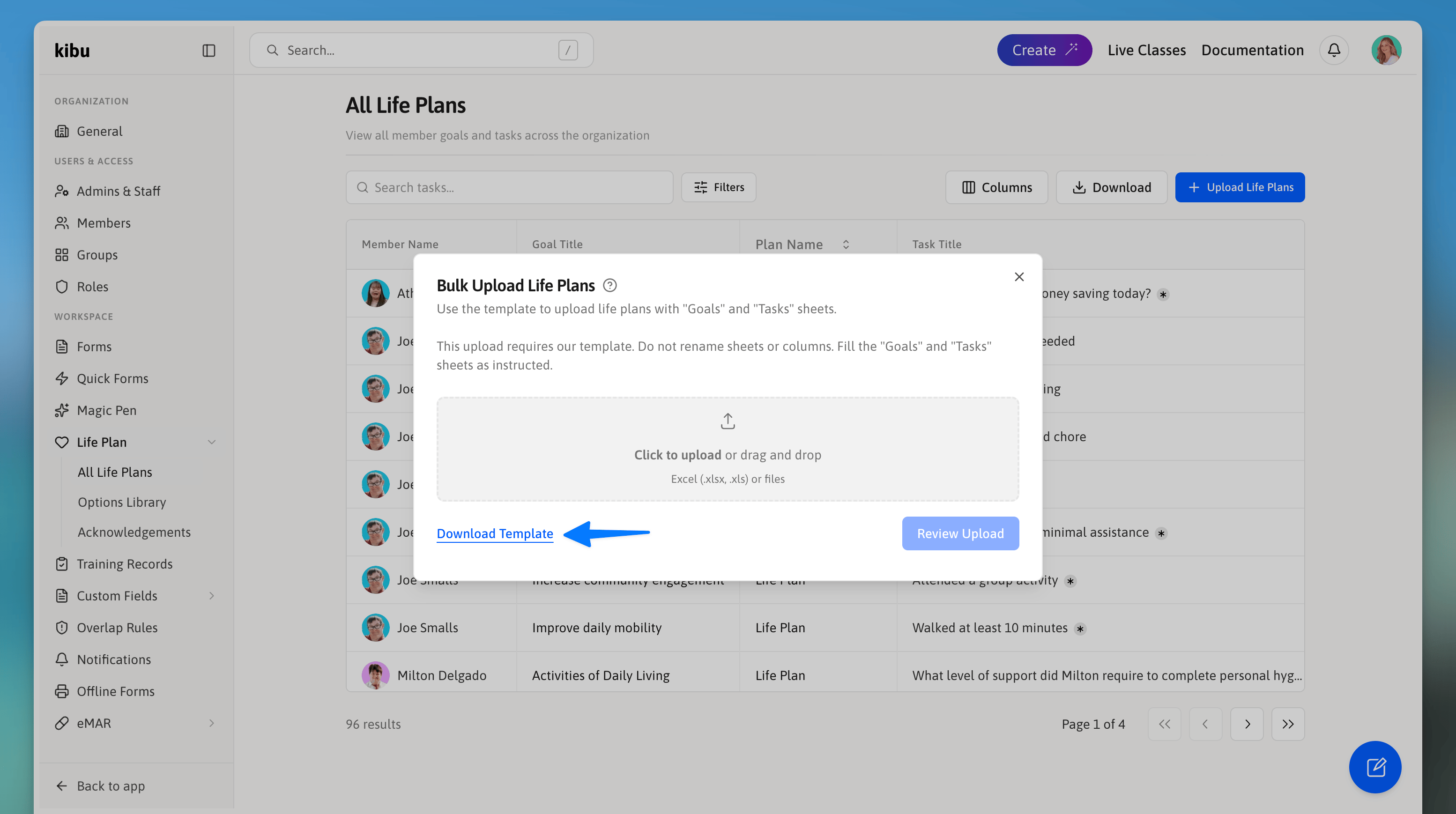
The upload process begins with downloading a template file that you'll use to input your goals and tasks.
Uploading Life Plan Goals through templates is an efficient way to create and organize goals in bulk for your organization. This guide will walk you through the entire process from template download to goal upload.
## Getting Started
To access the upload tool:
## Step 1: Download the Template
The upload process begins with downloading a template file that you'll use to input your goals and tasks.
 ## Step 2: Understanding the Template Structure
The template contains two main tabs:
Where you'll define your life plan goals.
Where you'll add questions and tasks for each goal.
## Step 3: Creating Goals (Goals Tab)
Start by creating your goals in the **Goals Tab**.
### Required Information
A unique identifier for each goal. Use any number, we recommend starting at 1 and using consecutive numbers for easier tracking.
Required. The name of your goal.
Optional descriptive text about the goal.
Start date defaults to today if left empty. End date defaults to "forever" if left empty.
In the template, you will see columns for member name and member ID. Do not edit these fields. They are used to match goals to the correct individual and should remain unchanged.
### Goal Key Guidelines
* Each goal must have a unique number
* Use consecutive numbers (1, 2, 3, etc.) for easier tracking
* Never duplicate goal keys, each must be unique
* You'll use this same key number to link tasks to the goal
### Example
| Goal Key | Title | Description | Start Date | End Date |
| -------- | ------------------- | ---------------------------------------- | ---------- | ---------- |
| 1 | Daily Living Skills | Focus on independence in daily tasks | 2024-01-01 | 2024-12-31 |
| 2 | Social Skills | Building relationships and communication | 2024-01-01 | Forever |
## Step 4: Adding Tasks (Tasks Tab)
After creating your goals, add questions or tasks using the **Tasks Tab**.
For each task, enter the same **Goal Key** as the goal it belongs to, then define the task details: the type of question (Yes/No, Select, Paragraph, etc.), the question or instruction to ask, and the required completion tracking details.
### Example
| Goal Key | text | type | required | display\_type | select\_options |
| -------- | -------------------------------------- | ----------- | -------- | ------------- | -------------------------------------------- |
| 1 | Did you complete your morning routine? | Yes/No | Yes | Dropdown | |
| 1 | Number of meals prepared | Number | No | | |
| 2 | What skills were Practiced? | Multiselect | No | list | self advocacy, act of kindness, independance |
### Best Practices
* One goal can have many tasks (unlimited)
* Use descriptive questions that are easy to understand
* Consider what information you actually need to track progress
## Step 5: Uploading Your Goals
## Step 6: Managing Goal Assignment
Once uploaded, goals will be visible to **all groups** by default, available on member profiles, and appear in service records.
To assign goals to specific groups instead:
## Troubleshooting
Double-check that every goal in the Goals Tab has a unique identifier. No two goals can share the same Goal Key.
Verify all goals have titles completed. Title is a required field and goals cannot be uploaded without one.
Review cell formats in the template. If errors persist, download a fresh template and re-enter your data.
Ensure tasks in the Tasks Tab use the exact same Goal Keys as their corresponding goals. A mismatch will prevent tasks from linking correctly.
Check the error messages before finalizing, verify Excel version compatibility, and contact support if problems persist.
## Best Practices
Think about how often you'll track each goal, consider goal end dates carefully, and design clear, measurable tasks.
Don't overcomplicate task questions. Use concise and clear language, and test with a few goals before bulk uploads.
Group related goals with consecutive keys, use meaningful titles for easy identification, and document your goal key system.
Review uploaded goals before assigning to members, confirm goals appear correctly in member profiles, and test goal tracking to ensure proper functionality.
Remember to double-check your template for accuracy before uploading. This helps prevent complications and ensures all goals are properly formatted in your Kibu system.
## Step 2: Understanding the Template Structure
The template contains two main tabs:
Where you'll define your life plan goals.
Where you'll add questions and tasks for each goal.
## Step 3: Creating Goals (Goals Tab)
Start by creating your goals in the **Goals Tab**.
### Required Information
A unique identifier for each goal. Use any number, we recommend starting at 1 and using consecutive numbers for easier tracking.
Required. The name of your goal.
Optional descriptive text about the goal.
Start date defaults to today if left empty. End date defaults to "forever" if left empty.
In the template, you will see columns for member name and member ID. Do not edit these fields. They are used to match goals to the correct individual and should remain unchanged.
### Goal Key Guidelines
* Each goal must have a unique number
* Use consecutive numbers (1, 2, 3, etc.) for easier tracking
* Never duplicate goal keys, each must be unique
* You'll use this same key number to link tasks to the goal
### Example
| Goal Key | Title | Description | Start Date | End Date |
| -------- | ------------------- | ---------------------------------------- | ---------- | ---------- |
| 1 | Daily Living Skills | Focus on independence in daily tasks | 2024-01-01 | 2024-12-31 |
| 2 | Social Skills | Building relationships and communication | 2024-01-01 | Forever |
## Step 4: Adding Tasks (Tasks Tab)
After creating your goals, add questions or tasks using the **Tasks Tab**.
For each task, enter the same **Goal Key** as the goal it belongs to, then define the task details: the type of question (Yes/No, Select, Paragraph, etc.), the question or instruction to ask, and the required completion tracking details.
### Example
| Goal Key | text | type | required | display\_type | select\_options |
| -------- | -------------------------------------- | ----------- | -------- | ------------- | -------------------------------------------- |
| 1 | Did you complete your morning routine? | Yes/No | Yes | Dropdown | |
| 1 | Number of meals prepared | Number | No | | |
| 2 | What skills were Practiced? | Multiselect | No | list | self advocacy, act of kindness, independance |
### Best Practices
* One goal can have many tasks (unlimited)
* Use descriptive questions that are easy to understand
* Consider what information you actually need to track progress
## Step 5: Uploading Your Goals
## Step 6: Managing Goal Assignment
Once uploaded, goals will be visible to **all groups** by default, available on member profiles, and appear in service records.
To assign goals to specific groups instead:
## Troubleshooting
Double-check that every goal in the Goals Tab has a unique identifier. No two goals can share the same Goal Key.
Verify all goals have titles completed. Title is a required field and goals cannot be uploaded without one.
Review cell formats in the template. If errors persist, download a fresh template and re-enter your data.
Ensure tasks in the Tasks Tab use the exact same Goal Keys as their corresponding goals. A mismatch will prevent tasks from linking correctly.
Check the error messages before finalizing, verify Excel version compatibility, and contact support if problems persist.
## Best Practices
Think about how often you'll track each goal, consider goal end dates carefully, and design clear, measurable tasks.
Don't overcomplicate task questions. Use concise and clear language, and test with a few goals before bulk uploads.
Group related goals with consecutive keys, use meaningful titles for easy identification, and document your goal key system.
Review uploaded goals before assigning to members, confirm goals appear correctly in member profiles, and test goal tracking to ensure proper functionality.
Remember to double-check your template for accuracy before uploading. This helps prevent complications and ensures all goals are properly formatted in your Kibu system.