> ## Documentation Index
> Fetch the complete documentation index at: https://help.kibu.com/llms.txt
> Use this file to discover all available pages before exploring further.
# Quick Notes
> Document observations and notes instantly from your mobile device.
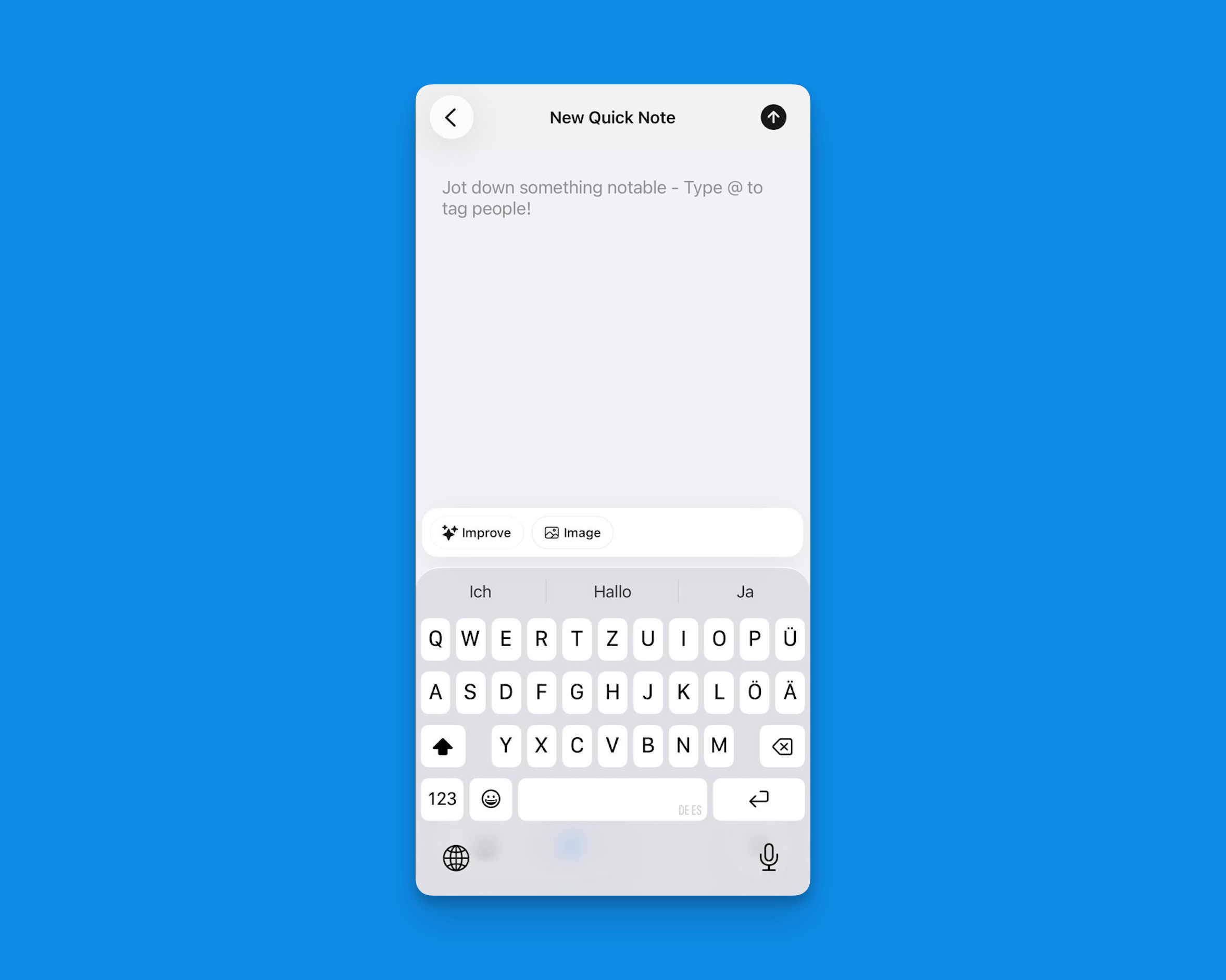 Quick Notes on the Kibu mobile app provides a fast and efficient way to document observations and important information while on the go. Located in the center tab of the bottom navigation bar, Quick Notes gives you instant access to documentation capabilities.
## Key Features
Just like on the web platform, the Mobile app allows you to quickly jot down any observations, events, or important information about your members. These notes are automatically time-stamped, added to the member's service record for the day, and accessible by your team members.
We understand that many DSPs prefer to document in their native language. The Kibu mobile app fully supports multi-language documentation through native keyboard speech-to-text in any language, a built-in translation tool in the bottom left corner, and seamless translation between languages for team collaboration.
## How to Use Quick Notes
Type @ followed by their name or group name (e.g. @John Smith, Day Hab).
* When you tag a member, the note will automatically appear in their daily service record
* When you tag a group, the note will appear in the profiles of all members who are part of that group
* You can also tag multiple members in the same note if needed
Using either regular text input or your keyboard's speech-to-text function by clicking on the microphone. You can also select your native language to transcribe from the voice note.
After speaking in your native language, click on the "Improve" button.
***
## Viewing Quick Notes in the Member Profile
To view Quick Notes, go to the member's profile and select the "Feed" tab, all notes are collected here.
***
## Adding Quick Notes to Service Records
For example: Daily Log, Life Plan Tasks, Behaviour Plan Tasks.
Ensure your Quick Notes are accurate and align with the required daily documentation for the Magic Pen to work effectively.
***
## Best Practices
Quick Notes on mobile helps you stay efficient while ensuring thorough documentation of your members' care. The combination of easy access, speech-to-text, and translation features makes it simple to document in whatever way works best for you.
Quick Notes on the Kibu mobile app provides a fast and efficient way to document observations and important information while on the go. Located in the center tab of the bottom navigation bar, Quick Notes gives you instant access to documentation capabilities.
## Key Features
Just like on the web platform, the Mobile app allows you to quickly jot down any observations, events, or important information about your members. These notes are automatically time-stamped, added to the member's service record for the day, and accessible by your team members.
We understand that many DSPs prefer to document in their native language. The Kibu mobile app fully supports multi-language documentation through native keyboard speech-to-text in any language, a built-in translation tool in the bottom left corner, and seamless translation between languages for team collaboration.
## How to Use Quick Notes
Type @ followed by their name or group name (e.g. @John Smith, Day Hab).
* When you tag a member, the note will automatically appear in their daily service record
* When you tag a group, the note will appear in the profiles of all members who are part of that group
* You can also tag multiple members in the same note if needed
Using either regular text input or your keyboard's speech-to-text function by clicking on the microphone. You can also select your native language to transcribe from the voice note.
After speaking in your native language, click on the "Improve" button.
***
## Viewing Quick Notes in the Member Profile
To view Quick Notes, go to the member's profile and select the "Feed" tab, all notes are collected here.
***
## Adding Quick Notes to Service Records
For example: Daily Log, Life Plan Tasks, Behaviour Plan Tasks.
Ensure your Quick Notes are accurate and align with the required daily documentation for the Magic Pen to work effectively.
***
## Best Practices
Quick Notes on mobile helps you stay efficient while ensuring thorough documentation of your members' care. The combination of easy access, speech-to-text, and translation features makes it simple to document in whatever way works best for you.