> ## Documentation Index
> Fetch the complete documentation index at: https://help.kibu.com/llms.txt
> Use this file to discover all available pages before exploring further.
# Service Records
> Complete and manage service records from your mobile device.
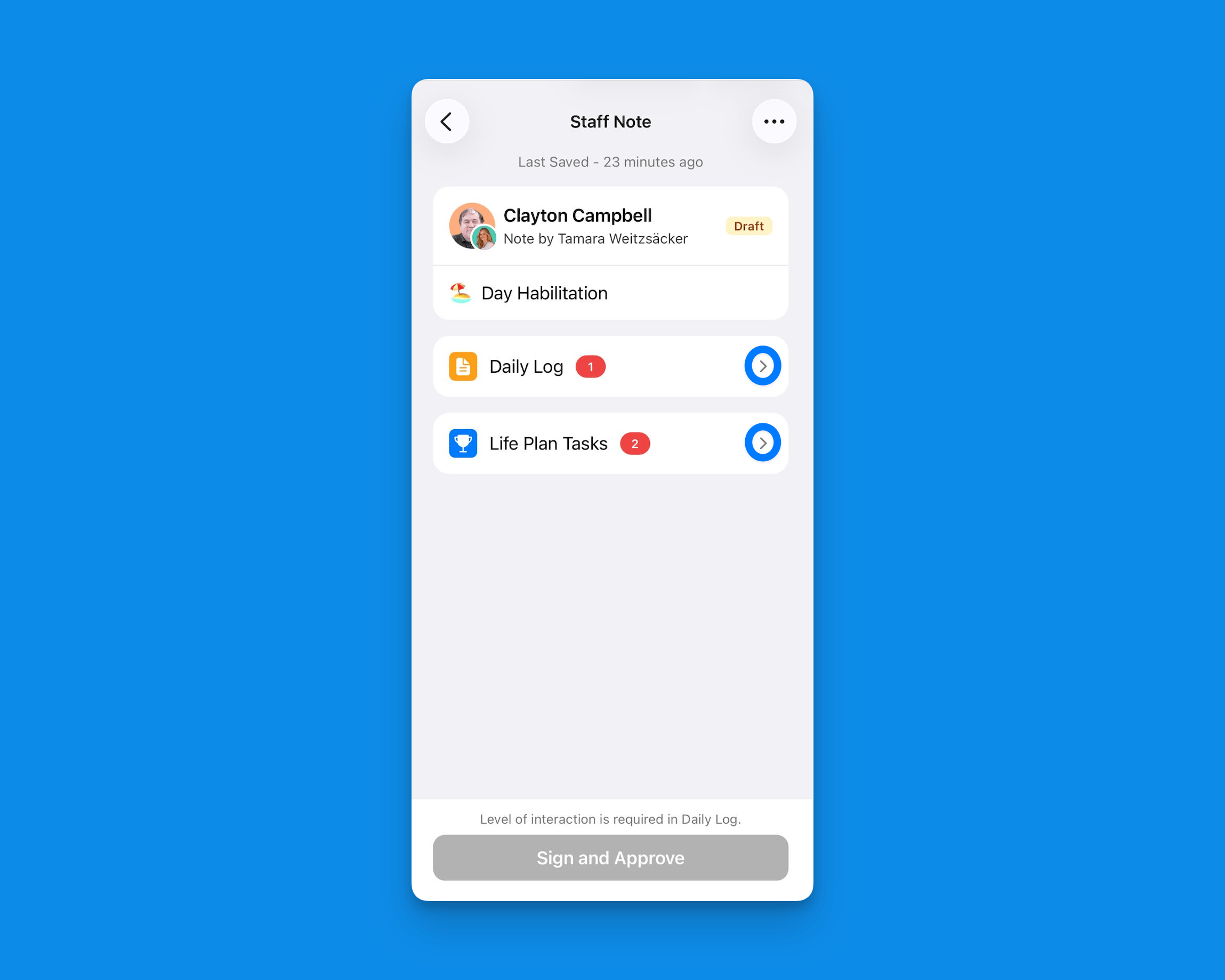
The Kibu mobile app allows you to efficiently manage and complete service records while on the go. You can create, view, and manage service records directly from your mobile device. You can easily access and complete them through your home page in the app, which displays all your incomplete service records for the day.
 ## Creating Service Records
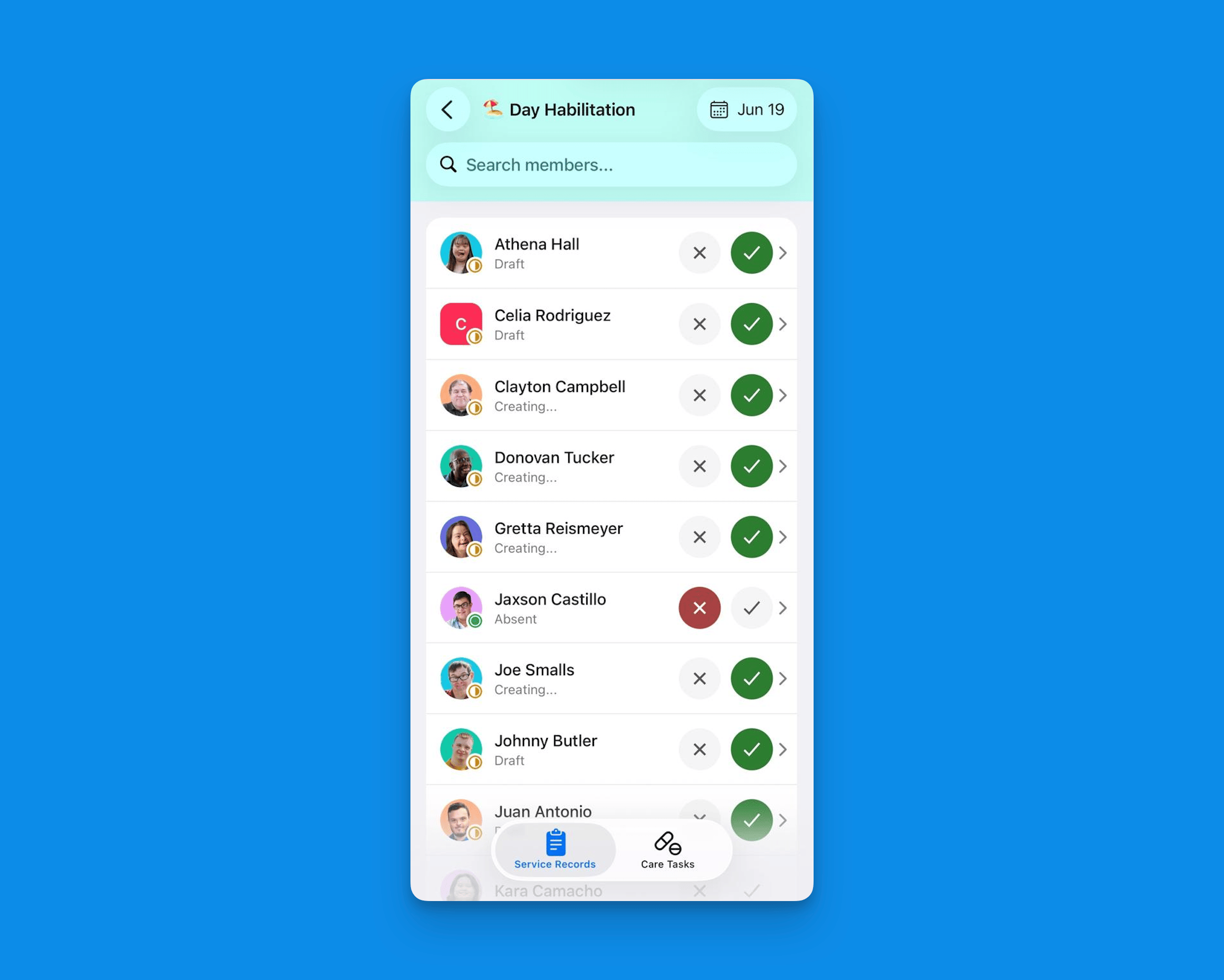 Marking a member as absent will automatically complete a record for the day.
Once a member is marked as present, time tracking will automatically begin (if enabled for the group).
## Adding Quick Notes
To add a Quick Note, tap the button next to the home button. From here you can:
* Write your note or tap the microphone icon (bottom right) to record a voice note
* Use the Improve button to automatically correct any spelling or grammar mistakes
* Attach photos by choosing from your library or taking a new photo
Be sure to tag the relevant members, groups, and staff to ensure the note is displayed in the right place.
## Using Magic Pen
The Magic Pen AI assistant is available on mobile to help you efficiently complete service records:
New to Magic Pen? Learn how to leverage this powerful tool by visiting our [Magic Pen guide](https://help.kibu.com/documentation/service-records#magic-pen-ai-assistant).
## Completing Service Records
The completion process on mobile mirrors the web platform experience:
Sign and Approve button turns blue once required fields are filled out
## Best Practices
Double-check all information before signing.
Complete records as soon as possible after service delivery.
The mobile app's service record functionality ensures you can maintain accurate and timely documentation, even when you're away from your computer.
Marking a member as absent will automatically complete a record for the day.
Once a member is marked as present, time tracking will automatically begin (if enabled for the group).
## Adding Quick Notes
To add a Quick Note, tap the button next to the home button. From here you can:
* Write your note or tap the microphone icon (bottom right) to record a voice note
* Use the Improve button to automatically correct any spelling or grammar mistakes
* Attach photos by choosing from your library or taking a new photo
Be sure to tag the relevant members, groups, and staff to ensure the note is displayed in the right place.
## Using Magic Pen
The Magic Pen AI assistant is available on mobile to help you efficiently complete service records:
New to Magic Pen? Learn how to leverage this powerful tool by visiting our [Magic Pen guide](https://help.kibu.com/documentation/service-records#magic-pen-ai-assistant).
## Completing Service Records
The completion process on mobile mirrors the web platform experience:
Sign and Approve button turns blue once required fields are filled out
## Best Practices
Double-check all information before signing.
Complete records as soon as possible after service delivery.
The mobile app's service record functionality ensures you can maintain accurate and timely documentation, even when you're away from your computer.