

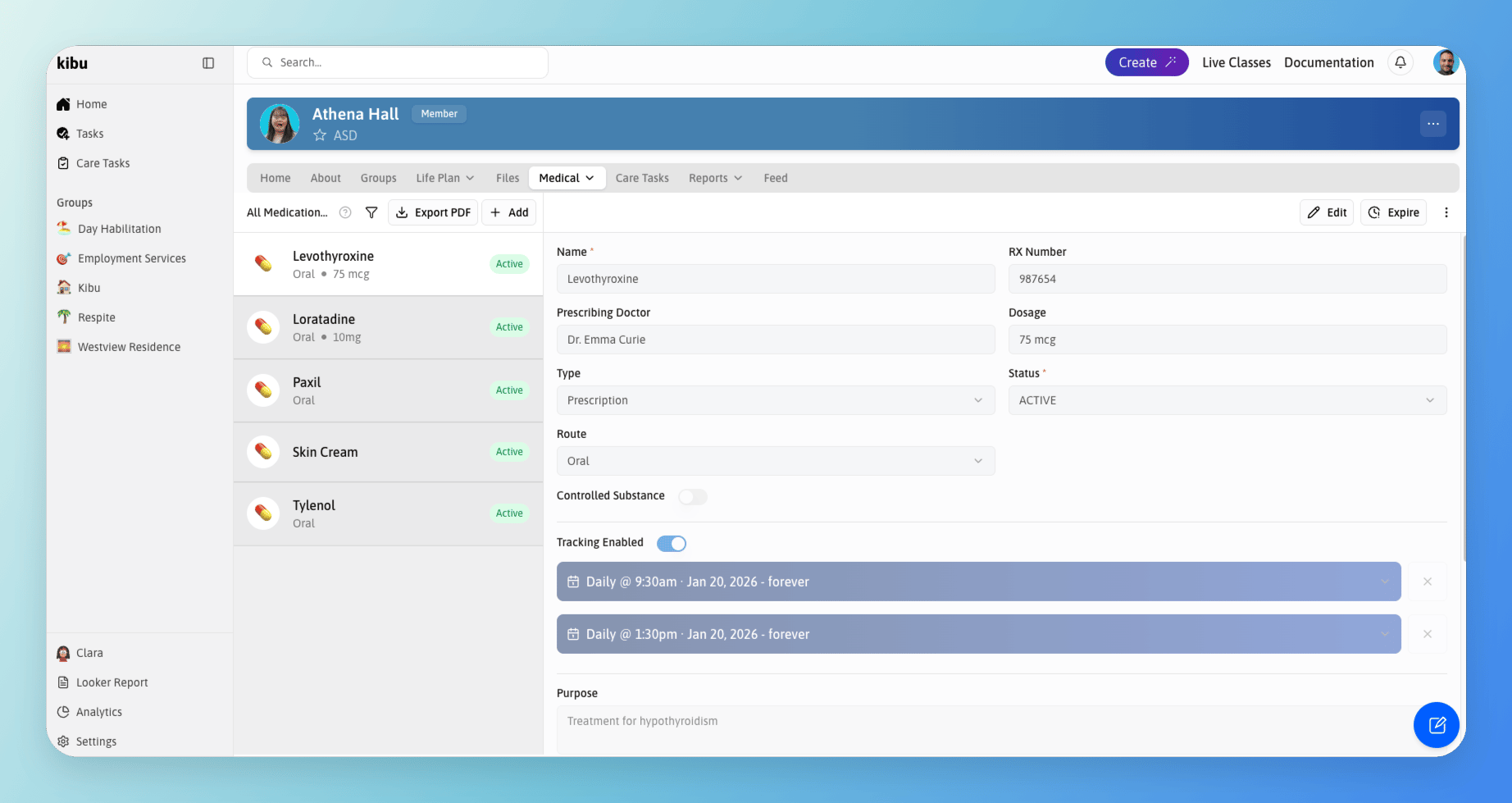
The Medications section in a member's Medical tab, showing the full medication list and administration history.
Open the member's profile
Select the Medical tab
Choose Medications from the dropdown
Adding a New Medication
To add a new medication for a member:Select the medical tab in the member's profile and then Medications from the dropdown that appears
Find the "All Medications" section
Click the "+ Add" button at the top of the section
Medication Information
When adding a medication, you can specify the following details:Medication Name
RX Number
Prescribing Doctor
Dosage
Instructions
Medication Type
- Over the counter
- Supplement
Status
- Active
- Inactive
Medication Route
Tracking Schedule
Purpose
Side Effects
Additional Comments
Medication Tracking
Once a medication is added:- It becomes available for tracking for that specific member
- Appears on the member’s eMAR (Electronic Medication Administration Record) when an administration is tracked
- Can be monitored and updated as needed
Managing Multiple Medications
There is no limit to the number of medications you can add for each member. This allows you to:- Track all necessary medications in one place
- Maintain an accurate record of both regular and as-needed medications
- Ensure proper medication administration and tracking
Medication Photo
You can upload a photo of the medication bottle or label when adding or editing a medication record. This photo will appear on the administration screen when staff record a dose in the MAR, helping them visually confirm they have the right medication before administering it. To add a photo:Open the medication record in the Medications section
Find the photo upload area
Upload an image of the medication label or bottle
Save the record
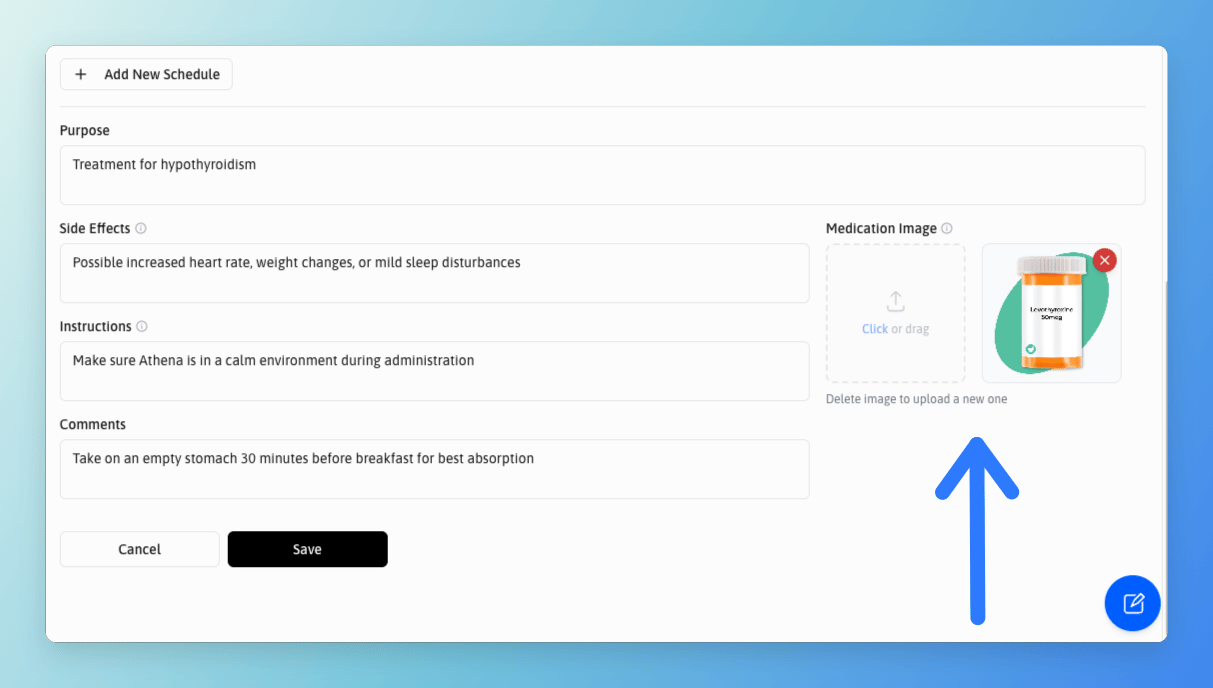
The photo upload area on a medication record, the uploaded image appears on the MAR administration screen for visual confirmation.
Downloading a Medication List
A member’s complete medication list can be downloaded as a PDF. This is useful for sharing with healthcare providers, including in care plan documentation, or keeping on file. To download the medication list:Open the member's profile
Select the Medical tab and choose Medications
Look for the download button at the top of the Medication list
The PDF will include all active medications and their details
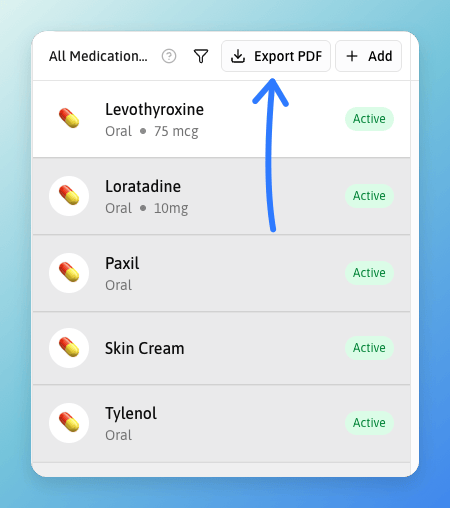
The download button at the top of the Medications list exports a PDF of all active medications and their details.
Removing a Medication
If a member is no longer taking a medication, you can remove it from their active list without permanently deleting the record. Removing a medication hides it from the active view while preserving all historical administration data. To remove a medication:Open the member's Medications page
Find the medication
Select the option to remove it