

Key Features
Medications
eMAR
Care Tasks & Quick Forms
Medical Observations
Medications
The Medications section lives under the Medical tab of each member’s profile. This is where you manage everything about a member’s medications, what they take, how they take it, and any supporting details staff need at the point of administration.Adding a Medication (Supervisors)
Select the Medical tab, then choose Medications
Click + Add new medication
Fill in the relevant medication details
- Name (required)
- RX Number
- Prescribing Doctor
- Dosage
- Medication Type (Prescription, Over the Counter, or Supplement)
- Status (Active, Declined, or Inactive) (required)
- Route
- Controlled or Uncontrolled Substance
- Tracking schedule
- Purpose
- Side Effects
- Instructions
- Comments
- Medication Image
Save when complete
Electronic Medication Administration Record (eMAR)
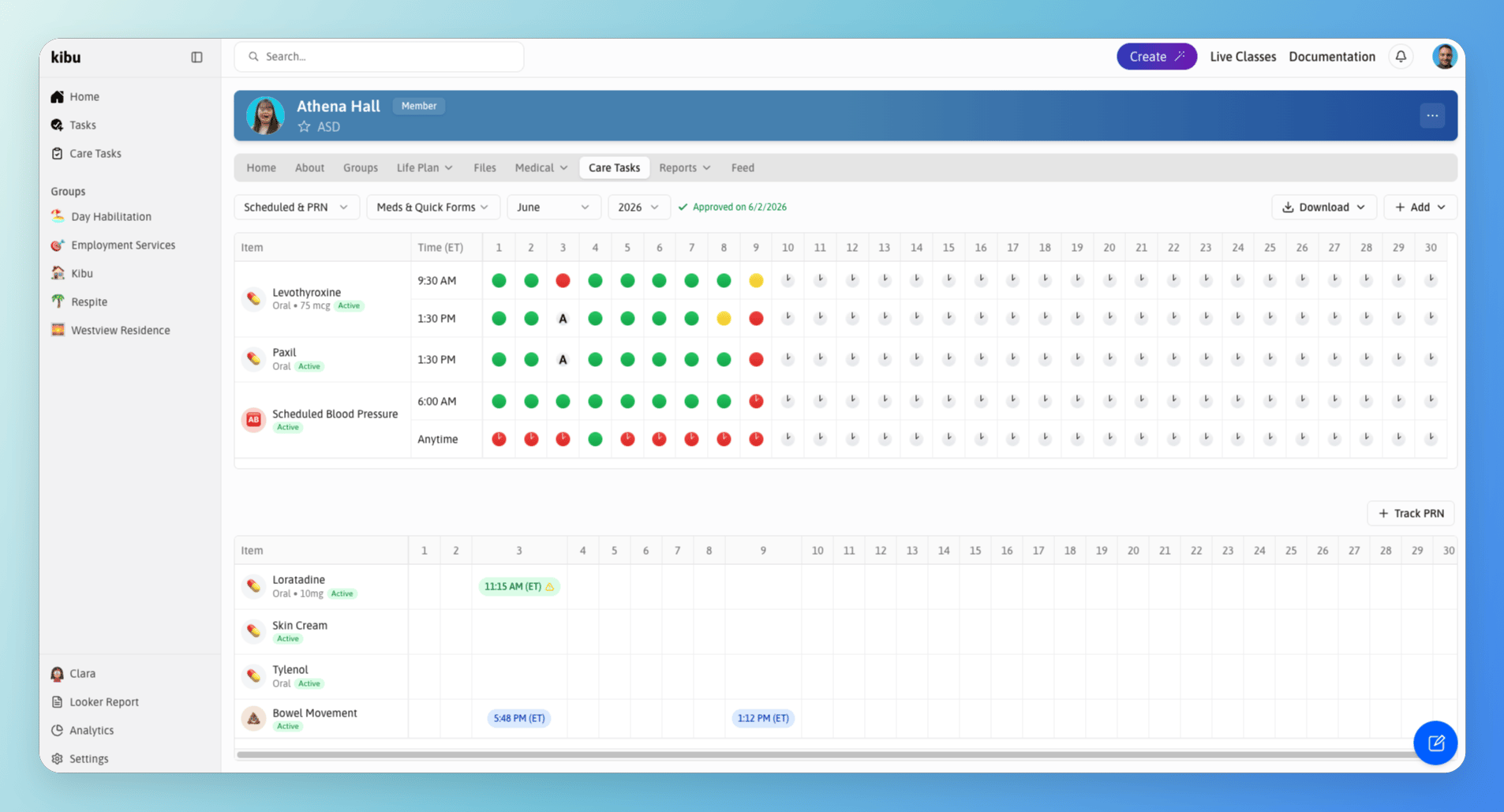
The eMAR panel showing daily medication administration tracking and status recording for a member.
- Daily medication administration recording
- Status tracking (administered correctly, incorrectly, or not administered)
- Incident reporting for medication errors
- Notifications to staff members
- Monthly report generation
Scheduled and PRN Medications
Medications are organized into two types, both trackable directly from a member’s Care Tasks tab. You do not need to navigate to the Medications section to log either. On a group page, the Care Tasks tab also shows upcoming scheduled medications across the group, so staff can see what is due before it comes up. Upcoming and missed medications appear together in the same view when you open the eMAR.Scheduled
PRN
Recording a Medication Administration
Open Care Tasks or click the Track Medication button
Select the member
Select the medication or medications you are administering
Review the details for each medication
- A photo of the medication for visual confirmation (if one has been added)
- Side effects to monitor
- Administration instructions
Select the appropriate administration status for each medication
Add any notes if needed
Review your entries and click Confirm to finalize
Administration Statuses
Medication Error Reports
If your organization has a Medication Error Report form set up, you can log an error directly from the eMAR. If you don’t have one yet, contact support@kibu.com and the Kibu team will help you get it added. Once your form is in place, there are two ways to file a report:From the eMAR
From Care Tasks
Recording a Missed Medication
If a medication was not documented on the correct day and needs to be added after the fact:Navigate to the member's eMAR
Use the calendar view to navigate to the date the medication was missed
Follow the prompts to record the administration for that date
Correcting a record for an inactive medication
Correcting a record for an inactive medication
Deleting an incorrect eMAR entry
Deleting an incorrect eMAR entry
Care Tasks & Quick Forms
Quick Forms provide a lightweight, customizable, and structured way to capture ad-hoc or event-based health information the moment it happens, without needing to tie it to a service record or end-of-day note. They are ideal for health events that may or may not occur each day, such as:- Seizure episodes
- Blood pressure readings
- Bowel movements
- Menses tracking
- Meal and fluid intake entries
Viewing Care Tasks under Reports
Reports can be found under the member’s Reports tab, then Quick Forms. From here you can:- Select a specific Quick Form/Care Task to view all submitted entries, including the date, time, and the staff member who submitted it
- View submitted data visualized as charts and configure the data inputs you want to visualize
- Create a new Quick Form entry directly from this view using + Create
- Download the submitted data as a table
Medical Observations
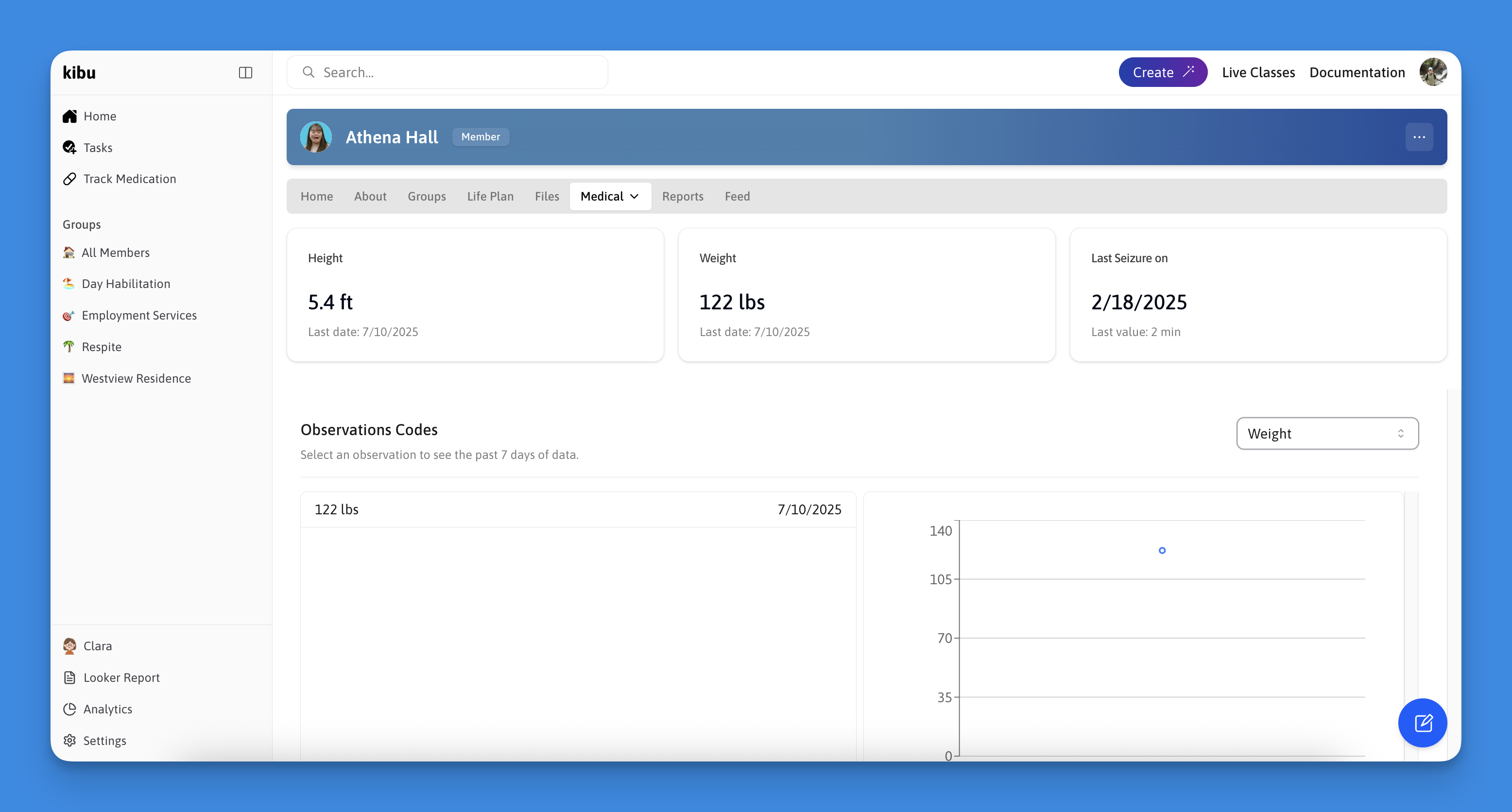
The Medical Observations panel showing health metric entry and history for a member.
- Vital signs (heart rate, blood pressure, weight, height)
- Health events (seizures, blood sugar, bowel movements)
- Nutrition tracking (food and fluid intake)
Recording a Medical Observation
Recording a Medical Observation
Navigate to the member's profile
Click the three dots (...) menu in the profile banner
Select New Observation
Choose the observation type from the dropdown menu
Enter the relevant data and measurements
Add any additional notes if needed
Click Save to record the observation
Viewing Observation History
Viewing Observation History
Go to the member's profile
Select the Medical tab
Click on Observations
Use the dropdown options to find specific types of observations
View trends and changes over time through the charts
Best Practices
Regular Monitoring
Regular Monitoring
Detailed Documentation
Detailed Documentation
Use Quick Forms for In-the-Moment Events
Use Quick Forms for In-the-Moment Events
Report Generation
Report Generation
Team Communication
Team Communication