

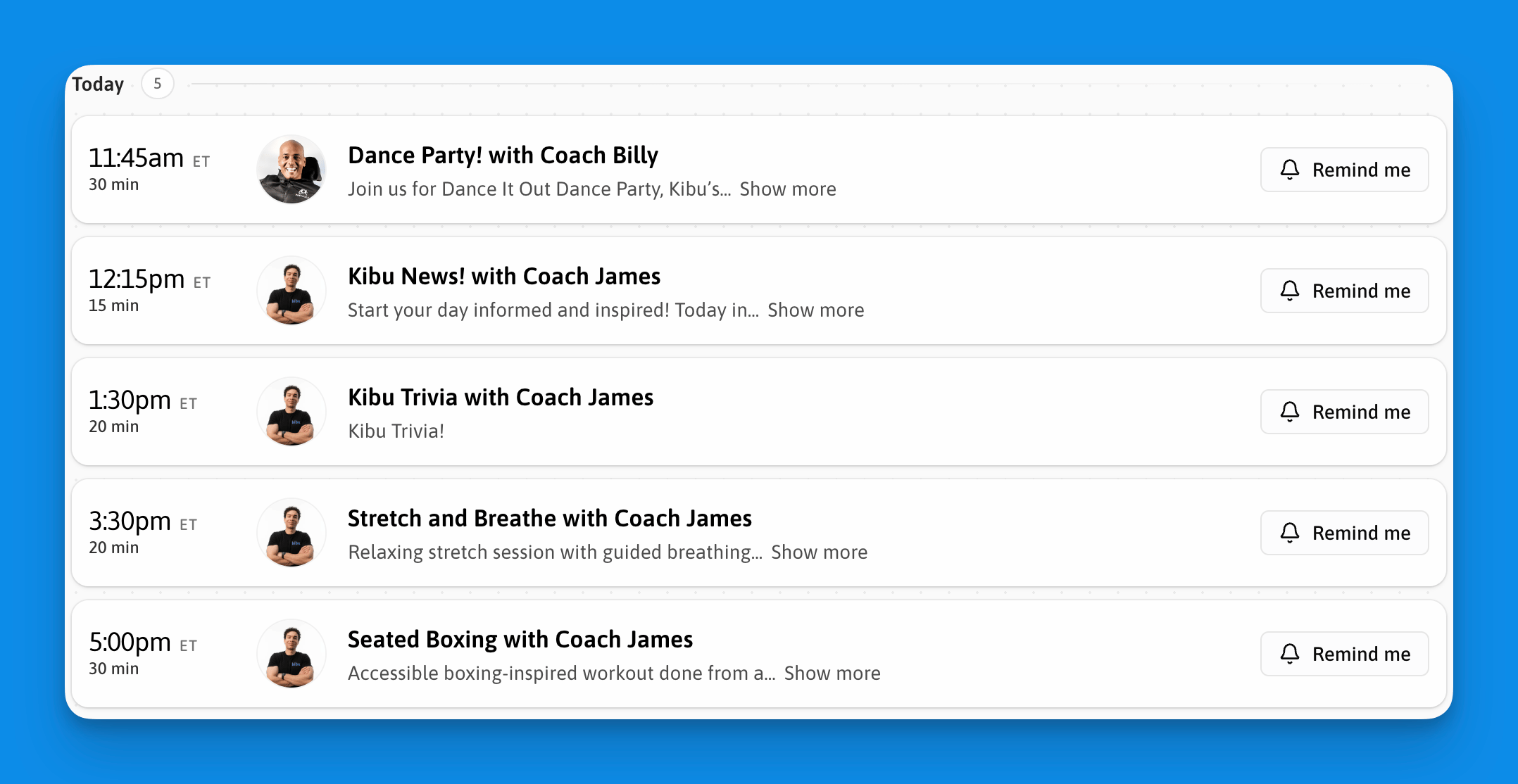
Schedule and RSVP
View the full schedule at app.kibu.com/live-classes. Each class card shows the name, coach, time, timezone, and status (upcoming, live, or ended).What to expect
Camera and microphone are optional throughout the session. During the class you can watch and follow along, send messages in the live chat, and see other participants. Coaches can share their screen and still see all participants while sharing. A notification is sent when a participant joins.Live chat
Chat is available throughout every session. History persists between sessions. To copy a message, hover over it and select copy. Coaches can delete individual messages.Calendar integration
Add to Google Calendar
Add to Google Calendar
Subscribing in Google Calendar keeps your calendar in sync. New, changed, and canceled classes update automatically.
1
Open the Kibu Live Classes calendar link
While signed in to your Google account, open Add Kibu Live Classes to Google Calendar.
2
Click Add when prompted
3
Find 'Kibu Live Classes' under Other calendars
Add to Outlook
Add to Outlook
Subscribing in Outlook keeps your calendar in sync. New, changed, and canceled classes update automatically.
1
Copy the Kibu Live Classes calendar URL
2
In Outlook, go to Add calendar → Subscribe from web
In the Outlook desktop app, go to Add Calendar → From Internet instead.
3
Paste the URL, name it 'Kibu Live Classes', and click Import
Outlook checks subscribed calendars for updates on its own schedule, so changes can take a few hours to appear. Don’t download the URL as a file and import it: an imported file is a one-time copy that won’t update.