

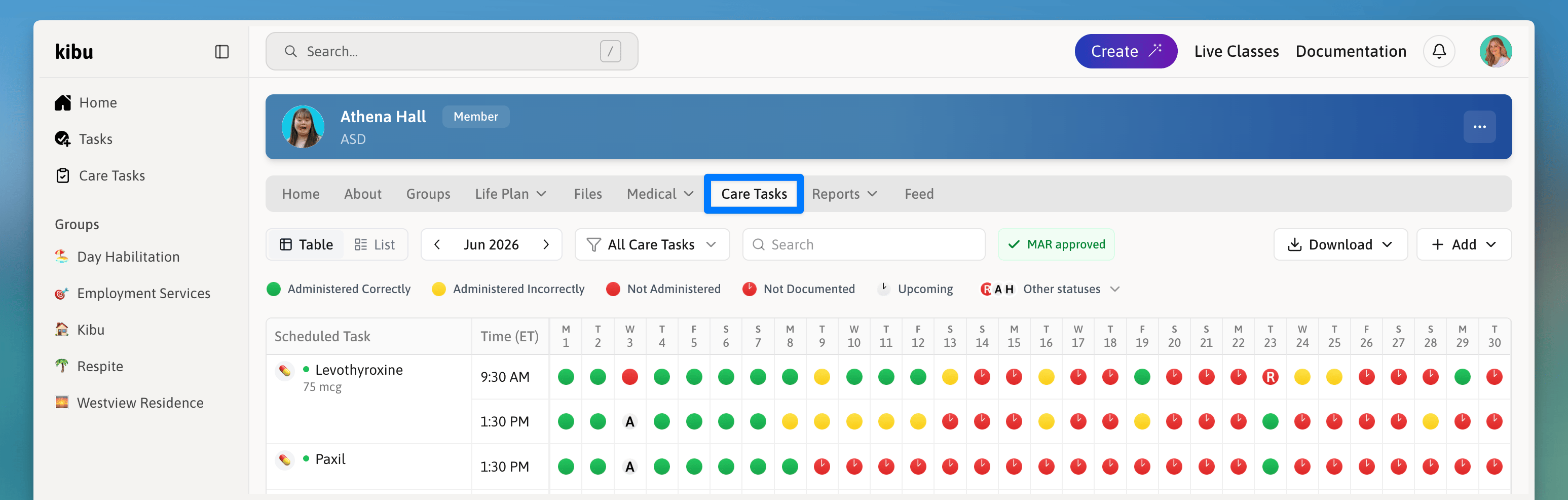
Quick Forms appear in a member's Care Tasks tab, making structured data entry accessible from anywhere in the app.
Why Use Quick Forms?
Quick Forms are designed for information that doesn’t fit neatly into a service record or daily note. They give your organization a consistent, repeatable way to capture health observations, daily living data, and incidents the moment they happen, without relying on staff to remember details later. Here are some of the reasons organizations use Quick Forms:Event-based tracking
PRN documentation
Multi-member entry
Trend monitoring
Scheduled recurrence
Creating a Quick Form
Administrators can build Quick Forms directly in Kibu using the visual form builder. No technical knowledge needed. To create a Quick Form:Navigate to Settings
Find the Quick Forms section under Workspace
Click to create a new form
Use the form builder to add questions
Choose from question types: text, number, date/time, list, and more
Save your form
Quick Form Settings
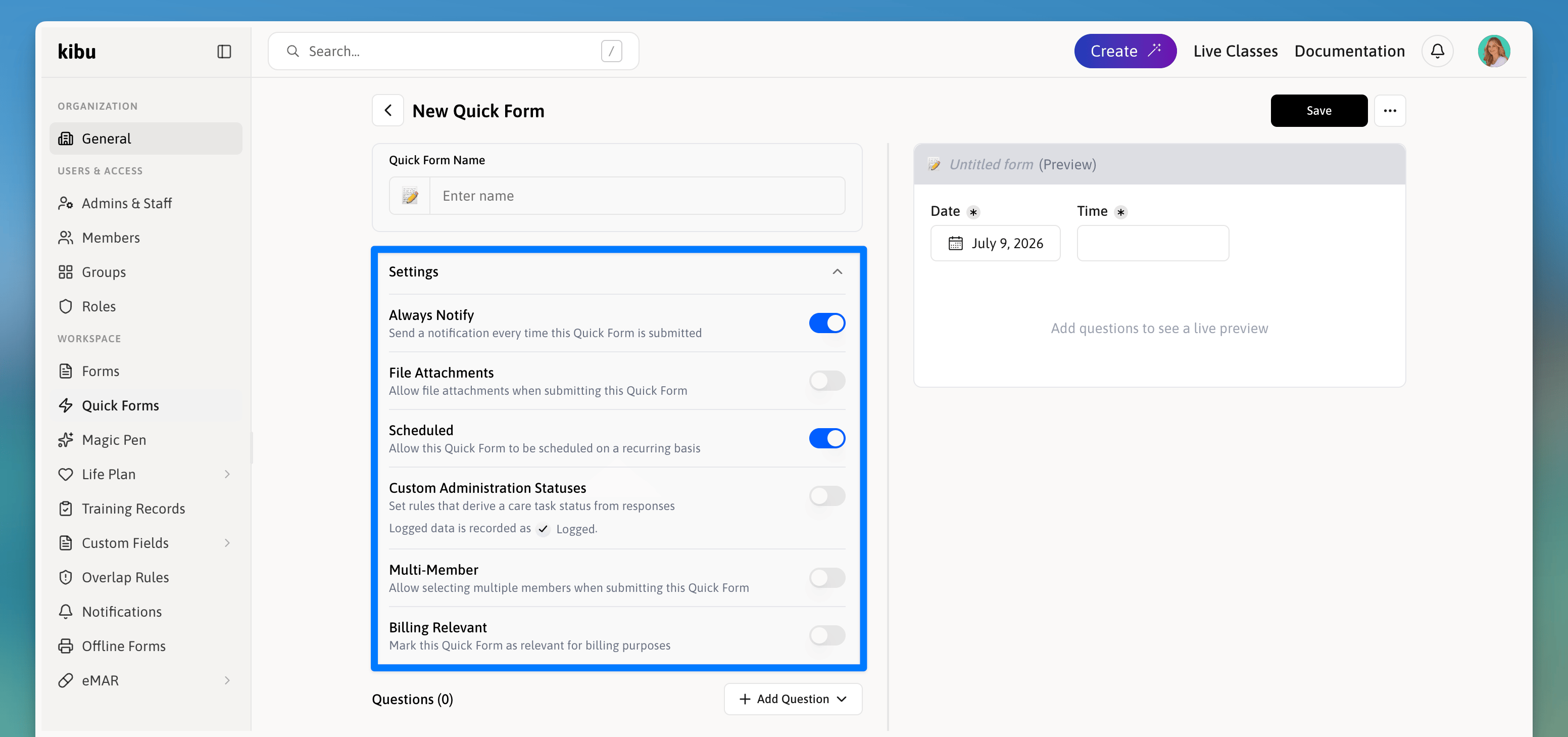
Quick Forms offer a variety of settings to help you customize Care Tasks. While these settings are turned off by default, you can enable them under:Click Quick Forms under Workspace in Settings
Click Settings in Quick Forms
Enable features
- Always Notify - Send a notification every time this Quick Form is submitted
- File Attachments - Allow file attachments when submitting this Quick Form
- Scheduled - Allow this Quick Form to be scheduled on a recurring basis. Instead of relying on staff to remember when a form is due, the system surfaces it at the right time as a Care Task. Schedules are set per member, so each member can have their own custom recurrence. For example, one member might have a Water Intake check every Wednesday at 9:30 AM while another has it daily.
- Multi-Member - Allow selecting multiple members when submitting this Quick Form
- Billing Relevant - Mark this Quick Form as relevant for billing purposes
Completing a Quick Form
To complete a Quick Form entry for a member:Open the "Care Tasks" section from the main navigation
Select the member you are documenting for
Choose the form you would like to complete
Fill in the fields
Save
Add a Schedule to a Member
Navigate to the member's profile
Select the Care Tasks tab
Click + Add in the top right and select Quick Form
In the Manage Quick Form Schedules dialog, select the Quick Form you want to schedule
Click + Add New Schedule
Set the Start Date, Time, and Repeat frequency
Set an end rule
Click Add Schedule