

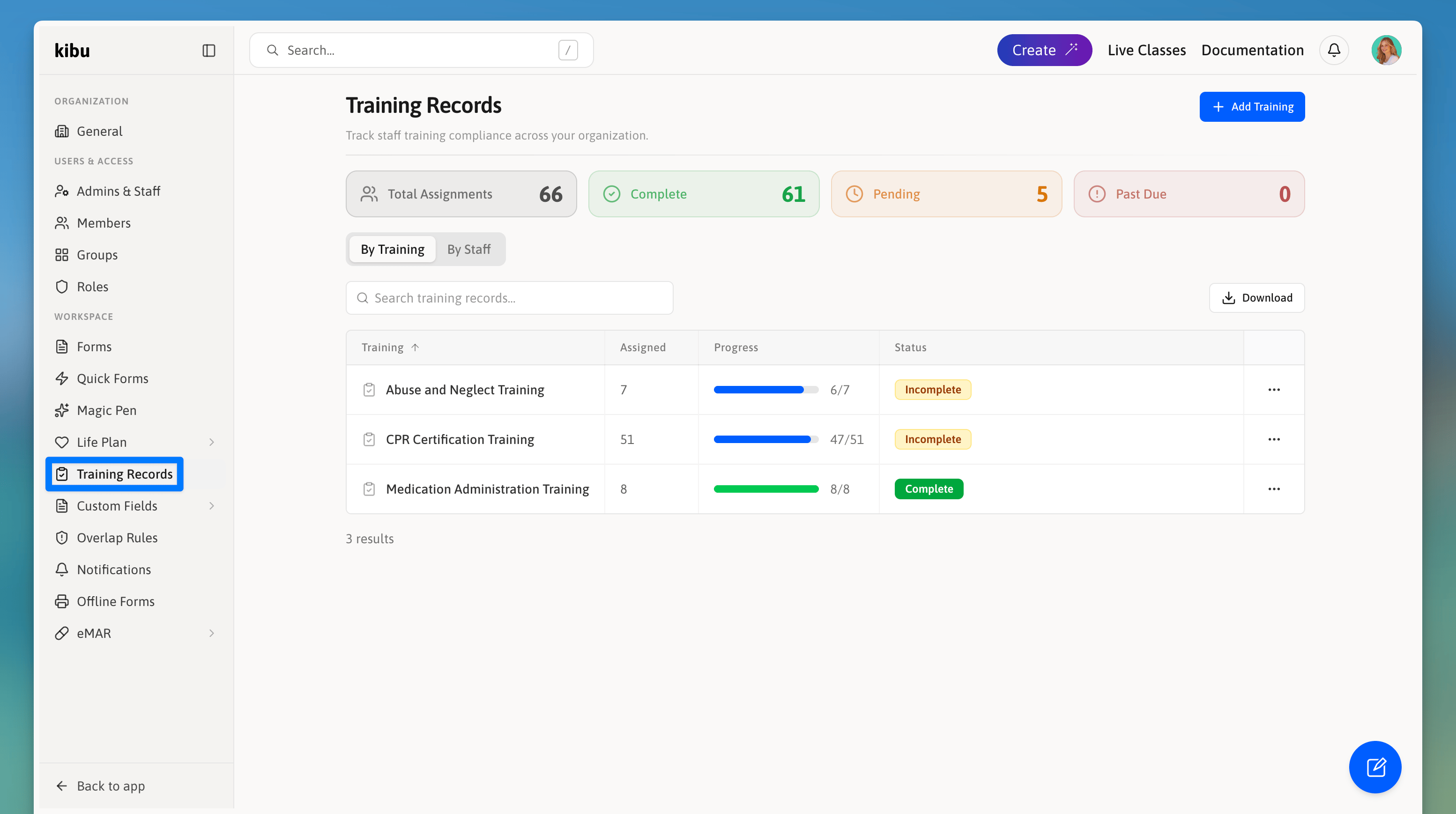
Training Records in Kibu give administrators a complete view of completion status, expiration dates, and outstanding assignments across all staff.
Creating a Training Record
To create a new training requirement:Navigate to Settings → Training Records
Click to add a new training
Enter a Title (e.g., CPR Certification) and optional Description
Configure the Behavior: choose one or more of the following
Remind
Block Service Records
Block MAR
Set an Expiration Period
Optionally enable Restricted Completion
Attach any Links or Files you want staff to see when reviewing the training
Click Create Training
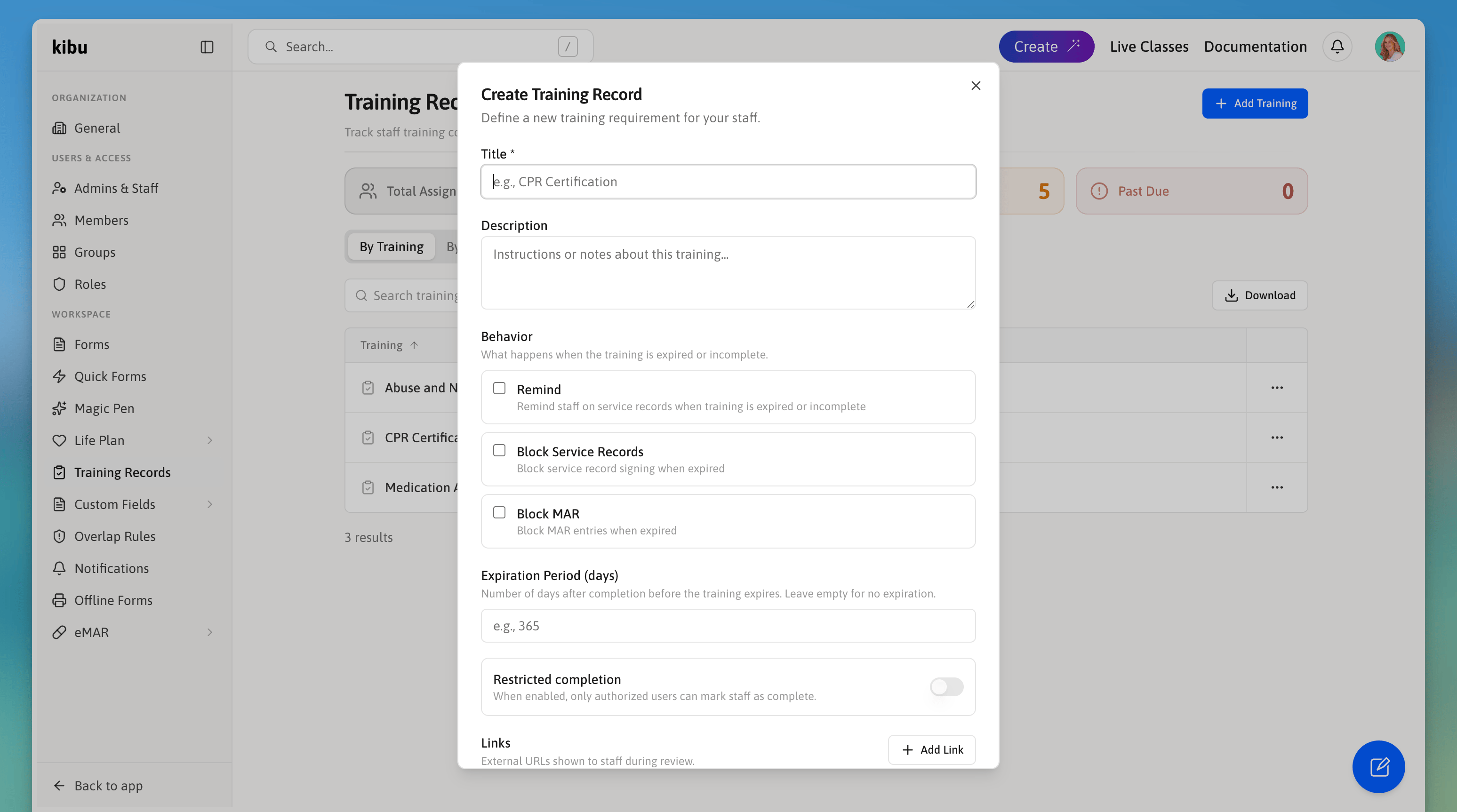
The training creation form in Settings → Training Records, showing behavior configuration and expiration options.
Assigning Staff to a Training
Once a training is created, you need to assign it to the staff members who are required to complete it.Open the training record
Click Assign Staff in the top right
Search for and select individual admins, staff, or entire groups
Click Done
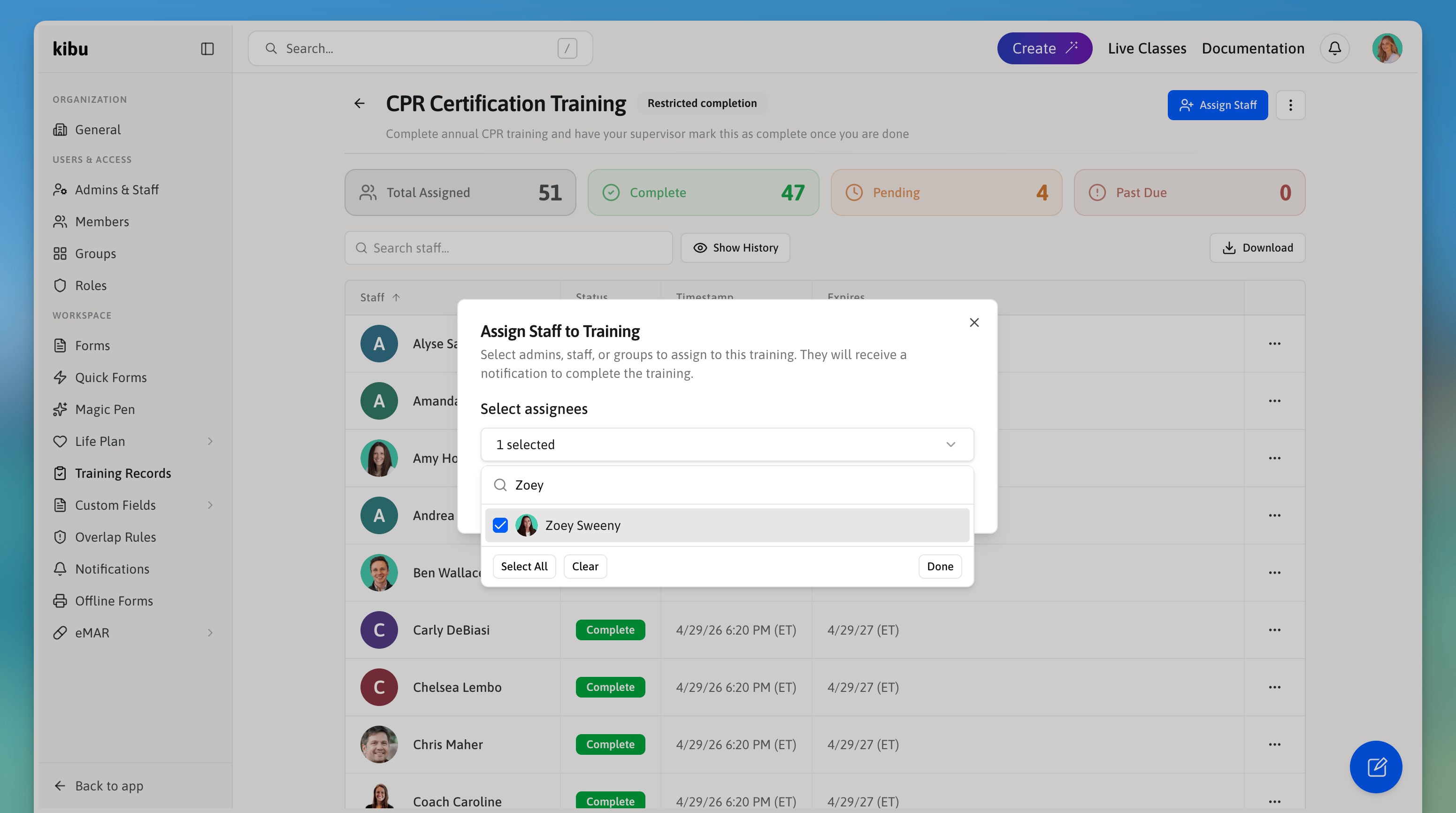
The Assign Staff dialog lets administrators search for individuals or select entire groups to assign at once.
Tracking Completion
Each training record shows a summary at the top:Total Assigned
Pending
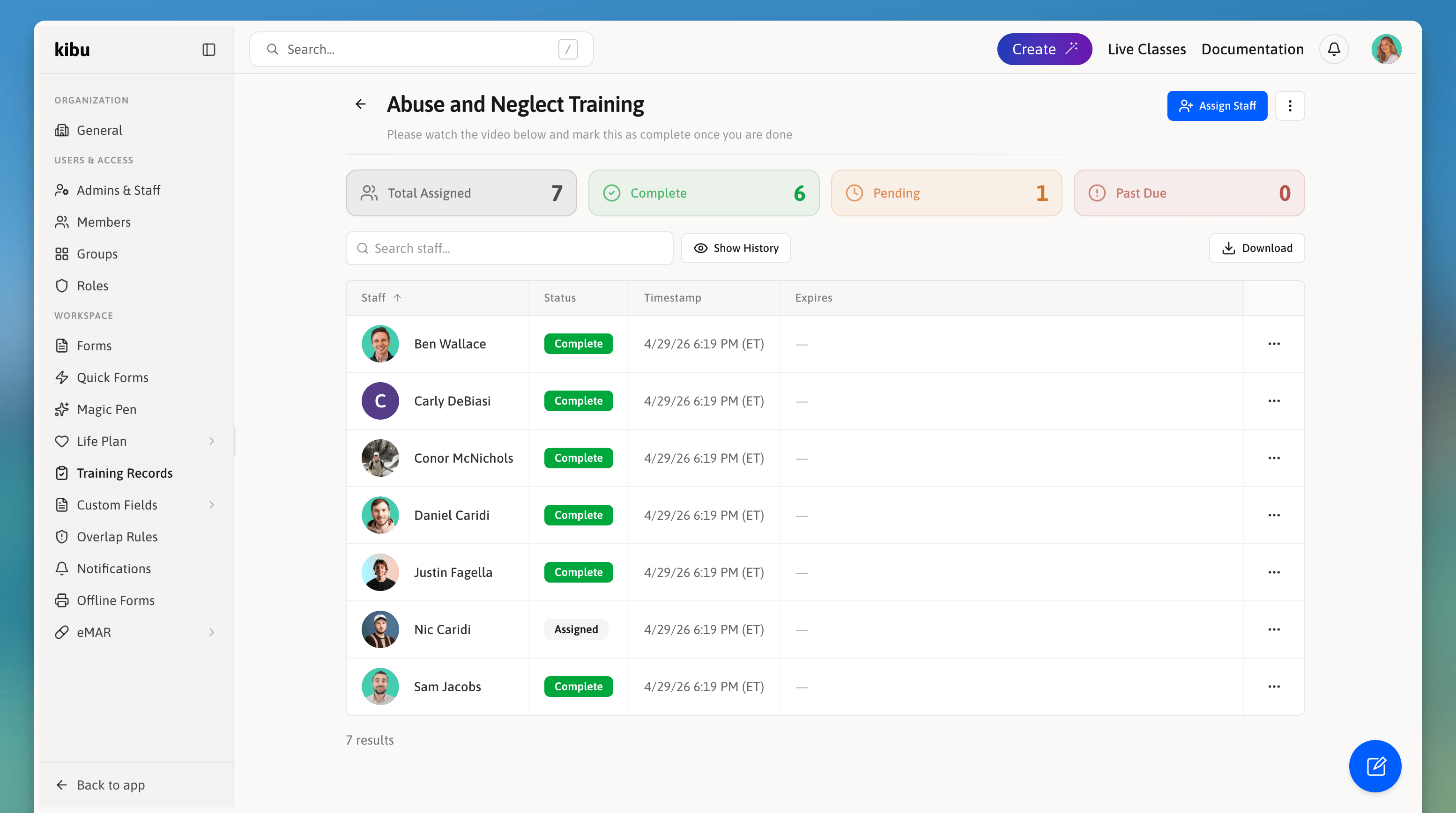
The training record summary bar shows Total Assigned, Complete, Pending, and Past Due counts at a glance.
Marking a Training as Complete
To mark a training as complete for a staff member, open the training record, find the staff member in the list, and use the actions menu (…) to mark them complete.Downloading Training Records
Training completion data can be exported as an Excel spreadsheet. Click the Download button from within any training record to export the data for that specific training, including staff names, statuses, timestamps, and expiration dates.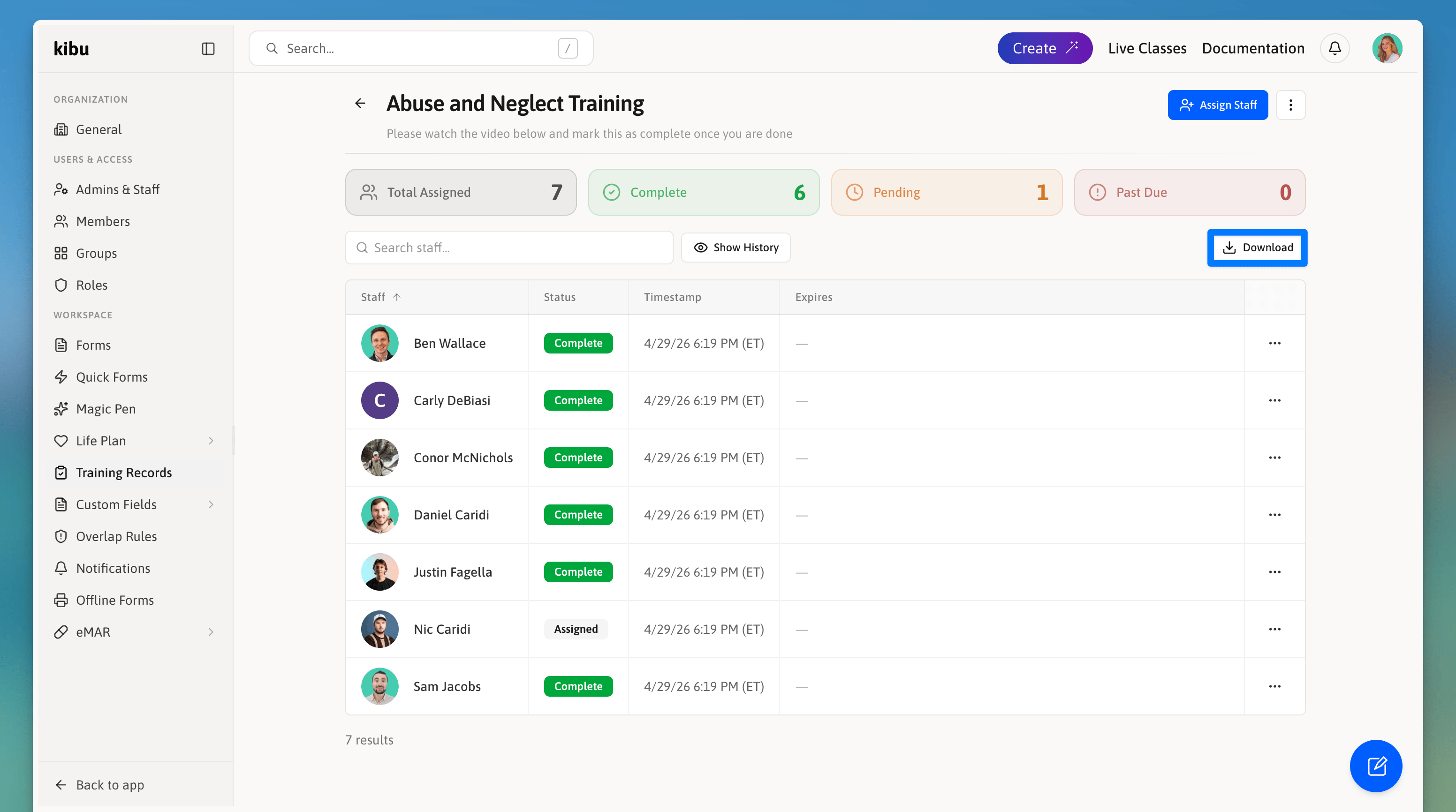
The Download button inside a training record exports a spreadsheet with names, statuses, timestamps, and expiration dates.