

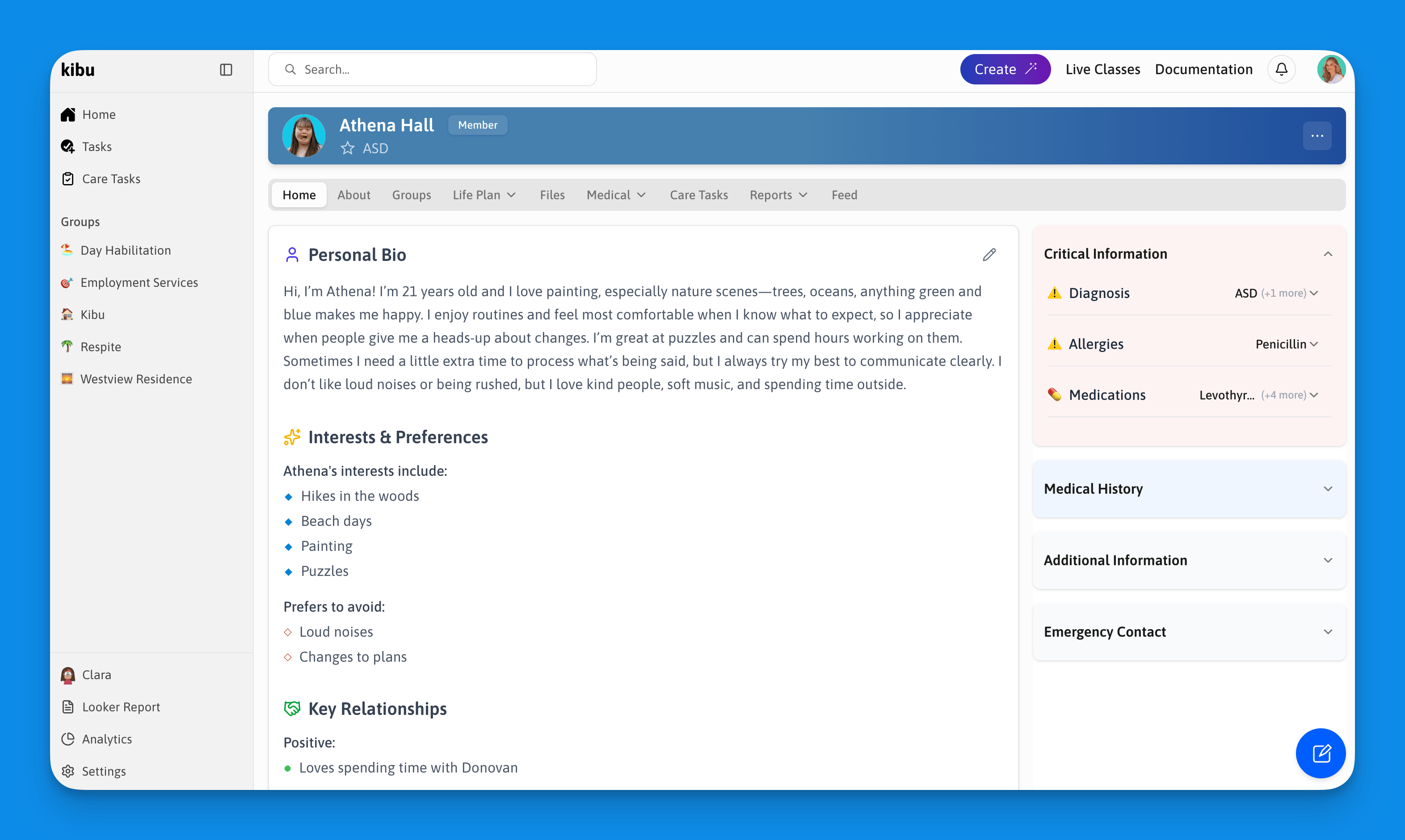
What’s on a Member Profile
A member’s profile homepage brings together the most important information about that person at a glance:Basic information
Name, preferred name, date of birth, etc.
Bio
A short description of the member to help staff get to know them. This also includes information about Hobbies & Interests, Dislikes, Favorite and Challenging relationships, and Tips & Guides for how to best support them. These sections are preset by Kibu.
Additional Information
These are the sections that your organization can create based on your individual needs. You can create custom member detail fields here in the about section.
Medical History
This is where you can input detailed structured information on diagnoses, medical requirements, allergies, dietary, and other significant medical information.
Emergency contacts
Contact information for guardians and family members.
Opening a Member Profile
To open a member’s profile:1
Simply put the name of the member in the Search Bar
2
OR navigate to the group the member belongs to
3
Find the member's name in the group view
4
Click their name or profile photo
Profile Tabs
A member’s profile is organized into tabs:Home
Overview of key information and recent activity.
About
More detailed key information, and where the profile is edited.
Groups
A list of the groups that member is a part of.
Life Plan
Current plans, goals, and progress tracking.
Files
Documents and attachments specific to this member.
Medical
Health observations, and the medication list.
Care Tasks
eMAR reports, plus data on all quick form entries.
Reports
Reports on attendance, time tracking, service record reports, forms, and quick forms.
Feed
A running log of all quick notes submitted by staff.
Updating Profile Information
Administrators and supervisors can update a member’s profile at any time:1
Open the member's profile
2
Click the "About" tab
3
Click the edit icon or the section you'd like to update
4
Make your changes and save
Profile Photos
To add or update a member’s profile photo:1
Click the existing photo (or placeholder)
2
Upload a photo from your device
3
Crop and rotate as needed using the editing tools
4
Save
Emergency Contacts
Emergency contacts can be added or updated at any time. For each contact, you can record:- First and last names
- Phone number, email, address
- Relationship
- Whether the contact is a payee
1
Open the member's profile and the "About" tab
2
Navigate to the emergency contacts section
3
Add or edit contact details and save
New Identifiers
Administrators can add new identifiers to a member’s profile, such as Social Security numbers.