

Who can use this feature?
Staff who manage organization settings set up notifications, on the web. Everyone receives them on the web, in the Kibu app, and by email.
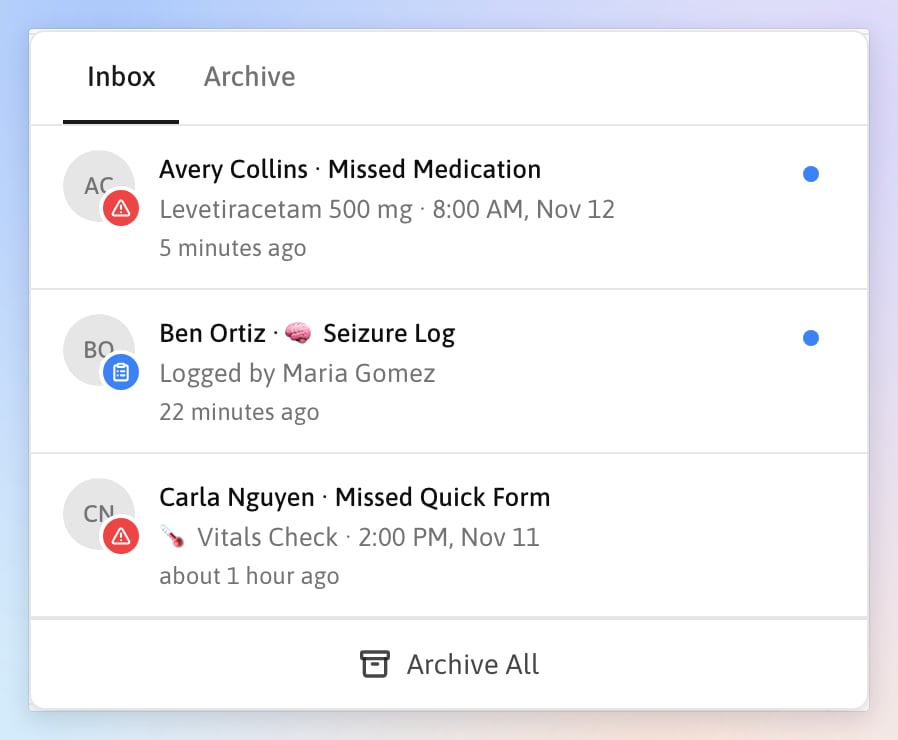
A missed medication and a submitted Quick Form, waiting in the bell.
What you need to know
Subscriber
A person chosen to receive a type of notification. Staff cannot subscribe themselves.
Scope
Organization-Wide subscribers hear about members in every group. Group subscribers, only about that group’s members.
Channel
How a notification arrives: in Kibu, by email, or both.
Read your notifications
- Web
- Mobile
Click the bell at the top of any page. The number on it counts what you have not seen.
 the bell at the top of any page. The number on it counts what you have not seen.
- Click a notification to open what it is about.
- Click Archive notification to clear one, or Archive All at the bottom to clear them all.
- Open the Archive tab to find an old one. Click Restore notification to move it back.
 Archive notification to clear one, or
 Restore notification to move it back.
What you can be notified about
Notifications you subscribe to
In Settings, click Notifications in the sidebar. You see a tab for each feature below that your organization uses. The Channels tab at the far right sets how people get notified.| Tab | Notifications |
|---|---|
| eMAR (medications) | Medication Errors, Missed Medications, and PRN Follow-Ups, a reminder when an as-needed dose has no follow-up documented |
| Quick Forms | On Submission of the Quick Forms you pick, and Missed for scheduled Quick Forms nobody completed |
| Forms | Forms you pick being started, completed, or signed |
| Rhythms | A rhythm you pick is completed or missed |
 eMAR (medications)
 Quick Forms
 Forms
 Rhythms
With Always Notify off in a Quick Form’s settings, On Submission fires only when an answer matches a rule on a question, such as a blood pressure out of range. See Quick Forms.
Notifications everyone involved gets
- Change orders: staff always get an in-app notification when a change order needs their review. To email them too, click Acknowledgements in Settings and turn on 📧 Email Notifications.
- Life plan requests: when someone asks you to approve or sign a member’s life plan, you get a notification and an email. When your request is approved or declined, you hear back the same way.
- Rhythm reminders: the people assigned to a rhythm are reminded before it is due. See Completing and Tracking Rhythms.
- Signatures: when someone signs a file or form you sent with Send for Signature, you get a notification and an email.
 Change orders: staff always get an in-app notification when a change order needs their review. To email them too, click
 Life plan requests: when someone asks you to approve or sign a member’s life plan, you get a notification and an email. When your request is approved or declined, you hear back the same way.
 Signatures: when someone signs a file or form you sent with
Emails that are not in the bell
These come by email only:- Signing reminders, Summary reports of unsigned notes, and Time tracking notifications, each set up for a group. See Group Settings.
- Training expiring: staff get an email 7 days before a training or life plan acknowledgement expires. See Training Records.
Choose who gets notified
On any tab except Channels, choose Organization-Wide or a group on the left. Staff are listed on the right by role.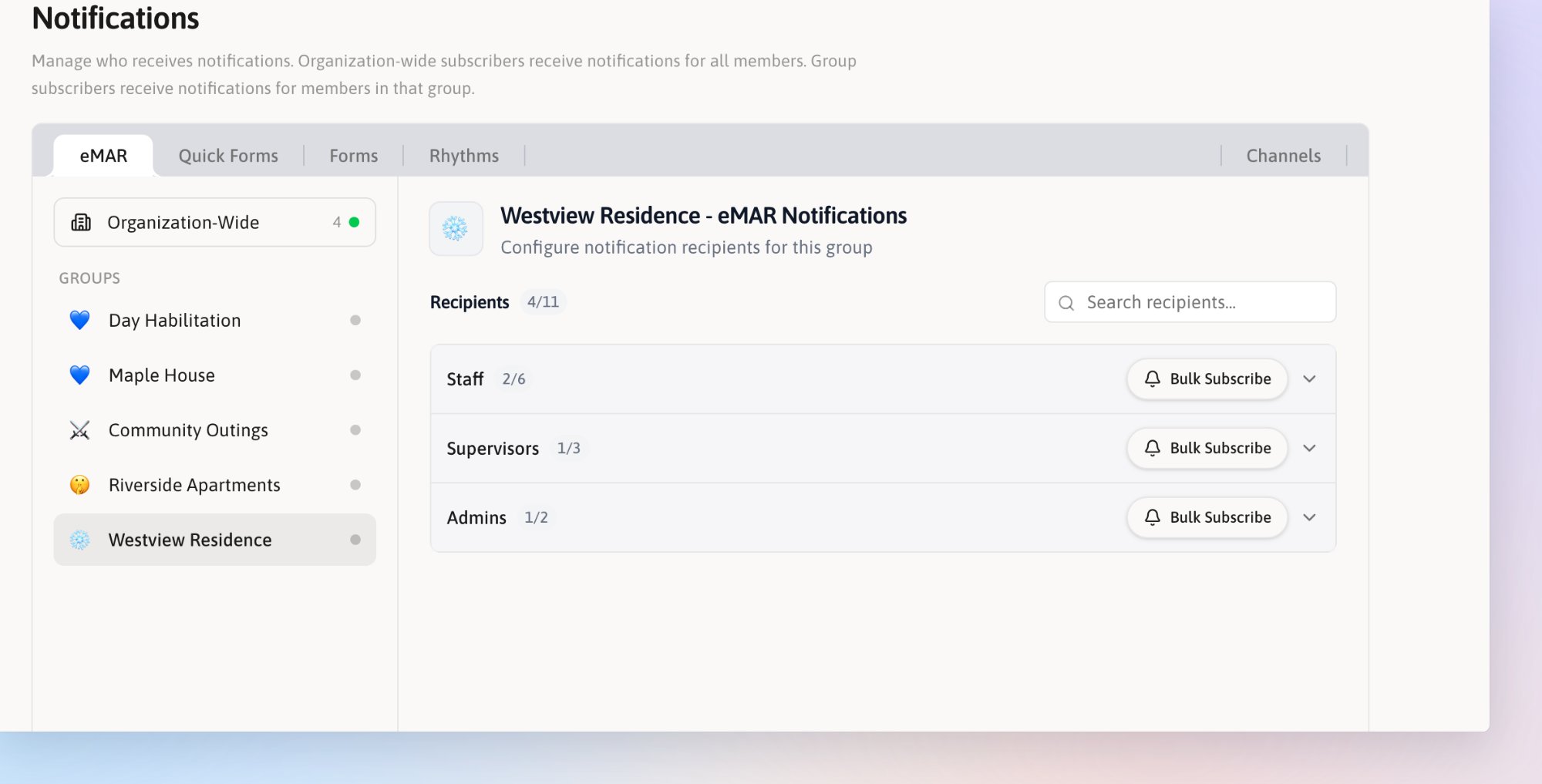
Choosing who hears about medications at Westview Residence.
- One person
- A whole role
1
Click Subscribe
Find the person and click Subscribe beside their name.
2
Pick what they get
Check what they should hear about.
3
Click Subscribe
Click beside their name to change it later.
 beside their name to change it later.
 at the top of the dialog and choose Unsubscribe All.
Turn on Forms notifications
A form only sends notifications after you choose its events. In Settings, click Forms in the sidebar. Click beside the form and choose Edit Notifications. Check When Created, When Completed, or When Signed, then click Save Notifications. When Signed needs Require Signatures turned on.Choose how people get notified
Open the Channels tab, at the far right of the Notifications settings page. It sets how each person gets the notifications you subscribe them to: Email, In-App, or both. Email,
 In-App, or both.
- Click beside a person to change theirs.
- Click Bulk Edit on a role to change several people at once.
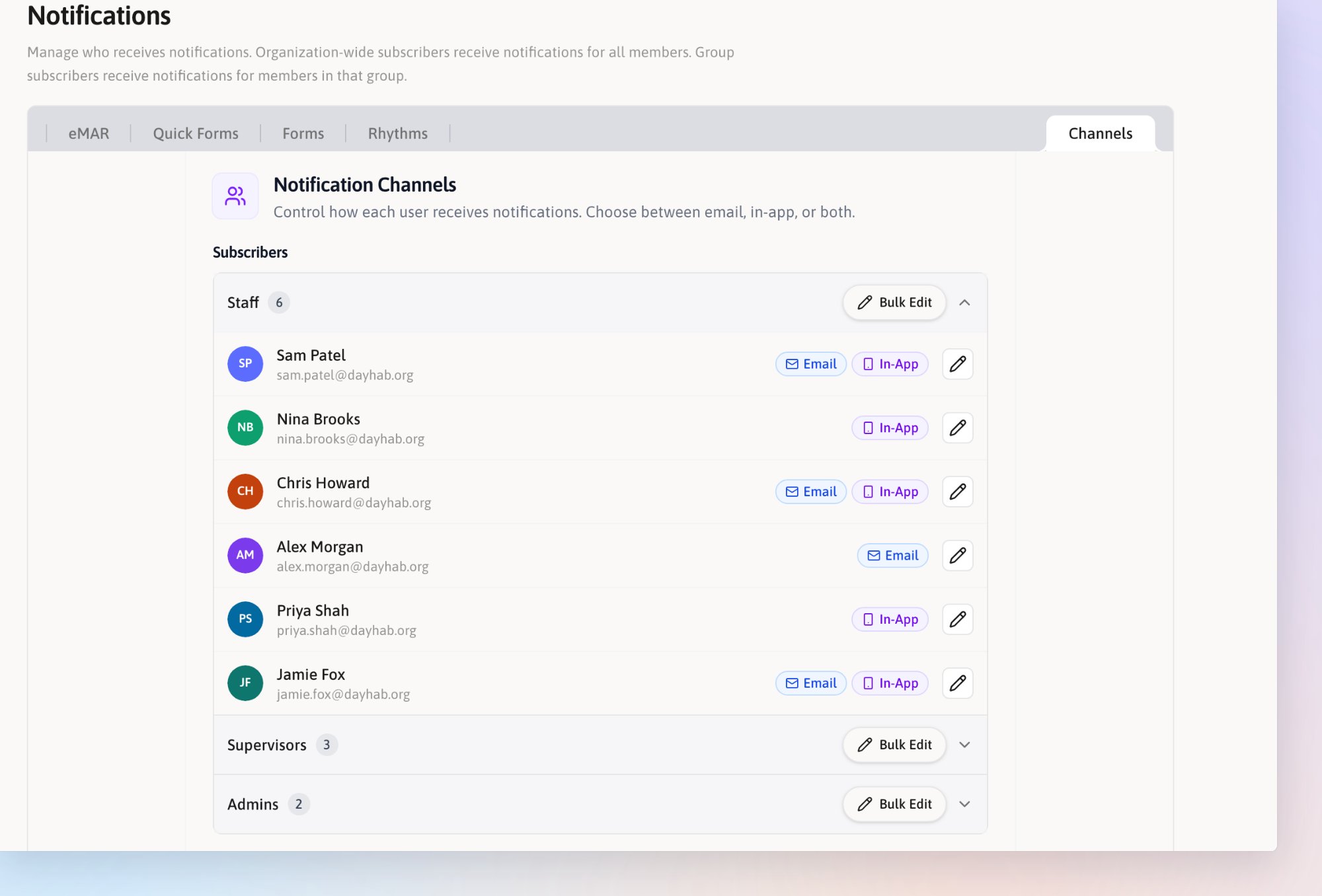
Staff grouped by role, each with their channels.