


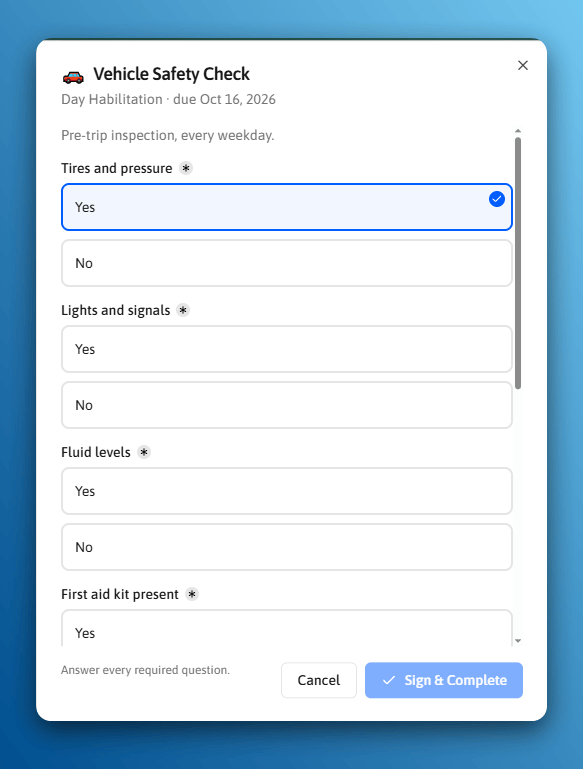
Completing an item records the evidence and the signature together.
Complete an Item
- On the web
- On mobile
1
Find the item
Use Rhythms in the left sidebar, or the Rhythms tab on the member or group. Select Assigned to me to narrow it to your own work.
2
Select Complete
Read the completion instructions at the top if the template has them.
3
Record the evidence
Tick the box, upload or link the file, or answer the form questions, depending on how the template was built.
4
Add a note and sign
Some templates require a note before the signature is accepted. Sign to finish.
You do not have to be the assigned person to complete an item. The person who actually walked the building is not always the person it was assigned to, and blocking them would leave real work recorded as missed.
Late and missed items
An item past its due date stays completable and is marked as completed late. Recording what happened is always better than leaving a gap.Correcting a Record
Staff who have been given permission to amend records can fix a submission, move a due date, or reopen something completed by mistake.History
Every rhythm keeps its own history: each completed item, newest first, with the evidence it was signed against. Open it from the three dot menu on any rhythm row, on the Rhythms page or on a member or group tab. Older entries load twenty at a time from a button at the bottom of the list.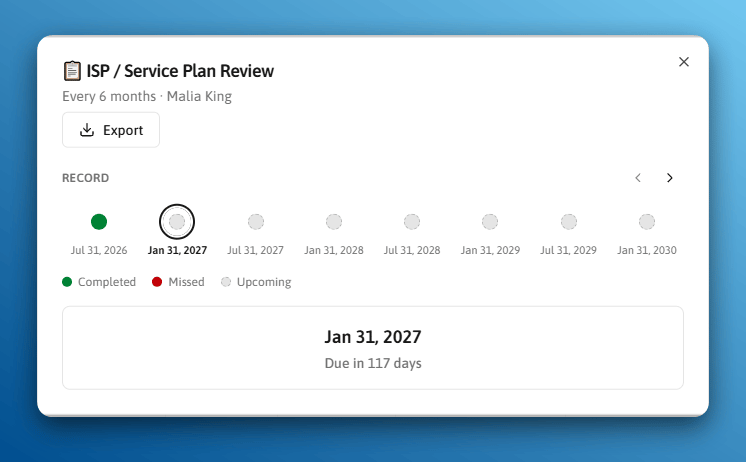

A rhythm's history, showing each completed item with the evidence it was signed against.
- Form answers are shown as the questions were worded at the time it was signed, not as the template reads today. Editing a template never changes a record you already have.
- An item whose evidence was removed stays in the list, marked as having none. Hiding it would misstate the count.
Export for an Auditor
Select Export for a CSV or a PDF. The export matches what is on your screen, including your filters and the order rows are in. Narrow the page to one house, one template, or one date range first, and the export carries exactly that.Who Gets Notified
Nobody else is notified. Directors are not added by default, because the Rhythms page is their tool and a notification for every item in the organization is noise.
If a rhythm has nobody assigned, its reminders go to the subscribers instead.
Changing who hears about it
Go to Settings > Notifications > Rhythms. Choose a scope on the left, then the people on the right. Each option reads as the template plus the member or group it is attached to, such as “Fire Drill · Westview Residence”, because one template is usually attached in several places.Selecting a group covers the rhythms attached to that group and the rhythms of the members on its roster.
When Staff Leave
Filter the Rhythms page by the person who is leaving, select everything shown, and reassign the whole set in one step. Future items move to the new owner. Completed history keeps the name of whoever actually did the work.Next Steps
Rhythms Overview
What Rhythms are, and when to use one instead of a Care Task.
Creating and Attaching Rhythms
Build a template, set the schedule, and attach it.