

Who can use this feature?
Administrators add, deactivate, and reactivate members, on the web. Staff see the members in their own groups.
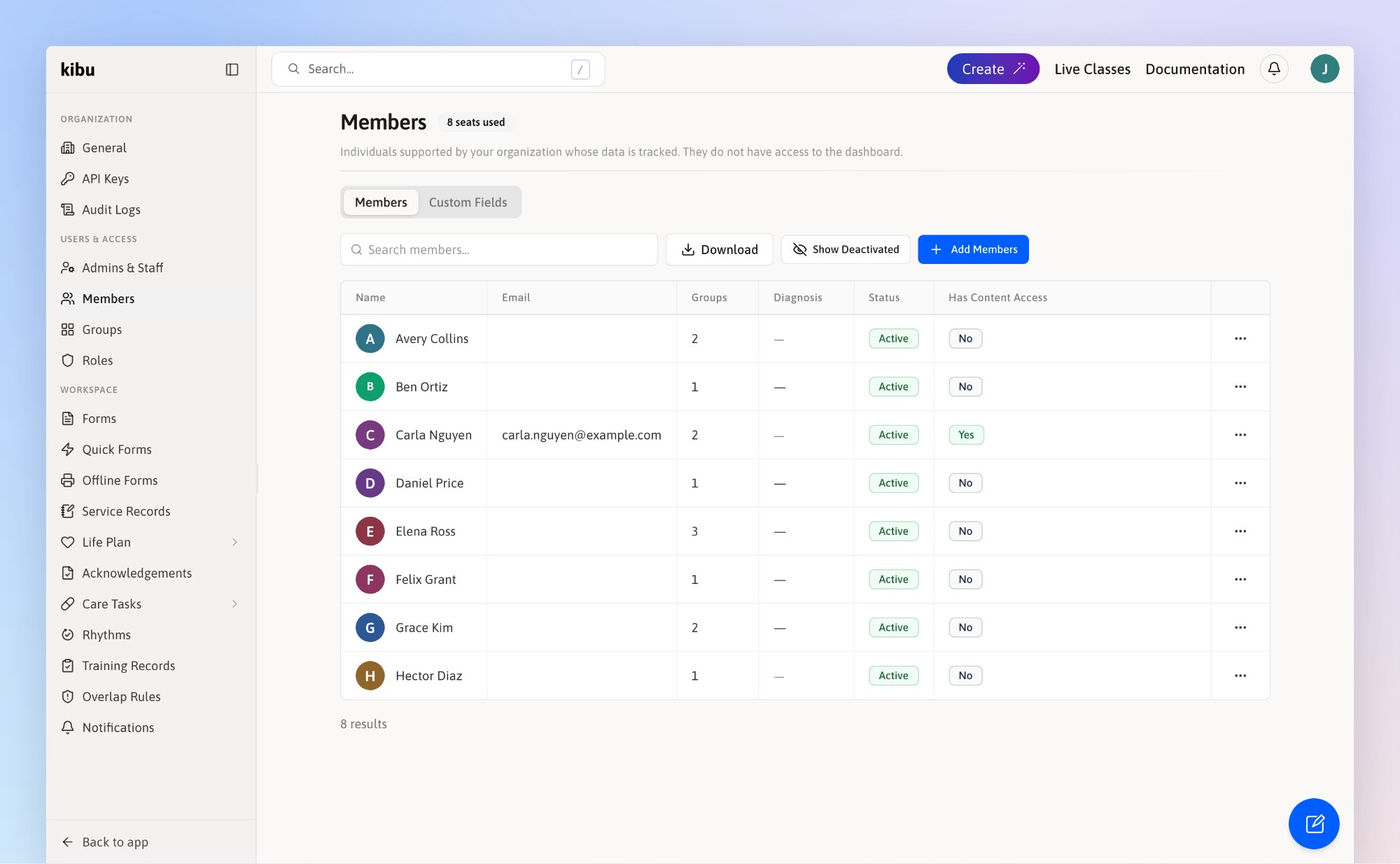
The Members page lists everyone your organization supports.
What you need to know
- Groups: every member needs at least one group, such as a program or a home. Staff see a member only if they share a group, unless their role lets them see all members.
- Profile: each member has a profile with their details, medical information, life plan goals, and files.
- Member accounts: some organizations let members sign in to watch Kibu classes. If yours does, you see an Email (optional) field when you add a member. Kibu turns this on for your organization.
Add members
Go to Settings → Members and click Add Members. Settings →
 Members and click
 Add Members.
- One person
- Many people
1
Stay on the Add Member tab
Enter their first and last name. If a member with the same name already exists, Kibu warns you and links to them, so you do not add someone twice.
2
Add an email, if you see the field
Only for a member who will sign in to watch classes.
3
Choose their groups
Pick one or more from Select groups.
4
Click Add Member
If you entered an email, the button says Send Invite, and Kibu emails them a link to sign in.
 Send Invite, and Kibu emails them a link to sign in.
The spreadsheet has no email column. To give a member a sign-in, add them one at a time.
The badge next to Members shows how many member seats you use. If your plan has a set number of seats, you cannot add members once every seat is used. Your billing admin can add seats with Manage Seats.
 Manage Seats.
Update a member’s information
Click the member’s name, or click and Open Profile. Their profile holds their details, custom fields, emergency contacts, medical information, and life plan goals. To change their groups, select the Groups tab. To learn what each part of the profile holds, see Member Profiles. and Open Profile. Their profile holds their details, custom fields, emergency contacts, medical information, and life plan goals. To change their groups, select the Groups tab.
Make a member a staff member
If a member who has a sign-in starts working for your organization, you can make them staff instead of creating a second account. Click next to their name, then Change Role, and choose a staff role. They move to the Admins & Staff page. You see Change Role only for members who have signed in to Kibu, and only if your role lets you change roles. Change Role, and choose a staff role. They move to the Admins & Staff page.
Deactivate a member
Deactivate a member who no longer receives services from your organization.1
Find the member in the table
Click next to their name.
2
Click Deactivate
Click Deactivate.
 Deactivate.
3
Confirm
Click Deactivate again.
Reactivate a member
1
Click Show Deactivated
Click Show Deactivated above the table.
 Show Deactivated above the table.
2
Click the three dots next to their name
Then click Reactivate, and confirm.
 Reactivate, and confirm.
3
Add them to their groups again
Kibu does not remember their old groups. Open their profile and use the Groups tab.