

Who can use this feature?
Administrators, on the web. Staff accept their invitation from their email.
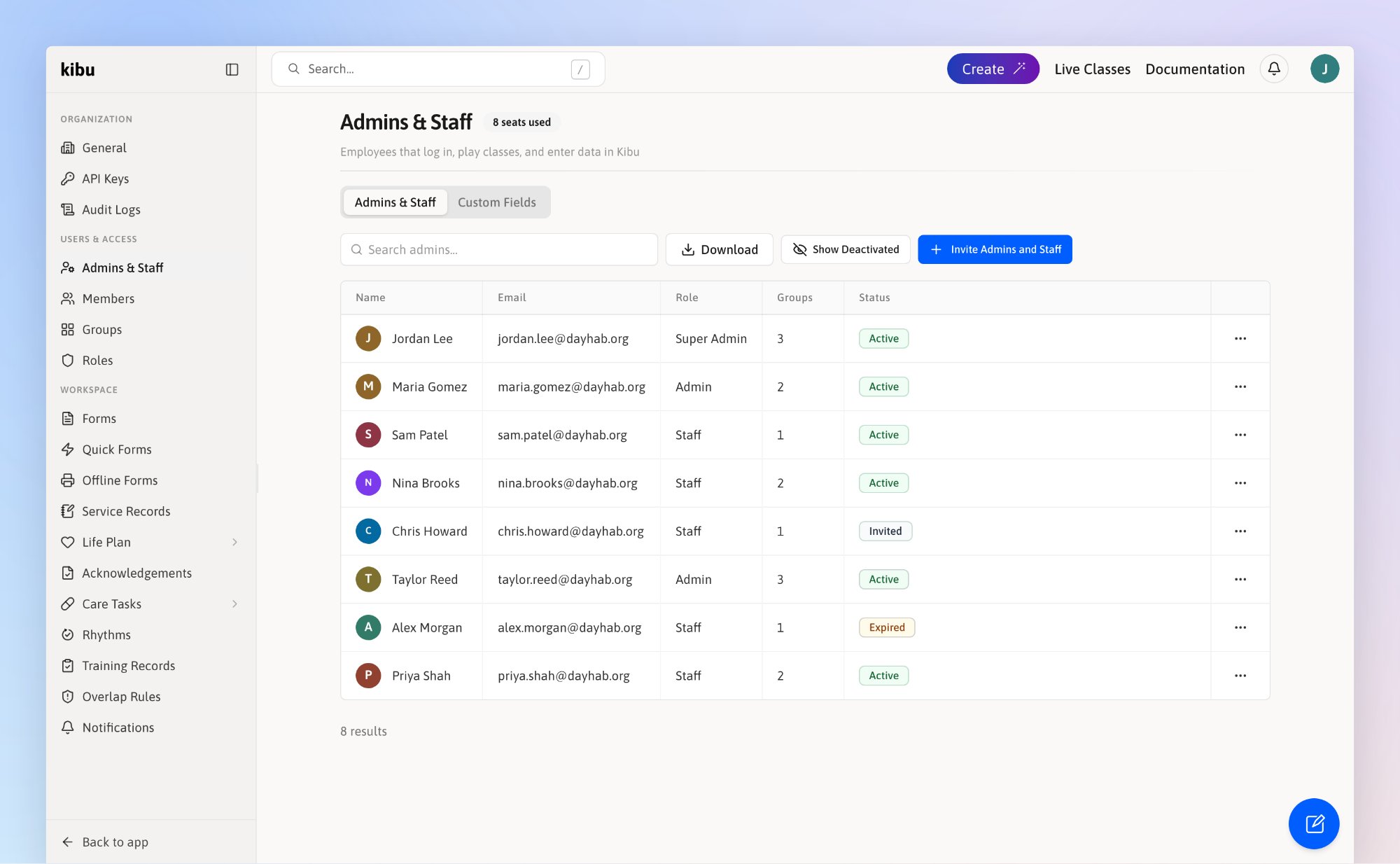
Admins & Staff lists everyone on your team, with their role and status.
What you need to know
- Invitation: Kibu emails each new staff member a link to set their password. They appear as Invited until they sign in for the first time. An invitation expires after 14 days.
- Role: decides what they can see and do. See Staff Permissions & Roles to choose one.
- Groups: decide which members they work with. Every staff member needs at least one group.
Invite staff
Go to Settings → Admins & Staff and click Invite Admins and Staff. Settings →
 Admins & Staff and click
 Invite Admins and Staff.
- One person
- Many people
1
Stay on the Add Admin tab
Enter their first name, last name, and email.
2
Choose their role
Pick one from Admin role.
3
Choose their groups
Pick one or more from Group(s).
4
Click Invite
Click Invite. Kibu sends the invitation email right away.
 Invite. Kibu sends the invitation email right away.
An email can belong to only one person in Kibu. If someone already uses it, Kibu shows “A user with this email already exists.”
The badge next to Admins & Staff shows how many seats you use. If your plan has a set number of seats, Kibu stops new invites once every seat is used. Your billing admin can add seats with Manage Seats.
 Manage Seats.
Change a staff member’s role or password
Find the person in the table and click next to their name. next to their name.
- Edit Role gives them a different role.
- Reset Password emails them a link to choose a new password.
- Reset MFA removes the sign-in code app they set up, such as on a lost phone. They set up a new one the next time they sign in.
- Resend Invite appears instead for someone who has not signed in yet, with the status Invited, Expired, or Revoked. It sends them a new invitation.
 Edit Role gives them a different role.
 Reset Password emails them a link to choose a new password.
 Reset MFA removes the sign-in code app they set up, such as on a lost phone. They set up a new one the next time they sign in.
Change a staff member’s groups
Click the person’s name to open their profile, then select the Groups tab. Click Add to Groups to add them to more groups.A staff member’s email cannot be changed in Kibu. Contact support if it needs to change.
Remove a staff member
When someone leaves your organization, remove them so they can no longer sign in.1
Click the three dots next to their name
Click , then Remove.
 Remove.
2
Check the Rhythms they are on
If they are assigned to any Rhythms, Kibu lists them. Rhythms with no one else assigned become available to everyone.
3
Click Remove
They lose access right away and are taken out of all their groups. Everything they documented stays in Kibu.
Reactivate a staff member
1
Click Show Deactivated
Click Show Deactivated above the table.
 Show Deactivated above the table.
2
Click the three dots next to their name
Then click Reactivate.
 Reactivate.
3
Choose their role and groups again
Kibu does not remember their old groups. Click Reactivate to finish.