

Who can use this feature?
Staff who manage organization settings, on the web. Staff answer the templates on the web and in the Kibu app.
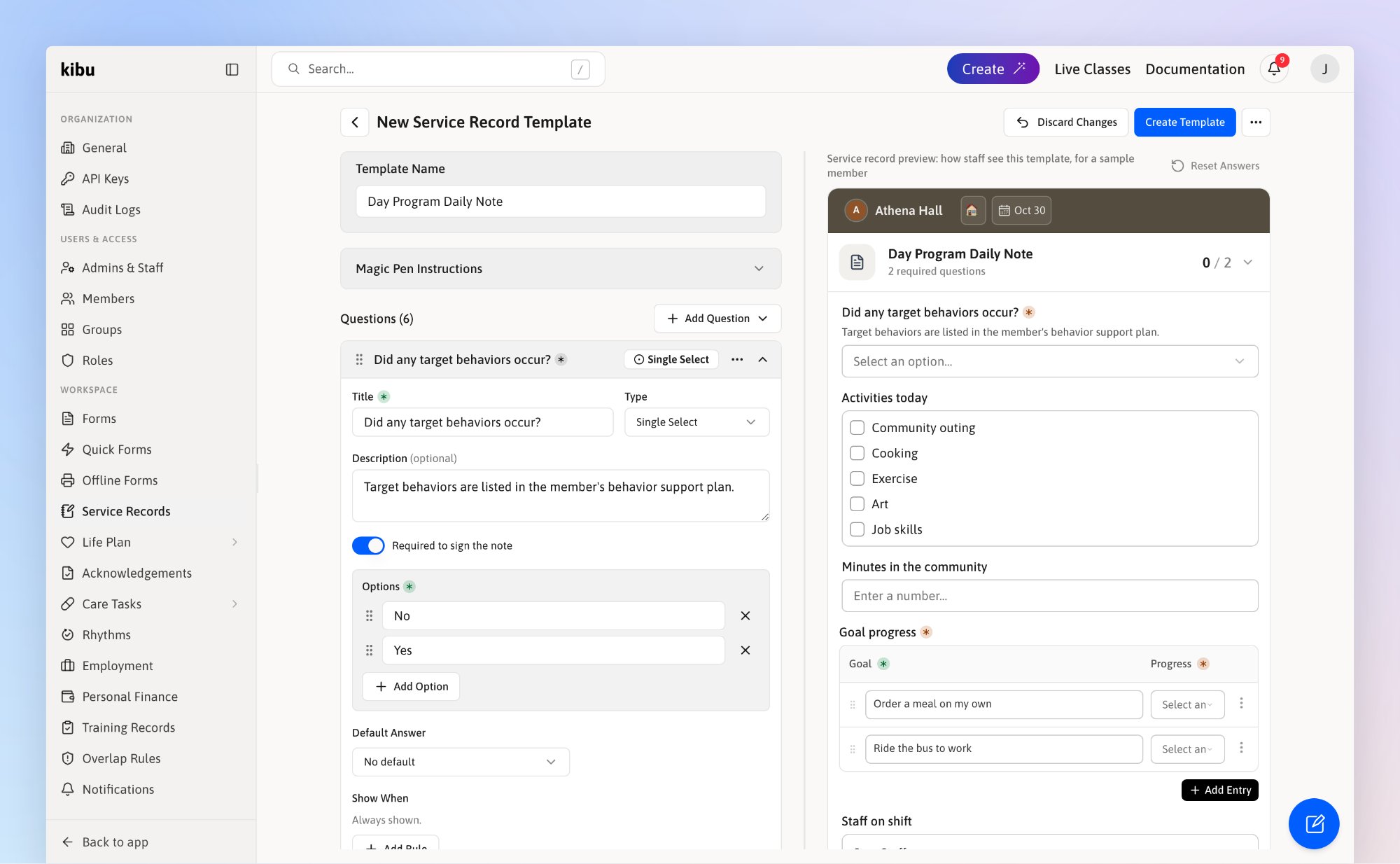
The builder on the left, and the note as staff will see it on the right.
What you need to know
Service record
The daily record that a member received a service, in one group, on one day.
Note
What staff write and sign on that service record.
Template
The questions every note in a group asks. Each group uses one.
Find your templates
Go to Settings and click Service Records, under Workspace. Templates marked Included by Kibu cannot be changed, but you can duplicate one and edit the copy.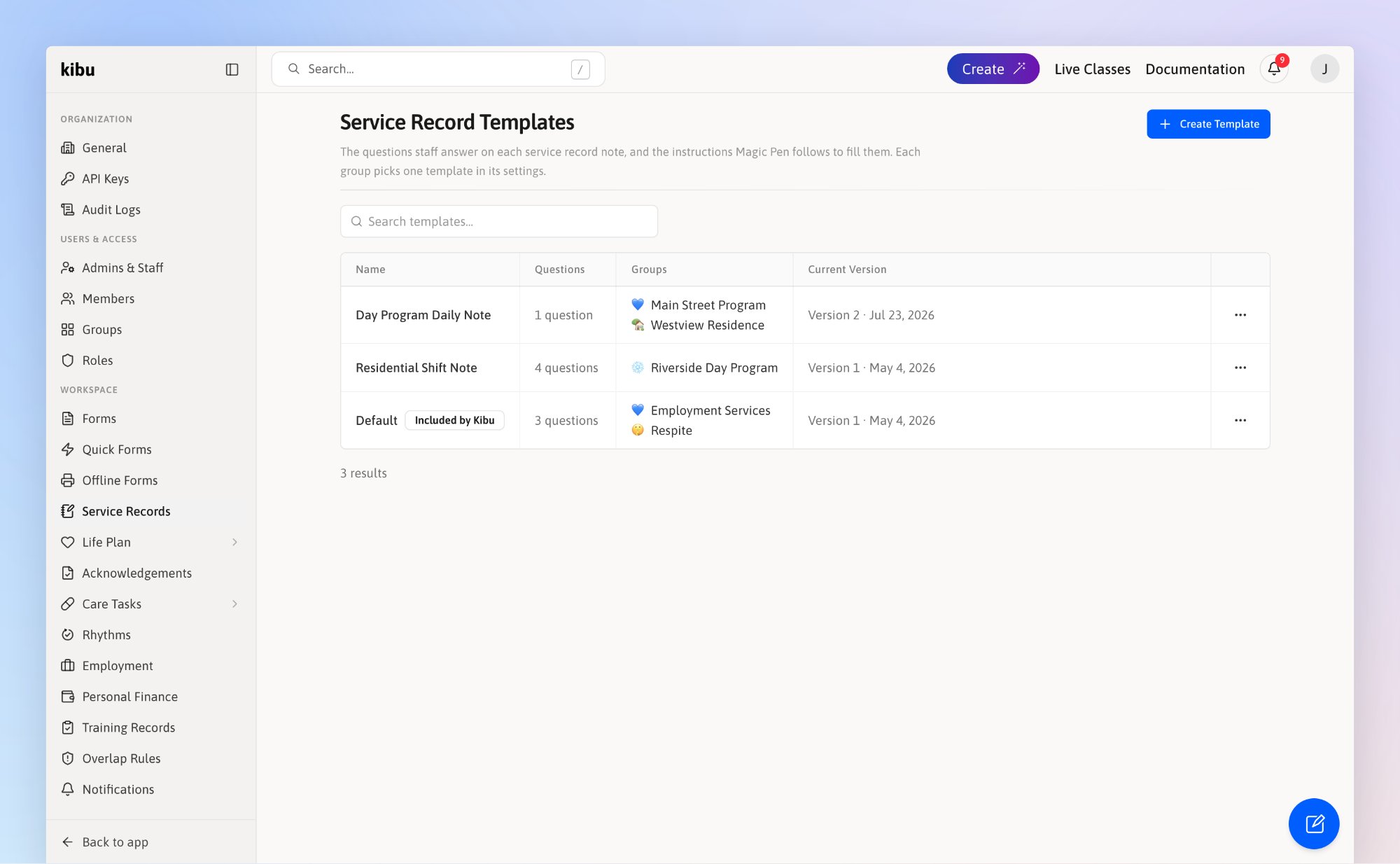
Every template, the groups that use it, and its current version.
Create a template
1
Click Create Template
Or copy one you have: click ⋯ on its row and choose Duplicate Template.
 Duplicate Template.
2
Name it
Use one staff will recognize, like “Day Program Daily Note”.
3
Add your questions
Click Add Question and pick a type. Give it a title, and turn on Required to sign the note if staff must answer it.
 Add Question and pick a type. Give it a title, and turn on Required to sign the note if staff must answer it.
4
Check the preview, then click Create Template
The preview shows the note as staff will see it. Answer it to test your questions.
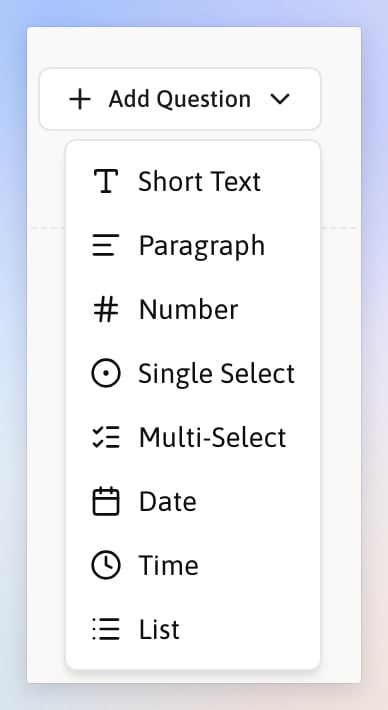
Pick the kind of answer you want when you add a question.
Question types
| Type | Example |
|---|---|
| Short Text | Staff on shift |
| Paragraph | Describe the outing |
| Number | Minutes in the community |
| Single Select | Did a target behavior occur? Yes or No |
| Multi-Select | Activities today |
| Date | Next appointment |
| Time | Time of last meal |
| List | Progress on each goal |
 Short Text
 Paragraph
 Number
 Single Select
 Multi-Select
 Date
 Time
 List
Show a question only when it applies
A follow-up question can stay hidden until an earlier answer calls for it. In the example below, staff describe a behavior only when they answer Yes to “Did any target behaviors occur?”. Quickest: click ⋯ on the first question and choose Add Follow-Up Question. Kibu adds the new question with its rule already set. Add Follow-Up Question. Kibu adds the new question with its rule already set.
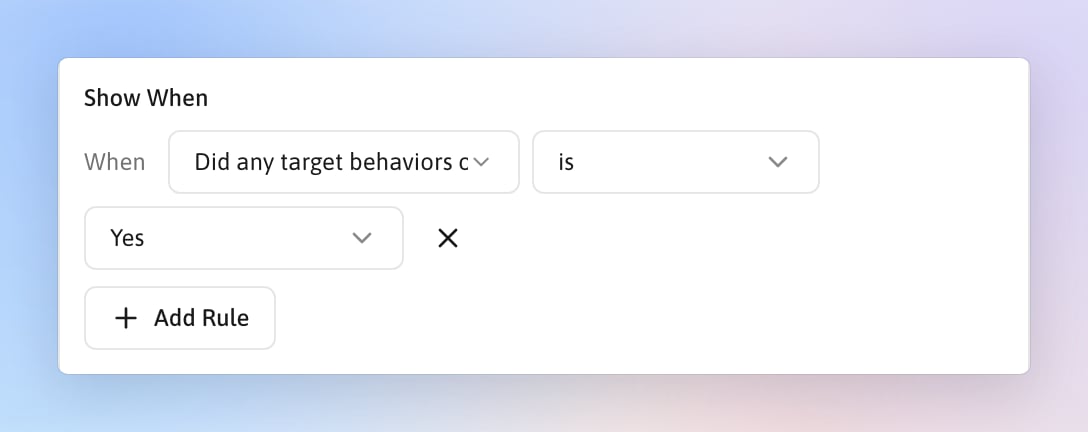
The follow-up's rule, under Show When.
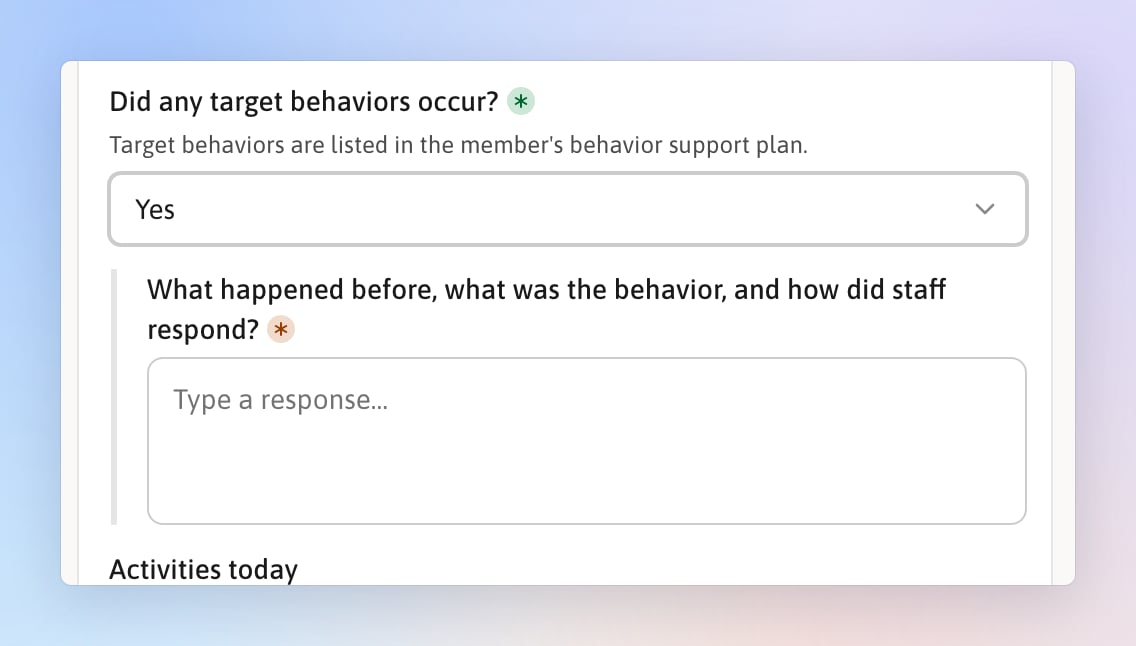
In the preview, answering Yes shows the follow-up.
Lists and tables
Use a List question for answers that repeat, like one row per goal. Set Show Rows As to Table, then click Add Column for each thing staff record in a row. Each column you add becomes a column in the table staff fill in. Its type decides how staff answer in that column: a Short Text column takes typed text, and a Single Select column gives a dropdown.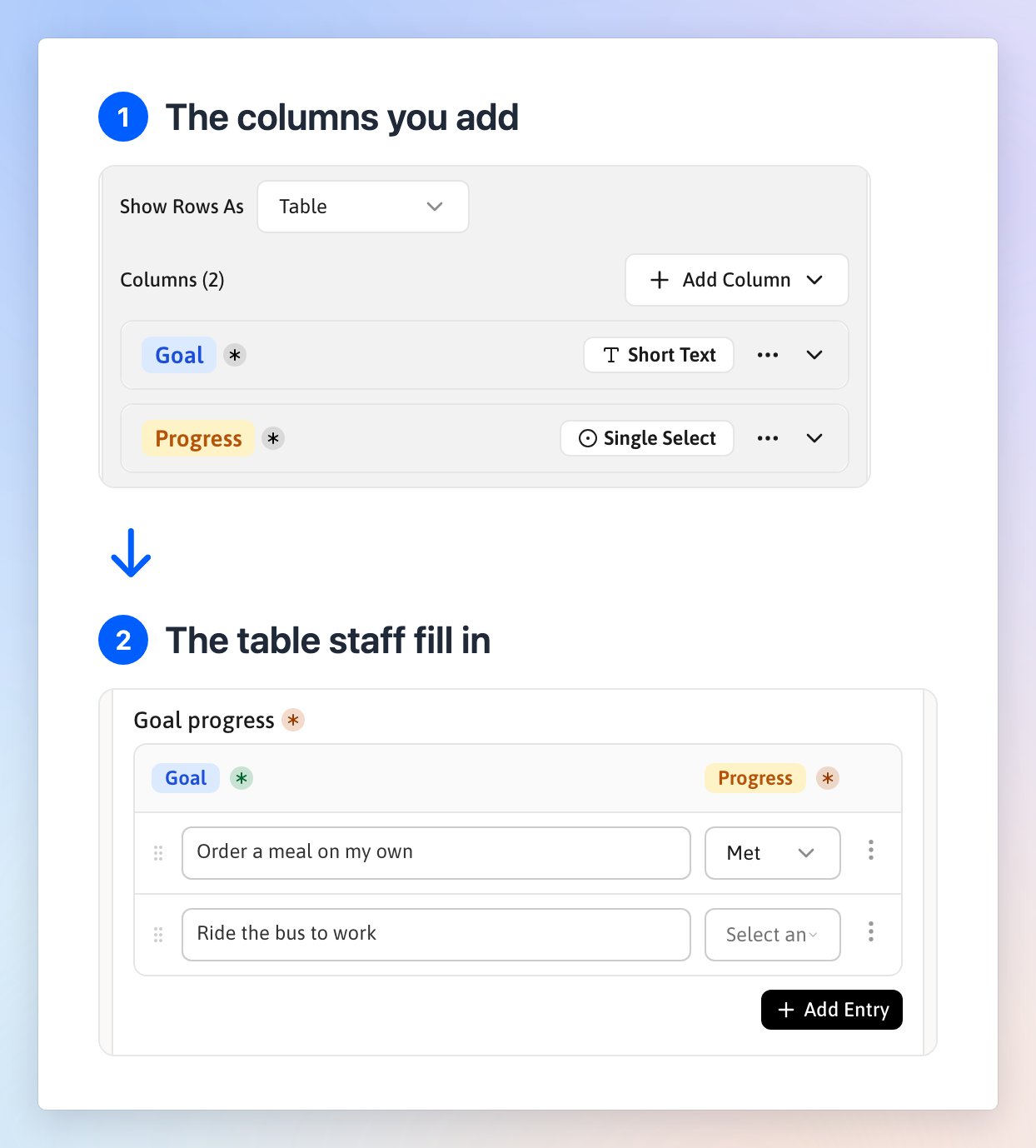
Two columns in the builder, Goal and Progress, become the two columns of the table on the note.
 beside a cell so staff cannot change it, and turn on Cannot be removed to keep a row on every note.
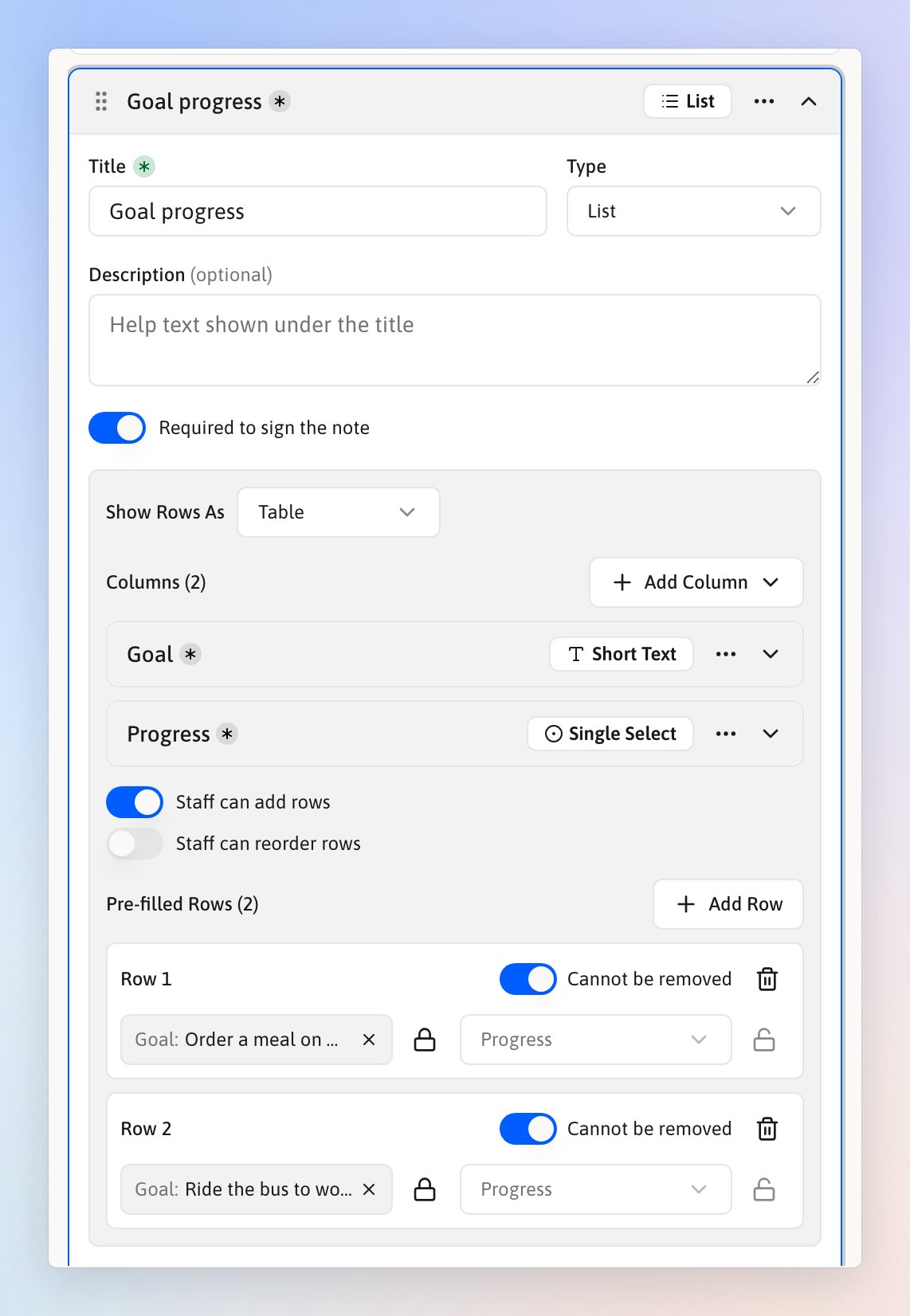
Each goal is pre-filled and locked. Staff only pick the progress.
A required list needs at least one pre-filled row, or Staff can add rows turned on. Otherwise staff cannot sign the note.
Fill in answers for staff
Under Default Answer, a question can fill itself in, so staff do not type it again:- A fixed answer: the same text on every note, like “Individual”.
- From the member or organization: the member’s name or date of birth, your organization’s name or address, or the name of the staff member writing the note.
- From a member custom field: custom fields are extra details your organization keeps about each member, like a Medicaid ID or a preferred language. They show in the About section of each member’s profile. The note pulls in that member’s answer for you.
Magic Pen
Magic Pen fills in a note for staff from the Quick Notes they took during the day. Magic Pen Instructions, at the top of the builder, tell it exactly how that information should flow from Quick Notes into the service record. Each question also has an optional Magic Pen Hint for that question alone.We do not recommend changing these instructions unless you have problems with how Magic Pen fills your notes.
Publish your changes
Staff see nothing until you click Create Template or Publish Changes. Until then, your work is saved in this browser only. Before it publishes, Kibu lists what you Added, Changed, and Removed.- To see or restore an earlier version, click ⋯ at the top and choose Version History.
- A published question cannot change type. To switch, click ⋯ on it and choose Replace Question.
 Version History.
 Replace Question.