

Who can use this feature?
Admins and Super Admins add and remove people, on the web. Everyone else can see who is in a group.
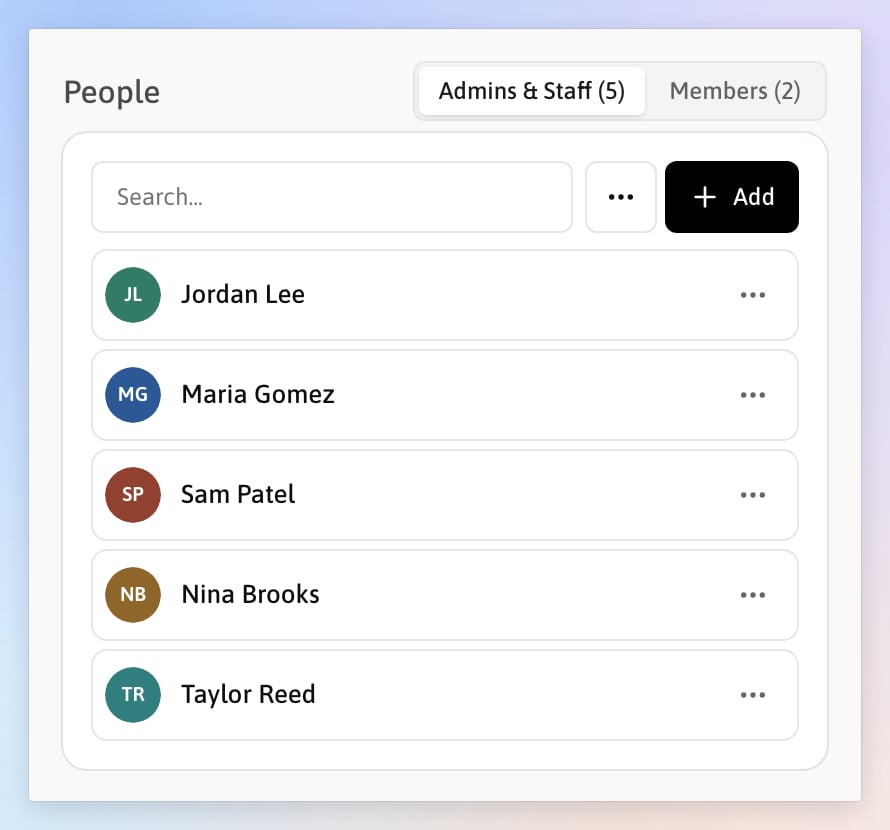
The People section on a group's Settings tab.
Find a group’s people
Open the group from the sidebar and click the Settings tab. The People section on the right has two tabs:- Admins & Staff: the staff in the group, with how many there are.
- Members: the members in the group.
 next to Add and choose
 Export as CSV.
Add people
1
Pick the tab
Choose Admins & Staff to add staff, or Members to add members.
2
Click Add
Click Add. A dialog opens, such as Add Staff to Westview Residence.
 Add. A dialog opens, such as Add Staff to Westview Residence.
3
Choose people
Search for each name and check the box. Pick as many as you need, or click Select all. People already in the group are not listed.
4
Click Add
Kibu confirms they were added, and the count on the tab goes up.
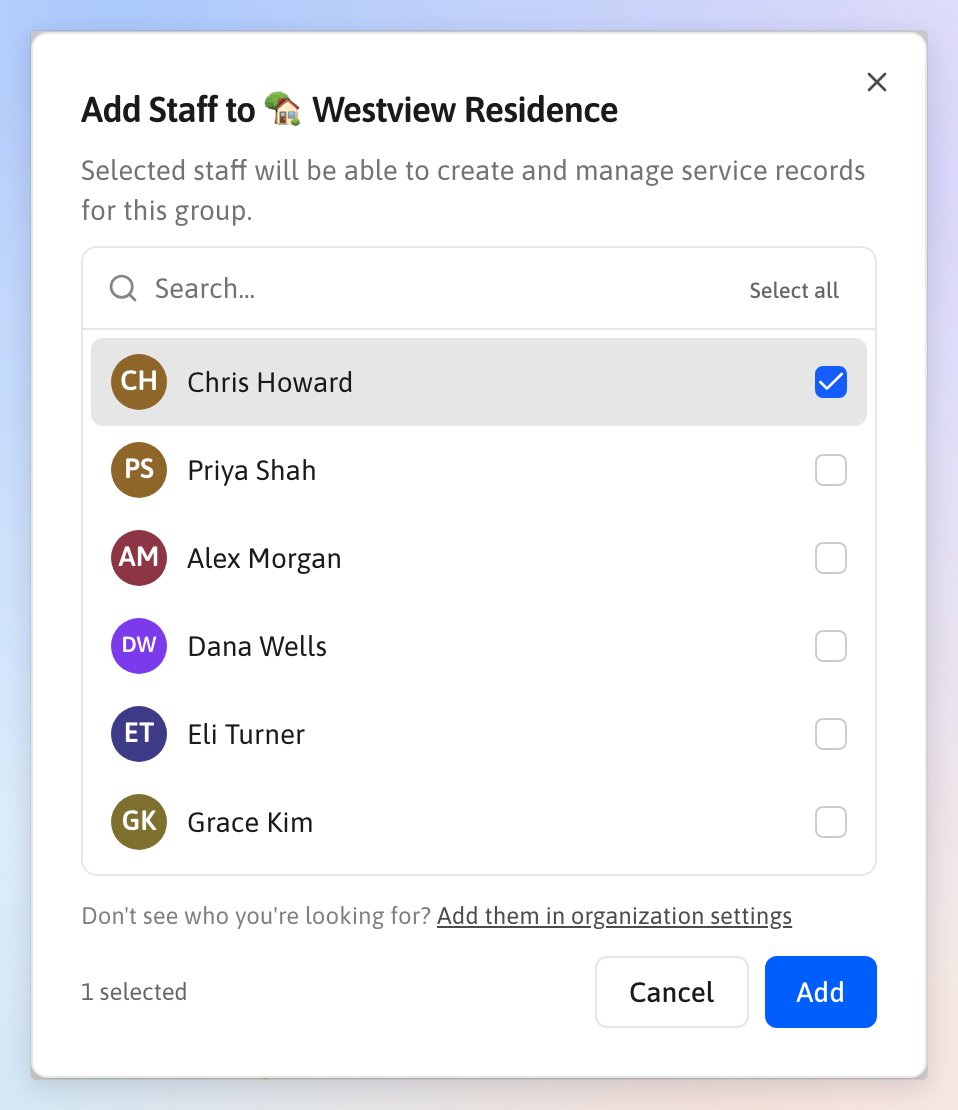
Pick one or more people to add.
Remove people
1
Find the person
On the Admins & Staff or Members tab, find the person.
2
Click Remove
Click on their row and choose Remove.
 Remove.
3
Confirm
Click Remove in the dialog.
Other ways to change someone’s groups
You can also change one person’s groups from their own page:- Staff: on the Groups tab of their profile, from Settings → Admins & Staff. See Managing Staff.
- Members: on the Groups tab of their profile, from Settings → Members. See Managing Members.
 Groups tab of their profile, from
 Settings →
 Admins & Staff. See
 Members. See