
Who can use this feature?

Anyone who can see a member’s records can download reports about them, on the web. See Staff Permissions & Roles.
Kibu has several ways to get health data out: downloads for one member, printable forms, and Clara reports. This page lists what each one holds and where to find it.

At a glance

One member’s records

Care Tasks download

Each download covers the month on screen.
1

Open the member's Care Tasks

Go to the month you want.
2

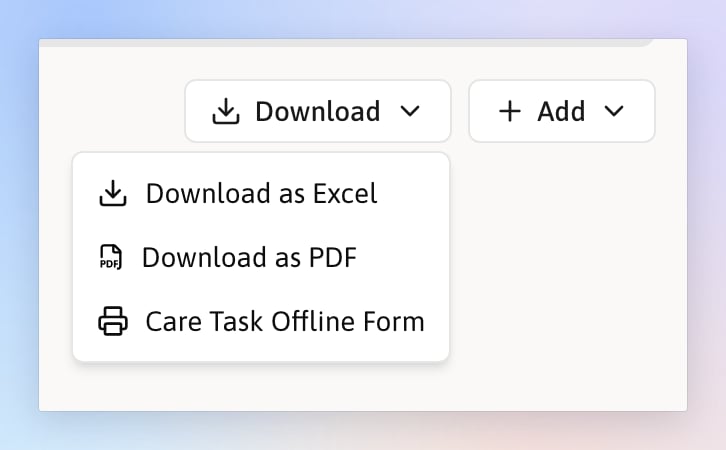
Click Download

Pick one of the three options below.
The Download menu in Care Tasks, with Download as Excel, Download as PDF, and Care Task Offline Form

The Download menu at the top of a member's Care Tasks.

3

Open the file

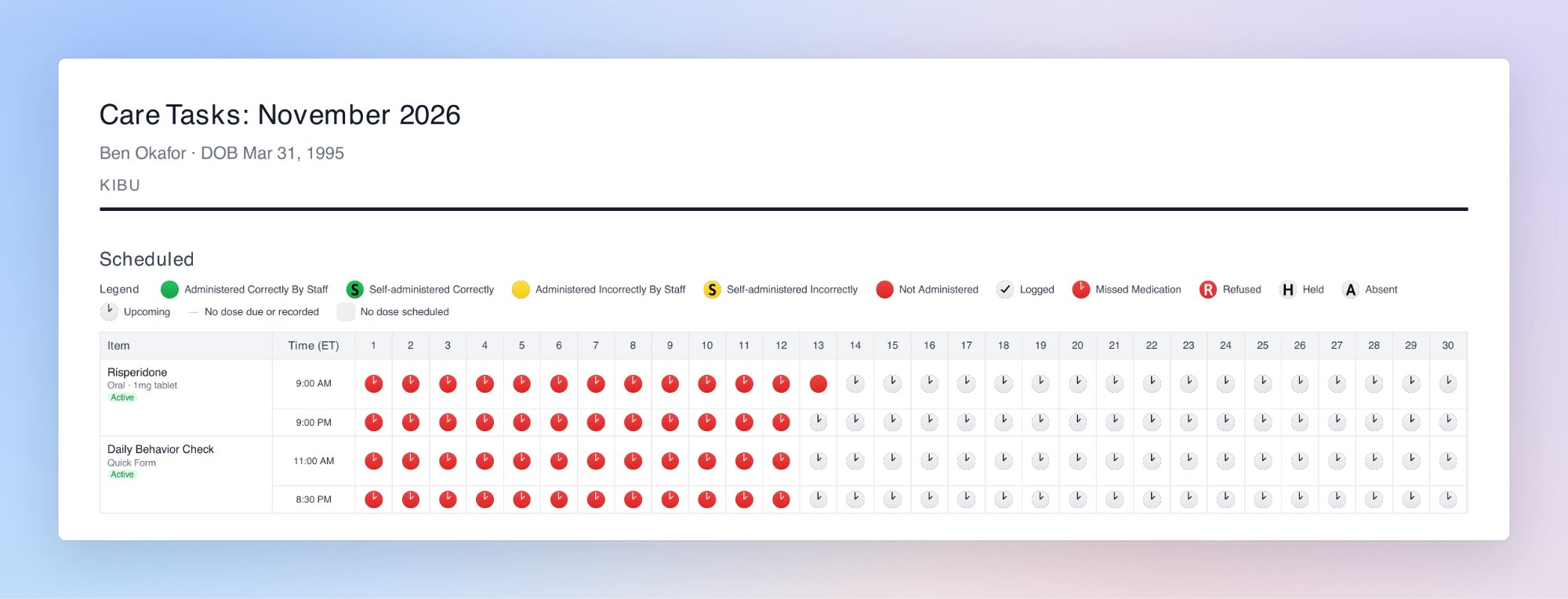
The PDF is the month’s chart, with a status for each scheduled item on each day.
The Care Tasks PDF for one month, with a legend and a row for each medication and Quick Form time

The first page of a Download as PDF chart.

The PDF and the offline form appear only when your organization tracks medications in Care Tasks. See Medication Tracking.

Medication list

1

Open the member's medications

Go to Medical > Medications. Filter or search if you want only some medications.
2

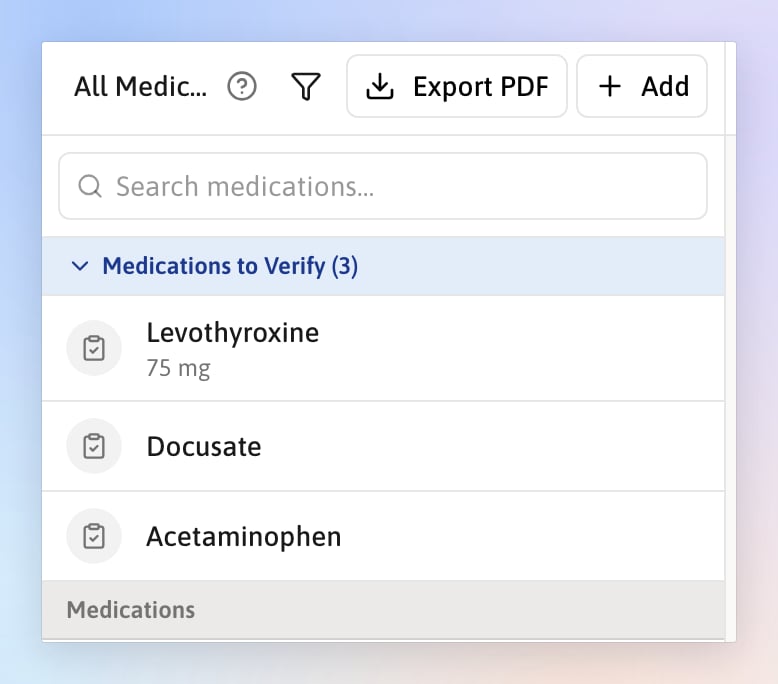
Click Export PDF

The top of the Medications list, with the filter, Export PDF, and Add buttons

Export PDF at the top of the member's medication list.

The PDF lists the medications the page shows now. It also has the member’s diagnoses, allergies, dietary restrictions, eating habits, supplies, and a signature line. See Medications.

Quick Forms report

1

Open the member's Quick Forms report

Go to Reports > Quick Forms and pick a Quick Form.
2

Set the date range

The report opens on the last 3 months.
3

Pick Table or Charts

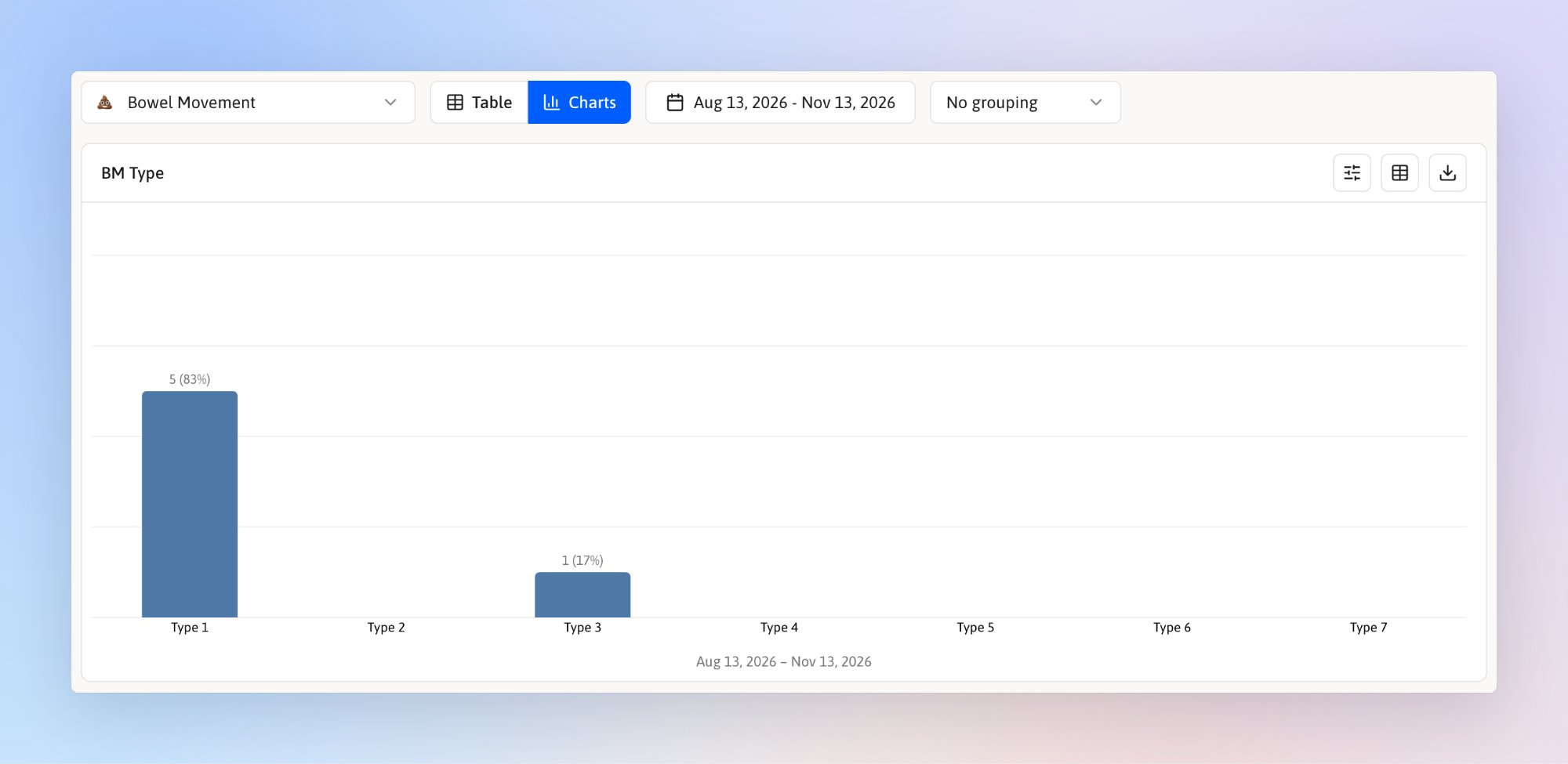
Table lists each entry. Charts graphs each question’s answers, grouped by month, quarter, or year if you choose.
A bar chart of answers to one Quick Form question over a date range, with Table and Charts buttons above it

A Quick Forms report in Charts view, with one chart for each question.

4

Download the entries

In Table, click Download, then Download as Excel or Download as PDF. It saves the entries shown.
To save one entry, open it, click , and choose Print to PDF. See Quick Forms.

Forms

Forms such as a Medication Error Report are on the member’s record.
1

Open the member's forms

Go to Reports > Forms and open the form.
2

Click Export PDF

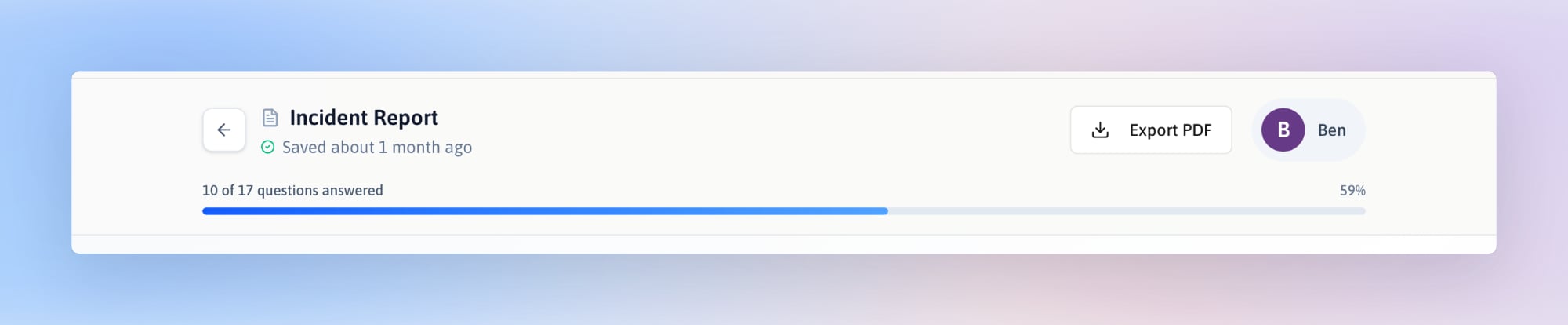
The top of an open Incident Report, with Export PDF beside the member's name

Export PDF at the top of an open form.

Consultation Form

A printable form for a member’s medical appointment.
1

Open Events in the group

2

Create or open the appointment

3

Click Consultation Form

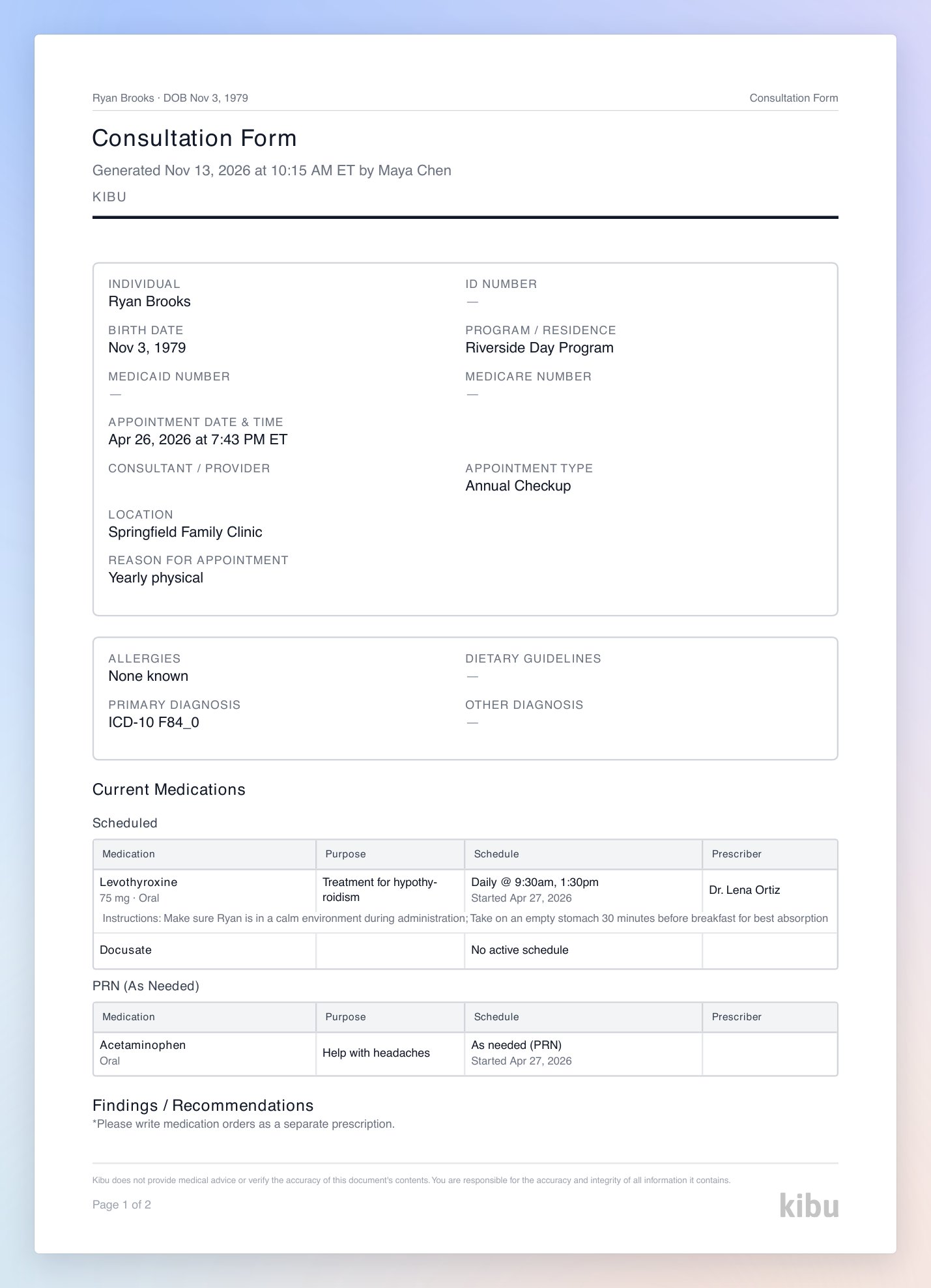
Kibu fills in the member’s details, IDs such as their Medicaid number, the appointment, allergies, diagnoses, dietary restrictions, and active medications. It leaves space for findings, a follow-up appointment, and signatures from the physician, program manager, and nurse.
A Consultation Form PDF with the member's details, the appointment, allergies, diagnosis, and current medications

The first page of a Consultation Form, filled in from the member's record.

If your role can’t see medications, the medication section prints blank lines.

Cycle review

For organizations that use Monthly Cycle Review. Anyone who can approve cycle reviews can download them.
1

Open the member's Cycle Review page

2

Click Export PDF

The PDF has the month with every reviewer’s flags, or the record of a past approval.
See Approving a Cycle Review.
If your organization uses the pharmacy integration, the Prescription History tab on the Pharmacy page also has a Download button that saves the list as a CSV file.

Medical data in Clara

Clara Narratives

Clara writes a report about one member for a date range, from the records you choose. It uses only the records your role can see. See Clara Narratives.
1

Pick the records in Resources

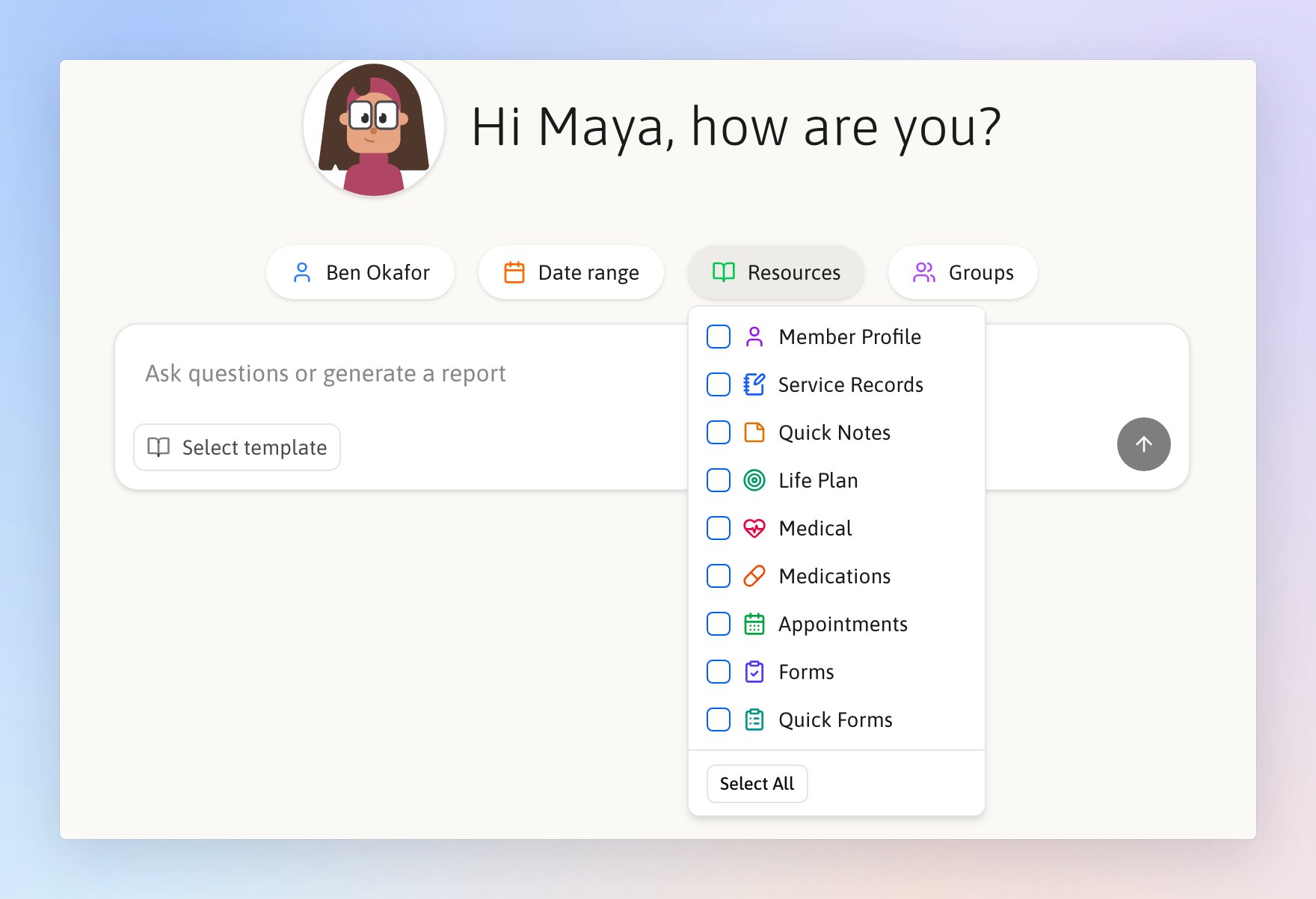
The health sources are Medical (medical history), Medications (the medication list and Care Tasks records), Forms, Quick Forms, and Appointments.
Clara with a member selected and the Resources list open, showing Medical, Medications, Appointments, Forms, and Quick Forms

The Resources list in Clara, where you choose the records a report uses.

2

Click Download

Choose Download PDF or Download Word. Download source data saves the records Clara used.

Clara Insights

Ask a question in plain English, or write SQL, about your whole organization. Kibu turns Clara Insights on for your organization. To ask about it, contact support@kibu.com.

What it can read

Medications and their schedules, administration records, cycle review approvals, Quick Forms, forms, and member diagnoses. Not medication verifications.

What you get

A table you can download as CSV, or a chart. Scheduled reports email a link, never the data. Super Admins can use Clara Insights by default.
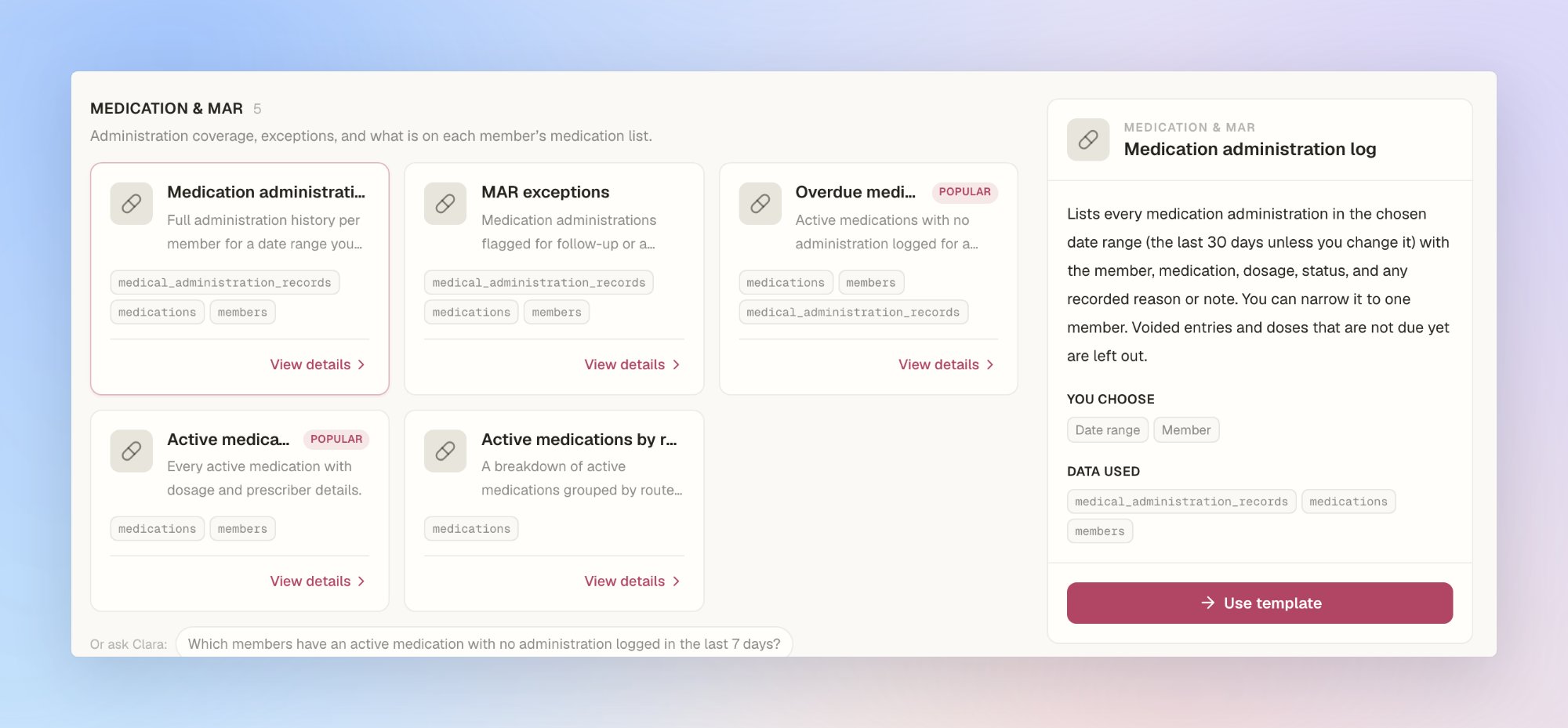
Starter templates include Medication administration log, MAR exceptions, and Overdue medications.
The Medication and MAR section of the Insight gallery, with a template's details and the Use template button

The medication templates in the Insight gallery, with the details of Medication administration log.