

This page applies only if your organization is connected to a partner pharmacy. If you don’t see Pharmacy in your sidebar, your organization doesn’t use the pharmacy integration or your role doesn’t include it. Either way, the Medications page covers everything you need.
Who can use this feature?
By default, Admins and Super Admins use the Pharmacy page, and Read Only Admins can view it. See Staff Permissions & Roles.
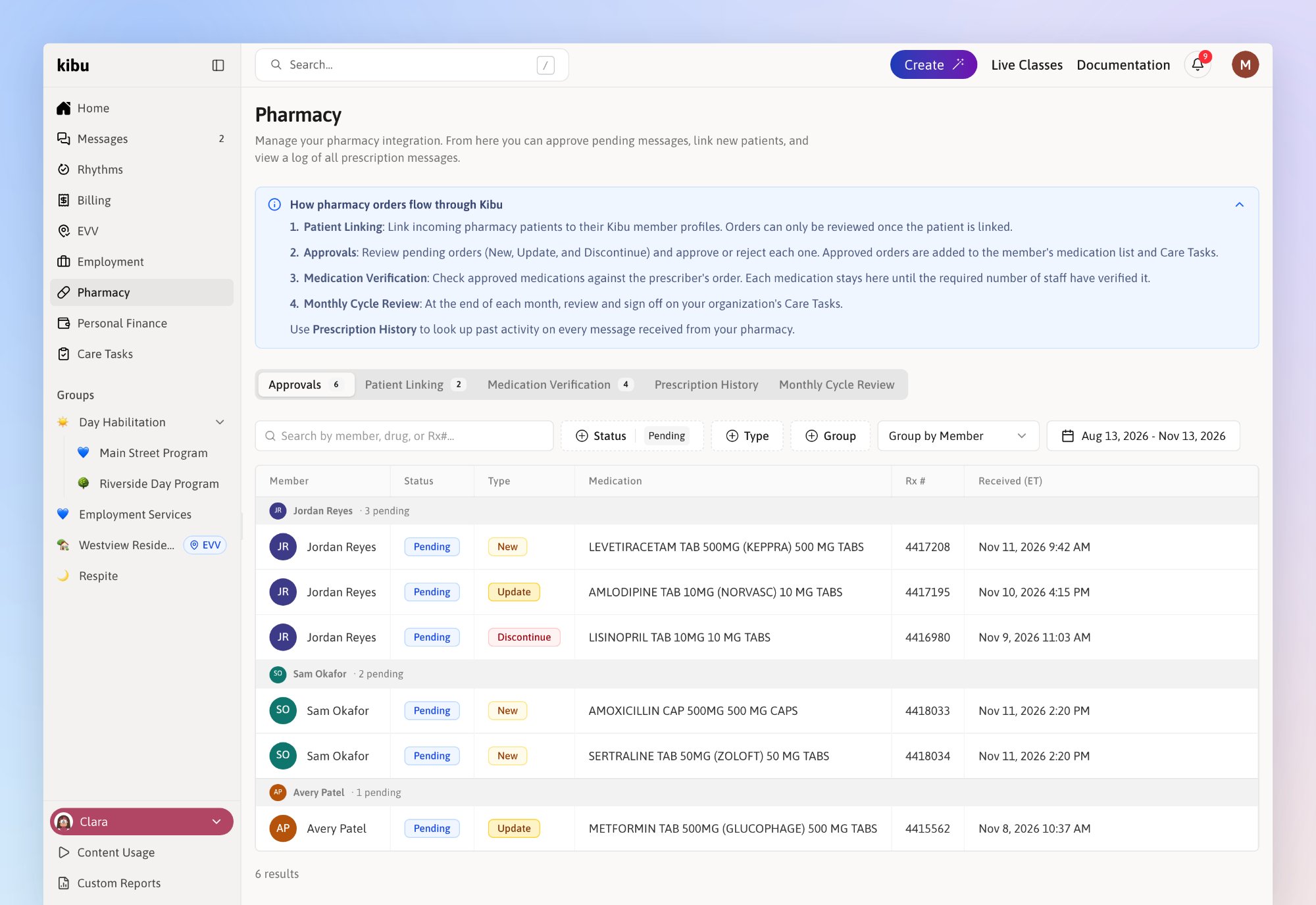
The Pharmacy page, with orders waiting on the Approvals tab.
What you need to know
Order
A message from the pharmacy to add, change, or stop one medication for one person.
Linking
Matching a pharmacy patient to the right member in Kibu, once per person.
Approval
A reviewer checks an order and adds it to the member’s Medications and Care Tasks.
Get connected
Kibu connects with a limited number of partner pharmacies, and each connection is a project between Kibu and the pharmacy. To ask whether your pharmacy can connect, contact support@kibu.com.How an order flows
Each step below has its own tab on the Pharmacy page, in the left sidebar.1
Patient Linking
Link incoming pharmacy patients to their Kibu member profiles. Orders can only be reviewed once the patient is linked. Linking needs permission to add medications and to update members. See Linking Pharmacy Patients.
2
Approvals
Review pending orders (New, Update, and Discontinue) and approve or reject each one. Approved orders are added to the member’s medication list and Care Tasks. Approving needs permission to review medications. See Approving Pharmacy Orders.
3
Medication Verification
Check approved medications against the prescriber’s order. Each medication stays here until the required number of users have verified it. This tab shows only if your organization requires verification, for users who can verify medications. See Medication Verification.
4
Monthly Cycle Review
At the end of each month, review and sign off on your organization’s Care Tasks. This tab shows only if your organization uses cycle review, for users who can approve Care Tasks. See Monthly Cycle Review.
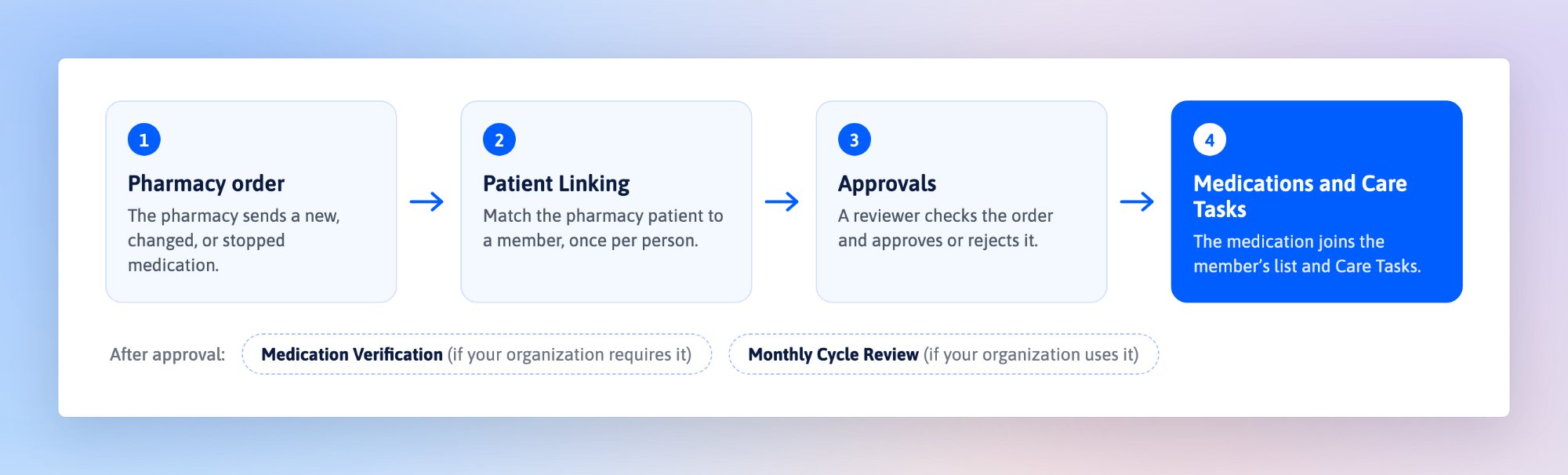
An order goes from the pharmacy, through linking and approval, to Care Tasks.
How pharmacy medications differ
On the member’s Medications page, a small pharmacy icon sits beside each medication that came from the pharmacy. Its fields split in two:Locked to the pharmacy
Name, dosage, route, Rx number, NDC, prescriber, instructions, days supply, and controlled substance details. They cannot be edited.
Owned by your organization
The schedule and its dates, whether the medication is tracked on Care Tasks, and the medication type. These can still be edited.
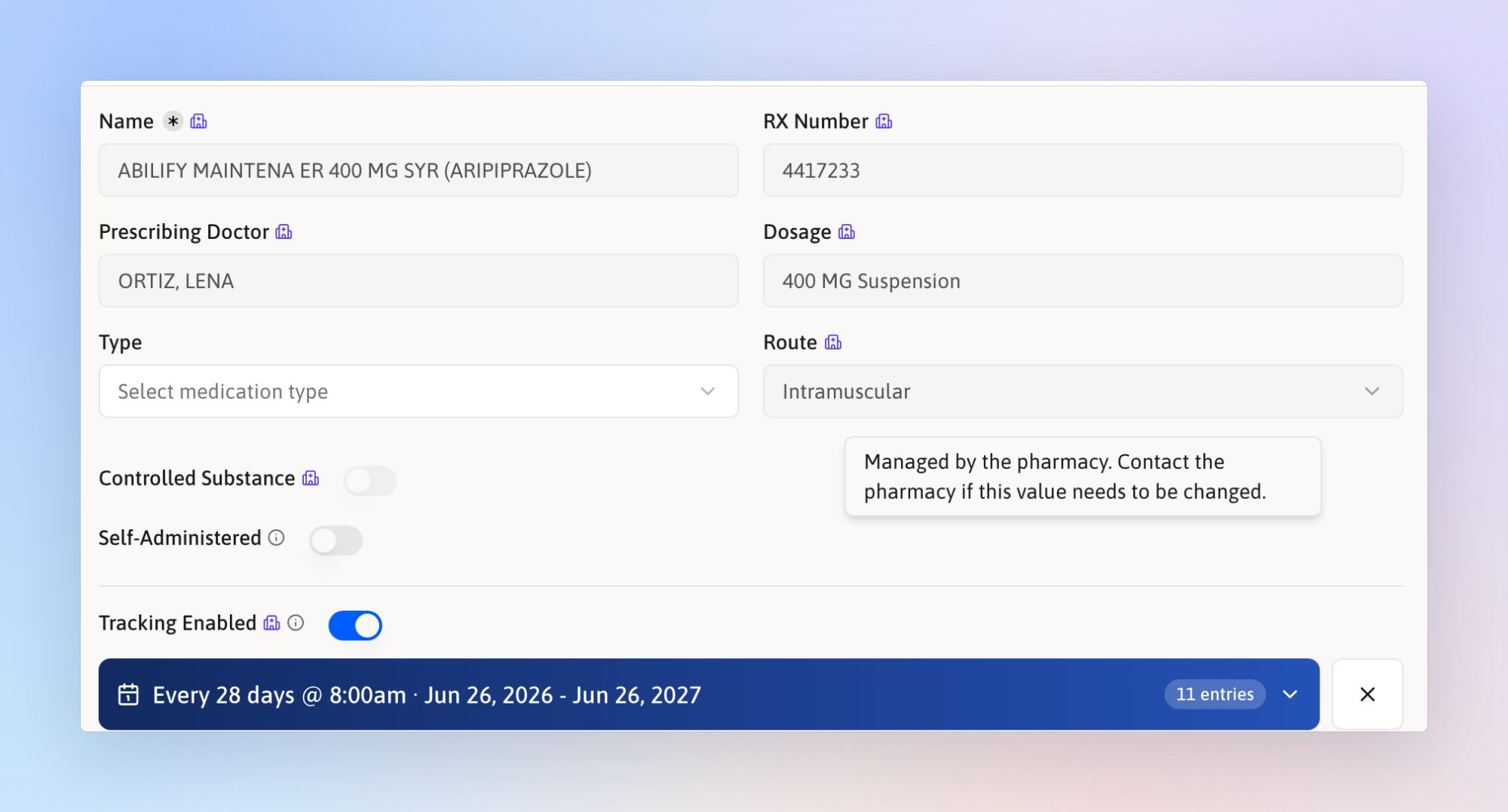
Pharmacy fields are greyed out, with the pharmacy icon beside each label.
What happens when the pharmacy sends a refill?
What happens when the pharmacy sends a refill?
When a refill has no clinical change, Kibu updates the medication and keeps its administrations going on Care Tasks. Nobody approves it. This is the only kind of order that changes a medication without a reviewer.
Get notified about new orders
Nobody gets pharmacy notifications until they are subscribed.1
Open notification settings
Go to Settings > Notifications, click the eMAR tab, and choose Organization-Wide or a group.
2
Subscribe a person or a role
Click Subscribe beside a name, or Bulk Subscribe beside a role.
 Subscribe beside a name, or Bulk Subscribe beside a role.
3
Pick the pharmacy options
Under Pharmacy, select Pending Review, Patient Linking, or both. Then click Subscribe.
Discontinue orders do not send a notification. They appear in Approvals like other orders.
Next steps
Linking Pharmacy Patients
Match each pharmacy patient to the right member.
Approving Pharmacy Orders
Check new, changed, and stopped orders.